PDF to Word
Transform your PDFs into fully editable Word documents in just a few clicks
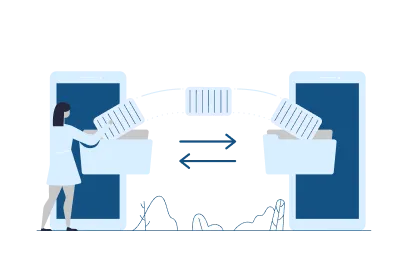
How to Convert PDF to Word
Turn any PDF into an editable Word document in seconds — no software needed.
Step1

Upload your PDF file.
Step2

We convert it to a Word document.
Step3

Download your editable .docx file.
Frequently
Ask a Question

Is this PDF to Word converter really free?
Yes — completely free. No account needed, no file size limits, no watermarks on your converted document.
How accurate is the PDF to Word conversion?
PDF Doctor preserves text, paragraphs, and basic formatting. Complex PDFs with unusual fonts or heavy graphics may vary slightly.
Is my PDF file safe?
Yes. Your file is processed on secure Google Cloud servers and automatically deleted within 24 hours. We never read or share your content.
What format will I receive my converted file in?
You will receive a standard .docx file compatible with Microsoft Word, Google Docs, LibreOffice, and all modern word processors.
Can I convert a scanned PDF to Word?
PDF Doctor works best with text-based PDFs. Scanned PDFs (image-only) may require OCR which is not currently supported.
PDF to Word: The Complete Guide
What Is PDF to Word Conversion and When Do You Need It?
Converting a PDF to a Word document means transforming a fixed-layout, non-editable file into a fully editable DOCX file that you can open and modify in Microsoft Word, Google Docs, or any compatible application. It is one of the most commonly needed PDF operations — because PDFs are everywhere, but editing them directly is either impossible or requires expensive specialised software.
The need usually arises in a few specific situations: you receive a form or template as a PDF and need to fill it in with your own content, you are asked to update a document that was shared as a PDF without the source file, you want to extract and reuse the text from a report or article, or you simply need to make changes to a document that was sent to you in a non-editable format.
How to Convert PDF to Word Using PDF Doctor — Step by Step
Step 1: Upload your PDF. Drag the file onto the upload area or click to browse. For best results, use a text-based PDF rather than a scanned document — more on this below.
Step 2: Click Convert. The tool processes your file and extracts the text, formatting, tables, and layout into a DOCX structure.
Step 3: Download your Word document. The converted file is available for download immediately. Open it in Word or Google Docs and begin editing.
What Converts Well and What Does Not
Honest expectations matter here. PDF to Word conversion works excellently for text-heavy documents with standard formatting — reports, articles, contracts, and letters. Tables convert well in most cases, particularly when they have clear borders and consistent structure.
What does not convert perfectly: complex multi-column layouts may reflow slightly, embedded images are extracted as image objects rather than inline graphics, and custom fonts that are not installed on your system may substitute to the nearest available alternative. For most practical editing purposes, these are minor issues. For pixel-perfect layout preservation, the source file is always preferable.
Scanned PDFs are a separate case. A scanned PDF is a photograph of a document, not a text-based file. Converting it produces an image embedded in a Word document rather than editable text. If you need editable text from a scanned document, OCR (Optical Character Recognition) processing is required before or during conversion.
Real Use Cases
Editing a received contract or proposal: When a client or employer sends you a document as a PDF and you need to suggest edits, converting to Word lets you use track changes and comment features that PDF viewing does not support.
Updating company templates: When the original source file is unavailable but the PDF remains, conversion to Word is the most practical way to update the content without retyping everything from scratch.
Repurposing published content: Research reports, whitepapers, and published documents you have rights to edit can be converted and reformatted for internal use.
Tips and Common Mistakes
Start with the highest quality PDF you have. Conversion quality directly reflects source quality. A clean, text-based PDF produces an excellent Word document. A blurry scan produces poor results regardless of the conversion tool.
Check tables manually after conversion. Tables are the most likely element to need minor cleanup after conversion — particularly merged cells or tables with irregular structures. Spend thirty seconds reviewing any tables in the converted document before distributing it.
Re-export to PDF after editing if needed. If you convert, edit, and want to distribute the result as a PDF again, export directly from Word as PDF rather than using a conversion tool on the edited DOCX. This produces the cleanest result.
For more detail on why formatting sometimes changes during conversion and how to manage it, read our guide on Why Your PDF Looks Different on Every Device.
Why Choose PDF Doctor?
Editorial-grade document processing suite designed for speed and uncompromising security.
100% Free
No subscriptions, no credit cards, no hidden fees. Premium processing for all.
No Signup
Instant access. Just upload and convert without account creation friction.
Secure & Private
Privacy is our priority. All files are automatically deleted within 24 hours.
No Watermarks
Clean, professional output every time. No intrusive branding on documents.
Any Device
Browser-based excellence. Nothing to install, works perfectly on any screen.
Uploading your file…