PDF to HTML
Transform your PDF documents into clean, editable HTML files in seconds
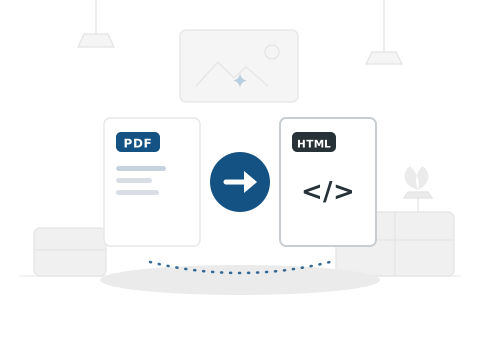
How to Convert PDF to HTML
Turn your PDF into a clean HTML page you can embed or edit on any website.
Step1

Upload your PDF file.
Step2

We convert it to semantic HTML.
Step3

Download your .html file.
Frequently
Ask a Question

Is this PDF to HTML converter free?
Yes — 100% free. No signup, no hidden fees, no watermarks.
Will the text and formatting be preserved?
PDF Doctor extracts text and preserves the structure of your PDF in a clean HTML format.
Is my file safe to upload?
Yes. Files are processed on secure Google Cloud servers and deleted within 24 hours. We never read or share your content.
What PDF formats are supported?
PDF Doctor accepts all standard PDF files.
Why convert PDF to HTML?
HTML files are editable, web-friendly, and can be easily integrated into websites or further processed.
PDF to HTML: The Complete Guide
What Is PDF to HTML Conversion?
Converting a PDF to HTML transforms the document into web-readable format — extracting the text, structure, and where possible the visual layout into HTML markup that can be displayed in a browser, edited, or published on a website.
The most common use cases are making PDF content accessible on the web without requiring a PDF viewer, extracting and repurposing content from PDFs into a web-based format, or migrating document content into a web content management system.
How to Convert PDF to HTML Using PDF Doctor — Step by Step
Step 1: Upload your PDF. Text-based PDFs produce the most accurate HTML output.
Step 2: Click Convert. The tool extracts the document’s content and structure into HTML format.
Step 3: Download your HTML file. Open it in a browser or import it into your web editor.
What to Expect
PDF to HTML conversion captures text content reliably. Complex multi-column layouts, decorative elements, and precise typographic positioning are approximated rather than perfectly preserved — HTML is a reflowable format, not a fixed-layout format, so some layout differences are inherent.
For straightforward text documents, the output is clean and immediately usable. For design-heavy PDFs, some manual HTML editing may be needed to achieve the desired visual result.
Real Use Cases
Publishing PDF content on a website: When you have reports, whitepapers, or guides in PDF format and want the content to be accessible directly on a web page rather than requiring a download, converting to HTML gives you web-ready markup that can be styled and published.
Improving accessibility: PDF documents are often difficult for screen readers and assistive technologies to parse correctly. Converting to HTML produces structured content that is inherently more accessible, searchable, and indexable by search engines.
Migrating legacy documents to a CMS: Organisations with libraries of PDF documentation can convert them to HTML as a starting point for importing content into WordPress, Notion, or other content management systems.
Tips and Common Mistakes
Text-based PDFs produce the best results. PDFs created from Word, LaTeX, or other text-based sources contain selectable text that converts cleanly to HTML. Scanned PDFs that consist of page images will not produce usable HTML text without OCR processing first.
Review the output before publishing. Converted HTML may include inline styles or absolute positioning from the original PDF layout. If you plan to publish the content on a website, a quick cleanup pass to remove unnecessary styles and adjust the structure to your site’s CSS will produce a better result.
Images in the PDF are extracted separately. Any images embedded in the original PDF are included in the HTML output as separate image files. Verify that image paths are correct if you move the HTML file to a different directory after conversion.
Tables may need restructuring. Tables in PDFs are often rendered as positioned text blocks rather than semantic HTML table elements. If the converted HTML does not produce a proper table tag structure, you may need to wrap the extracted data in table markup manually for correct display on a web page.
Why Choose PDF Doctor?
Editorial-grade document processing suite designed for speed and uncompromising security.
100% Free
No subscriptions, no credit cards, no hidden fees. Premium processing for all.
No Signup
Instant access. Just upload and convert without account creation friction.
Secure & Private
Privacy is our priority. All files are automatically deleted within 24 hours.
No Watermarks
Clean, professional output every time. No intrusive branding on documents.
Any Device
Browser-based excellence. Nothing to install, works perfectly on any screen.