PDF to Excel
Transform your PDF tables into fully editable Excel spreadsheets in just a few clicks
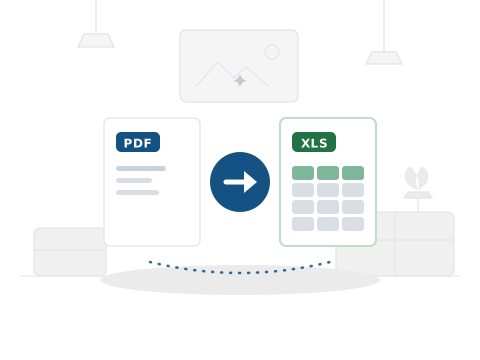
How to Convert PDF to Excel
Extract tables from your PDF into a ready-to-use Excel spreadsheet.
Step1

Upload your PDF file.
Step2

We extract tables into Excel format.
Step3

Download your .xlsx spreadsheet.
Frequently
Ask a Question

Is this PDF to Excel converter free?
Yes — 100% free. No account, no subscription, no watermarks.
Does it work for PDFs with multiple tables?
Yes. PDF Doctor extracts all tables found in your PDF and combines them into a single spreadsheet.
Is my file safe to upload?
Absolutely. Files are processed on secure Google Cloud servers and deleted within 24 hours. We never share your content.
What if my PDF has no tables?
If no tables are detected, the conversion may return an empty or minimal result. PDF Doctor works best with structured table data.
Can I convert a multi-page PDF to Excel?
Yes. PDF Doctor scans all pages of your PDF for tables and includes them all in the output Excel file.
PDF to Excel: The Complete Guide
What Is PDF to Excel Conversion and When Do You Need It?
Converting a PDF to Excel means extracting tabular data — numbers, rows, columns, structured information — from a PDF file and placing it into an editable spreadsheet. It is one of the most time-saving conversions available for anyone who regularly works with financial data, reports, or structured information shared in PDF format.
The problem PDF to Excel solves is simple: data locked in a PDF cannot be calculated, filtered, charted, or analysed without first getting it out of the PDF. Manually retyping rows of figures from a PDF into a spreadsheet is slow and error-prone. Conversion does it automatically in seconds.
How to Convert PDF to Excel Using PDF Doctor — Step by Step
Step 1: Upload your PDF. The tool works best with PDFs that contain actual tables — financial reports, data exports, invoice summaries, and similar structured documents.
Step 2: Click Convert. PDF Doctor extracts the tabular structure from your PDF and maps it into a spreadsheet format.
Step 3: Download your Excel file. Open it in Microsoft Excel or Google Sheets and begin working with the data immediately.
What Converts Well
Structured tables with clear column headers, consistent rows, and defined borders convert cleanly. Financial statements, bank export PDFs, product inventory tables, and similar documents are ideal candidates.
Complex layouts — tables that span multiple pages with irregular structures, or PDFs where the “table” is actually just text aligned to look like a table — may require manual cleanup after conversion. Scanned PDFs, as with Word conversion, do not produce editable data without OCR processing first.
Real Use Cases
Financial analysis: Quarterly reports and financial statements shared as PDFs can be converted and analysed in Excel — calculating year-on-year changes, creating charts, or feeding data into a financial model.
Invoice processing: Bulk invoice data extracted from PDFs into Excel enables sorting by vendor, date, or amount — significantly faster than manual entry.
Research data: Academic or industry reports with data tables can be extracted and worked with in a spreadsheet rather than referenced by eye from a PDF.
Tips
Check column alignment after conversion. The most common issue is data shifting between columns when a PDF’s table structure is not perfectly regular. A quick scan of the output before using the data takes less than a minute and catches the most common errors.
For very large tables, split the PDF first. If your document contains a 500-row table across many pages, processing it in sections using Split PDF and then converting each section can produce more reliable results.
Verify number formatting after conversion. Currency symbols, percentage signs, and date formats in the PDF may not automatically convert to Excel’s native number formats. After opening the spreadsheet, check that numeric columns are recognised as numbers rather than text so that formulas, sorting, and filtering work correctly.
Why Choose PDF Doctor?
Editorial-grade document processing suite designed for speed and uncompromising security.
100% Free
No subscriptions, no credit cards, no hidden fees. Premium processing for all.
No Signup
Instant access. Just upload and convert without account creation friction.
Secure & Private
Privacy is our priority. All files are automatically deleted within 24 hours.
No Watermarks
Clean, professional output every time. No intrusive branding on documents.
Any Device
Browser-based excellence. Nothing to install, works perfectly on any screen.
Uploading your file…