Converting an HTML file to PDF sounds like it should produce an exact copy of what you see in your browser. It almost never does. Web pages are designed to be fluid — they stretch, reflow, and rearrange depending on your screen size, browser, and device. A PDF is a fixed-layout document with defined page dimensions. Forcing one format into the other means something has to give, and understanding what changes is the difference between a clean result and a PDF that looks nothing like the page you were trying to save.
In five-plus years of working with document automation and PDF workflows, HTML-to-PDF is the conversion where I see the widest gap between what people expect and what they get. A web page that looks polished in Chrome can produce a PDF with missing images, broken layouts, cut-off text, or entirely blank sections — not because the tool failed, but because the page relied on things a conversion tool cannot always replicate.
This guide walks through how to convert an HTML file to PDF for free using PDF Doctor. Unlike most guides on this topic, we didn't just describe the process — we ran two real test files through the live tool today and documented exactly what came out, screenshots included.
How We Tested This
Rather than describe HTML-to-PDF conversion in the abstract, we built two test files and ran them through PDF Doctor's HTML to PDF tool on 20 September 2026:
- A self-contained invoice — inline CSS in a <style> block, an inline SVG logo, no external dependencies of any kind.
- An external-resources newsletter — a remotely hosted image, a CDN-linked stylesheet, a Google Font, and a line of text inserted by JavaScript after the page loads.
Screenshots of the process and both outputs are included below, so you can see exactly what we saw at each step.
What we found
Element tested
Self-contained file
External-resources file
Inline / embedded CSS
Rendered correctly
—
Inline SVG graphic
Partial — the fill color was dropped, only the text survived
—
Table layout & borders
Rendered correctly
—
Externally hosted image
—
Loaded successfully
External stylesheet (CDN)
—
No clearly visible effect
Google Font
—
Fell back to a default font
JavaScript-inserted text
—
Did not execute — the placeholder text stayed
Two results are worth calling out because they refine what's commonly assumed about browser-based conversion tools:
The inline SVG didn't fully render. Even with zero external dependencies, our logo's colored background rectangle disappeared — only the text layer came through. If your HTML uses inline SVG graphics, test them individually rather than assuming "inline = safe."
The externally hosted image loaded. This runs against the common assumption that file-upload conversion tools can never reach external resources. One important caveat: the image in our test was hosted on pdfsdoctor.com itself, so this was a same-origin request. We can't yet confirm whether a third-party image (e.g., hosted on a different CDN) behaves the same way — that's a limitation of this specific test, not a general claim. What we can confirm with more confidence: the CSS from the external stylesheet had no clearly visible effect, the Google Font fell back to a system default, and JavaScript-driven content did not execute.
If you re-run these tests with a cross-origin image and get a different result, we'd like to know — it would sharpen this section for future readers.
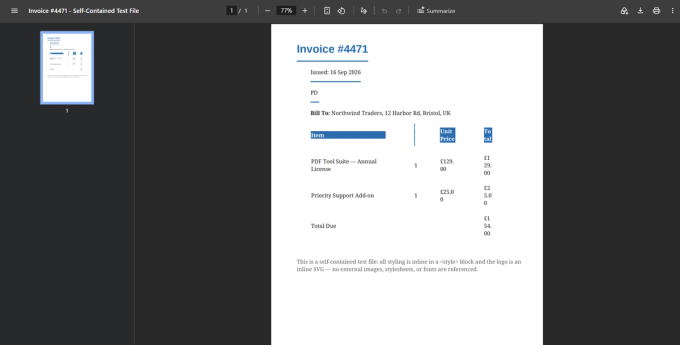
Above: the self-contained invoice's actual output. Note the "PD" logo text has no colored background behind it — the inline SVG's fill was dropped during conversion, even though the file had zero external dependencies.
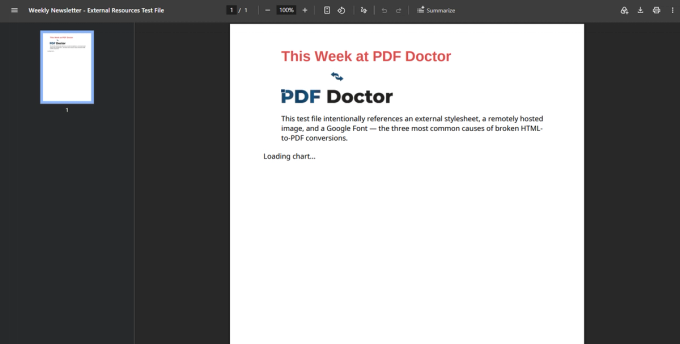
Above: the external-resources newsletter's actual output. The remotely hosted logo loaded successfully, but the page still reads "Loading chart..." — confirmation that the JavaScript meant to replace that placeholder text never ran.
What Actually Happens When You Convert HTML to PDF
A web page and a PDF solve fundamentally different problems, and the conversion has to bridge that gap.
An HTML file is a set of instructions that tells a browser how to display content. The browser reads the HTML structure, applies CSS styles, executes JavaScript, loads external resources like images and fonts, and then renders the result on screen. The final appearance depends on the browser engine, the screen width, the device's available fonts, and whether external resources loaded successfully.
A PDF, by contrast, is a finished snapshot — every element is positioned at fixed coordinates on pages of defined dimensions. There is no reflowing, no responsiveness, no conditional rendering.
When a conversion tool creates a PDF from HTML, it acts as a limited browser: it reads the HTML, applies whatever CSS it can interpret, and renders the result onto fixed pages. As our test above shows, exactly what it can and can't interpret is more nuanced than a blanket rule — some external resources may load, some inline elements may partially fail, and JavaScript-driven content consistently does not execute. This is why the safest working assumption is still: make your HTML self-contained, then verify the specific elements that matter to you.
How to Convert HTML to PDF With PDF Doctor (Free, No Account Required)
Step 1: Open the Conversion Tool
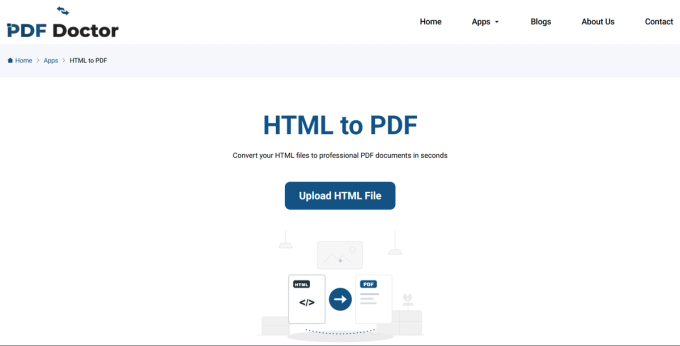
Go to pdfsdoctor.com and navigate to the HTML to PDF tool. No sign-up, no payment, no software to install. Works on Chrome, Firefox, Safari, and Edge, on desktop and mobile.
Step 2: Upload Your HTML File
Click Upload HTML File and select the file from your device. The tool reads the HTML content and prepares it for conversion.
Before uploading, understand an important distinction: you are uploading a local HTML file from your device, not entering a URL. If your HTML references external resources — images, stylesheets, fonts — those may or may not come through, as our test above shows. For the most predictable results, use a self-contained HTML file where images are embedded (as base64 or local file references), CSS is inline or in a <style> block, and fonts are standard system fonts.
Step 3: Convert the File
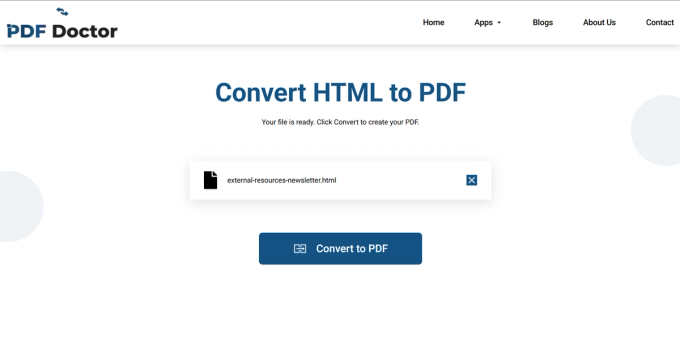
Click Convert HTML. The tool renders the HTML content and generates a PDF. For simple files this takes a few seconds; in our test, both files converted in under 3 seconds.
Step 4: Download and Review
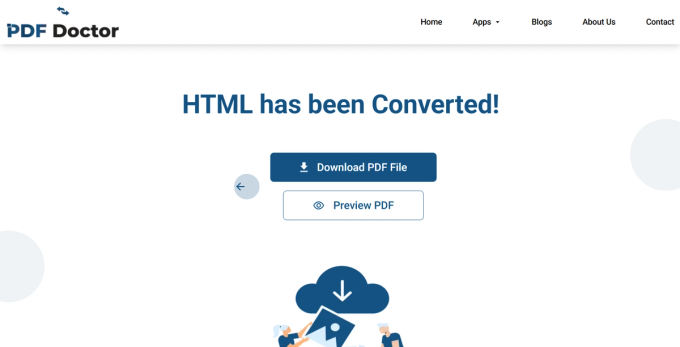
Click Download PDF File to save the document, or Preview PDF to check it in-browser first — this is what we used during testing. Specifically check that images appear, that the layout roughly matches what you expected, that inline graphics (SVGs, icons) kept their fill colors, that text is complete, and that fonts look correct.
A concrete example from real use: a marketing coordinator saved a company newsletter — built as an HTML email — to convert to PDF for archiving. The newsletter looked great in the browser, but the PDF was missing every image, because the local HTML file only contained URL references to remotely hosted images, not the image data itself. Once she saved the images locally and updated the HTML to reference the local files, the conversion worked as expected. This matches our own finding: self-contained files are still the most reliable starting point, even though our live test showed at least one same-origin external image coming through.
A Note on Privacy
Uploaded files are automatically deleted from our servers after processing and are not stored or shared. If your HTML file contains sensitive content — internal reports, client data, confidential communications — and your organization requires files to never leave your machine, a desktop tool or your browser's built-in Print → Save as PDF function processes everything locally. For everyday conversions, browser-based processing is a practical option.
What Typically Breaks During Conversion
Knowing these patterns saves you from trial and error. Where we have direct test evidence for a claim, we've noted it.
Missing images. The most common issue reported by users, though our test shows this isn't absolute — a same-origin image loaded successfully for us. Third-party CDN images are the higher-risk case; if in doubt, embed the image directly.
Broken layouts from responsive CSS. The conversion tool renders the HTML at a specific viewport width, which may trigger a mobile, desktop, or in-between layout regardless of how the page was designed to look.
Inline graphics losing styling. Confirmed in our test — an inline SVG's fill color did not render, even though the SVG itself had no external dependencies. Text and shapes inside SVGs should be checked individually rather than assumed safe because they're inline.
Missing styles from external CSS. In our test, a CDN-linked stylesheet had no clearly visible effect on the output. If a stylesheet's styling is essential, inline it directly into a <style> block instead of linking it.
JavaScript-dependent content not rendering. Confirmed in our test — a line of text inserted via JavaScript after page load simply did not appear; the placeholder text remained. If your page builds content dynamically (charts, API-loaded data, single-page apps), a file-upload conversion tool will not render it.
Page break problems. HTML has no concept of pages. When the conversion tool splits continuous web content into PDF pages, text can get cut mid-line, images can split across pages, and headers or footers may appear in unexpected positions. CSS print properties like break-inside and the @page rule can help control this, but most web pages don't include them by default.
Font changes. Confirmed in our test — a Google Font fell back to a default system font. If exact typography matters, use system fonts or embed the font file directly.
When HTML-to-PDF Conversion Makes Sense
- Archiving web content — preserving an article, report, receipt, or confirmation page exactly as it appeared, before it changes or disappears.
- Saving receipts and confirmations that don't offer a native download option.
- Sharing web content offline with people who may not have reliable internet access.
- Printing web pages cleanly, avoiding the navigation bars, ads, and overflow that come with printing directly from a browser.
- Creating documents from HTML templates — a standard step in automated workflows where HTML is generated by code and converted to PDF for delivery.
When HTML-to-PDF Is the Wrong Approach
- If you need to save a live web page exactly as it looked — your browser's built-in Print → Save as PDF is more reliable, because the browser has already loaded all resources, executed JavaScript, and rendered the page fully. Browser extensions like SingleFile can also save a complete, self-contained HTML copy first.
- If the page is built entirely with JavaScript — single-page applications (React, Vue, Angular) will produce blank or incomplete sections, as our test confirmed. Use a tool that runs a full browser engine, such as Puppeteer.
- If you need an editable document — convert to Word instead.
- If the page has complex interactive elements — forms, calculators, embedded maps, and interactive charts will not function in a PDF.
- If precise page layout matters — authoring directly in a tool designed for page layout (Word, InDesign, or HTML with CSS print styles) will produce better results than converting an existing web page.
What PDF Doctor's Conversion Tool Does Well — and Where It Has Limits
We'd rather be direct about fit than have you struggle with a result that doesn't meet your needs.
Our tool is built for: converting self-contained HTML files — where text, styles, and images are included within the file itself — into clean PDFs quickly and for free in a browser. Simple HTML documents, locally saved pages, and HTML-based templates are the sweet spot. Our own testing shows table layouts and inline CSS convert cleanly; inline SVG fills and JavaScript-driven content are the areas to watch.
Where other approaches are a better fit:
If you need to capture a live web page with all its external resources, your browser's Print → Save as PDF is the most reliable free option. If you need JavaScript execution for dynamic pages, Puppeteer (free, open-source, headless Chrome) renders the full page before converting — the standard tool for developers. If you need fine control over page breaks, margins, and print styling, wkhtmltopdf (free, open-source, command-line) and WeasyPrint (Python-based) both offer detailed configuration. For automated workflows, developer libraries like Puppeteer, wkhtmltopdf, or Prince handle batch conversion with full control over rendering.
Common Conversion Mistakes and How to Avoid Them
- Uploading an HTML file with external resource dependencies without checking each one individually — our test shows outcomes vary by resource type, so "external = broken" isn't always true, but it's still the safer assumption to test against.
- Expecting the PDF to look exactly like the browser. Your browser executes JavaScript, loads external resources, applies responsive styles, and uses your system's fonts. The conversion tool operates in a more limited environment.
- Not using the browser's built-in PDF export for live pages. Ctrl+P (or Cmd+P) → Save as PDF uses the browser's own rendering engine, which has already loaded everything.
- Ignoring page break issues. If you control the HTML source, adding CSS print rules (break-before, break-after, break-inside: avoid) gives you control over where pages split.
- Converting a page that relies on JavaScript rendering. Confirmed in our test: JavaScript-inserted content does not appear. Use a browser-based capture method instead.
Tips for the Best Results
Make your HTML self-contained before converting — embed images as base64 or local references, include CSS inline, use standard system fonts, and check inline SVGs individually for lost styling. For live web pages, use your browser's Print → Save as PDF instead of uploading the HTML file. Keep the original HTML file so you can adjust and reconvert if needed. For automated or repeated conversions, invest time in adding CSS print styles to your HTML templates.
Frequently Asked Questions
Does PDF Doctor's HTML to PDF tool run JavaScript? No. In our 20 September 2026 test, a line of text inserted by JavaScript after page load did not appear in the output PDF. If your page depends on JavaScript to display content, use a headless-browser tool like Puppeteer instead.
Will my externally hosted images show up in the PDF? It depends. In our test, an image hosted on the same domain as the tool loaded successfully. We have not yet confirmed whether a third-party CDN image behaves the same way. The safest approach is to embed images directly in the HTML file as base64 data.
Why did my inline SVG lose its color? We saw this too — an inline SVG's background fill dropped out during conversion while the text layer survived. Test inline graphics individually rather than assuming they're safe because they have no external dependencies.
Is it safe to upload files with sensitive information? Uploaded files are deleted from PDF Doctor's servers after processing. If your organization requires files to never leave your device, use your browser's local Print → Save as PDF instead.
Wrapping Up
HTML-to-PDF conversion is most useful when you need to freeze web content into a portable, permanent format — archiving articles, saving receipts, generating documents from templates, or sharing content offline. Based on our direct testing, it works best with self-contained HTML files, though even those can have individual quirks (like our SVG fill issue) worth checking before you rely on the output.
The conversion tool used and tested in this guide is available at pdfsdoctor.com.