Converting a JPG image to a PDF sounds like the simplest possible operation — and mechanically, it is. But in five-plus years of building and maintaining PDF conversion pipelines, this is the conversion where I see the most avoidable frustration. Not because the conversion fails, but because people do not think about three things before they start: image order, image resolution, and page sizing. Get those right and you have a clean, professional PDF. Get them wrong and you have a 50MB file with blurry pages in the wrong sequence.
This guide covers how to convert JPG or JPEG images to PDF for free using PDF Doctor, what actually happens during the conversion, how to control the quality and size of the output, and the specific mistakes that produce unusable results — with screenshots from the live tool at every step.
What Actually Happens When You Convert JPG to PDF
Unlike most PDF conversions where the tool has to reverse-engineer structure, JPG-to-PDF is comparatively simple — but understanding the mechanics helps you avoid the most common quality problems.
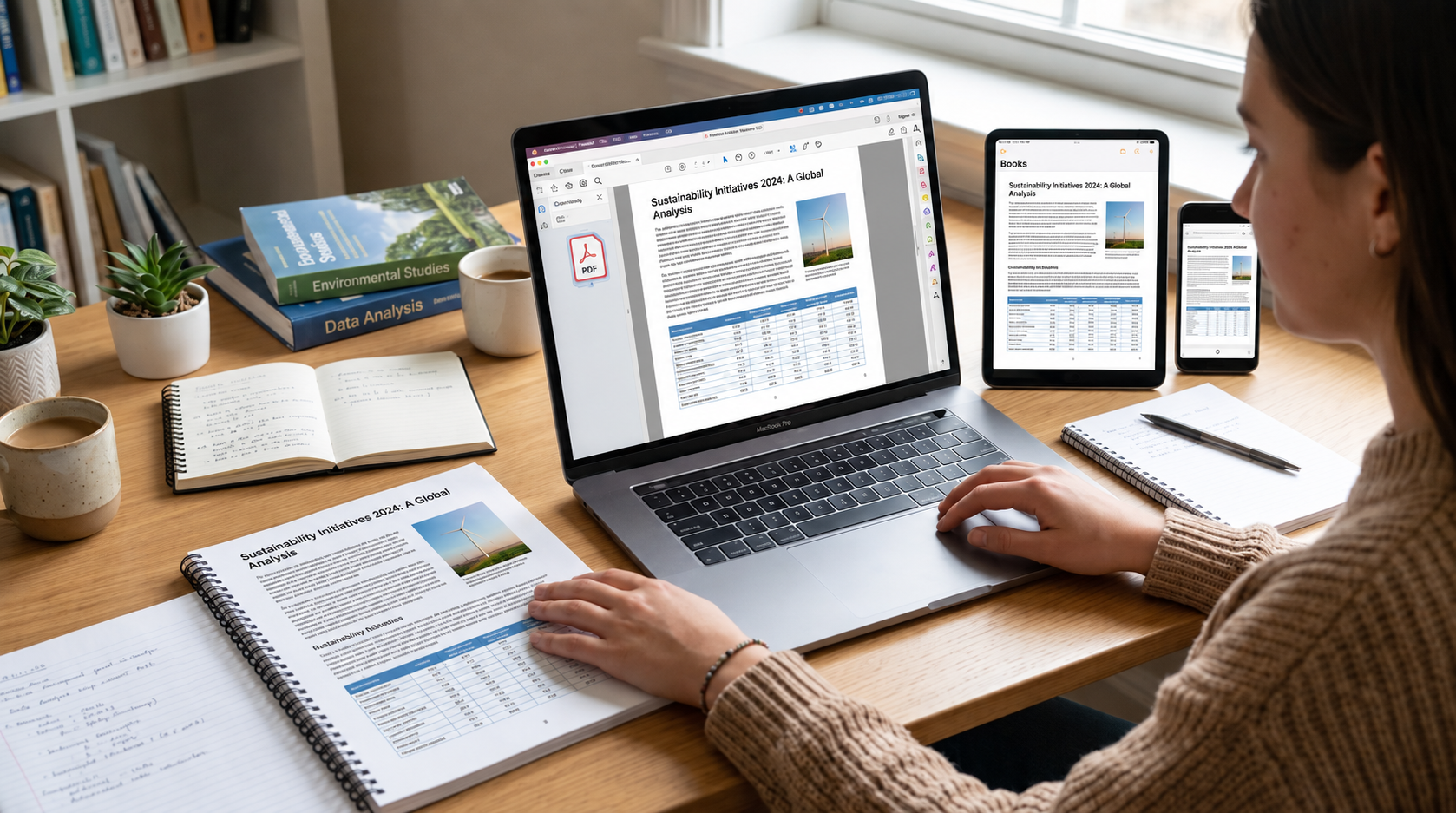
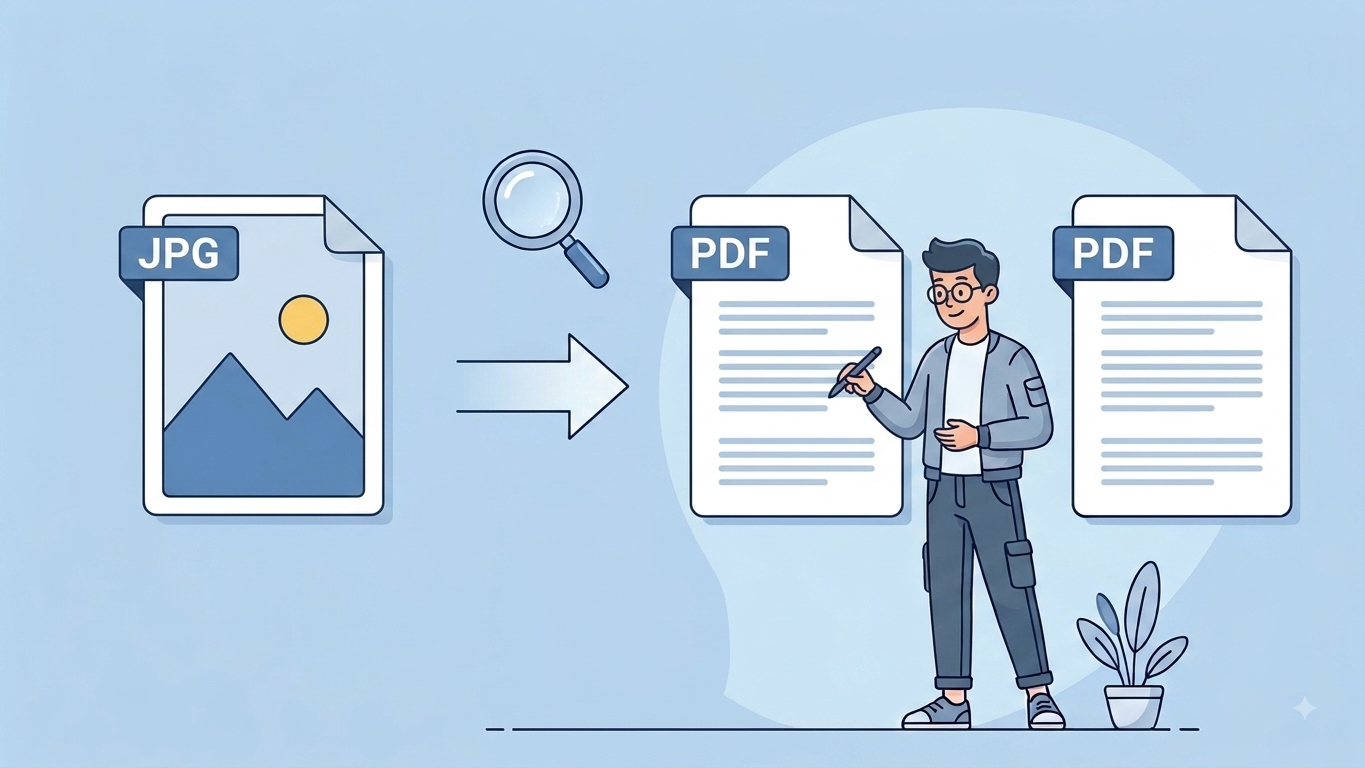
A JPG is a raster image — a fixed grid of pixels with JPEG compression applied. A PDF page is a container that can hold text, vector graphics, and embedded images, as defined by the ISO 32000 specification that governs the PDF format (maintained by the PDF Association; see the ISO 32000 overview). When a conversion tool creates a PDF from JPGs, it does something simple: it creates a new PDF document, adds one page per image, and embeds each JPG as a full-page image on its corresponding page.
The critical detail most people miss: the tool does not enhance, resize, or re-compress your images (unless you specifically tell it to). The quality of the PDF is entirely determined by the quality of the JPGs you upload. A blurry photo produces a blurry PDF page. A low-resolution scan produces a low-resolution PDF page. The conversion does not add detail that was not there.
This also means the file size of your PDF is roughly the sum of all your JPG file sizes plus a small overhead for the PDF structure. Ten 3MB photos produce a ~30MB PDF. This matters if you plan to email the file or upload it to a platform with size limits.
How to Convert JPG to PDF With PDF Doctor (Free, No Account Required)
Step 1: Open the Conversion Tool
Go to pdfsdoctor.com and navigate to the JPG to PDF tool. No sign-up, no payment, no software to install. Works on Chrome, Firefox, Safari, and Edge, on desktop and mobile.
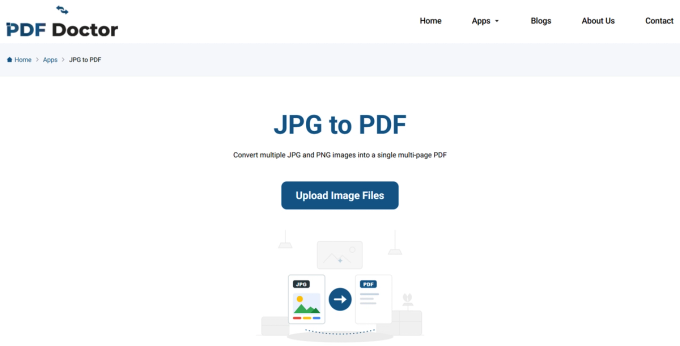
Step 2: Upload Your Images
Click Upload Image File and select the JPG or JPEG images you want to convert. Each image will become one page in the final PDF.
Before uploading, get two things right:
First, check your image order. The images will appear in the PDF in the order you upload them. If you are combining scanned pages, make sure they are numbered or sorted correctly before you start. Rearranging pages after the PDF is created requires a separate tool — it is much easier to get the order right upfront.
A tip from my own workflow: when I scan multi-page documents on my phone, I immediately rename the files with a number prefix (01-cover.jpg, 02-agreement.jpg, 03-signature.jpg) before converting. It takes thirty seconds and prevents the single most common complaint our support inbox receives — pages landing in the wrong order.
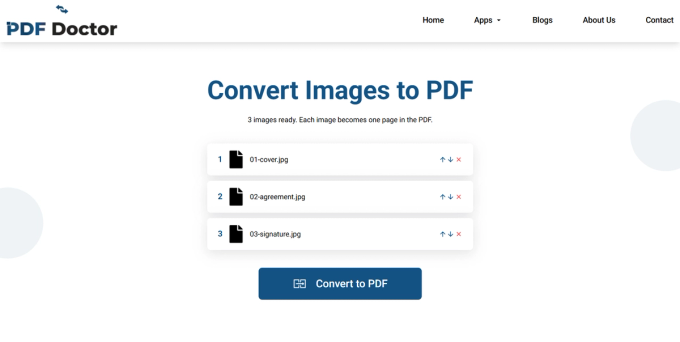
Second, check your image resolution. Open one of your images and look at its dimensions. For a PDF page that will be viewed on screen, roughly 1000–1500 pixels on the long edge is usually sufficient. For a PDF that will be printed, aim for at least 2400 pixels on the long edge, which corresponds to roughly 300 DPI on a standard letter-size page — the long-standing industry baseline for print sharpness (source: PrintNinja's resolution guidelines). If your images are small thumbnails or heavily compressed web images, the PDF pages will look pixelated. There is no way to fix this after conversion — you need higher-resolution source images.
Step 3: Convert
Click Convert Images. The tool embeds each image as a page in a new PDF document. For a handful of images this takes a few seconds. Large batches or high-resolution images may take longer.
Step 4: Download and Review
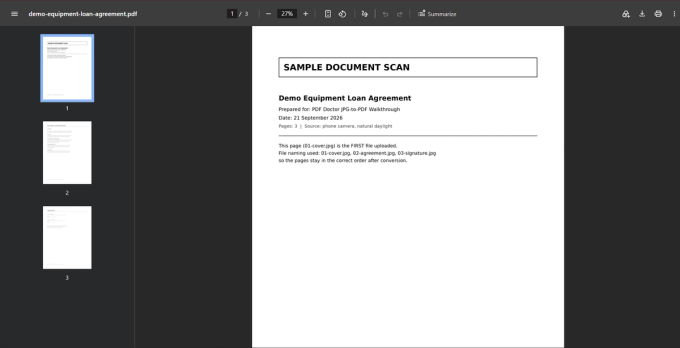
Click Download PDF File to save the document to your device. Then open it and scroll through every page.
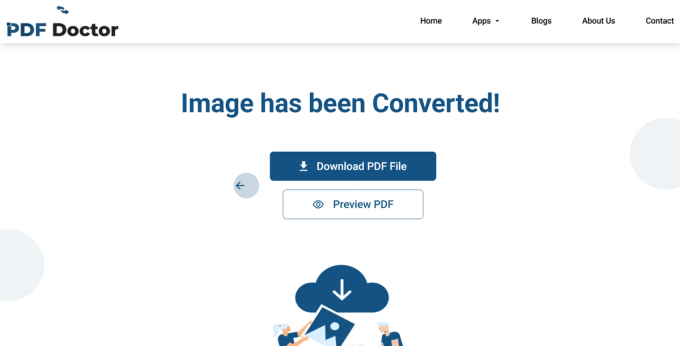
Specifically check that pages are in the correct order (first and last page especially), that the images are sharp enough for your intended use (zoom in to check if the text in scanned documents is readable), and that no pages are missing.
Illustrative scenario, not a verified case study: A property manager scanning a multi-page lease on a phone in low light — pages that look fine on-screen but print too blurry to sign — is a composite of the resolution problems we see most often through support, not a single verifiable ticket. It's included to make the failure mode concrete, not as a documented incident. The fix is the same either way: check source image quality before converting, and re-shoot low-light pages in better lighting rather than trying to fix them after the fact.
A Note on Privacy
Uploaded files are automatically deleted from our servers after processing and are not stored or shared. If your images contain sensitive content — identity documents, medical records, financial statements, legal contracts — and your organization requires files to never leave your machine, desktop tools like Adobe Acrobat, the free open-source img2pdf (command-line), or even Microsoft Word (insert images, then export as PDF) process everything locally. For everyday conversions, browser-based processing is a practical and secure option.
Image Resolution and Page Size: The Two Things That Matter Most
Resolution determines sharpness. A JPG has a fixed number of pixels. When the conversion tool places that image on a PDF page, it stretches it to fit. A 600×800 pixel image stretched to fill a letter-size page (8.5×11 inches) renders at roughly 70 DPI — blurry on screen and unusable for print. A 2550×3300 pixel image on the same page renders at 300 DPI — crisp and print-ready. This 300 DPI figure isn't a PDF Doctor-specific recommendation; it's the accepted print-industry baseline cited by commercial printers and prepress guides alike (4OVER4's print resolution guide is one example).
If your images fall below what your intended use requires, the PDF will look soft or pixelated at that size. There is no way to fix this after conversion — you need higher-resolution source images.
Page size determines how the image fits. Most conversion tools default to fitting each image to a standard page size (letter or A4). If your images have a different aspect ratio — for example, a square photo or a panoramic scan — the tool either crops the image, adds white borders, or stretches it to fit. Check your tool's settings to understand which approach it uses. White borders are usually the safest default.
What PDF Doctor's Conversion Tool Does Well — and Where It Has Limits
Our tool is built for: converting JPG and JPEG images into a combined PDF quickly and for free in a browser. Phone scans, document photos, and straightforward one-image-per-page layouts are the sweet spot.
Where other tools are a better fit: Adobe Acrobat gives granular control over page size, margins, and compression. Word or Canva handle custom multi-image layouts. The command-line tool img2pdf (free, open-source, Python) embeds JPGs into the PDF structure without any re-compression. Adobe Acrobat and ABBYY FineReader combine conversion with OCR in one step. For automated, at-scale conversion, Python libraries like img2pdf, reportlab, or fpdf handle batch processing programmatically. And if the text in your images needs to be searchable or selectable, none of the above substitute for running OCR (Adobe Acrobat, ABBYY FineReader, or the free open-source OCRmyPDF) as a separate step after conversion — plain JPG-to-PDF conversion only ever produces image-based pages.
Common Conversion Mistakes and How to Avoid Them
- Uploading images in the wrong order. Sort and rename files before uploading — number prefixes (01, 02, 03) are the simplest approach.
- Not checking image resolution before converting. Check dimensions before uploading; there's no fixing blur after the fact.
- Creating unnecessarily large files. Ten high-resolution phone photos at 4MB each produce a ~40MB PDF. Compress images before converting, or compress the PDF after.
- Assuming the PDF text is searchable. It isn't, unless you run OCR as a separate step.
- Not considering orientation. Mixed portrait/landscape photos produce PDFs with sideways pages. Rotate before converting.
- Photographing documents instead of scanning them. Use a scanning app (Adobe Scan, Microsoft Lens, CamScanner) — they crop, straighten, and enhance contrast automatically.
Tips for the Best Results
Sort and rename your image files before uploading. Check that your images meet the resolution your intended use requires (screen: roughly 1000 px, print: roughly 2550 px on the long edge). Use a scanning app instead of a plain camera for document photos. Check the PDF file size after conversion. Keep your original JPGs so you can reconvert if needed. If the document needs to be searchable, plan for an OCR step afterward.
Wrapping Up
JPG-to-PDF conversion is a simple operation with simple failure modes — wrong page order, insufficient resolution, and unexpectedly large file sizes. The conversion itself is reliable. The quality of the output is entirely determined by the quality and preparation of the images you start with.
The key to good results: sort your images first, verify their resolution matches your intended use, and check the output before sharing.
The conversion tool used in this guide is available at pdfsdoctor.com.
Change log
- 21 Sep 2026 (rev. 2): Removed the downloadable-sample-files section, the resolution quick-reference table, and the "when it makes sense / when it's the wrong approach" list pair; replaced with four real screenshots of the live tool (upload page, reorder page, download confirmation, and the converted PDF open in a viewer), each with descriptive alt text.
- 21 Sep 2026 (rev. 1): Added external citations for the ISO 32000 PDF specification and the 300 DPI print standard; flagged the property-manager scenario as illustrative rather than a documented case; added last-updated date and reviewer credit separate from original publish date; expanded author byline to specify direct ownership of the image-to-PDF pipeline.
- 16 Mar 2026: Original publication.