If you have ever tried to pull a table out of a PDF and into a spreadsheet or database, you already know the frustration. The data is right there on the page — you can see it — but copying and pasting it produces a mess of jumbled text with no column structure. PDF-to-CSV conversion exists to solve that problem, but it comes with its own set of pitfalls that most guides never mention.
In five-plus years of working with document automation and PDF workflows — and particularly as someone who works with data pipelines day to day — I can say that PDF-to-CSV is the conversion where technical expectations matter most. CSV is a raw data format. There is no formatting, no cell styling, no merged cells, and no forgiveness for structural errors. If the extraction is off by one column, every row downstream is wrong. That makes understanding what happens during conversion not just useful but essential.
This guide walks through how to convert a PDF to CSV for free using PDF Doctor. It also covers how the conversion actually works, what kinds of PDFs produce clean output versus messy output, and the mistakes that silently corrupt your data if you do not catch them early.
What Actually Happens When You Convert a PDF to CSV
If you have read our PDF-to-Excel guide, the core challenge is the same — but CSV adds a layer of strictness that makes errors harder to hide.
A PDF does not store tables. It stores individually positioned text fragments on a page. What looks like a neat table with rows and columns is actually dozens of separate text strings placed at specific coordinates. The PDF has no concept of "row 3, column B." It just knows that a piece of text sits at a particular spot.
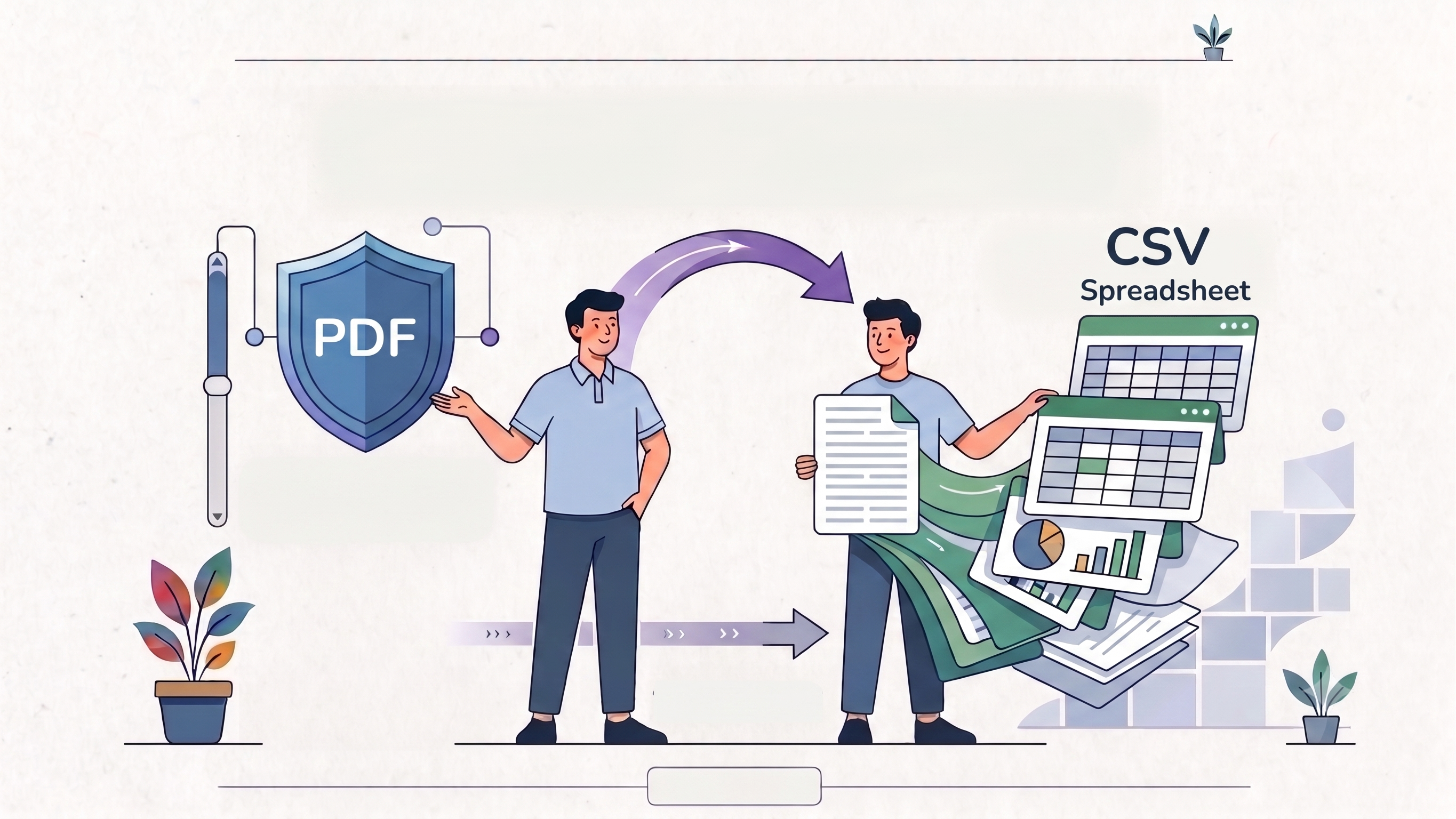
During conversion, the tool scans the page for patterns that look like tabular data — aligned text, consistent spacing, drawn borders — and tries to reconstruct a row-and-column structure. It then writes each detected row as a line in the CSV file, with commas separating the values.
Here is why CSV is less forgiving than Excel: an Excel file can visually absorb minor extraction errors — a misaligned cell still looks like a cell, and you can see the problem and fix it. A CSV file is plain text. If the tool places a value in the wrong column, there is no visual grid to alert you. The comma-separated line just has the wrong number of fields, or the right number of fields with values shifted one position over. This kind of error is invisible if you open the CSV in a text editor, and it can silently break any script, database import, or analysis that consumes the file.
That is why reviewing the output is not optional — it is the most important step in the entire process.
Step 1: Open the Conversion Tool
Go to https://pdfsdoctor.com/pdf-to-excel.html and navigate to the CSV conversion option. No sign-up, no payment, no software to install. Works on Chrome, Firefox, Safari, and Edge, on desktop and mobile.
Step 2: Upload Your PDF
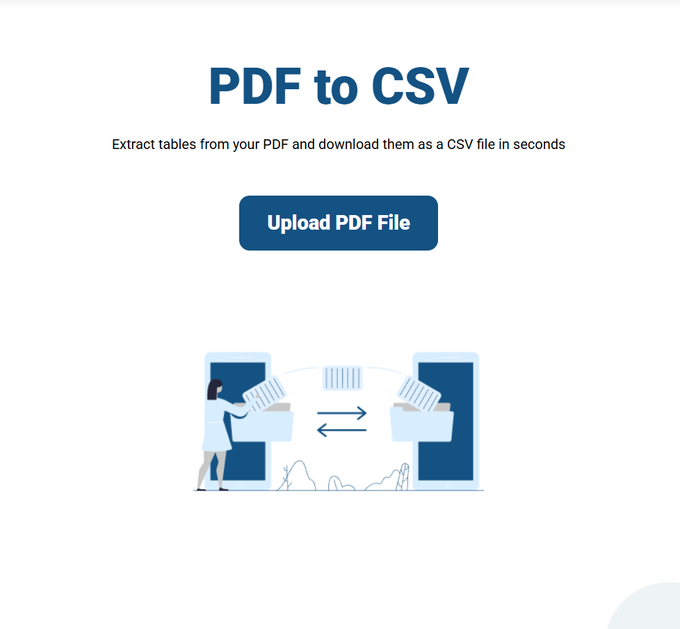
Click Upload PDF File and select the document you want to convert. The tool processes the file and analyzes it for tables and structured data.
Before uploading, run the same check that applies to every PDF conversion: is this a text-based PDF or a scanned document? Try to highlight and copy text from the PDF. If you can select individual words and numbers, it is text-based and ready to convert. If nothing highlights, it is a scanned image — you will need to run OCR first, or the output will be empty.
Step 3: Convert the File
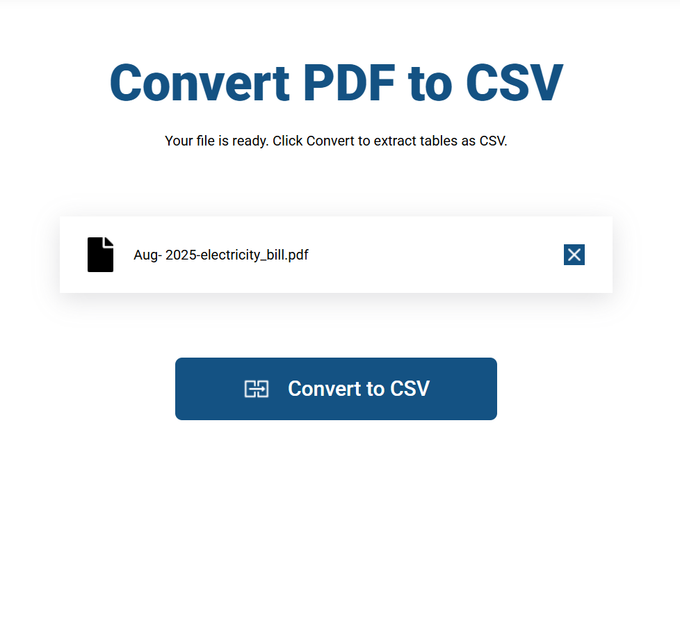
Click Convert PDF. The tool extracts the detected tabular data and writes it into CSV format — rows as lines, columns separated by commas. For standard files this takes a few seconds.
Step 4: Download and Review Carefully
Click Download CSV File to save the file to your device. Then open it — and this step deserves more attention than any other conversion type.
Open the CSV in a spreadsheet application (Excel, Google Sheets, LibreOffice Calc) rather than a plain text editor so you can see the column structure clearly. Check the following: every row should have the same number of columns; data from the original table's first column should consistently appear in column A of the spreadsheet, not drifting into B or C; numbers should be numbers and not text strings; and header rows should be intact at the top, not repeated or missing.
A concrete example of why this matters: a data analyst I worked with converted a PDF containing monthly sales figures — about 200 rows across 6 columns. The conversion looked fine at a glance. But on closer inspection, rows where the "Notes" column was empty had shifted every subsequent value one column to the left. The revenue numbers were sitting in the cost column. She caught it during review, but if she had fed the CSV directly into her reporting script, every calculation would have been wrong — and the errors would not have been obvious in the final report.
That story is not unusual. Empty cells are the single biggest cause of column-shift errors in PDF-to-CSV conversion.
A Note on Privacy
Uploaded files are automatically deleted from our servers after processing and are not stored or shared. If you are working with confidential financial data, client records, or regulated documents, and your organization requires files to never leave your machine, a desktop tool that processes entirely offline is the safer choice. For everyday conversions, browser-based processing is a practical and secure option.
CSV vs. Excel: Which Output Format Should You Choose?
This is a question that comes up often, and the answer depends on what you plan to do with the data.
Choose CSV when you need to import the data into a database, a data analysis tool (Python, R, SQL), or a system that accepts delimited text files. CSV is universal — virtually every data tool reads it. It is also the right choice when you want the lightest possible file with no formatting overhead, or when you are feeding data into an automated pipeline.
Choose Excel when you need to keep formatting, work with multiple tables on separate sheets, use formulas immediately, or share the file with people who will work with it visually in a spreadsheet application. Excel preserves more structure and is more forgiving of imperfect extraction because you can see and fix issues in the grid.
A practical rule: if the next step is human eyes in a spreadsheet, choose Excel. If the next step is code, a database, or an automated workflow, choose CSV.
What Converts Well — and What Does Not
Converts well: Single tables with consistent column widths, clear borders, and uniform data types in each column. Think simple invoices, straightforward data exports, basic financial statements, and tabular data from reports generated by database or accounting software.
Converts with some cleanup: Tables with occasional empty cells (which can cause column shifts), mixed data types within columns (dates, numbers, and text in the same column), or multi-line content within cells (which may split into extra rows).
Converts poorly: Complex tables with merged cells, nested tables, tables without visible borders that rely on spacing alone, multi-column page layouts, and any table where the visual structure depends on alignment rather than explicit grid lines.
Will not work without OCR: Scanned documents. If the PDF is a photograph of a page, there is no text for the tool to extract. Run the file through Adobe Acrobat, ABBYY FineReader, or the free open-source OCRmyPDF first, then convert the processed version.
When PDF-to-CSV Conversion Makes Sense
Extracting data for analysis. The core use case. Financial data, research data, survey results, or statistical tables locked inside a PDF need to get into a format where you can filter, sort, calculate, and visualize. CSV is the fastest path to any data tool.
Importing into a database. If you need to load PDF table data into SQL, PostgreSQL, MongoDB, or any database system, CSV is the standard import format. Convert the PDF, review the output, and import.
Feeding data into scripts or automated workflows. Python (pandas), R, and most data processing languages read CSV natively. If you are writing a script that needs to consume data from a PDF, converting to CSV first is the practical approach.
Archiving structured data in a portable format. CSV is plain text — it will be readable by any system, on any platform, decades from now. For long-term data archiving, CSV is more durable than proprietary spreadsheet formats.
Processing multiple similar PDFs. If you regularly receive PDFs with the same table structure (monthly reports, recurring invoices, standardized forms), converting each to CSV and combining them creates a unified dataset for trend analysis or reporting.
When PDF-to-CSV Is the Wrong Approach
If the PDF has no tabular data — converting a text-heavy document (a contract, an article, a letter) to CSV produces a useless file of text fragments scattered across cells. Use PDF-to-Word instead.
If you need formatting, formulas, or multiple sheets — CSV cannot store any of these. Choose Excel as your output format.
If the table is extremely complex — nested tables, heavy merging, and irregular structures produce CSV output that needs more cleanup than it saves. For complex tables, consider Tabula (free, open-source, desktop), which lets you visually select the exact table region to extract and gives you more control over the parsing.
If the data is in a chart or graph — charts are images, not data. Converting the PDF will not extract the underlying numbers from a visualization. You would need a specialized tool or manual entry.
If you need the data to look presentable immediately — CSV has no formatting. If the next step is sharing the file with a non-technical colleague who expects a polished spreadsheet, convert to Excel instead and apply formatting there.
What PDF Doctor's Conversion Tool Does Well — and Where It Has Limits
We would rather be direct about fit than have you use our tool for something it was not built for.
Our tool is built for: converting text-based PDFs with clearly structured tables into CSV files, quickly and for free in a browser. Clean invoices, simple data tables, and straightforward reports are the sweet spot.
Where other tools are a better fit: If you need fine control over which tables are extracted and how they are parsed, Tabula (free, open-source) lets you draw selection boxes around specific table regions — excellent for research and data work. If you need to process many PDFs programmatically, Python libraries like tabula-py or camelot give you full scripting control over the extraction pipeline. If you need higher accuracy on complex tables, Adobe Acrobat's conversion handles irregular structures better than most free tools. If you need full offline processing for compliance or confidentiality, Tabula and LibreOffice both work entirely on your local machine.
Common Conversion Mistakes and How to Avoid Them
Not running the highlight test first. If the PDF is scanned, the CSV will be empty or garbled. Always try to select text in the PDF before converting. No highlight means no text data — run OCR first.
Not checking for column-shift errors. The most dangerous mistake for data work. Empty cells in the original table can cause the tool to shift all subsequent values one column to the left or right. Open the CSV in a spreadsheet application (not a text editor) and verify that each column's data matches the original table's structure.
Assuming numbers are formatted as numbers. CSV stores everything as text. When you open the file in Excel or Google Sheets, the application usually auto-detects numbers — but not always. If your SUM formulas return zero, the "numbers" are probably stored as text strings. Use the spreadsheet's text-to-number conversion function to fix this.
Not handling special characters and encoding. CSV files can have encoding issues, especially with non-English characters, currency symbols, or accented text. If you see garbled characters after opening the file, try opening it with UTF-8 encoding explicitly selected (in Excel: Data → From Text/CSV → select UTF-8).
Ignoring duplicate header rows. If the source table spans multiple PDF pages, the tool may re-detect the header row on each page. This inserts duplicate headers into the middle of your data, which will break any automated processing. Scroll through the full CSV and remove any repeated header rows before using the file.
Converting a PDF with no tables. If the source PDF is mostly body text, the CSV output will be a jumble of text fragments with no meaningful structure. Recognize that CSV is for tabular data — use PDF-to-Word for text-heavy documents.
Tips for the Best Results
Start with the highlight test. After conversion, open the CSV in a spreadsheet application and check column alignment first — this is the most common failure point. Verify that every row has the same number of fields. Look for duplicate header rows if the original table spans multiple pages. If numbers are not calculating correctly, check whether they are stored as text. Keep the original PDF open alongside the CSV during review so you can spot discrepancies quickly. For complex or high-stakes data, consider running the same PDF through Tabula as a cross-check.
Wrapping Up
PDF-to-CSV conversion is a powerful shortcut when you need to move structured data from a static document into a format that spreadsheets, databases, and scripts can actually use. But CSV's simplicity is also its strictness — there is no formatting to mask errors, and a shifted column can silently corrupt everything downstream.
The key to getting reliable results: confirm your PDF is text-based before converting, review the output column by column before using it, and match the tool to the complexity of the table. For clean, well-structured tables, browser-based conversion handles the job in seconds. For anything more complex, the alternatives listed above will give you more control.