Of all the PDF conversions I have worked with over the past five-plus years, PDF-to-HTML is the one that produces the most misleading expectations. People assume they will get a clean web page that looks like their PDF. What they actually get is an HTML file that technically contains the same content but usually looks nothing like the original — because a PDF and a web page solve fundamentally opposite design problems.
A PDF locks content into a fixed layout. An HTML page lets content flow and adapt. Converting from one to the other means the tool has to take rigidly positioned elements and somehow force them into a fluid, browser-rendered format. The result is always a compromise, and understanding what that compromise looks like is the difference between a useful conversion and an hour of frustration.
This guide covers how to convert a PDF to HTML for free using PDF Doctor, what actually happens during the conversion, why the output rarely matches the original, and when you should skip conversion entirely and take a different approach.
What Actually Happens When You Convert a PDF to HTML
This is worth understanding because it explains virtually every quality issue you will encounter.
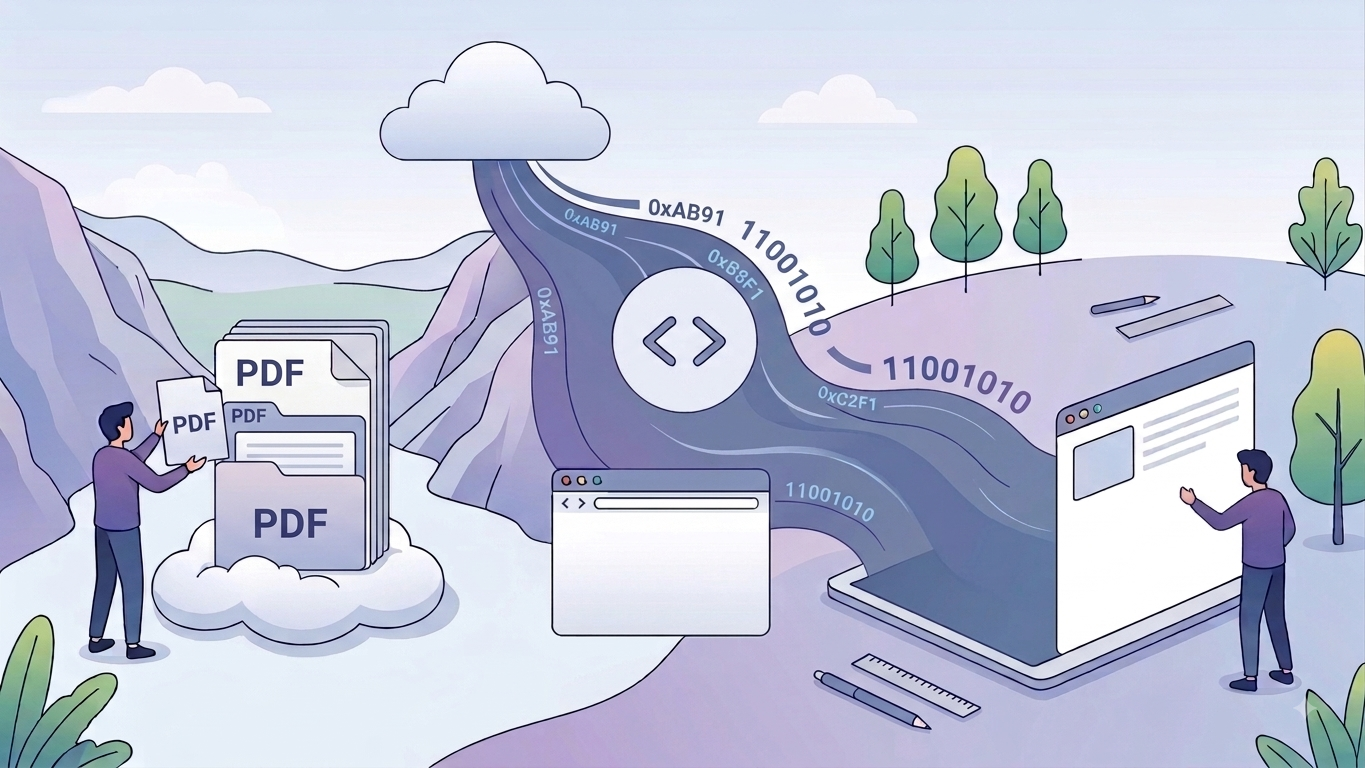
A PDF stores content as individually positioned objects — each text fragment, each image, each line sits at exact coordinates on a fixed-size page. There is no concept of paragraphs flowing naturally, no responsive layout, and no semantic structure. A heading in a PDF is not tagged as a heading in the way HTML uses <h1> or <h2> — it is just text rendered in a larger font at a particular position.
When a conversion tool creates HTML from a PDF, it has to reverse-engineer all of that structure. It looks at text fragments and tries to group them into paragraphs. It examines font sizes and guesses which text should be headings. It analyzes spacing to infer columns, lists, and table structures. And it converts the fixed positioning into HTML elements that a browser can render.
The tool can approach this in two fundamentally different ways. The first approach uses absolute positioning — every element in the HTML is placed at specific pixel coordinates using CSS, replicating the PDF layout as closely as possible. This produces output that looks similar to the original but is terrible for web use: the page does not reflow, it is not responsive, the text is hard to select, and search engines cannot parse the structure meaningfully. The second approach extracts the content into semantic HTML — proper paragraphs, headings, lists, and tables. This produces web-friendly output that is readable, editable, and responsive, but the layout will look different from the original PDF because the content now flows according to browser rules rather than fixed coordinates.
Most tools lean toward one approach or the other, and neither produces a result that simultaneously looks like the original PDF and works well as a web page. Understanding this tradeoff is essential before you convert.
How to Convert a PDF to HTML With PDF Doctor (Free, No Account Required)
Step 1: Open the Conversion Tool
Go to https://pdfsdoctor.com/ and navigate to the PDF to HTML tool. No sign-up, no payment, no software to install. Works on Chrome, Firefox, Safari, and Edge, on desktop and mobile.
Step 2: Upload Your PDF
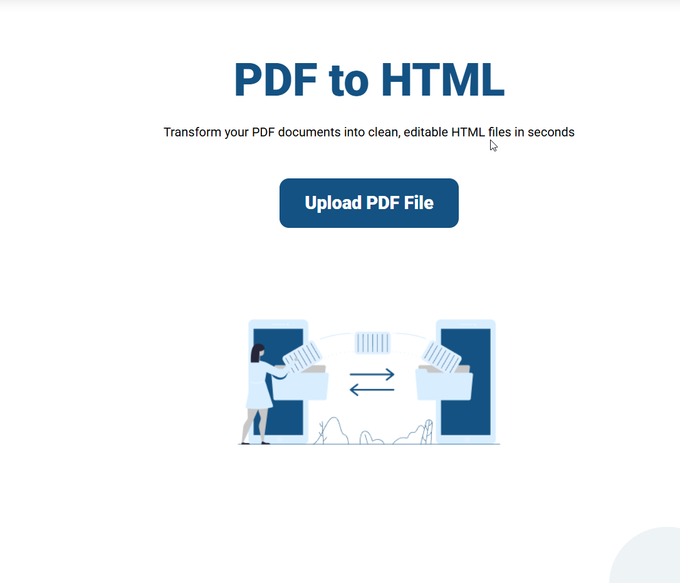
Click Upload PDF File and select the document you want to convert. The tool processes the file and analyzes the text, images, and layout structure.
Before uploading, consider what you actually need from the conversion. Are you trying to publish the content on a website? Or do you just need the text and images extracted into a format you can edit? The answer shapes how much post-conversion work you should expect.
Also run the standard check: is this a text-based PDF or a scanned document? If you cannot highlight and copy text from the PDF, it is scanned — the conversion will produce an HTML file with images of pages rather than actual text content. You would need to run OCR on the PDF first to get extractable text.
Step 3: Convert the File
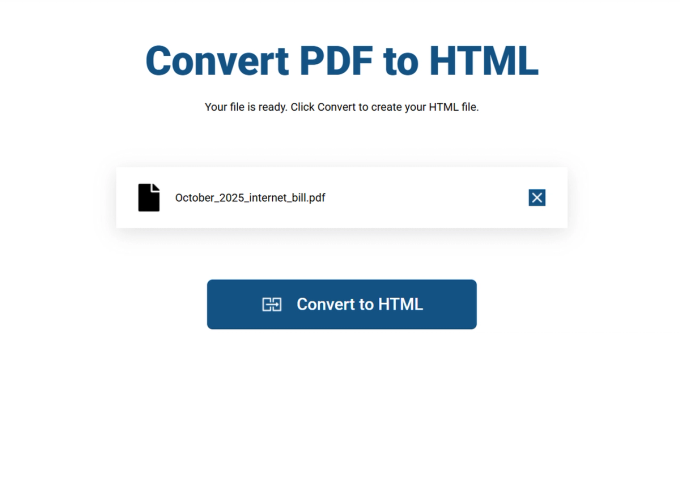
Click Convert PDF. The tool processes the document and generates an HTML file. For standard-sized files this takes a few seconds. Complex documents with many pages or dense layouts may take longer.
Step 4: Download and Review
Click Download HTML File to save the file to your device. Then open it in a browser and compare it to the original PDF.
This is where expectations matter most. The HTML will contain the same text and images as the PDF, but the visual layout will almost certainly be different. Specifically check that all text content is present and in the correct reading order, that images appear and are not missing or broken, that the document structure makes sense (headings look like headings, paragraphs are grouped correctly), and that special characters and non-English text rendered properly.
A concrete example: a documentation manager I worked with converted a 30-page product manual from PDF to HTML to publish on the company's support site. The text and images all came through, but the reading order was scrambled on pages that used a two-column layout — the tool had interleaved text from both columns into a single stream. She spent about 45 minutes fixing the reading order and restructuring the headings. For a 30-page manual, that was still far faster than rewriting from scratch, but it was not the zero-effort process she initially expected. Knowing to check reading order on multi-column pages would have set that expectation upfront.
A Note on Privacy
Uploaded files are automatically deleted from our servers after processing and are not stored or shared. If your PDF contains sensitive content and your organization requires files to never leave your machine, desktop tools like LibreOffice (which can open PDFs and export to HTML) or command-line tools like pdf2htmlEX process everything locally. For everyday conversions, browser-based processing is a practical and secure option.
What Typically Breaks During Conversion
These are the patterns I see most often. Knowing them in advance lets you evaluate the output quickly and plan your cleanup.
Reading order on multi-column layouts. The most common structural problem. PDFs with two or three text columns frequently convert with the columns interleaved or in the wrong order. The tool cannot always determine whether text should be read left-to-right across columns or top-to-bottom within each column first.
Heading hierarchy. The PDF has no semantic heading structure — it just has text in different sizes. The conversion tool guesses which text should be <h1>, <h2>, or <h3> based on font size and weight. These guesses are often wrong or inconsistent, especially in documents with many levels of hierarchy.
Tables. Same problem as every other PDF conversion — tables in a PDF are positioned text fragments, not structured data. The HTML output may render tables as actual <table> elements (if the tool detected them correctly) or as clusters of absolutely positioned <div> elements that merely resemble a table visually.
Images. Images are usually extracted and embedded in the HTML, but their positioning and sizing may not match the original. Images that were part of the page background or embedded in complex layouts sometimes do not extract at all.
CSS and styling. The HTML file will have inline CSS or an embedded stylesheet that attempts to replicate the PDF's visual appearance. This styling is typically verbose, non-semantic, and difficult to maintain. If you plan to integrate the content into an existing website, you will almost certainly need to strip the generated CSS and restyle the content with your own stylesheet.
Links and navigation. Internal links (table of contents entries, cross-references) may or may not survive. External hyperlinks usually carry over. Interactive elements like form fields do not.
Page breaks. A PDF has clear page boundaries. HTML does not. The conversion may insert page-break markers or simply run all the content continuously. If you need page separation, you will have to handle it with CSS or by splitting the HTML into multiple files.
When PDF-to-HTML Conversion Makes Sense
Publishing document content on a website. The most common use case. A report, guide, manual, or article exists as a PDF and needs to be available as a web page — searchable, linkable, and accessible to visitors. Conversion extracts the content so you can restructure it into proper web pages. Expect to clean up the HTML and apply your site's styling, but the content extraction itself saves significant time.
Making PDF content searchable by search engines. Content inside a PDF is indexed by search engines, but not as effectively as HTML. Converting to HTML and publishing it on your site makes the content fully crawlable, allows it to appear in search results with proper snippets, and lets you control the page structure for SEO.
Improving accessibility. PDFs can be made accessible, but it requires careful tagging that many documents lack. HTML is inherently more accessible — screen readers navigate it more easily, text scales naturally, and the content reflows for different devices. Converting to HTML is often the first step in making legacy document content accessible.
Extracting content for reuse. If you need the text and images from a PDF to repurpose into a blog post, email, web application, or content management system, HTML is a more workable intermediate format than the PDF itself.
Archiving in a web-friendly format. If you want document content to be viewable long-term without requiring a PDF reader, HTML is universally supported by every browser on every device.
When PDF-to-HTML Is the Wrong Approach
If you need the output to look exactly like the PDF — it will not. The fixed layout of a PDF and the fluid layout of HTML are fundamentally incompatible. If visual fidelity is the goal, keep the document as a PDF and embed it on the web page using a PDF viewer, or use an <iframe>.
If you need to edit text and formatting — HTML is not a comfortable editing environment for most people. If the goal is to edit the document's content, convert to Word instead.
If the PDF is mostly images or scans — the HTML output will be images wrapped in HTML tags, not actual web content. There is no text to extract. Run OCR first if you need text, or skip the conversion and embed the PDF directly.
If the PDF has complex interactive forms — form fields, checkboxes, and dropdowns in a PDF do not convert into functional HTML form elements. You would need to rebuild the form from scratch in HTML.
If you want a production-ready web page — no conversion tool produces HTML that is ready to deploy on a live website without cleanup. The generated HTML will have verbose inline styles, non-semantic structure, and no responsive design. If you need a polished web page, the conversion gives you the raw content, but a web developer or a CMS editor will need to restructure and style it. Treat conversion as content extraction, not web design.
What PDF Doctor's Conversion Tool Does Well — and Where It Has Limits
We would rather be direct about what to expect than have you disappointed by the output.
Our tool is built for: converting text-based PDFs with straightforward layouts into HTML files that contain the document's text and images in a browser-readable format. Single-column documents, simple reports, and text-heavy PDFs with basic formatting are the sweet spot.
Where other tools are a better fit:
If you need high-fidelity HTML that closely replicates the PDF's visual layout, pdf2htmlEX (free, open-source) uses absolute positioning to produce output that looks very close to the original — though at the cost of semantic structure and responsiveness. If you need clean, semantic HTML suitable for web publishing, Adobe Acrobat's HTML export and manual cleanup with a web editor will produce better results than any automated tool alone. If you are converting at scale or as part of an automated pipeline, developer tools like pdf2htmlEX, Apache PDFBox, or Python's pdfminer offer programmatic control over the extraction. If you need the content in a CMS like WordPress, converting to HTML and then pasting into the CMS editor is one approach, but converting to Word first and then importing into the CMS may preserve formatting better.
Common Conversion Mistakes and How to Avoid Them
Expecting the HTML to look like the PDF. The most common disappointment. PDF and HTML are fundamentally different layout models. The conversion preserves content, not appearance. Approach the output as raw material for a web page, not a finished product.
Not checking reading order. On multi-column PDFs, the text in the HTML may be in the wrong sequence — content from different columns interleaved or ordered incorrectly. Open the HTML and read through it linearly to verify the text flows correctly. This is especially important if you are publishing the content for others to read.
Using the generated CSS on a live website. The inline styles and CSS that the conversion tool produces are functional but not maintainable. They are typically bloated, use absolute positioning, and do not follow web development best practices. If you are publishing the content on a website, strip the generated styles and apply your site's own CSS.
Not handling images separately. Conversion tools extract images and either embed them as base64 in the HTML or save them as separate files. Either way, the image quality, sizing, and positioning may need adjustment. Check that all images appear, are not blurry, and are appropriately sized for web display.
Converting a scanned PDF without OCR. If the PDF contains scanned pages, the HTML will contain images of those pages — not actual text. The content will not be searchable, selectable, or accessible. Run OCR on the PDF first if you need real text in the HTML output.
Publishing without adding responsive design. The converted HTML does not adapt to different screen sizes. If you publish it as-is, mobile visitors will likely see a poorly formatted page. Add responsive CSS or integrate the content into a responsive template before going live.
Tips for the Best Results
Start with the highlight test to confirm your PDF is text-based. After conversion, check reading order first — this is the most common structural error on multi-column documents. If you plan to publish the HTML on a website, strip the generated CSS and restyle with your own. Optimize extracted images for web (compress, resize) before publishing. For complex documents, consider converting to Word first for content editing, then building the web page from the edited text rather than from the raw HTML output. Keep the original PDF as your reference during cleanup.
Wrapping Up
PDF-to-HTML conversion is most useful when you need to move document content onto the web — publishing articles, making manuals searchable, improving accessibility, or feeding content into a CMS. It works best as a content extraction step, not a one-click web publishing solution.
The key to good results: understand that the HTML output will contain your content but not replicate your PDF's layout, check reading order on multi-column documents, strip the generated CSS if you are building a real web page, and treat the output as raw material that needs restructuring for its final destination.
The conversion tool used in this guide is available at https://pdfsdoctor.com/.