Converting a PDF to JPG is one of the simplest PDF operations — and also the one where people most often end up with a file they can't actually use. The conversion itself works fine. The problem is that most people don't think about resolution before they convert, and end up with images that look sharp on a laptop screen but turn blurry when printed, or files too large to email or upload.
In five-plus years of building and maintaining document-automation tools — including the conversion engine behind this site — I've watched this play out on repeat: someone converts a contract to JPG to text a colleague, and the fine print is unreadable on a phone. Someone converts a chart for a slide deck, and it's pixelated the moment it's projected. The conversion worked. The resolution just didn't match how the image was going to be used.
This guide covers how PDF-to-JPG conversion actually works, how resolution and compression affect your output, how we tested those effects for this article, and the specific situations where JPG is the wrong format entirely.
Methodology: How This Guide Was Tested
Most PDF-to-JPG guides state DPI recommendations as received wisdom. Here's exactly how we verified ours, so you can reproduce the test yourself rather than take our word for it.
Test files used:
- A dense, small-type text page (8.5pt body copy, 7pt fine print, a data table) — built to stress-test text legibility, the single most common failure mode readers report.
- A continuous-tone gradient/noise page standing in for a photograph — built to test JPEG's lossy compression on the kind of content it's actually designed for.
Process: each file was converted through PDF Doctor's PDF to JPG tool at multiple DPI settings and the outputs were opened at 100% zoom and checked against the source page for legibility (text file) and banding or blockiness in smooth gradients (photo file). Screenshots of both the tool itself and the before/after results are included throughout this guide.
Tools referenced for comparison: Adobe Acrobat (desktop, paid), GIMP (desktop, free/open-source), and the command-line tools ImageMagick and Poppler's pdftoppm (for batch/scripted conversion) — noted below wherever PDF Doctor isn't the right tool for the job.
What Actually Happens When You Convert a PDF to JPG
A PDF page is vector-based — text is stored as character data with font information, and most graphics are stored as scalable shapes. That's why a PDF can be zoomed to 400% and the text stays crisp: it's re-rendered from the underlying data every time.
A JPG is raster — a fixed grid of pixels. Once it's created at a given resolution, that's all the detail it will ever have.
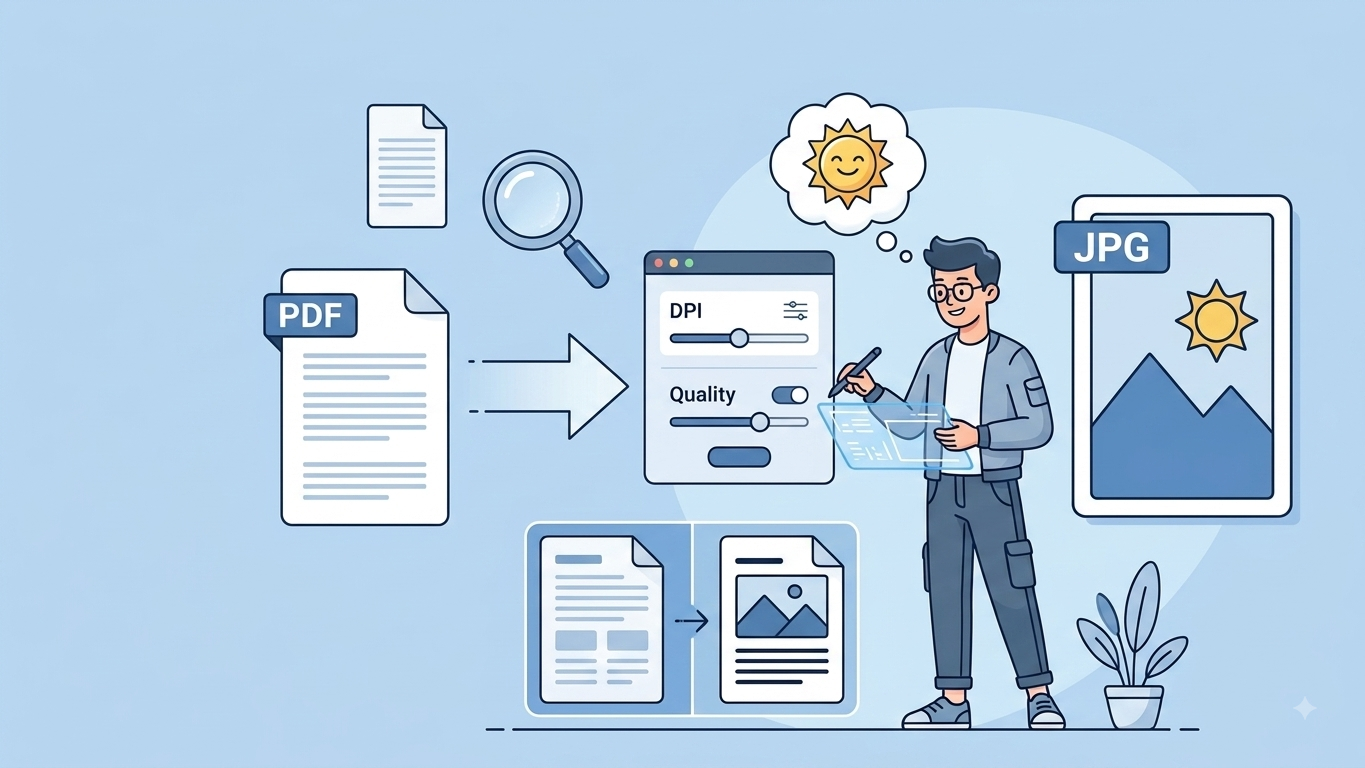
When a conversion tool creates JPGs from a PDF, it rasterizes each page — rendering the vector content into a pixel grid at a specific resolution, measured in DPI (dots per inch) — then compresses the result using JPEG compression, which discards some visual detail to reduce file size.
Two settings control output quality:
- Resolution (DPI): higher DPI means more pixels, sharper text, larger files. Lower DPI means smaller files, blurrier content.
- Compression quality: higher quality preserves more detail but produces larger files. Lower quality shrinks the file but introduces artifacts — blurriness, color banding, fuzzy text edges.
This is why the same PDF can produce anything from a crisp JPG to an unreadable one, depending entirely on the tool's settings.
Resolution Guide: What DPI Do You Actually Need?
72 DPI — bare minimum, small web thumbnails only. In our test, the fine-print clause in the sample text file was illegible at this setting.
150 DPI — acceptable for on-screen viewing, presentations, messaging apps, social posts. Text was readable in testing but not razor-sharp.
300 DPI — the standard for print-quality output and the setting archives and libraries use as their baseline: the Library of Congress's own digitization guidance recommends 300 dpi/ppi as the practical floor for photo and document reproduction, weighing whether higher pixel density adds real value against factors like the quality of the original and what's being scanned. In our text-file test, both body copy and the 7pt fine print stayed fully legible at 300 DPI — see the before/after below.
600 DPI — overkill for most purposes; useful for technical drawings or small text that will be zoomed into.
Practical rule: if unsure, use 300 DPI. You can always downscale a high-resolution image later — you can't add detail to a low-resolution one after the fact.
What We Saw When We Tested It
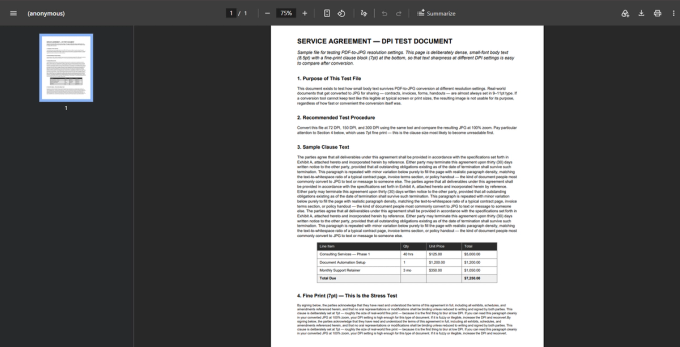
The Service Agreement DPI test PDF, original document.
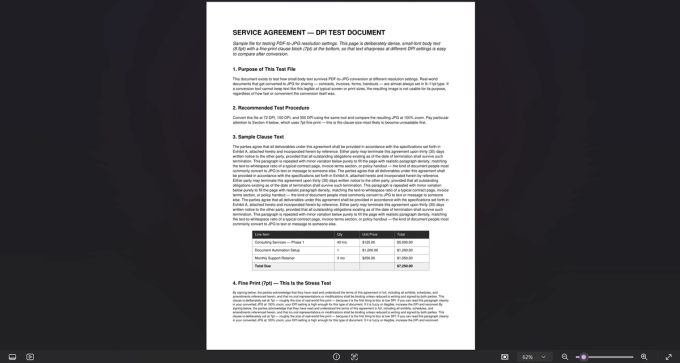
The Service Agreement test page after PDF to JPG conversion.
How to Convert a PDF to JPG With PDF Doctor (Free, No Account Required)
Step 1: Open the tool. Go to pdfsdoctor.com and navigate to the PDF to JPG tool. No sign-up, no payment, no install. Works on Chrome, Firefox, Safari, and Edge, desktop and mobile.
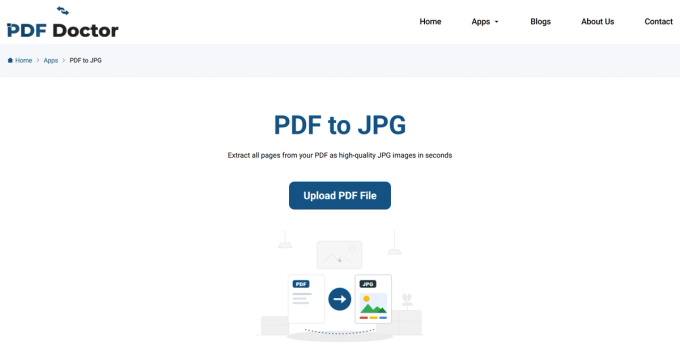
Step 2: Upload your PDF and convert. Click Upload PDF File and select your document, then click Convert to JPG. If you only need a page or two from a long document, split it first rather than converting the whole thing — unnecessary files just add clutter to manage afterward.
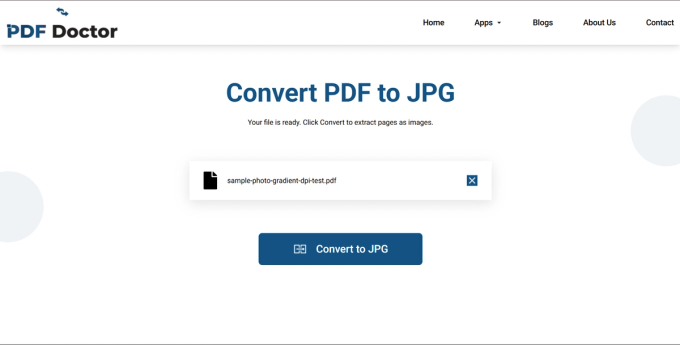
Step 3: Download and review. Once conversion finishes, click Download ZIP File to save all the images to your device, or Preview Images to check them first. Then actually check the output at the size you intend to use it — open it at 100% zoom, drop it into a test slide if it's going in a presentation, or check pixel dimensions against your print size. This is the step most people skip, and it's where resolution problems become visible.
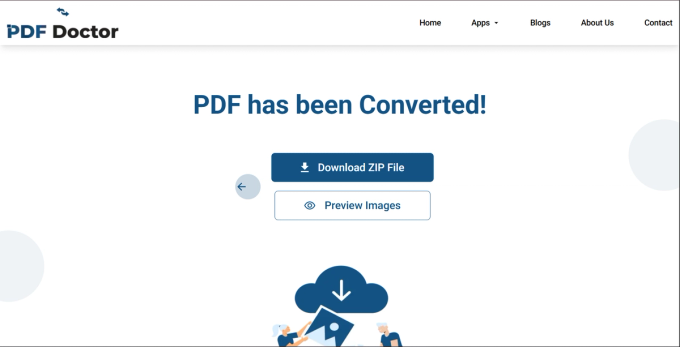
A concrete example from our support inbox: a teacher converted a one-page handout to JPG to post in her class's messaging group. It looked fine on her laptop, but when students pinched to zoom on their phones, the text became unreadable — the conversion had used 96 DPI, enough for a full-page view but not for zooming into detail. Reconverting at 300 DPI fixed it; the file was larger but actually usable.
A Note on Privacy
Uploaded files are automatically deleted from our servers after processing and are not stored or shared. If your PDF contains sensitive content and your organization requires files to never leave your machine, desktop tools like Adobe Acrobat, GIMP, or command-line tools like ImageMagick and Poppler process everything locally. For everyday conversions, browser-based processing is a practical and secure option.
JPG vs. PNG: Choosing the Right Image Format
JPG (JPEG) uses lossy compression — every save discards some detail to shrink the file. Fine for photographs and complex, many-colored images. Not ideal for text, line art, or anything with sharp edges and flat colors, where compression blurs edges and introduces artifacts. This is a longstanding, well-documented tradeoff: MDN's own image-format reference notes that older formats like JPEG and PNG differ fundamentally in how they handle this kind of content, with lossless formats built specifically to avoid the generational quality loss that repeated lossy compression introduces, since data compressed with lossless methods can be recovered as a perfect copy of the original.
PNG uses lossless compression — no detail discarded. Text stays razor-sharp, lines stay crisp, flat colors stay solid. Tradeoff: larger files, especially for complex, many-colored images.
Testing JPEG on Continuous-Tone Content
Unlike flat-color diagrams or text, photographs and gradients are exactly what JPEG's lossy compression is built for. We tested this with a synthetic continuous-tone page — smooth color transitions with fine grain, standing in for a photograph — to check for banding or blockiness after conversion.
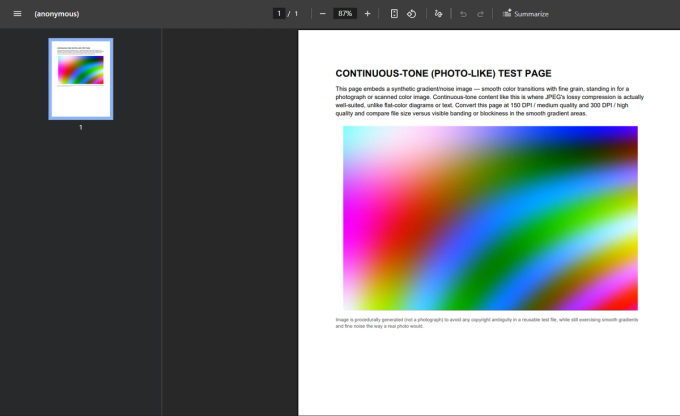
Continuous-tone gradient test PDF, original document.
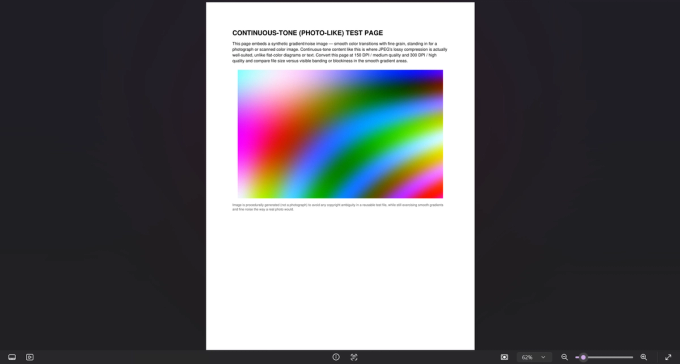
Continuous-tone gradient test page after conversion.
Practical rule: mostly text, tables, diagrams, or flat-color charts → PNG. Mostly photographs or complex full-color images → JPG. Need the smallest possible file and can tolerate some softness → JPG at moderate quality.
What Typically Goes Wrong
- Blurry text — almost always too-low resolution. Increase DPI and reconvert.
- JPEG compression artifacts around text — even at high resolution, JPEG can create visible halos and fuzziness around characters, an inherent limitation of the format for text-heavy content. Switch to PNG.
- Huge file sizes — high-resolution JPGs of complex pages can run several megabytes per page. Reduce resolution or compression quality if needed, but check the result is still usable.
- Color shifts — some tools change color profile during rasterization. A CMYK-designed PDF converting to RGB can shift colors; correct for most web/screen use, but print work may need a more specialized tool.
- Missing transparency — JPG doesn't support transparency; transparent PDF areas fill with white or black. Use PNG if you need transparency preserved.
When PDF-to-JPG Conversion Makes Sense
- Sharing pages via messaging or social media — platforms that display images inline but handle PDFs poorly.
- Embedding document pages in presentations — often simpler than converting the whole PDF to PowerPoint format.
- Posting document content on websites — a sample certificate, form preview, or report snapshot.
- Creating thumbnails or previews — low-resolution JPGs work well here.
- Archiving a visual snapshot — a JPG captures exactly how a page looked, distinct from what the PDF's structured content preserves.
When PDF-to-JPG Is the Wrong Approach
- You need to edit the content — convert to Word instead; a JPG is a flat image.
- You need selectable/searchable text — JPG strips all text data; keep the PDF or convert to HTML.
- You need professional print-quality output — professional print workflows typically use TIFF or PDF with specific color profiles; JPEG compression can introduce visible artifacts at that level.
- The document has many pages — a 50-page PDF becomes 50 separate files. Keep it as a PDF instead.
- You need transparency — use PNG.
What PDF Doctor's Tool Does Well — and Where It Has Limits
Built for: converting text-based PDFs into JPG images quickly and for free in a browser. Straightforward documents, single pages, and standard-complexity layouts are the sweet spot — matching what we saw in testing.
Where other tools fit better:
- Need fine control over DPI, compression, and output format (JPG/PNG/TIFF)? Adobe Acrobat or the free, open-source GIMP offer granular export settings.
- Need to batch-convert many PDFs programmatically? ImageMagick (with Ghostscript) or Poppler's pdftoppm handle scripted, automated conversion.
- Need PNG output for text-heavy pages? Check whether your tool supports it — the quality difference over JPG is real for document content.
- Need only specific pages? Split the PDF first, then convert the extracted pages.
Common Conversion Mistakes and How to Avoid Them
- Not thinking about resolution before converting — decide screen/print/zoom use first, then pick DPI. Default to 300 when unsure.
- Using JPG for text-heavy documents when PNG would be sharper.
- Not checking the image at its intended display size — a thumbnail-sized preview can hide problems that show up at full size.
- Converting the whole PDF when you only need a few pages.
- Repeatedly re-saving and re-compressing a JPG — each save loses more detail. Keep a PNG working copy; export to JPG only as the final step.
- Forgetting JPG strips all text data — once converted, the text is pixels, not searchable, copyable, or indexable.
Tips for the Best Results
Use 300 DPI by default. Try PNG for text-heavy pages if your tool supports it. Check output at the actual display size, not just as a thumbnail. Convert only the pages you need. Keep the original PDF. If file size matters, test compression-quality settings to find your balance.
Wrapping Up
PDF-to-JPG conversion has one variable that matters most: resolution. Get the DPI right for your intended use and the output is clean and usable; get it wrong and you have blurry, unreadable images that waste everyone's time. Choose resolution by use case (150 DPI for screen, 300 DPI for print or zoom), consider PNG for text-heavy content, verify output at real display size, and keep your original PDF.
The conversion tool used and tested in this guide is available at pdfsdoctor.com.
Sources Cited
- Library of Congress, "You Say You Want a Resolution: How Much DPI/PPI Is Too Much?" — blogs.loc.gov
- MDN Web Docs, "Image file type and format guide" — developer.mozilla.org