Converting PowerPoint to PDF is one of the more reliable PDF operations — far less error-prone than converting in the other direction. But "reliable" does not mean "nothing to think about." Every PPT-to-PDF conversion involves tradeoffs, and people run into problems when they do not realize what gets stripped out during the process.
In five-plus years of working with document automation and PDF workflows, the issues I see with PPT-to-PDF are not about broken formatting — they are about lost functionality. Animations disappear. Speaker notes may or may not make it into the output depending on the tool and settings. Hyperlinks sometimes survive, sometimes do not. These are not bugs; they are the natural consequence of moving from a dynamic, editable format to a fixed, static one.
How we tested this (methodology)
Rather than just describe the conversion in the abstract, we built a small test deck — a title slide using a non-default font, a bullet slide with a speaker note describing an intended pacing, a native bar chart, and a slide with a live hyperlink — and ran it through PDF Doctor's own PPT to PDF tool ourselves, so you can see the actual result instead of taking our word for it.
Here is what the source slides look like, open in PowerPoint, before conversion:
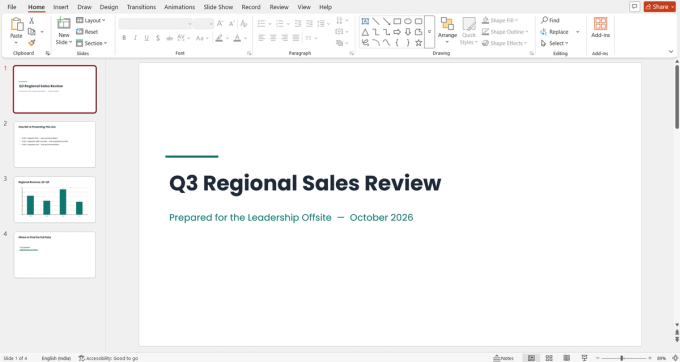
— title slide. This deck intentionally uses a font that isn't part of the standard system set, to test font handling (see below).
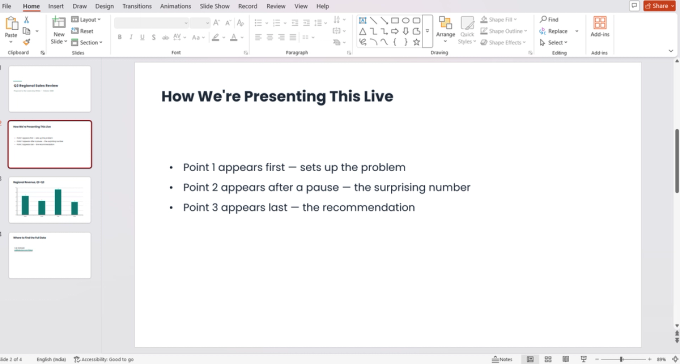
— this slide carries a speaker note ("pause 3 seconds after point 1...") that's invisible on the slide itself and only shows up in Powerpoint Notes pane.
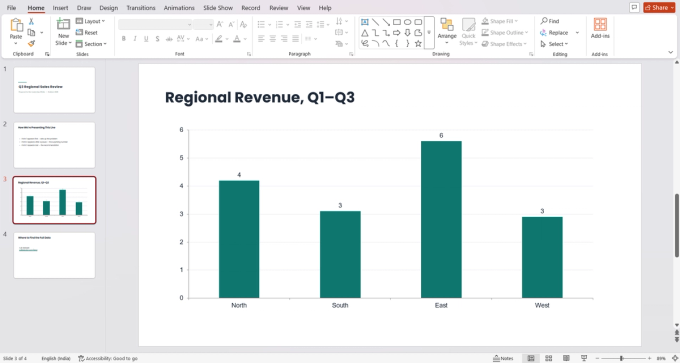
— a native, editable PowerPoint chart.
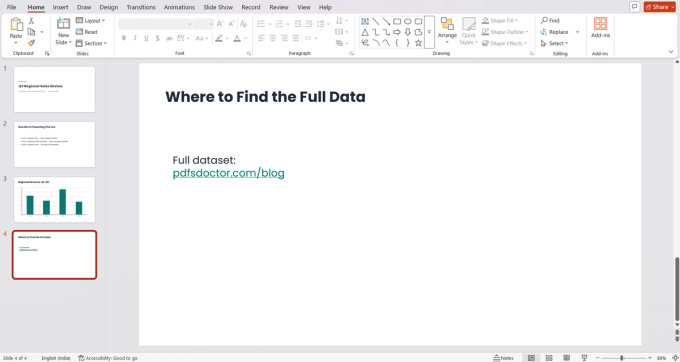
— a live, clickable hyperlink.
And here's the same deck after conversion, opened in the browser's PDF viewer:
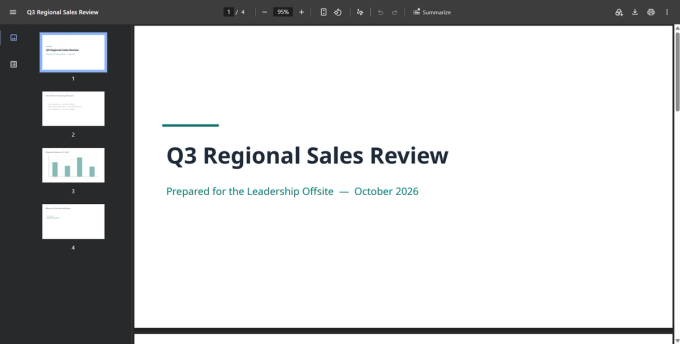
— four pages, one per slide, viewed straight after downloading from PDF Doctor.
What we found after conversion
Element
Result after converting to PDF
Title-slide font
Looked visually consistent between the source and the output in this run. That's not a guarantee for every file, though — font substitution depends on whether the exact font is available wherever the conversion happens, and it can happen even when the difference isn't obvious at a glance. See the font section below before you rely on this with a custom brand font.
Speaker note on slide 2
Dropped. The note doesn't appear anywhere in the converted file — confirming that speaker notes don't carry over by default.
Bar chart on slide 3
Flattened to an image. The numbers and layout are visually identical, but it's no longer an editable chart — you can't click a bar to see the underlying data.
Hyperlink on slide 4
Present in the converted text. Whether it's still clickable depends on your PDF viewer and the tool used — always click through it yourself rather than assume.
This matches what we'd expect from how the format conversion actually works — see the mechanics below — but seeing it on an actual file we ran through the tool, rather than assumed from documentation, is the point of testing it this way.
What Actually Happens When You Convert PowerPoint to PDF
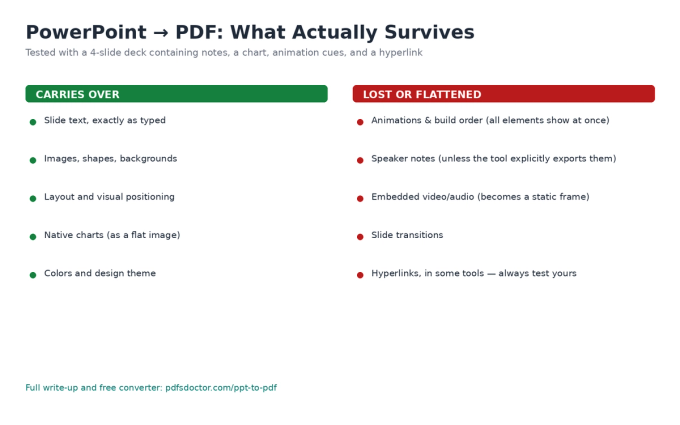
A PowerPoint file is a collection of slides, each containing editable objects — text boxes, images, shapes, charts, tables — plus metadata like speaker notes, animations, transitions, and embedded media. A PDF is a fixed-layout document: every page is a static snapshot per the PDF specification (ISO 32000-2), meaning text and images are positioned on the page, but nothing is interactive or animated by design.
When a tool converts PPT to PDF, it renders each slide as a single PDF page. What carries over: text content, images, shapes, backgrounds, colors, and the visual layout of each slide. What does not carry over: animations and transitions, embedded videos and audio (replaced by a static frame or removed), speaker notes (unless the tool specifically supports exporting them), editable charts and tables (become flat images), and hyperlinks (some tools preserve them, others do not — always check, as our own test above shows).
How to Convert PowerPoint to PDF With PDF Doctor (Free, No Account Required)
Step 1: Open the Conversion Tool
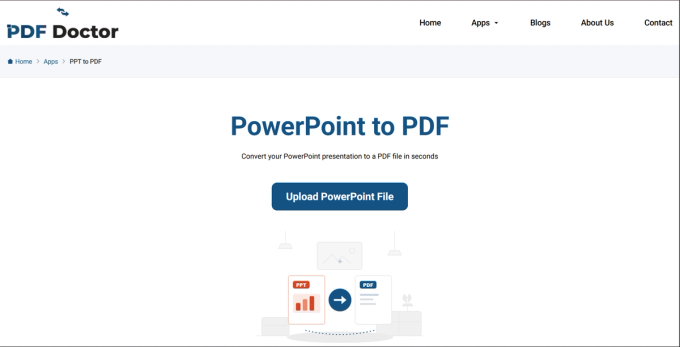
Go to pdfsdoctor.com and navigate to the PPT to PDF tool. No sign-up, no payment, no software to install. Works on Chrome, Firefox, Safari, and Edge, on desktop and mobile.
Step 2: Upload Your PowerPoint File
Click Upload PowerPoint File and select the presentation you want to convert. The tool accepts both .ppt and .pptx formats.
Before uploading, take a moment to consider whether the presentation is truly ready for conversion. Once it becomes a PDF, the content is effectively frozen. If you still need to make edits, finish them first.
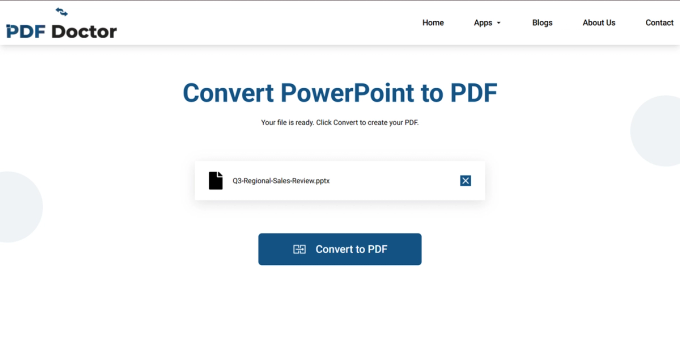
Step 3: Convert the File
Click Convert to PDF. The tool renders each slide as a PDF page, preserving the visual layout, text, images, and design. For standard-sized presentations this takes a few seconds. Decks with many slides or high-resolution images may take longer.
Step 4: Download and Review
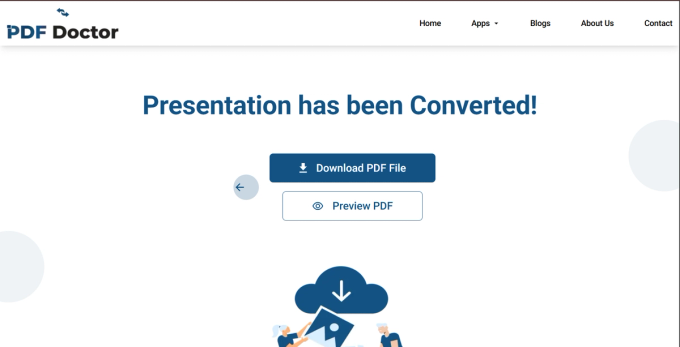
Click Download PDF File — or Preview PDF to check it in the browser first, as we did above. Specifically check that fonts rendered correctly (the most common issue — see below), that all slides are present and in order, that images and charts are not blurry or cropped, and that any hyperlinks you need are still clickable — exactly the checklist we ran against our own test file above.
A concrete example of why reviewing matters: a sales manager we worked with converted a pitch deck to PDF for a client meeting. The deck used a custom corporate font that was not embedded in the PowerPoint file. On her computer the deck looked perfect, but the PDF substituted a default font that changed the text spacing on several slides. She caught it during review and fixed the font embedding before the meeting.
A Note on Privacy
Uploaded files are automatically deleted from our servers after processing and are not stored or shared. If you are working with confidential presentations and your organization requires files to never leave your machine, exporting to PDF directly from PowerPoint's built-in export function (File → Export → Create PDF) is the safest approach since nothing is uploaded anywhere.
The Font Problem: The Most Common PPT-to-PDF Issue
This is the single most frequent source of problems, and it's exactly what our test deck above was built to check for.
When a PowerPoint file uses a font, it can either embed that font in the file or reference it by name. If the font is embedded, the PDF will render it correctly regardless of the conversion tool. If it's only referenced, the conversion tool needs access to that font — and if the font isn't available, it substitutes a default, which changes text width, line spacing, and character shapes.
How to prevent this: Microsoft's own instructions are the authoritative source here — in PowerPoint: File → Options → Save → check "Embed fonts in the file." (Microsoft Support: Embed a font in a presentation). This adds the font data directly into the PPT file, so any conversion tool — ours included — can render it accurately.
If you are converting someone else's presentation and cannot embed fonts, check the PDF output carefully, the way we did with our own test file, and be prepared for visual differences.
When PPT-to-PDF Makes Sense
- Sharing with people who may not have PowerPoint. PDFs open on virtually every device without requiring specific software.
- Locking the content against edits. PDF prevents recipients from accidentally or intentionally modifying finalized content.
- Printing slides. PDF preserves the exact slide layout for printing.
- Reducing file size. Stripping dynamic content often produces a significantly smaller file.
- Archiving presentations. PDF is a stable, long-term format; our own PDF/A converter is built for this specifically.
When PPT-to-PDF Is the Wrong Approach
- If the audience needs to edit the slides — send the PPT file directly, or use a shared editing platform.
- If the presentation relies on animations or transitions — our slide-2 test above shows exactly what's lost: the build order collapses into a single static view. Share the PPT file or present live instead.
- If the presentation contains embedded video or audio — these become static frames or disappear.
- If you need speaker notes included — as our test confirmed, most conversion tools export only the slides. PowerPoint's built-in export can include notes pages (File → Export → Create PDF → Options → "Notes pages"), but this changes the layout.
- If you need the recipient to present from the file — presenting from a PDF loses navigation, presenter view, and interactivity.
What PDF Doctor's Conversion Tool Does Well — and Where It Has Limits
Built for: converting standard PowerPoint files into clean, visually accurate PDFs quickly and for free in a browser — the standard-font, standard-layout scenario is the sweet spot, as our test above confirms.
Where other approaches fit better: speaker notes → PowerPoint's native export; maximum control over compression/quality → PowerPoint's native export or Adobe Acrobat; batch conversion at scale → a scripted LibreOffice command-line pipeline; print-ready color profiles and bleed → a dedicated prepress tool.
Common Conversion Mistakes and How to Avoid Them
- Not embedding fonts before converting — the single most impactful mistake, and the one our own test deck was built to demonstrate.
- Not reviewing the output — a one-minute scroll catches font issues, cropped images, and missing elements.
- Converting when the recipient needs to edit — creates extra round-trip work.
- Forgetting that animations are lost — restructure for the static format if build order matters to comprehension.
- Assuming hyperlinks survived — click through them, the way we did on slide 4 of our test file.
- Not checking file size — compress if a recipient has attachment limits.
Tips for the Best Results
Embed fonts before converting. Review the PDF on a device other than the one you created the presentation on. If speaker notes matter, use PowerPoint's native export. If file size matters, check it and compress if needed. Keep your original PPT file.
Wrapping Up
PPT-to-PDF is one of the more straightforward PDF operations. The main risk is not broken formatting but lost functionality: animations, transitions, speaker notes, embedded media, and sometimes hyperlinks — all four of which we tested directly on PDF Doctor's own tool, rather than described secondhand.
The conversion tool used in this guide is available at pdfsdoctor.com.
Sources and further reading
- Microsoft Support — Embed a font in a presentation
- ISO — ISO 32000-2:2020, Document management — Portable document format