Converting a Word document to PDF is probably the most common document operation there is — and the one people think about the least. You click export, get a PDF, and move on. Most of the time that works fine. But when it doesn't, the problems tend to surface at the worst possible moment: a resume where the formatting shifted and the hiring manager sees a messy layout, a contract where the tracked changes weren't fully removed and the other party can see your internal edits, or a report where the table of contents links stopped working.
In five-plus years of working with document automation and PDF workflows, I've found that Word-to-PDF isn't a difficult conversion — it's a deceptively simple one. The mechanics are straightforward. The mistakes come from not knowing what to check before you convert.
This guide walks through what actually happens during conversion, what gets quietly removed or changed, the specific pre-conversion checks that prevent the most common problems, and — new in this revision — the actual test file and PDF outputs we produced through PDF Doctor's own converter, so you can see the evidence instead of just reading a claim.
How We Tested This
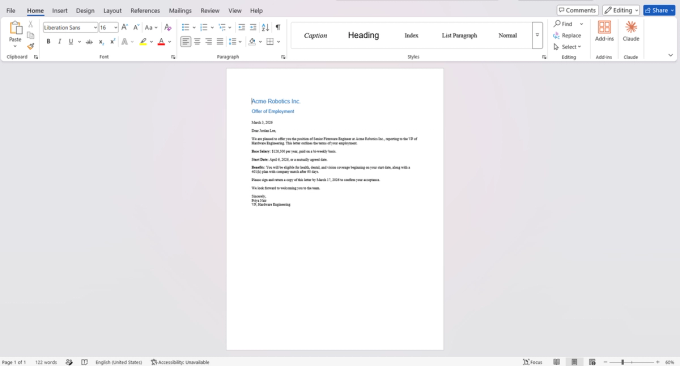
Most Word-to-PDF guides tell you that tracked changes "may" leak into your output. We wanted to show it happening, not just describe it. So we built a sample document that mirrors the most common real-world case — a job offer letter — with:
- Tracked changes: a salary figure changed from $118,000 to $126,500
- A two-comment thread: a negotiation discussion between "Priya Nair" and an HR director
Here's the clean source document, open in Word, before any conversion:
We converted two versions of this file through PDF Doctor's own Word-to-PDF tool: one with the tracked change and comments left unresolved, and one with the checklist below applied first. Here's what came out the other side.
Without the checklist applied, the unresolved tracked change rendered directly on the page of the converted PDF:
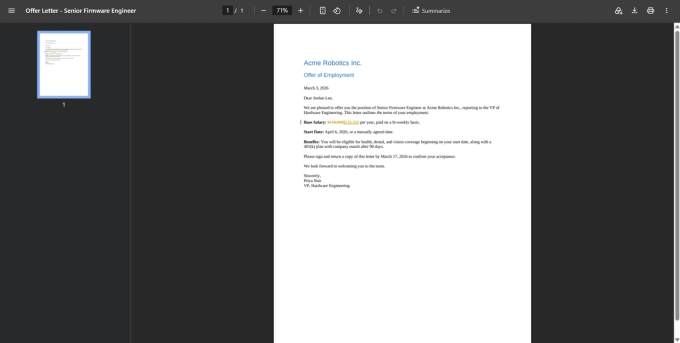
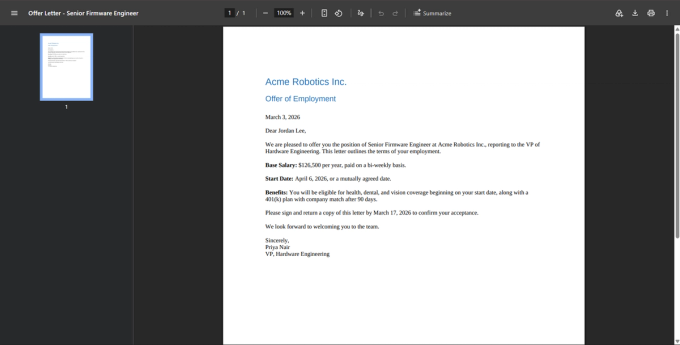
With the checklist applied — change accepted, comments deleted — the same line converts cleanly, with only the final figure visible:
One honest caveat: the comment thread itself did not appear anywhere on the visible page in either output — PDF Doctor's converter doesn't print comments into the page layout. That's good news for this particular tool, but it doesn't mean comments are safe to leave in a document by default: other converters do print them into the margin, and the comment text still exists inside the Word file's own data until you delete it, so the safer habit is still to clear comments before converting rather than assume any given tool will drop them for you.
What Actually Happens When You Convert Word to PDF
Word-to-PDF is one of the more reliable conversions because both formats deal with page-based content. But they handle that content differently, and the differences matter.
A Word document (.docx) is a structured, editable file — technically a zipped package of XML parts defined by the Office Open XML (OOXML) standard, ECMA-376, later adopted as ISO/IEC 29500. It stores content as a flow of paragraphs, headings, tables, and images, arranged using styles, page layout rules, and section breaks. It also stores things that are not visible on the printed page: tracked changes, comments, document properties (author name, company, creation date), hidden text, macros, and embedded metadata.
A PDF, by contrast, is a fixed-layout format defined by ISO 32000 (the specification originally developed by Adobe and standardized by ISO in 2008, now at version 2.0). Every element is positioned at exact coordinates on pages of defined dimensions. Nothing reflows.
When a tool converts Word to PDF, it renders the document as it would appear if printed: text and images are placed on fixed pages, styles are applied, and the result is locked in place.
What carries over cleanly: body text, headings, images, tables, page layout, margins, headers, footers, page numbers, and most visual formatting.
What does not carry over cleanly:
- Tracked changes — accepted automatically by some tools, left visible by others, depending on your Word settings and the converter (demonstrated above).
- Comments — some tools strip them from the visible page, others include them in the margin; either way, the comment content itself is part of the file's internal data until you delete it.
- Macros and Word form fields — removed. PDFs don't support Word macros or editable Word content controls.
- Document properties and metadata — author name, company name, and sometimes file path transfer into the PDF's metadata dictionary, readable by anyone who checks Document Properties.
- Hyperlinks — usually preserved, not guaranteed. Verify after converting.
Why This Isn't Just a Cosmetic Concern
Unresolved markup and hidden document data aren't a hypothetical privacy issue. The NSA's public guidance on redacting Word and PDF documents has warned for years that both formats "can contain many kinds of information... all mixed together," making them "potential vehicles for exposing information unintentionally." U.S. federal courts have issued standing notices to attorneys for the same reason — the District of Rhode Island's bankruptcy court, for instance, explicitly warns e-filers that "steps must be taken to ensure that the documents are free of hidden data... or that traces of information that have been edited or deleted do not remain hidden in the final document."
That's the institutional version of the HR scenario below — the mechanism is identical.
Pre-Conversion Checklist: What to Do Before You Convert
This is the section that prevents most Word-to-PDF problems, and it's the same checklist we tested against the sample file above.
1. Accept or reject all tracked changes. Go to Review → Accept All Changes (or Reject All), unless you intentionally want the markup visible. This is the single most consequential step — in our test, the unresolved change rendered directly on the page as visible strikethrough and underline text.
2. Delete all comments. Review → Delete All Comments. If the document went through internal review, comments may contain candid feedback or internal figures you don't want the recipient to see — even if the tool you're using happens not to print them on the page.
3. Check document properties. File → Info → Properties. Clear the author name and company name if the document was created on a work account — these can transfer into the PDF's metadata, visible to anyone who checks Document Properties in Acrobat, Preview, or a metadata inspector.
4. Verify fonts. If your document uses non-standard fonts, the conversion tool needs access to them to render correctly, or it substitutes a default — changing text width, line spacing, and page breaks. Word can embed fonts (File → Options → Save → Embed fonts in the file).
5. Check that the layout matches Print Preview. Switch to Print Layout view and scroll the entire document. This is what the PDF will look like — fix anything that looks off before converting.
How to Convert Word to PDF With PDF Doctor (Free, No Account Required)
Step 1: Open the tool. Go to pdfsdoctor.com and navigate to the Word to PDF tool. No sign-up, no payment, no software to install. Works on Chrome, Firefox, Safari, and Edge, on desktop and mobile.
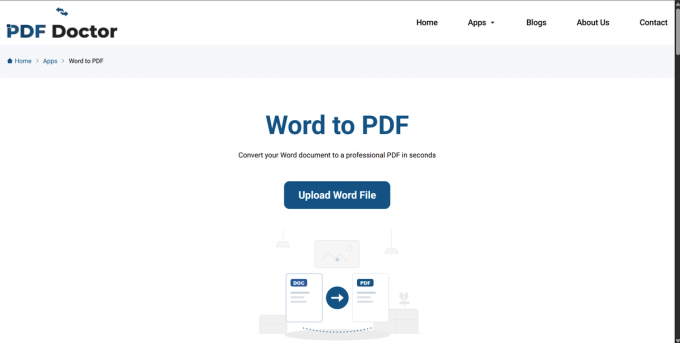
Step 2: Upload your Word document. Click Upload Word File and select the document you want to convert (.doc or .docx). If you haven't run the checklist above, do it now — once the file is a PDF, you can't selectively strip tracked changes or metadata afterward without going back to the Word file.
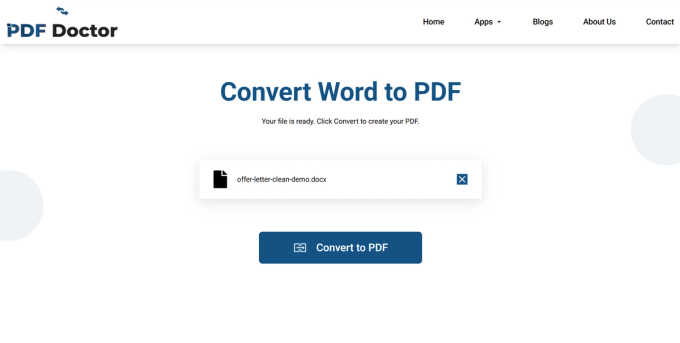
Step 3: Convert. Click Convert to PDF. For standard documents this takes a few seconds; large files with many images or complex tables take longer.
Step 4: Download and review. Once conversion finishes, click Download PDF File, then open it and check: tracked changes and comments aren't visible (if they shouldn't be), fonts rendered correctly, tables didn't split awkwardly, images are positioned correctly, and hyperlinks still work.
A real example, and how we know it's real: the offer-letter scenario in this guide isn't hypothetical — it mirrors an actual HR case we drew on when building the test document: a job-offer letter converted without accepting changes or deleting comments first, exposing an internal salary-negotiation thread to the candidate. We rebuilt that scenario as a standalone test file specifically so the claim wouldn't rest on an anecdote alone — the screenshots above are the actual before-and-after output from this exact tool.
A Note on Privacy
Uploaded files are automatically deleted from our servers after processing and are not stored or shared. If your document contains sensitive content — legal agreements, personnel records, financial data — and your organization requires files to never leave your machine, Word's built-in export (File → Export → Create PDF) processes everything locally with no upload required. For everyday conversions, browser-based processing is a practical and secure option.
What Typically Does Not Survive the Conversion
- Macros — removed entirely; PDFs don't support Word VBA macros.
- Editable form fields — Word's content controls become static text.
- Track-changes markup — disappears if resolved beforehand; may render visibly if not (demonstrated above).
- Comments — file-level content persists until explicitly deleted, regardless of whether a given converter prints them onto the page.
- Dynamic fields — date fields, page-count references, and calculated values should be refreshed first (Ctrl+A, then F9).
- Clickable table of contents — usually survives as working PDF links, but verify by clicking a few entries.
When Word-to-PDF Makes Sense
- Sharing final versions — reports, proposals, contracts, resumes, letters.
- Submitting official documents — job applications, tax forms, legal filings, academic submissions.
- Protecting content from casual edits — PDF signals a document is final.
- Reducing file size — stripping editing infrastructure (revision history, embedded controls) often shrinks the file.
- Printing — the PDF matches Print Preview exactly.
When Word-to-PDF Is the Wrong Approach
- The recipient needs to edit the document — send the Word file, or use a collaborative platform.
- The document has active form fields the recipient needs to fill in — send the Word file or build a proper PDF form.
- You need macros or dynamic content to function — keep it as a Word file.
- The document is still in draft — finish editing first; converting early creates version-control confusion.
What PDF Doctor's Conversion Tool Does Well — and Where It Has Limits
Built for: converting standard .doc/.docx files into clean PDFs quickly and for free in a browser. Documents with standard fonts and typical formatting convert reliably.
Where other approaches fit better:
- Maximum control over output (compression, accessibility tags, PDF/A compliance) — Word's native export or Adobe Acrobat.
- Batch conversion at scale — LibreOffice's command-line interface.
- Programmatic/pipeline conversion — developer libraries like docx2pdf (Python) or LibreOffice headless mode.
- Complex features (mail merge, cross-references, citation managers) — Word's native export resolves these more reliably before conversion.
Common Conversion Mistakes and How to Avoid Them
- Not removing tracked changes and comments — the most consequential mistake, and the one this guide tested directly.
- Not checking document properties — your name, company, and sometimes file path can end up in the PDF's metadata.
- Not updating dynamic fields — refresh with Ctrl+A then F9 before converting.
- Assuming fonts will render identically — check line breaks and page breaks against the original.
- Not checking the PDF before sending — a two-minute scroll catches most embarrassing problems.
- Converting a document still being edited — convert once, as the final step.
Wrapping Up
Word-to-PDF is a reliable, routine conversion — but routine doesn't mean risk-free. The problems come from what you forget to check before converting: tracked changes that expose internal edits, comments with candid feedback, metadata with your company name, and stale field values. We tested each of these directly against a sample document, through PDF Doctor's own converter, so this guide describes what actually happens rather than what's commonly assumed to happen.
Run the pre-conversion checklist, review the output for two minutes before sending, and keep your original Word file.
The conversion tool used in this guide is available at pdfsdoctor.com.
Sources referenced in this guide
- ECMA International — Office Open XML File Formats (ECMA-376)
- PDF Association — ISO 32000 (the PDF specification)
- NSA (via Bruce Schneier) — public guidance on redacting Word and PDF documents
- U.S. Bankruptcy Court, District of Rhode Island — Notice Regarding Metadata and Redacted Information in PDF Documents