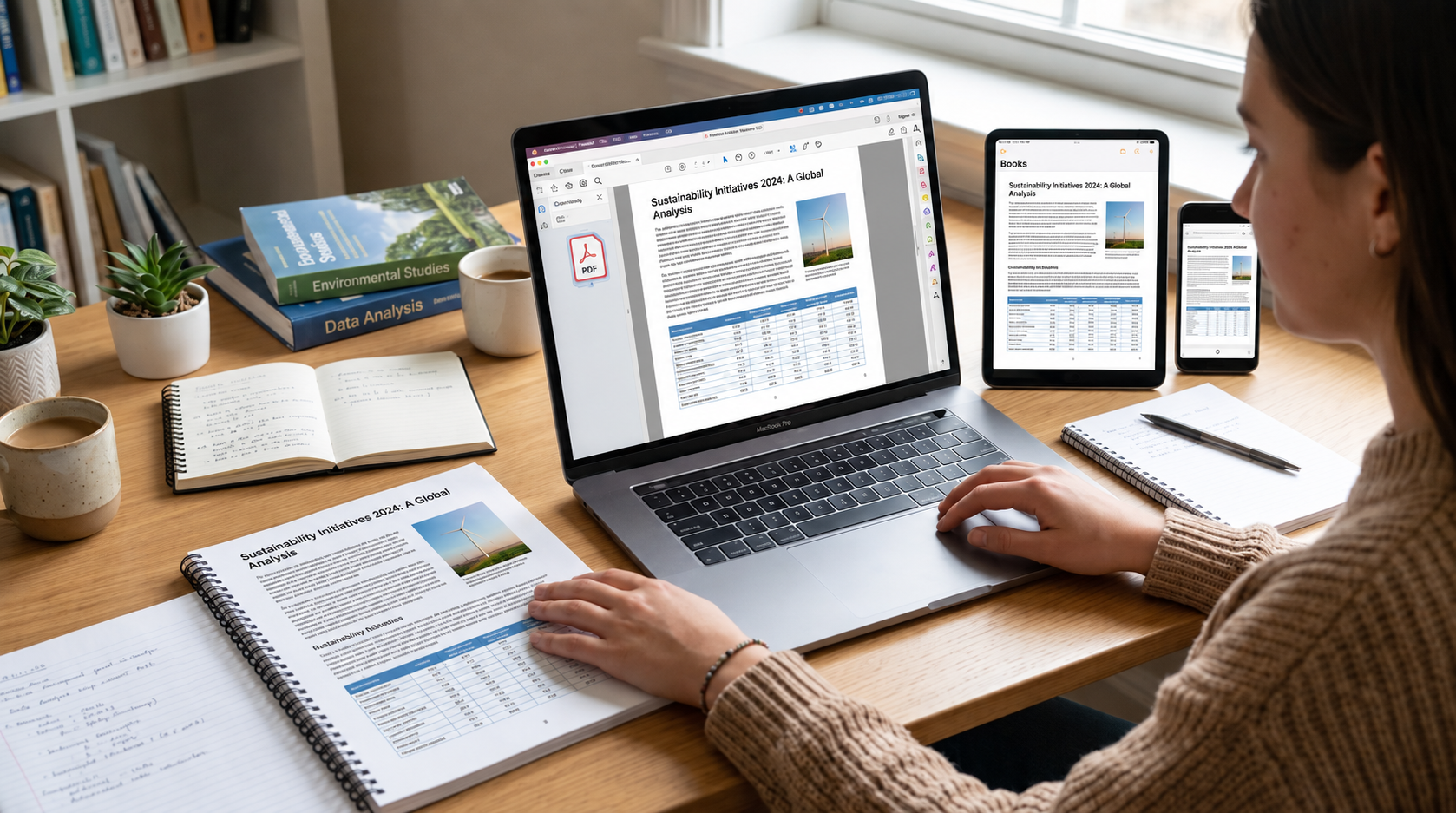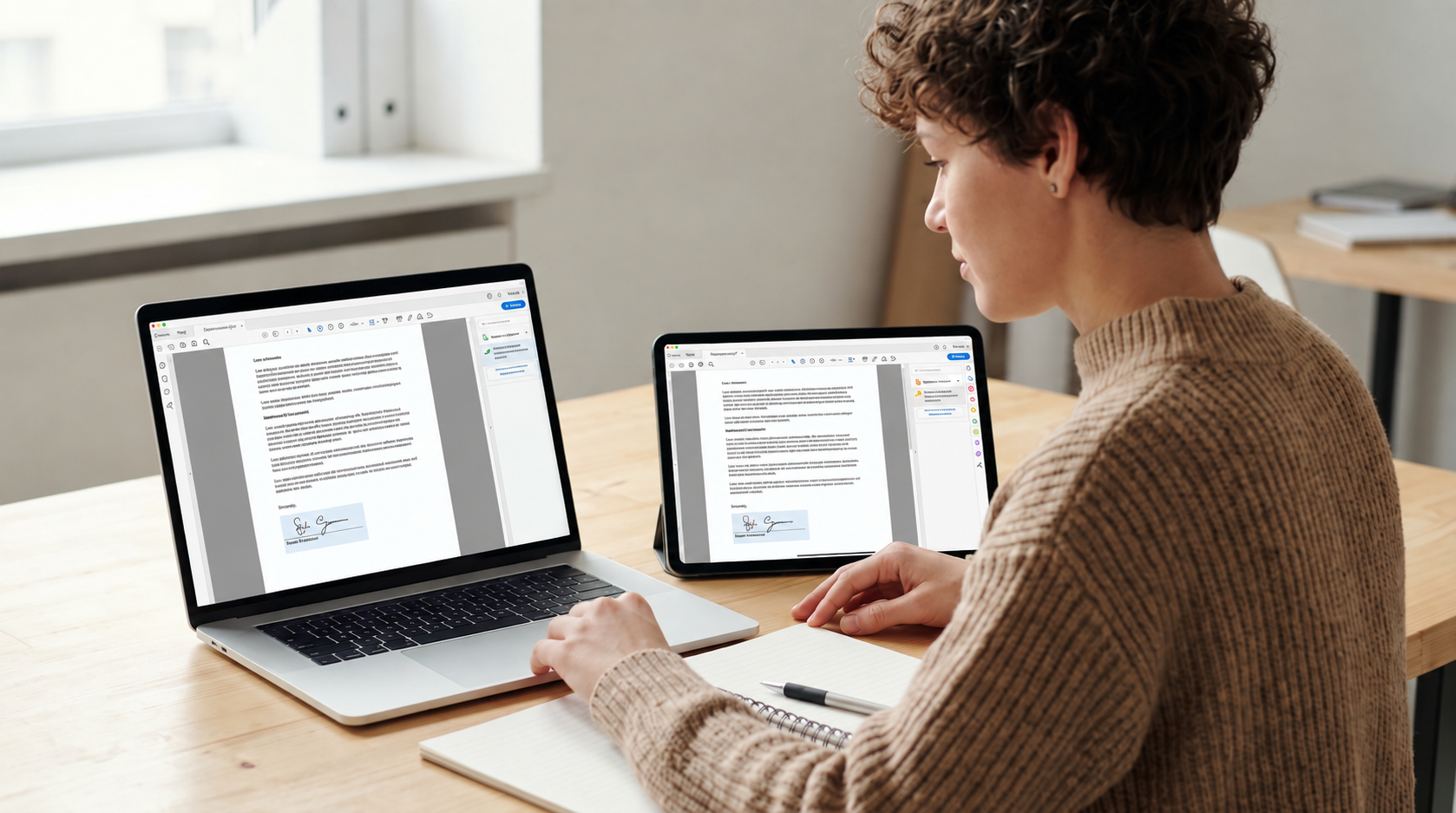
It's Monday morning and Sam, a freelance marketing consultant, needs to get four things done before lunch. Send a proposal to a new lead who's expecting it by noon. Get a contract signed for a different client whose project starts Wednesday. Deliver this month's analytics report to a third client. And dig up an old contract from a returning client who has follow-up questions about a project from 18 months ago.
Every one of those tasks involves PDFs. None of them are technically complicated. But by the time Sam has hunted through three folders, two cloud drives, and an inbox to find what he needs, half the morning is gone.
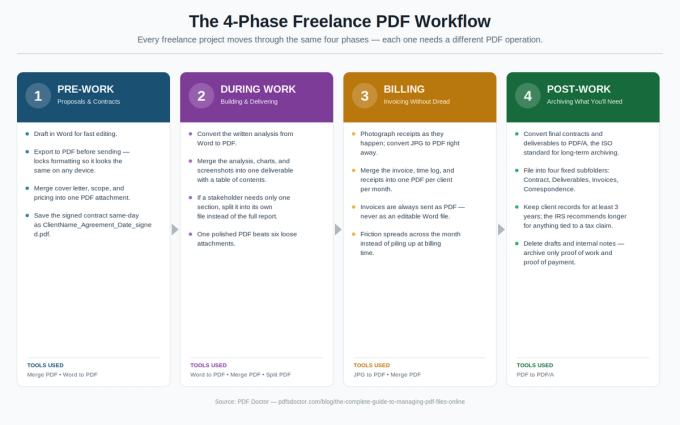
That's the situation this guide is built to prevent. Every freelance project moves through the same four phases — pre-work, active work, billing, and archiving — and each phase has a small number of PDF operations that, done consistently, remove the hunting entirely. This guide walks through all four.
How this guide was put together
This is a workflow guide, not a research study, and it's worth being upfront about where it comes from: it's built from the patterns we see in how freelancers actually use PDF Doctor's tools — merging proposal packets, converting invoices, splitting reports for stakeholders — combined with published guidance on freelance recordkeeping and contract law. Where this guide makes a legal or tax claim, it's cited to a primary source rather than asserted — see the reference list at the end. It is not legal, tax, or accounting advice; for anything that affects a signed contract or a tax filing, confirm the specifics with a licensed professional.
Why Freelancers Have a PDF Problem That Employees Don't
Full-time employees usually have someone else managing the document infrastructure. IT handles the shared drives. Legal handles the contracts. Accounting handles the invoices. There's a templated proposal format, a standard delivery process, and a designated archive. The employee just opens the file in the right folder and gets to work.
Freelancers handle all of it themselves, across multiple clients — often with each client preferring a different system. One wants deliverables in their Google Drive, another insists on email attachments, a third uses a client portal. By the third or fourth client, you have files in several places, named several different ways, organized by several different schemes, and you're the only person who knows where anything is.
The fix isn't more discipline — discipline fails under deadline pressure. The fix is a workflow for each phase of a project that handles documents the same way every time, so you never have to think about it.
Phase 1: Pre-Work — Proposals and Contracts
Everything before the work starts. Two documents matter here: the proposal you send to win the project, and the contract you both sign before starting it.
The proposal problem. Most freelancers draft proposals in Word or Google Docs, because editing and revising is fast there. Then they attach the .docx file directly to the email. That's the wrong move — Word documents reflow on the recipient's machine. Different fonts, different default margins, different software versions, and a carefully formatted proposal can arrive looking noticeably different than it did when it was sent. Draft in Word, export to PDF before sending. The PDF locks the formatting so the client sees exactly what you designed.
If the proposal has multiple components — cover letter, scope document, pricing breakdown, case studies — merge them into one PDF before sending instead of attaching four separate files.
The contract problem. Contracts have the reverse issue: draft in Word so terms can move during negotiation, export to PDF for signing. After signing, the signed copy needs to live somewhere findable — not in an email thread that will eventually get buried or deleted.
As soon as a contract is signed: download the executed PDF from the e-signature service (don't rely on the email copy alone), save it to a per-client folder with a clear filename (ClientName_MasterAgreement_2026-03-15_signed.pdf), and keep your own copy independent of the signing platform. Under the U.S. ESIGN Act, an electronic signature generally has the same legal standing as a handwritten one — a record can't be denied legal effect solely because it's electronic.<sup>[1]</sup> That protection is only useful if you can actually produce the record when you need it, which is why the downloaded copy matters more than the platform's promise to keep it on file.
Phase 2: During Work — Building and Delivering
This is where the project happens. PDFs come into play when it's time to deliver something — a monthly report, a strategy document, a research summary.
The most common deliverable mistake: sending a client six separate files — screenshots in one PDF, written analysis in a Word doc, chart exports as PNGs, appendix as another PDF. It puts the work of assembling the deliverable onto the client, and it makes organized work look fragmented.
The fix: convert the written analysis to PDF, then merge it with the chart exports and appendix into one document with a table of contents. One file, one open, one polished deliverable.
When only one stakeholder needs a piece of it — their CFO wants just the budget section — split that section into its own file rather than sending the full report and asking them to skip to page 12.
Phase 3: Billing — Invoicing Without the Dread
The typical bad workflow: build the invoice, save as PDF, attach to email, separately attach the expense receipts, write a cover note. The client gets three or four attachments and has to piece together what they're being billed for.
The better workflow: combine the invoice, the time log detail, and any expense receipts into one PDF per client per month. Invoice first, time breakdown after, receipts at the back.
Why invoices should always be PDF, never Word. A Word invoice can be opened and the amount edited before it's paid — with no clean record of what was actually sent. A PDF isn't impossible to edit, but it takes deliberate effort and tends to leave traces, which is enough of a deterrent in practice that invoices should default to PDF every time.
The receipt habit that saves the most time: photograph receipts as they happen and convert to PDF immediately, rather than in a batch at month-end. The friction gets spread across the month instead of concentrated at billing time.
Phase 4: Post-Work — Archiving What You'll Need Later
The phase most freelancers skip until they regret it. A project ends, the invoice gets paid, and the files sit in a Downloads folder until they're eventually deleted to save space — and six months later a client comes back with a follow-up question and nothing can be found.
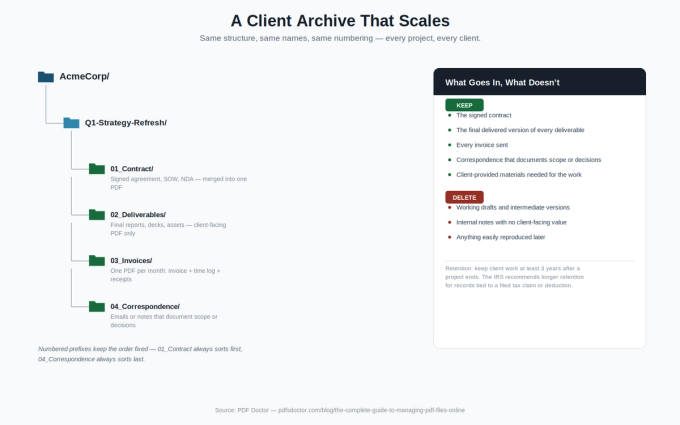
What to keep: the signed contract, the final delivered version of every deliverable, every invoice sent, correspondence that documents scope or decisions, and any client-provided materials needed for the work.
What to delete: working drafts, intermediate versions, internal notes with no client-facing value, anything easily reproduced.
A folder structure that scales: one folder per client, one subfolder per project, and inside each project folder, four fixed, numbered subfolders: 01_Contract, 02_Deliverables, 03_Invoices, 04_Correspondence. Numbered so they always sort the same way — the contract first, correspondence last.
Converting to PDF/A for long-term storage. For files you'll need years from now — contracts, final deliverables, financial records — convert anything still in an editable format to PDF/A before archiving. PDF/A is the ISO-standardized subset of PDF (ISO 19005) built specifically to preserve a document's visual appearance independent of the software used to open it later, by prohibiting things like font linking and encryption that break over time.<sup>[2]</sup>
How long to actually keep things. This is where a lot of freelancer advice gets vague, so here's the specific version: the IRS's general guidance is to keep U.S. business records for 3 years from the date you filed the return, extending to 6 years if you underreported income by more than 25%, 7 years for a claim involving worthless securities or bad debt, and indefinitely if a return was never filed or was fraudulent; employment tax records have their own 4-year minimum.<sup>[3]</sup> Requirements outside the U.S. differ — UK sole traders, for example, are generally expected to retain business records for about 5 years and 10 months after the relevant tax year. None of this is a substitute for asking your own accountant what applies to you, but "keep it forever" and "delete it after the project" are both wrong defaults — align your archive with the actual retention period.
The Tax Season Survival Section
Every January or April, depending on your country, freelancers face a week of document hunting: total the invoices sent, categorize deductible expenses, find every receipt. A system built during the year turns that week into an afternoon.
One annual invoice document. At year-end, merge every invoice sent into a single chronological PDF — this becomes the primary income record your accountant can verify totals from directly.
Receipts organized by category, not by date. Group receipts by deductible category (software subscriptions, travel, equipment, professional development, home office) and merge each category into its own PDF. Categorize as the year goes, not at tax time.
Extracted line items for accounting software. If you use accounting software, you'll need expenses as line items, not PDF attachments — extracting amounts into a spreadsheet import saves hours of manual entry.
Common Freelancer PDF Mistakes
Sending the wrong client's proposal to a new lead. Reused templates can carry the previous client's name in a footer, a metadata field, or paragraph 12. Fix: search the document for the previous client's name before sending, and check the file properties for stale metadata.
Losing a signed contract because it only existed in email. The e-signature service sends the signed PDF as an attachment; it gets filed and never downloaded separately. Two years later the email or attachment is gone. Fix: every signed contract gets downloaded and saved to the client folder immediately — no exceptions.
Sending an invoice as a Word document. Covered above, worth repeating because it keeps happening. Fix: invoices are always PDF.
Deleting "old" project files you suddenly need again. Fix: cloud storage is cheap — keep client work for at least three years after a project ends, longer if it supports a tax position (see the retention guidance above).
Sending a large deliverable through email. Most email systems reject attachments over 25MB. Fix: compress large PDFs before sending, or use a cloud share link for anything over 10MB.
Not having a backup of client work. Fix: keep client work in at least two places — one local, one cloud. For signed contracts and final deliverables specifically, three.
The Tools Behind the Workflow
PDF tools are one piece of a freelancer's document stack, not the whole thing:
- PDF operations (merge, split, convert, extract to PDF/A): browser-based tools like PDF Doctor handle this. Desktop alternatives include Adobe Acrobat Pro (paid) and PDFsam (free, open-source) for anyone who prefers everything to stay on their own machine.
- E-signatures: dedicated services like DocuSign, HelloSign, or PandaDoc handle the signing itself; PDF tools handle the documents before and after.
- Invoicing: tools like FreshBooks, Wave, or Bonsai handle invoice generation and payment tracking; PDF tools come in for the combine-and-deliver step afterward.
- Cloud storage: Dropbox, Google Drive, or OneDrive for day-to-day storage and the long-term archive.
PDF tools alone don't solve the freelance document problem — they handle the document-manipulation steps. The rest of the stack handles everything else.
A Note on Client Confidentiality
Freelancers regularly handle sensitive client information — NDA'd contracts, financial data, unannounced strategy documents, customer information. Browser-based PDF tools, including PDF Doctor, delete uploaded files after processing, but for materials a client has explicitly required stay off any third-party server, desktop tools are the safer choice: Adobe Acrobat, PDFsam, and the PDF tools built into macOS and Windows all process files locally.
For day-to-day operations on your own work — proposals, invoices, deliverables you created — browser tools are practical and secure. For high-confidentiality client materials, default to desktop processing, and check your client agreement for any explicit data-handling terms.
Wrapping Up
The freelance document problem isn't solved by working harder or being more disciplined. It's solved by a workflow for each phase of a project that handles documents consistently, regardless of how busy you are. Pre-work, during work, billing, post-work — each phase has its own document needs and its own PDF operations.
Set the system up once. Use it on every project. Start with whichever phase is causing the most pain right now.
The PDF tools used throughout this guide are available at pdfsdoctor.com, including Merge PDF, Split PDF, Word to PDF, JPG to PDF, and PDF to PDF/A.
References
- Electronic Signatures in Global and National Commerce Act, 15 U.S.C. § 7001 — govinfo.gov/link/uscode/15/7001
- PDF Association, ISO 19005 (PDF/A) — pdfa.org/resources/ISO-19005-pdfa
- Internal Revenue Service, How long should I keep records? — irs.gov/businesses/small-businesses-self-employed/how-long-should-i-keep-records
This guide is provided for general informational purposes and is not legal, tax, or financial advice. Retention periods and e-signature requirements vary by country, state, and situation — confirm specifics with a licensed attorney or accountant.