The short answer
- Make a copy of the damaged file before you try anything.
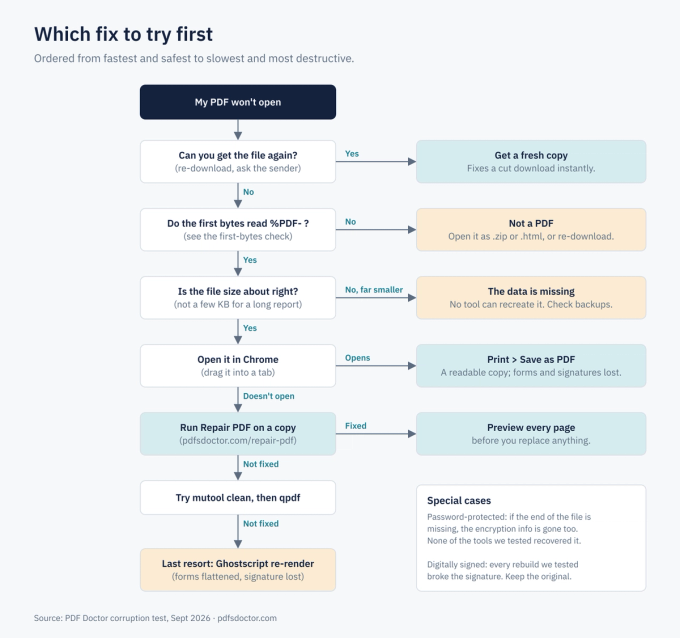
- Get the file again if you can. Most "corrupted" PDFs are simply incomplete downloads, and a fresh copy fixes them instantly.
- Check it's actually a PDF. Look at the first bytes (see below).
- Open it in Chrome. In our test, Chrome opened every file whose only damage was a missing or misdirected index pointer.
- Run a repair tool on the copy. Preview every page before you replace anything.
Before anything else: work on a copy
Some repair commands overwrite the original file. If a repair goes wrong, you want the damaged original untouched so you can try another method. The same applies to digitally signed files: in our test, every repair method broke or removed the signature (more on that below).
What "corrupted" actually means
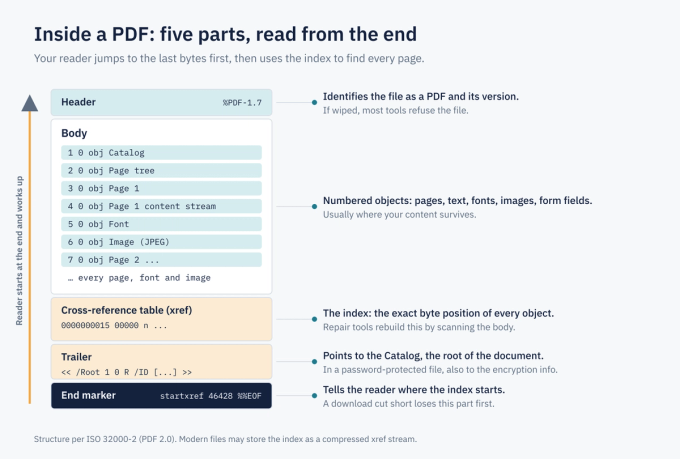
A PDF is not a picture of your document. It's a set of numbered objects (pages, text, fonts, images) plus an index that records the exact byte position of each one.
Your reader starts at the end of the file. It reads the last few bytes to find the index, then uses the index to jump to each page. That's why damage at the end, which is exactly what an interrupted download causes, hurts so much. The content can be sitting there intact while the reader has no map to it.
Diagnose your file in 60 seconds
You don't need special software. A plain-text editor (Notepad, TextEdit) is enough. The binary gibberish in the middle is normal; it's compressed data.
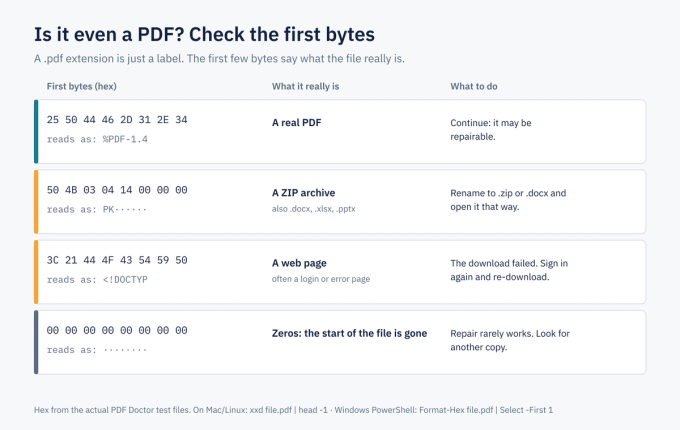
1. Check the first bytes. A real PDF starts with %PDF-. If yours starts with PK, it's a ZIP-based file such as a .docx or .xlsx. If it starts with <!DOCTYPE html, you downloaded a web page, usually a "session expired" or login screen, not the document. If it starts with zeros, the beginning of the file has been wiped.
2. Check the size. If a 40-page report is 12 KB, the data isn't there, and no tool can recreate it.
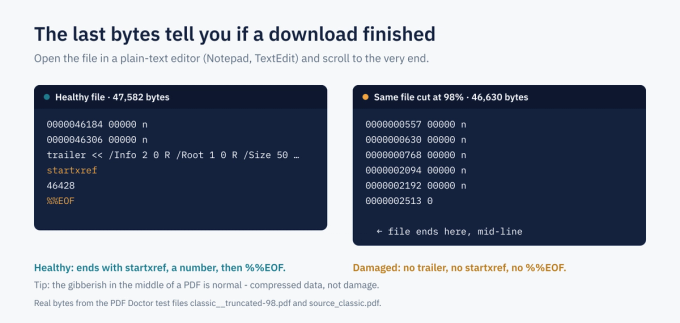
3. Check the last bytes. A complete PDF ends with startxref, a number, and %%EOF. A download that died partway ends abruptly, often in the middle of a line.
If you're comfortable with a terminal, our free pdf_health_check.py script runs all three checks in a second. It's read-only and never modifies your file. [[FILL: link to the test kit download]]
Why PDFs get corrupted
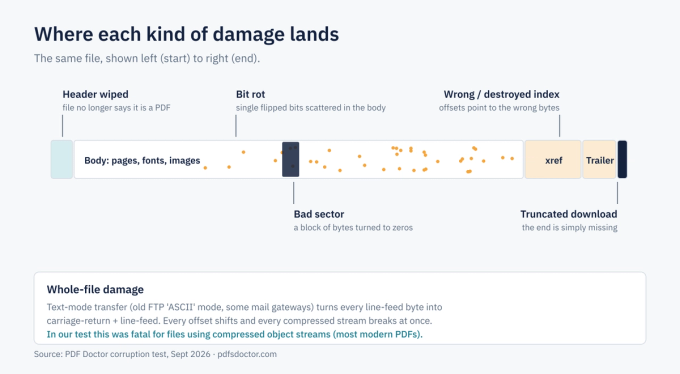
- Incomplete downloads and copies. A dropped connection, a closed browser tab, or a USB drive unplugged too early cuts off the end of the file. As shown above, the end holds the index, so this does the most damage.
- The wrong file entirely. An expired download link often saves an HTML error page with a .pdf name.
- Text-mode transfers. Old FTP "ASCII" mode and some mail gateways convert line-ending bytes. This shifts every position in the file at once. In our test, no method recovered a modern-layout file damaged this way.
- Failing storage. Bad sectors turn blocks of bytes to zeros, and aging drives flip individual bits.
- Crashes while saving. The app dies before it finishes writing the index.
How we tested
We built one 12-page reference document with text, a JPEG chart, a table, 12 bookmarks, metadata and a fillable form field. We saved it in two layouts:
- Classic: a plain index table.
- Modern: compressed object streams, which is how most current apps save PDFs.
We then damaged each version in 12 ways that mirror real failures, giving 24 broken files. We ran six methods on each one and opened every result in PDFium, the PDF engine inside Google Chrome. A file counts as fully recovered only if all 12 pages came back with at least 99% of the original text.
Tool versions: qpdf 11.9.0, Ghostscript 10.02.1, MuPDF (mutool) 1.23.10, pypdf 5.9.0, PDFium 147.0.7713.0.
Limitations: The damage is synthetic, and all files came from one source document. Real files vary, so treat these results as directional. We did not test Adobe Acrobat or Apple Preview. The full test kit, including the files, scripts and raw results, is free to download so you can repeat it.
Results
What we learned:
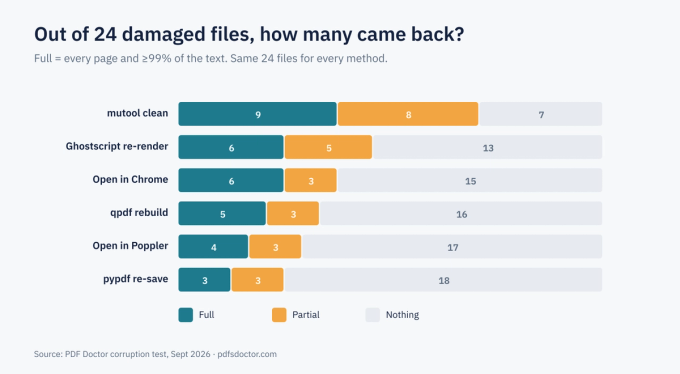
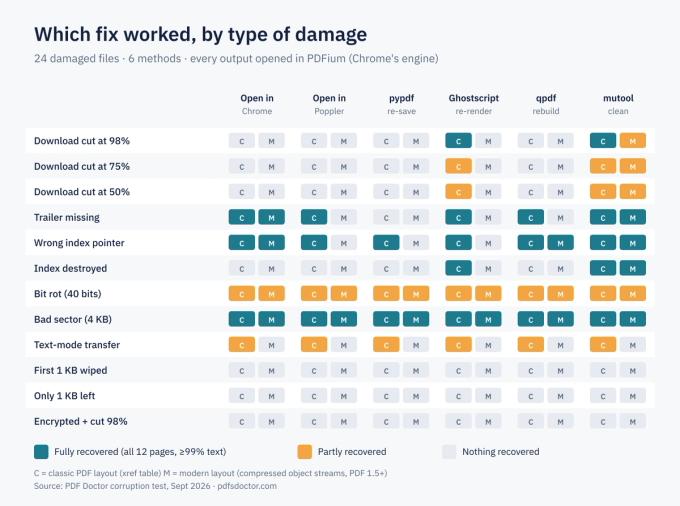
- mutool clean recovered the most: 9 files fully and 8 partly, out of 24. It was the only method that fully rebuilt a modern file whose index had been destroyed.
- Chrome is a good first check, not a repair tool. It fully opened 6 files: those with a missing trailer, a wrong index pointer, or a zeroed 4 KB block. It could not open any truncated file, even one cut at 98%.
- qpdf couldn't rebuild a file cut at 98%. It failed on both layouts because the trailer it needs was gone. It did well on files with a wrong index pointer.
- Compression amplifies small damage. Just 40 flipped bits cost roughly a quarter to two-fifths of the text in every method, and the chart image was lost.
- Cut-off downloads lose far more than the missing bytes. At 75%, the best result was 3–4 pages (about a quarter of the text). At 50%, it was 2 pages.
- Some files were beyond every tool: a wiped first kilobyte, a file with only 1 KB left, and a password-protected file cut at 98%. In an encrypted PDF, the pointer to the encryption information sits in the trailer at the end. Lose the end, and the tool cannot find the decryption information even with the correct password.
How to repair a PDF with PDF Doctor
- Make a copy of your damaged file.
- Go to pdfsdoctor.com/repair-pdf and upload the copy. The limit is 25 MB. The tool reads the raw bytes, so it works even if no reader can open the file.
- Click "Repair PDF."
- Preview before downloading. Check the page count, the last pages (truncation hits these first), images and tables.
For files over 25 MB, use mutool or qpdf below.
If that doesn't work
All of these are free and never overwrite your file.
- mutool clean (MuPDF). This was our best performer. mutool clean damaged.pdf repaired.pdf
- qpdf. This is good for broken index pointers. qpdf damaged.pdf repaired.pdf Avoid --replace-input, which overwrites the original.
- Ghostscript, as a last resort. It re-draws the file from scratch. In our test, it dropped the form field in every file it recovered, and dropped bookmarks and metadata in half of them. gs -o repaired.pdf -sDEVICE=pdfwrite damaged.pdf
What a repaired file keeps and loses
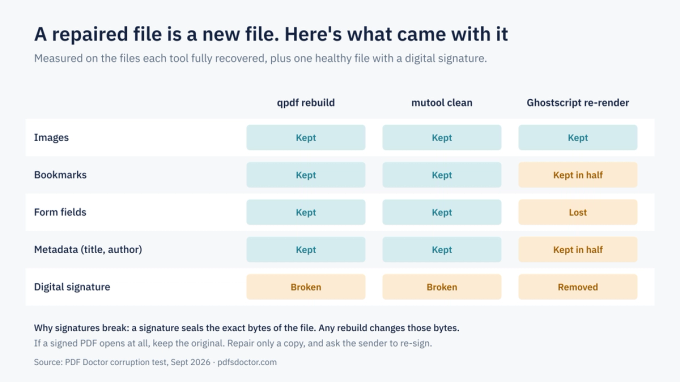
A repaired PDF is a new file. qpdf and mutool kept images, bookmarks, form fields and metadata in every file they fully recovered.
Digital signatures are different. We signed a healthy file and ran each tool on it. qpdf and mutool left the signature invalid, and Ghostscript removed it entirely. A signature seals the exact bytes of a file, so any rebuild breaks it. If a signed document matters, keep the original and ask the sender to re-sign.
What repair can't fix
- Data that was never downloaded. A tool can rebuild the map, not the missing pages.
- A wiped file header plus the first objects.
- Encrypted files that have lost their end.
- Files that aren't PDFs. Open them with the right app instead.
How to prevent it
- Check the file size before you close the download page.
- Wait for "safe to eject" before unplugging a drive.
- Keep important PDFs in two places. Cloud version history can bring back a previous copy of a corrupted file.
- Send PDFs as file attachments or share links, not through anything that converts text.
FAQ
Will repairing change my content? The text and images that survived should stay the same. The repaired file is still a new file, though: digital signatures break, and Ghostscript may drop form fields, bookmarks and metadata.
Can repair fix blank pages? Sometimes. If the reference to a page is broken, repair can restore it. If the page data itself is gone, nothing can.
My file is password-protected and won't open. Which tool do I need? If it asks for a password, it's locked, not corrupted: use Unlock PDF (with the password). If it shows an error before ever asking for a password, it's damaged. In our test, no tool recovered an encrypted file that had lost its end.
Is repair the same as data recovery? No. Repair fixes a file you still have. Recovering a deleted file needs disk-recovery software.
Sources
- ISO 32000-2:2020, Document management — Portable Document Format — Part 2: PDF 2.0
- qpdf, MuPDF and Ghostscript official documentation