Why we ran this test
I build and maintain the processing engine behind PDF Doctor's tools, so I spend a lot of my working day inside PDF files. [ADD: one real, specific example from your support inbox or processing logs, for example "the most common complaint we get is…". Only publish figures you can verify.]
Most articles on this topic repeat the same advice without showing any evidence. We wanted to see what actually breaks, in which engine, and why.
How we tested
Each test file was written object by object with pikepdf, so we knew exactly what was inside it. We checked every file with qpdf --check and pdffonts, then rendered page 1 at 110 and 200 dpi with four engines: PDFium 147 (the engine in Google Chrome and Microsoft Edge), pdf.js 6.3.289 (Mozilla Firefox), MuPDF 1.28.2 (SumatraPDF and many mobile and e-reader apps) and Poppler 24.02 (Evince, Okular and most Linux viewers).
These are the engines, not the apps. Your copy of Chrome, or the viewer on your phone, can still behave differently depending on the operating system, the fonts installed and the app's settings.
1. Fonts: the look changes before the layout does
We made one proposal document in three versions: fonts embedded as a subset (only the characters used), fonts fully embedded, and fonts only referenced by name.
With embedded fonts, all four engines produced the same page. Without them, every engine replaced the Lobster script title and the condensed Bebas Neue table font with a plain sans-serif. The layout still held, because the PDF stores the width of every character (the /Widths array) and the viewers squeezed the substitute font to fit.
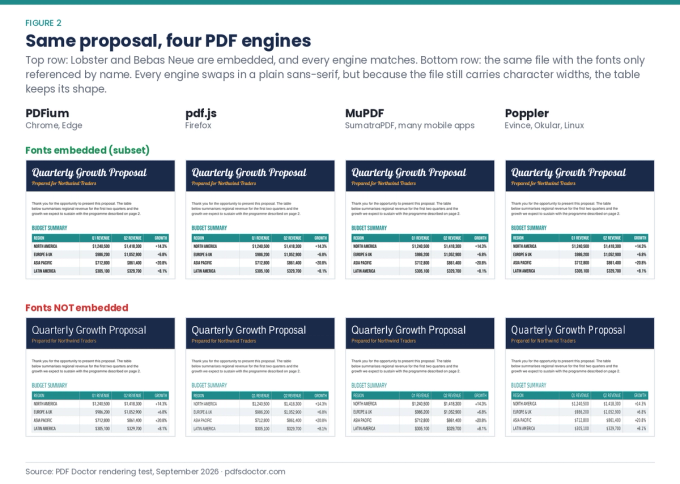
Figure 1. Missing fonts change the brand look in every engine.
The "scrambled table" people describe only appeared when we also removed that width data. The PDF specification requires width data for these fonts, so file 03b is deliberately malformed. When the data was missing, pdf.js, MuPDF and Poppler let the wider substitute text run across the cell borders. Only PDFium kept the columns intact.
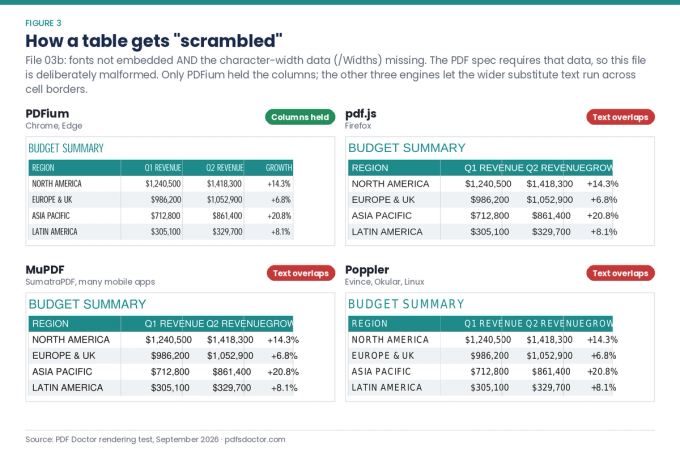
Figure 2. How a table gets "scrambled".
How to check your file in 10 seconds
- Acrobat or Acrobat Reader: go to File → Properties → Fonts. "Embedded" and "Embedded Subset" are both fine. A font with neither label is the one that will be swapped.
- Mac or Linux terminal: run pdffonts yourfile.pdf and read the emb column.
Note that the standard 14 fonts (such as Helvetica) are often left unembedded on purpose. Viewers are allowed to substitute them with a close match.
In our not-embedded test file, pdffonts listed Lobster-Regular and BebasNeue-Regular with "no" in the emb column, which is exactly the warning sign to look for.
How to fix it
- Re-export from the original app. Word's Save as PDF normally embeds fonts unless a font's licence forbids embedding.
- If you only have the PDF, convert it with our PDF to PDF/A tool. The PDF/A archive standard requires fonts to be embedded. Acrobat Pro's Preflight fix "Embed missing fonts" does the same job.
- Treat PDF → Word → PDF as a last resort. Re-creating the file changes the layout.
What embedding costs: In our test, subsetting added about 18 KB and full embedding added about 172 KB. Subsetting is the sensible default. (Our one-page file went from 3.3 KB unembedded to 21.3 KB subset and 175.5 KB fully embedded.)
2. CMYK colour without a colour profile
We filled swatches with the same colours twice: once in RGB (screen colour) and once in CMYK (print colour), with no ICC colour profile attached to the file. The RGB swatches rendered identically in all four engines, within one value. The CMYK swatches did not.
The largest difference between engines was a Delta E of 10.6. Delta E measures how far apart two colours look, and anything above about 2 to 3 is visible to most people. Plain 100% K "black" came out as dark grey (#231F20) in three engines and a bluer grey (#2C2E35) in pdf.js.
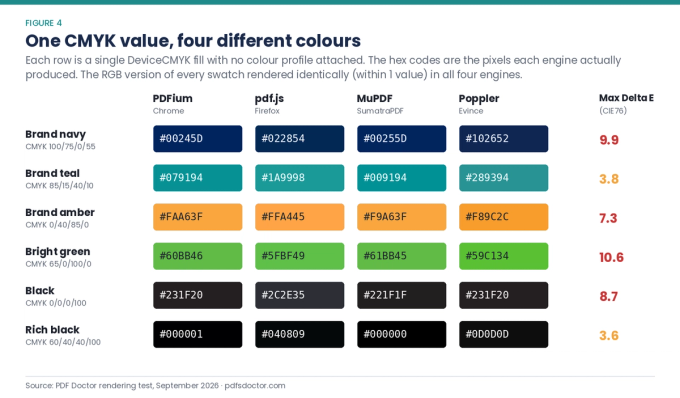
Figure 3. The same CMYK numbers, four different colours on screen.
What to do:
- For documents that will be read on screens, export in RGB.
- For print, keep CMYK but include an output intent (an embedded colour profile). PDF/X and PDF/A exports do this for you.
3. Form fields that look empty
A filled PDF form stores each value in one place and, ideally, a drawn version of that value (its appearance) in another. We removed the drawn appearances.
- When the file told viewers to regenerate appearances (NeedAppearances on), all four engines showed the values.
- When it didn't, pdf.js's canvas output showed empty boxes. That output is what Firefox uses for printing and thumbnails. On screen, Firefox's own form layer may still display the values.
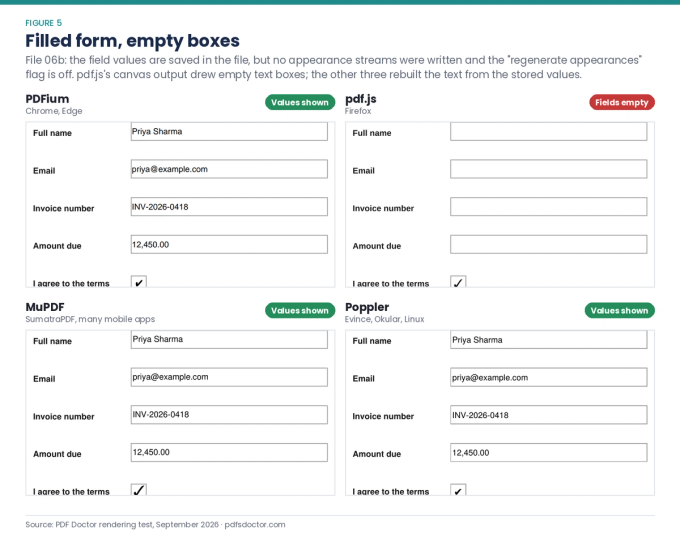
Figure 4. The data is in the file, but not every engine draws it.
What to do: If a recipient says your form is blank, re-save it in a full form editor so the appearances are written, or flatten the form before you send it. Test the printed output, not just the screen.
4. XFA forms: "Please wait…"
Some government, visa and bank forms are dynamic XFA forms. The real form is stored as XML, and only XFA-capable software can draw it. Every other viewer shows a fallback page that starts with "Please wait…".
In our structural reproduction (file 08), PDFium, MuPDF and Poppler all showed only the fallback page. Firefox's pdf.js includes its own XFA renderer, which our headless setup could not test.
What to do: Open the form in Adobe Acrobat Reader on a desktop computer. Converting it will not recover a form that the viewer never drew.
5. Scanned PDFs: stable to look at, useless to search
A scanned PDF is a picture of a page. At normal zoom it looks the same everywhere, but our scanned copy of the proposal had 0 extractable characters, against 693 in the original. It cannot be searched, copied or read aloud by a screen reader, and it blurs when you zoom in.
What to do: Run OCR (optical character recognition) on the scan. [ADD: link to an OCR tool once available, or name a trusted one.] Our PDF to Word converter works on text-based PDFs; with a scan, it will bring the pages across as images.
What did not break
Several things that older articles warn about rendered identically in all four current engines:
- blend modes and transparency (Multiply, Screen, Overlay, Difference, Luminosity)
- correctly built form fields
- a hidden "DRAFT" layer, which every engine kept hidden as instructed
If you see problems with these, the cause is more likely an older or simplified viewer than the file itself.
When the file is broken, not just different
If a PDF won't open, shows blank pages or throws an error, the problem is damage to the file's structure, not rendering. Try our Repair PDF tool, which rebuilds damaged cross-reference tables.
A pre-send checklist
- Fonts show "yes" under emb in pdffonts (or "Embedded" in Acrobat's Fonts tab).
- The colour mode matches the destination: RGB for screens, CMYK with a profile for print.
- Forms show their values when printed, not only on screen.
- The file opens in Acrobat Reader and one browser.
- For archives and official submissions, use PDF/A.
Sources
- ISO 32000-2:2020 (PDF 2.0), the current PDF specification, free from the PDF Association: https://pdfa.org/sponsored-standards
- ISO 19005, the PDF/A standard for archiving (overview at pdfa.org)
- PDFium: https://pdfium.googlesource.com/pdfium/
- pdf.js: https://mozilla.github.io/pdf.js/
- MuPDF: https://mupdf.com/
- Poppler: https://poppler.freedesktop.org/