Last year I sent a contract PDF to a client without locking it down. Two weeks later, a modified copy surfaced in an email thread with the payment terms changed, passed along as the original. It took a week with legal to untangle.
The lesson surprised me. A password would not have prevented that. What actually solves it is a digital signature, which makes any later edit visible. This guide covers what each protection really does, in the order you should apply them, with proof from our own tests.
What an unprotected PDF gives away
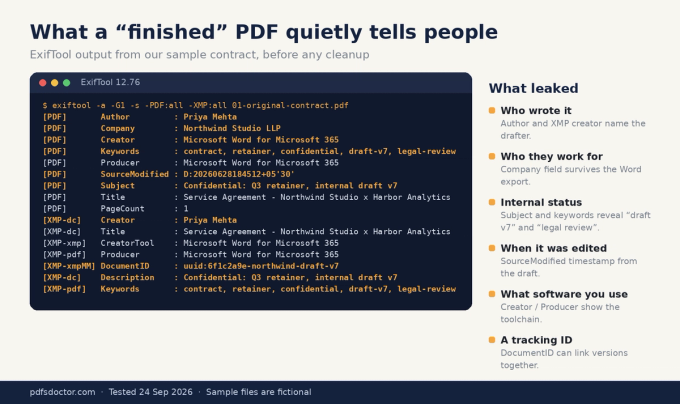
A PDF looks finished, but anyone who receives it can copy the text, edit it, and read its hidden metadata. We ran ExifTool on our sample contract, exported from Word. It revealed the author's name, the company, the internal status ("draft v7, legal review"), an edit timestamp and a document tracking ID.
Step 1: Redact properly (a black box is not a redaction)
This is the most common and most damaging mistake. Drawing a black rectangle over text in a basic editor only covers it visually. The text is still in the file.
We tested both methods on the same bank-account row. With the black box, a one-line text extraction still returned the full account number. With true redaction, the text was gone from the file entirely.
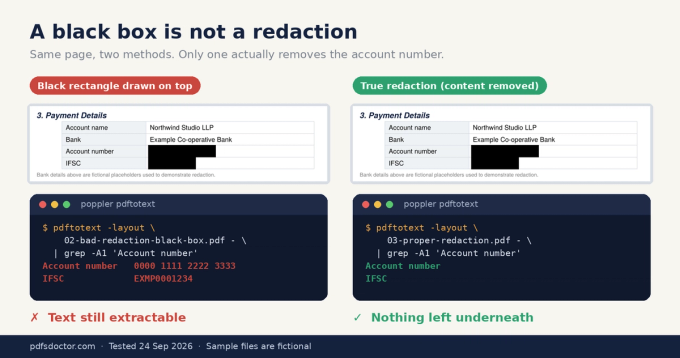
How to do it: Use a real redaction feature, such as Acrobat Pro's Redact tool or PyMuPDF's apply_redactions(). Then confirm it worked by copying text from the redacted area or running pdftotext. If anything appears, the redaction failed.
Step 2: Strip the metadata
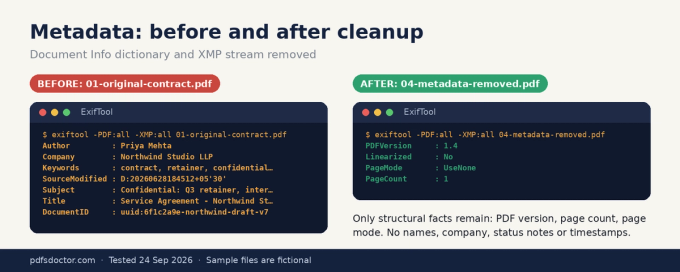
Remove both places metadata lives: the Document Info dictionary and the XMP metadata stream. Many tools clear only one of them.
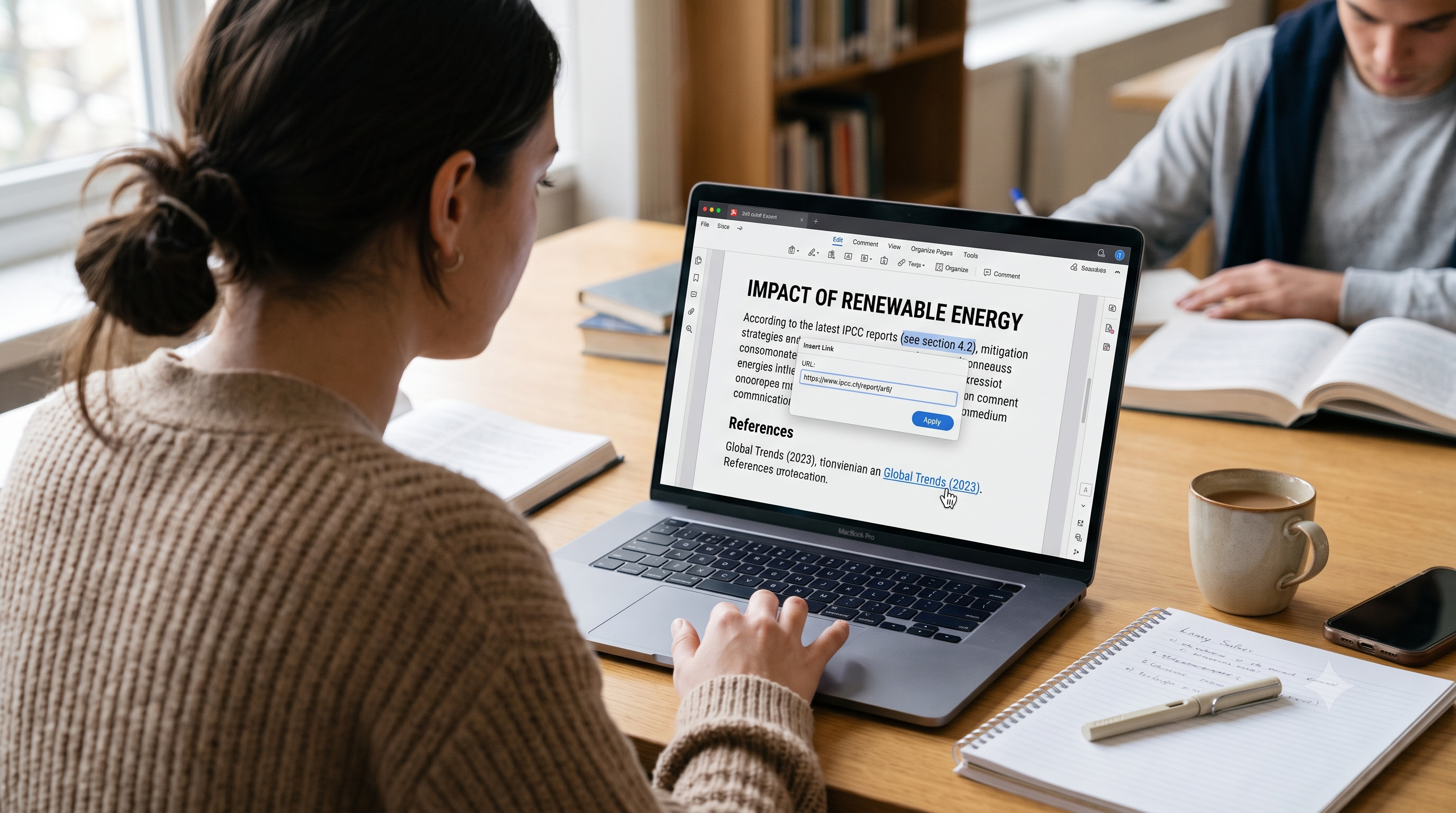
In Acrobat Pro, use Remove Hidden Information or Sanitize Document, which also catch hidden layers, comments and attachments. Then verify the result with ExifTool.
Step 3: Add a watermark (optional)
A watermark won't stop copying. It does discourage forwarding, and it creates a trail if a copy leaks. Include the recipient's name and date, for example "Confidential — Shared with Harbor Analytics — 24 Sep 2026", so a leaked copy points back to its source.
Step 4: Encrypt with an open password, using AES-256
Understand the two passwords first
PDFs support two passwords that do very different jobs:
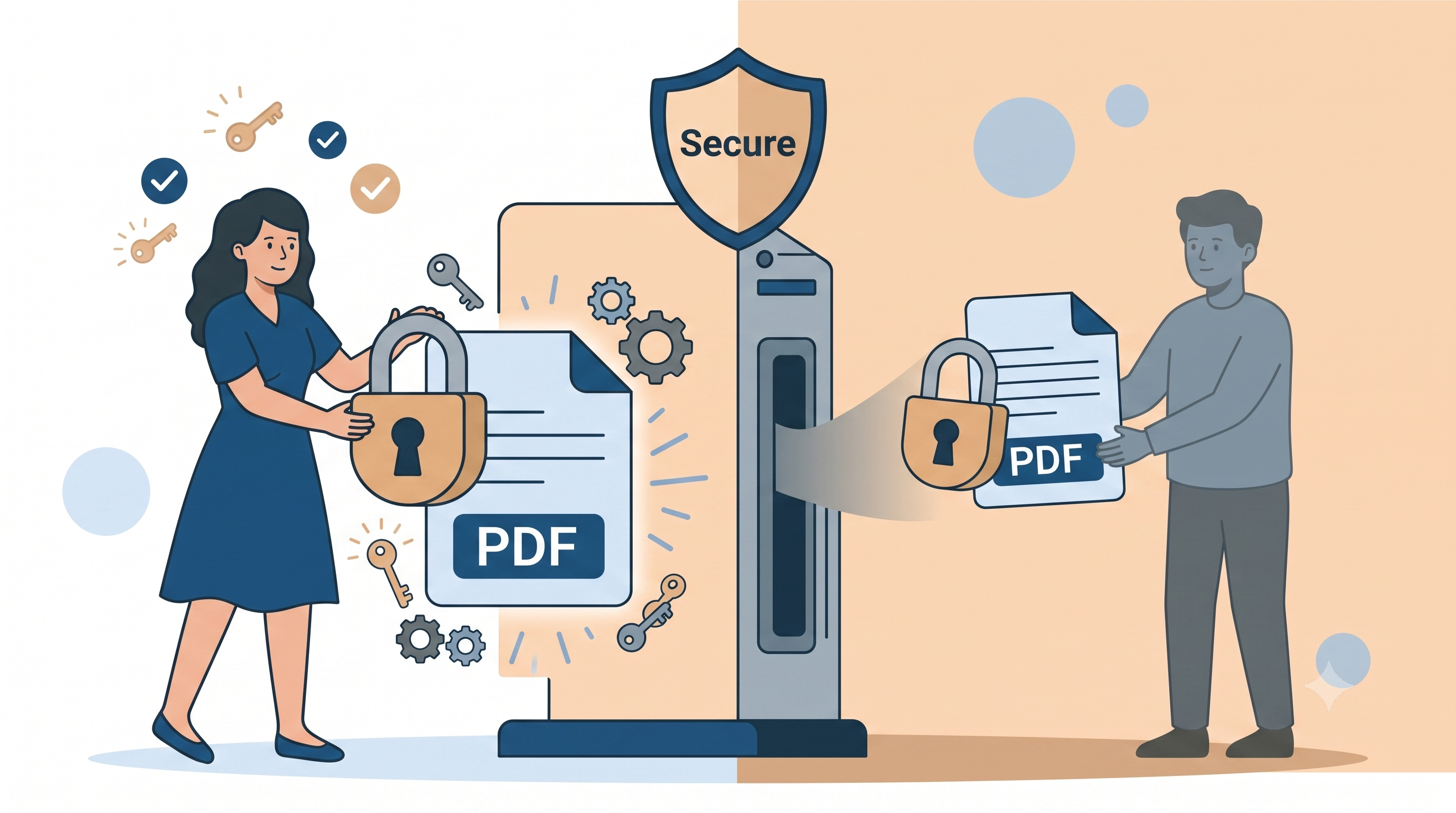
- The open password (user password) encrypts the file. Without it, the file can't be opened at all.
- The permissions password (owner password) only sets flags such as "no editing" or "no copying." Reader software is asked to honour those flags, but nothing forces it to.
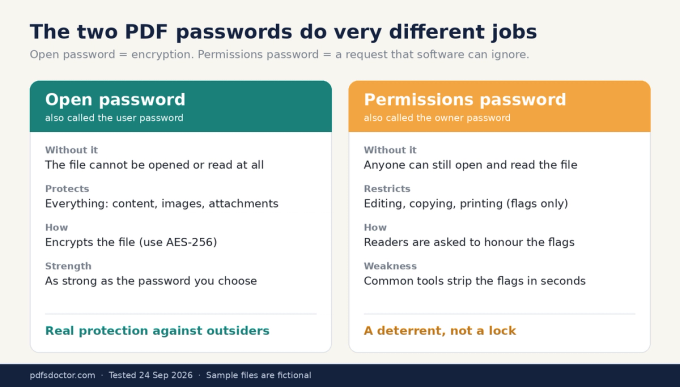
We tested this. Using the free tool qpdf, we removed every restriction from a permissions-only file without knowing the owner password. We then got the same result on a fully encrypted file, using only the open password we had given the recipient.
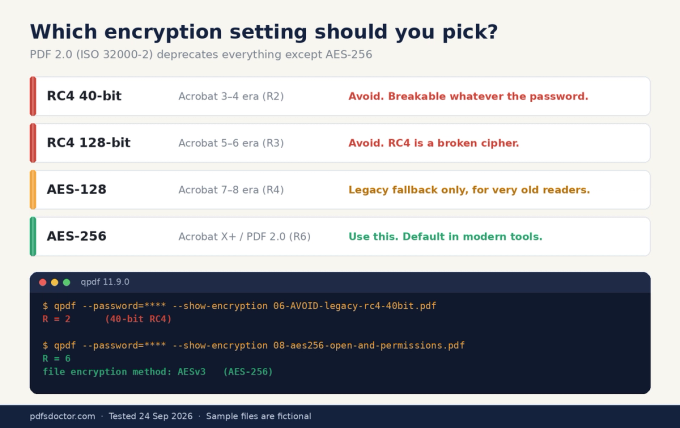
What this means in practice: the open password keeps outsiders out. Anyone you give it to can remove the edit and copy restrictions. Treat permissions as a polite request, not a lock.
Choose AES-256
Setting
Verdict
RC4 40-bit / 128-bit
Avoid. RC4 is broken and can be defeated regardless of password strength.
AES-128
Legacy fallback for very old readers only.
AES-256
Use this. It's the default in modern tools and the only method PDF 2.0 (ISO 32000-2) doesn't deprecate.
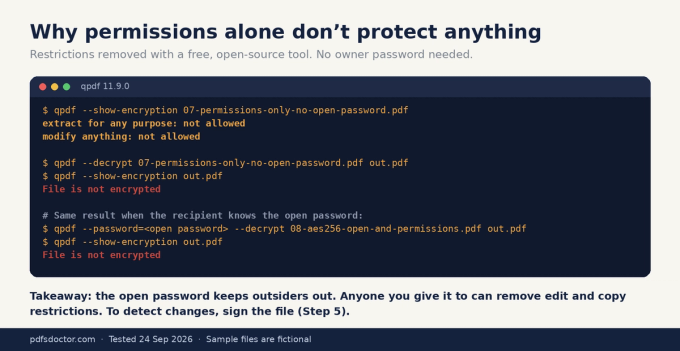
AES-256 has been supported since Acrobat 9 (2008). Current versions of Acrobat Reader, Chrome, Edge, Firefox and macOS Preview all open it.
Pick a strong password
Length matters far more than symbols. Current NIST guidance (SP 800-63B) favours long passphrases over complexity rules. Four or more random words, such as harbor-lantern-quietly-47, beat a short string like Tr0ub4dor!.
The encryption is rarely the weak point. A short or guessable password is.
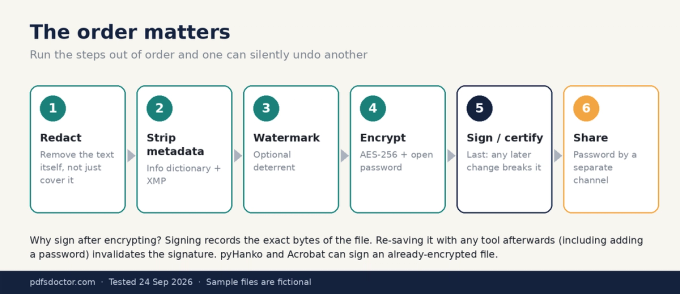
Step 5: Sign or certify it last
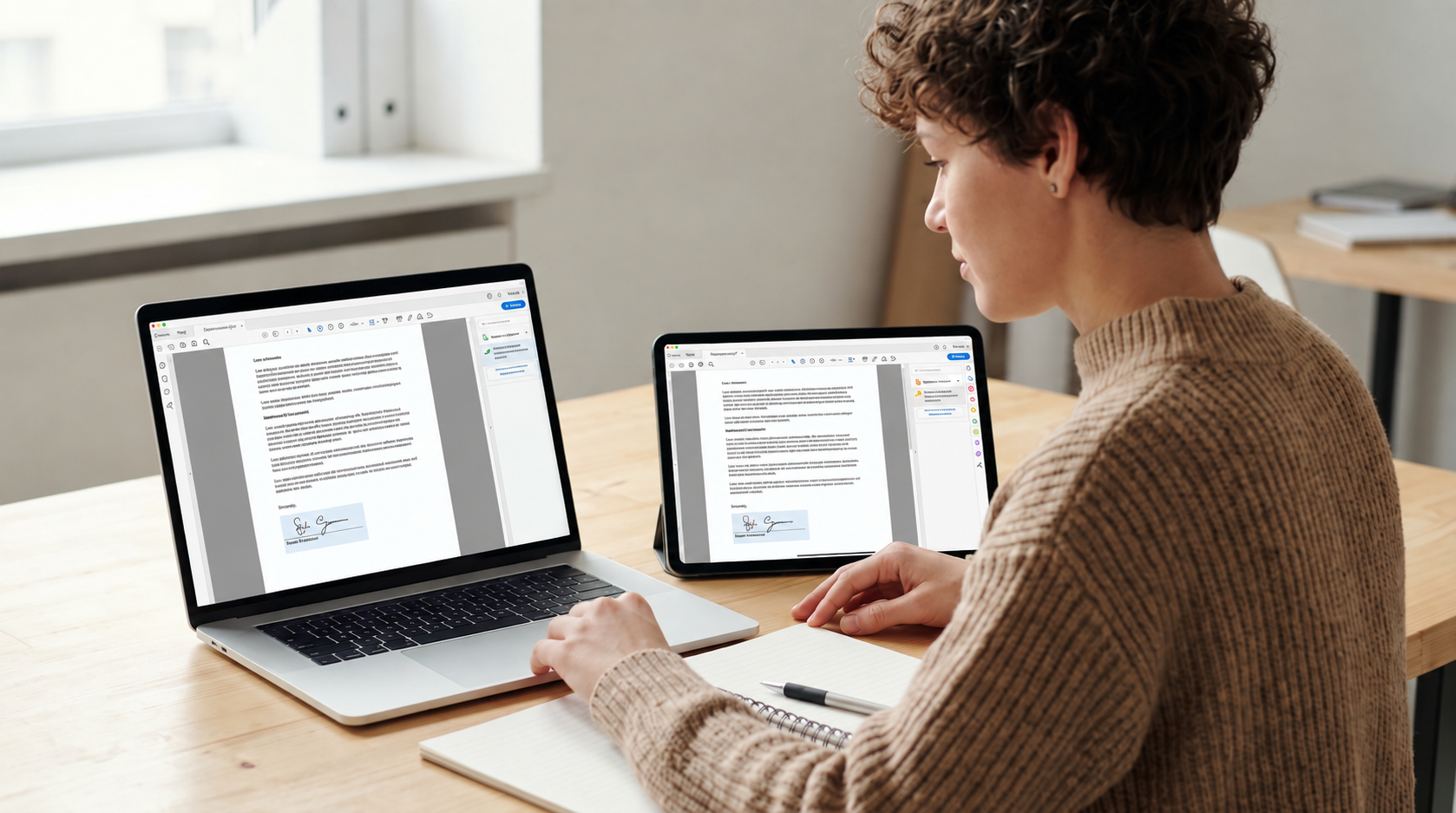
This is the step that would have saved my contract. A certifying signature records the exact bytes of the document. If anyone changes even one character afterwards, validation software flags the signature as invalid.
We signed our sample contract, changed "15 days" to "90 days", and ran a validator. The original was judged VALID. The edited copy was judged INVALID, with a warning that the modifications broke the document's policy.
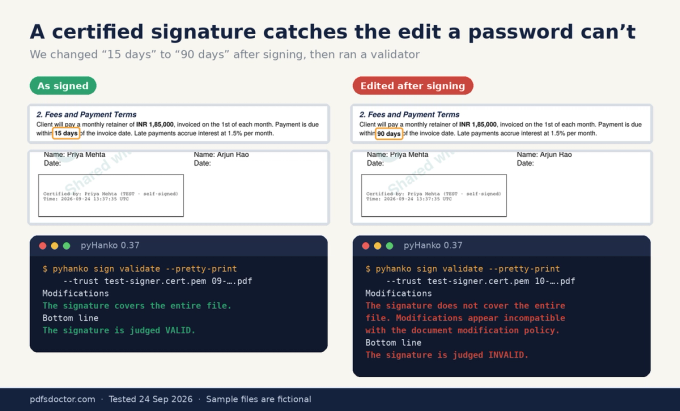
Order matters. Sign after encrypting. Re-saving a signed file with most tools, including adding a password afterwards, breaks the signature. pyHanko and Acrobat can both sign an already-encrypted file.
For legally binding signatures, use a certificate from a trusted provider. In India, that means a Class 3 DSC from a licensed Certifying Authority. For simple agreements, you can use a service like [PDF Doctor Fill & Sign — link]. Our test used a self-signed certificate, which is fine for demonstration but not for real contracts.
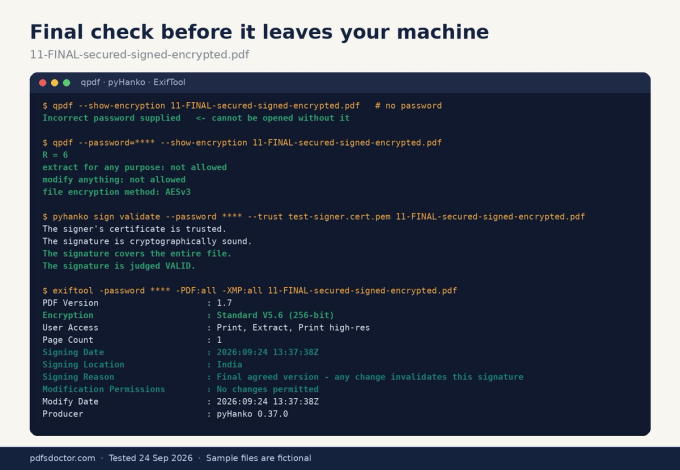
Final check before sending
Before the file leaves your machine, confirm three things. It shouldn't open without the password. It should show AES-256 encryption. And the signature should validate.
The only metadata left in our final file is the signing information, which is intentional because it tells the recipient who certified the document.
Step 6: Share it safely
- Send the password through a different channel. If the file goes by email, send the password by phone call or text.
- Use an expiring, access-restricted link instead of an attachment when you can. Google Drive and Dropbox both support this.
- Know what your email provider actually protects. Standard TLS only encrypts mail in transit between servers; the provider can still read it. End-to-end services like Proton Mail and Tuta protect the content itself.
- Don't run a finished file through other tools. Compressing or converting after you sign will break the signature.
What PDF security can't do
- Recipients can still leak what they can read. Screenshots, phone photos and re-typing all bypass any setting. Enterprise DRM (such as FileOpen or Adobe Experience Manager rights management) can revoke access later, but it can't stop a camera.
- Permissions are not enforcement. As our test showed, anyone with the open password can remove them.
- Weak passwords can be brute-forced, and the risk is worst on older RC4 files.
- Online tools process files on a server. For legal discovery, medical records or anything regulated, do the whole process locally.
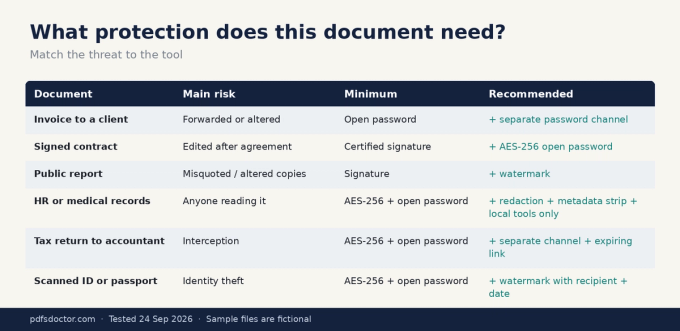
Which protection does your document need?
FAQs
Can a password-protected PDF be cracked? An AES-256 file with a long passphrase is not practically crackable today. Short passwords and RC4-encrypted files are.
Does a permissions password stop editing? It stops honest software from offering an edit button. It does not stop a determined recipient. Use a signature if you need to detect changes.
Is it safe to use online PDF tools? Check the tool's written retention policy before uploading anything. PDF Doctor deletes uploaded files after [X hours] (see our Privacy Policy). For highly sensitive files, use desktop tools instead.
What's the single most important step? It depends on the threat. To keep strangers out, use AES-256 with a strong open password. To prevent tampering, use a certifying signature. Most important documents need both.
Sources
- ISO 32000-2:2020, Document management — Portable document format — Part 2: PDF 2.0
- NIST SP 800-63B, Digital Identity Guidelines: Authentication
- qpdf manual, encryption options (qpdf.readthedocs.io)
- pyHanko documentation, signing and validation (pyhanko.readthedocs.io)
- Adobe Acrobat Help, "Removing sensitive content from PDFs" and "Securing PDFs with passwords"