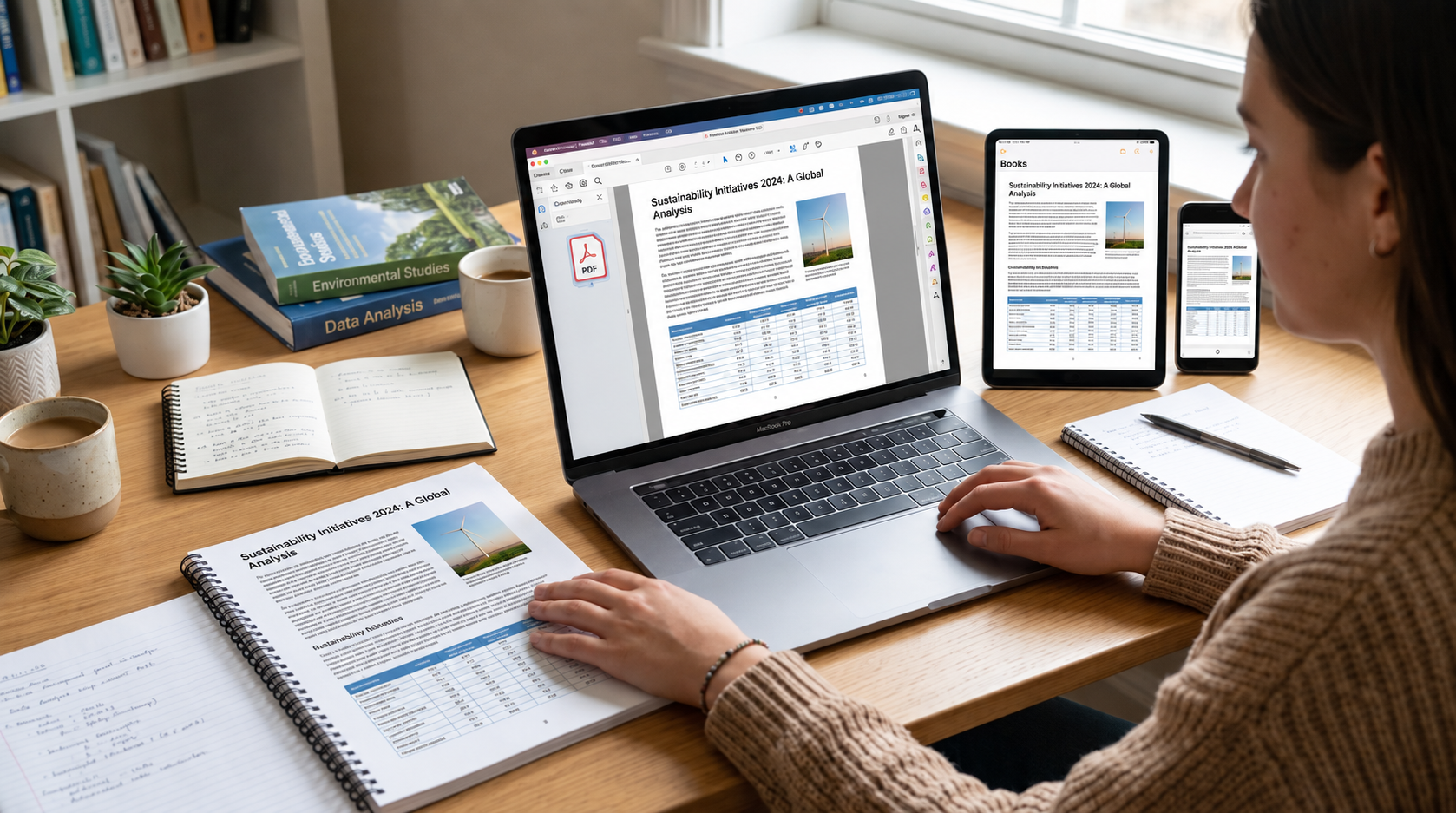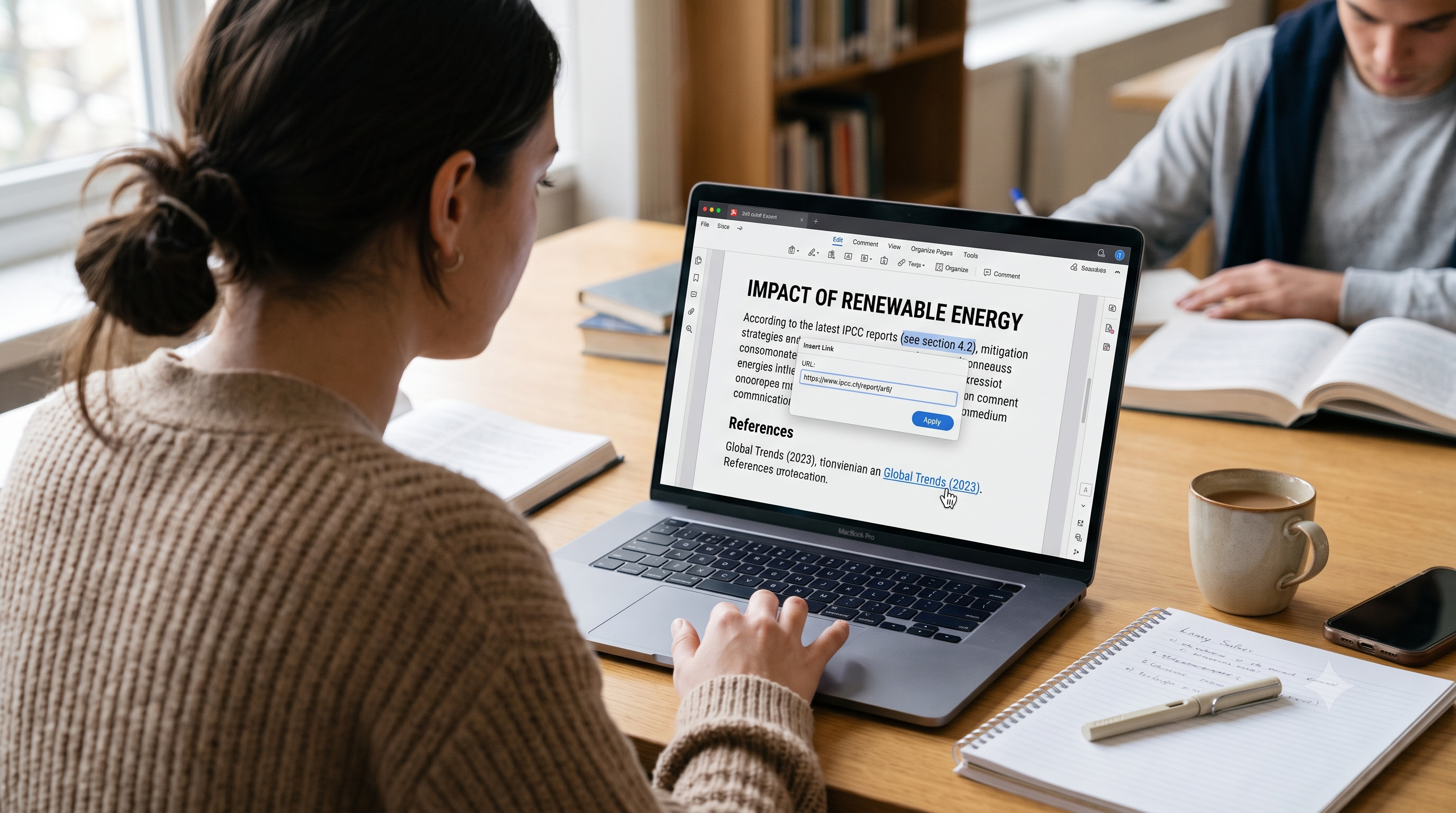
A client once asked me to "just update the pricing on page 12" of a 40-page proposal. The editor swapped the fonts, dropped the table borders and moved the header image. What should have taken two minutes took an hour.
To find out exactly why this happens, we built five test PDFs and ran four editing methods on them. Every number in this article comes from those tests.
How we tested
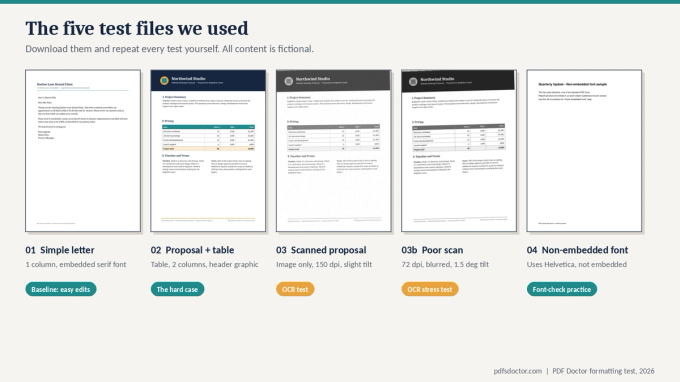
We created five fictional PDFs, each designed to stress a different weakness:
- 01 Simple letter: one column, embedded serif font. The easy baseline.
- 02 Proposal: a pricing table, a two-column section and a header graphic. This is the hard case.
- 03 Scan: proposal 02 scanned at 150 dpi with a slight tilt.
- 03b Poor scan: 72 dpi, blurred, tilted 1.5 degrees.
- 04 Non-embedded font: uses Helvetica without embedding it.
We then edited, converted, OCR'd and annotated these files, and measured the results. The tools were PyMuPDF (direct editing), pdf2docx and LibreOffice (PDF to Word), and OCRmyPDF (OCR). These are the same kinds of open-source engines behind many free online PDF tools.
Why PDFs break when you edit them
A Word file stores flowing paragraphs, so adding a word just re-wraps the lines. A PDF stores text fragments, lines and images at fixed coordinates. Even table borders are separate drawn lines, not a real table.
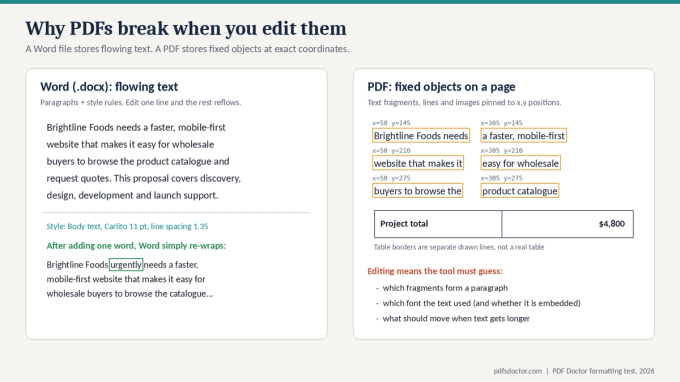
When you edit a PDF, the tool has to guess three things: which fragments form a paragraph, which font the text used, and what should move when text gets longer. Every method below is a different way of reducing that guesswork.
Step 0: Check your fonts before editing
In Acrobat, go to File > Properties > Fonts. For free, run the command-line tool pdffonts file.pdf (part of Poppler).
In our proposal, all three fonts showed as embedded. In test file 04, Helvetica was not embedded, so every viewer substitutes its own version, and spacing can shift before you've changed a thing.
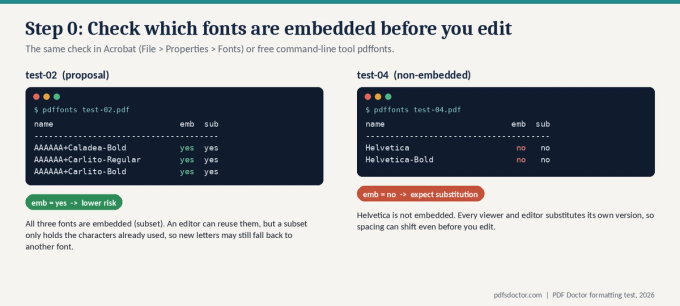
One catch: embedded fonts are usually subsets, meaning the file only contains the characters already used. If your edit adds a letter that wasn't in the original, the editor may still fall back to a different font.
Method 1: Direct editing (best for small, same-length changes)
We changed the project total in the proposal from $4,800 to $5,200 in three ways:
- Same font: the width changed by 0.0% and the edit was invisible.
- Substituted font (Helvetica Bold): the width grew 9.5% and the new number looked visibly heavier than the rest of the table.
- Longer text: we changed "Launch support" to a 53-character line. The width grew 265%, and the text ran straight over the cell border.
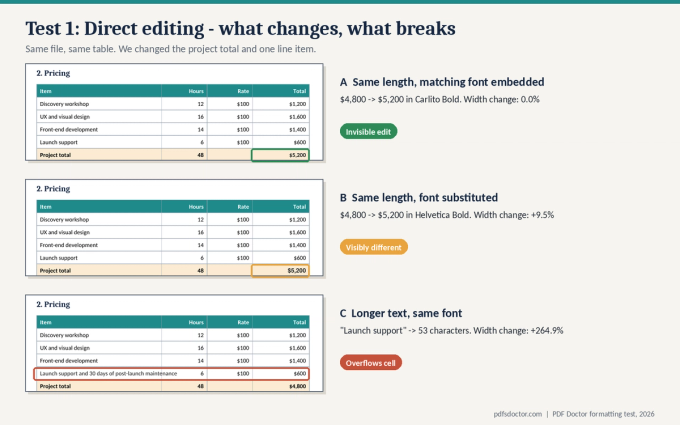
Takeaway: direct editing is safe only when the font is embedded and your new text is about the same length as the old.
Note that Sejda's free tier currently allows three tasks per day.
Method 2: Convert to Word, edit, convert back (best for big rewrites)
We ran the proposal through two conversion engines, then exported each result back to PDF.
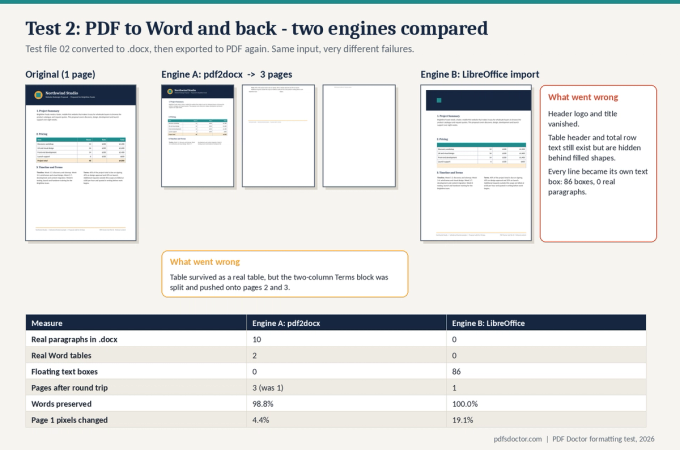
The two engines failed in opposite ways:
- pdf2docx kept the pricing table as a real, editable table. But it split the two-column section and pushed it onto two extra pages.
- LibreOffice kept the page count. But it turned every line into its own text box, making the file almost impossible to edit, and it hid the table header text behind filled shapes.
Takeaway: "words preserved" can read 100% while the layout is broken. Always compare every page of the converted file against the original before you start editing.
Once you've made your changes, export back to PDF from Word or with our Word to PDF tool. To start the conversion, try our PDF to Word converter, and check the output as described above.
Method 3: OCR for scanned PDFs
If you can't select the text in a PDF, it's a scan: a picture of text. You need OCR (optical character recognition) before any editing is possible. We ran both scans through OCRmyPDF with deskew turned on, then scored the output against the original text.
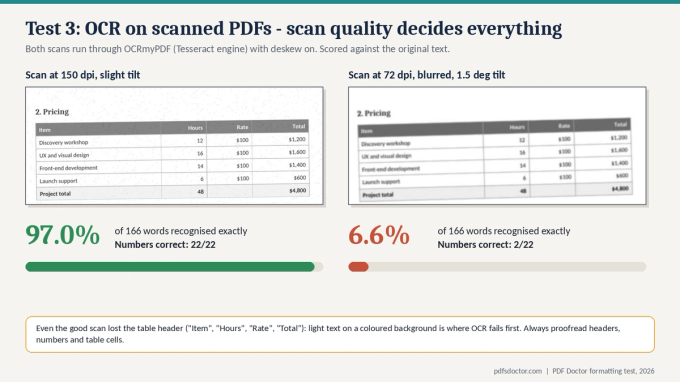
- Clean 150 dpi scan: 97.0% of words recognised exactly, and all 22 numbers were correct.
- Poor 72 dpi scan: 6.6% of words recognised, and only 2 of 22 numbers were correct.
Even the clean scan missed the white-on-teal table header ("Item", "Hours", "Rate", "Total"). Light text on a coloured background is where OCR fails first.
Takeaway: rescan at 300 dpi if you can. Always proofread headers, numbers and table cells, whatever the tool.
Method 4: Annotate instead of editing
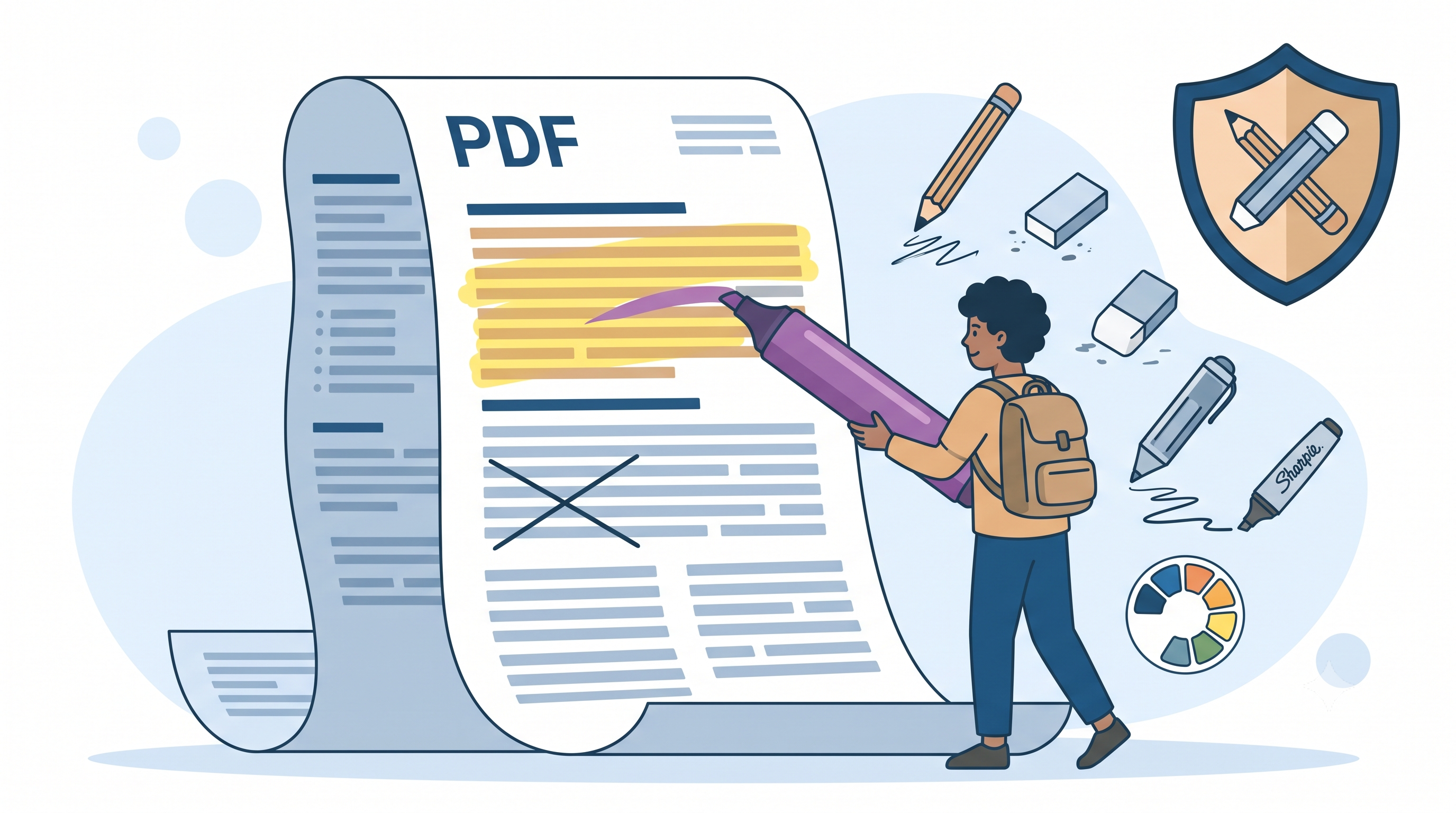
Sometimes you don't need to change the document, only to suggest a change. We added a highlight, a sticky note and a text comment to the proposal. We then fingerprinted the page content (a SHA-256 hash, which changes if even one byte changes) before and after.
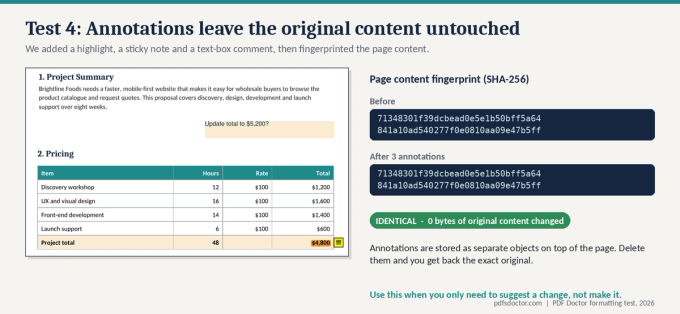
The two fingerprints were identical: zero bytes of the original changed. Annotations sit on top of the page as separate objects, and removing them gives you back the exact original.
Takeaway: for reviews, contracts and proofs, annotate instead of editing.
Which method should you use?
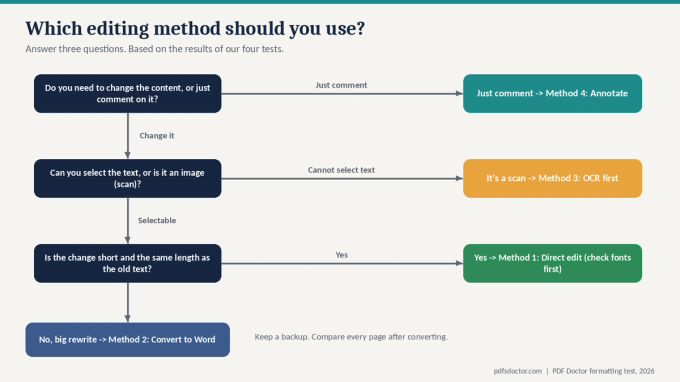
- If you only need to comment, annotate.
- If the PDF is a scan, run OCR first.
- If your change is short and the same length, edit directly after checking fonts.
- If it's a big rewrite, convert to Word, then compare every page before and after.
Whichever you choose, keep a backup of the original.
FAQs
Can I edit a PDF for free without losing formatting? Yes, for short same-length edits in PDFs with embedded fonts. Free readers like Foxit Reader and Mac Preview can annotate, but they can't edit existing text.
Why does my edited PDF look different on other computers? Usually a font that isn't embedded, so each computer substitutes its own. Run the Step 0 font check before and after editing.
Is converting to Word and back safe? It depends on the converter and the layout. In our test, both engines broke the layout of a document with a table and two columns, just in different ways. Simple one-column documents survive much better.
How accurate is OCR? It depends almost entirely on scan quality. In our tests, a clean 150 dpi scan scored 97.0% and a blurry 72 dpi scan scored 6.6%.
Sources
- ISO 32000 (PDF) overview, PDF Association
- ISO 32000-2 (PDF 2.0) free sponsored copy, PDF Association
- PDF properties and metadata (checking fonts), Adobe Acrobat Help
- OCRmyPDF documentation
- OCRmyPDF on GitHub
- Sejda free and Pro limits, Sejda