Most of my study material reaches me as one long PDF. A full textbook, a semester of lecture notes, or a lab manual often arrives as a single file running into hundreds of pages. As a second-year B.Tech student in Food Processing Technology, I rarely need the whole book at once. I need one chapter for this week's unit, or two chapters to revise before an internal exam.
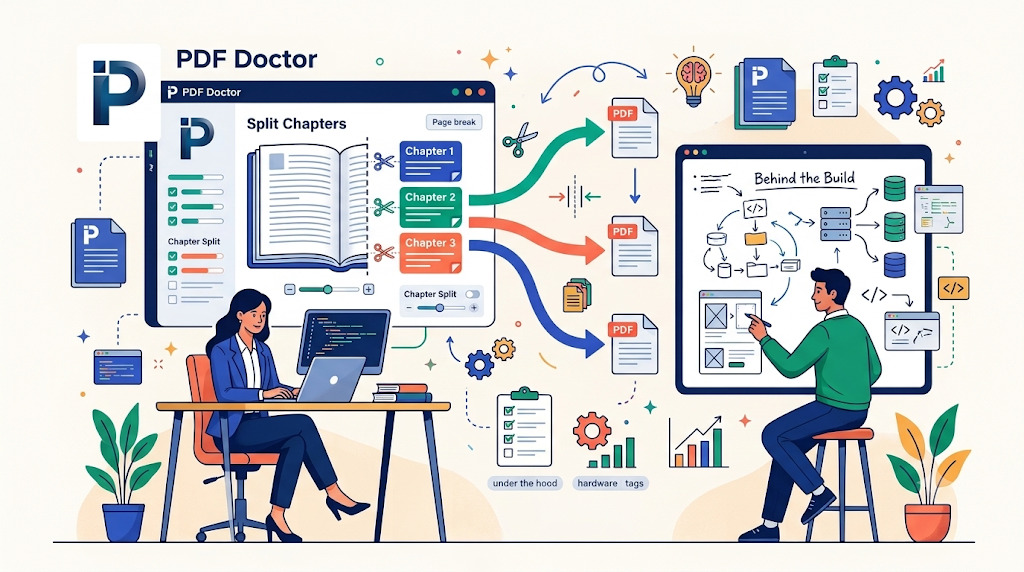
That everyday problem is exactly what our Split Chapters tool at PDFs Doctor is designed to solve. In this "Behind the Build" article, I'll walk you through the thinking behind it: the problem we started with, the key design decision that shaped the whole tool, the trade-offs we accepted, and the limits you should know about before you use it.
Key Takeaways
- Split Chapters divides a book-style PDF into separate chapter files without any manual page counting.
- It works by reading the bookmark outline that is already embedded in most ebooks and exported documents.
- Before anything is split, you see every chapter it found, with its title and page range.
- One selected chapter downloads as a single PDF; several chapters download as a ZIP with one PDF per chapter.
- Scanned books and PDFs without bookmarks are not detected. For those, our regular Split PDF tool is the right choice.
- The tool is free, needs no account, adds no watermark, accepts files up to 50MB, and deletes files within 24 hours.
The Problem We Started With
PDFs Doctor already had a regular Split PDF tool. It lets you split by specific page numbers, split every page into its own file, or extract a defined page range. It works well when you already know exactly which pages you want.
The trouble with books is that you usually don't. To pull out "Chapter 4" with a page-range tool, you first have to:
- Open the PDF and find the contents page.
- Note where Chapter 4 starts.
- Note where Chapter 5 starts, then subtract one to get the end page.
- Check whether the printed page numbers match the PDF's actual page numbers. Very often they don't, because covers, prefaces, and Roman-numeral front matter shift everything.
- Type the range into the split tool and hope you got it right.
Now repeat that for every chapter you need. For a student splitting a full textbook, this turns a simple task into a tedious and error-prone one. We wanted a tool where the chapters simply appear, ready to pick.
The Key Decision: Read the Bookmark Outline
The single most important choice we made was where the chapter information should come from.
A PDF can carry a built-in navigation structure called the document outline, which most PDF readers show as "Bookmarks" or "Outline" in the sidebar. It is defined in the official PDF specification (ISO 32000, in the section on the document outline). Each outline entry stores a title, such as "Chapter 3: Drying and Dehydration", and a destination that points to a specific page in the file. Entries can also be nested, so a chapter can contain sub-sections.
This made the outline the most reliable source available to us, for three reasons:
- It is written by the author or publishing software, not guessed. When a book is exported from Word, Google Docs, InDesign, or Calibre, the outline usually reflects the actual chapter headings.
- It points to real PDF pages. Outline destinations refer to the file's own pages, so the printed-versus-actual page number problem disappears.
- It is already there. Most ebooks and properly exported reports already carry an outline, so users don't need to prepare anything.
We did consider other ways to find chapters, such as trying to read the printed contents page or detecting large headings on each page. Both approaches rely on guessing, and a guess that is slightly wrong produces chapter files that start or end on the wrong page. For a tool people use to prepare study material or share reports, quietly wrong output is worse than no output. So we chose to rely on the outline and to be clear about when it is missing.
Turning Bookmarks Into Page Ranges
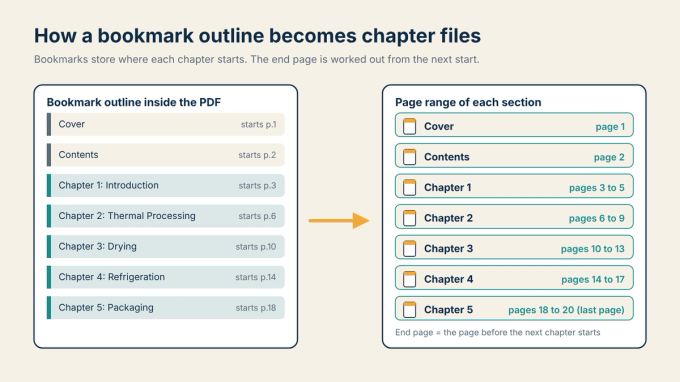
There is one detail about bookmarks that shapes how the tool has to think: a bookmark only records where a section begins, not where it ends.
So the end of each chapter has to be worked out. The logic is simple once you see it:
- Each chapter starts on the page its bookmark points to.
- Each chapter ends on the page just before the next bookmark's start page.
- The final chapter ends on the last page of the document.
Take the sample study guide we used while preparing this article. It is a 20-page file with bookmarks for a cover, a contents page, and five chapters. Chapter 1 starts on page 3 and Chapter 2 starts on page 6, so Chapter 1 covers pages 3 to 5. Chapter 5 starts on page 18 and is the last section, so it runs to page 20, the end of the file.
This is also why the tool shows title and page range for every chapter it finds. You can see at a glance whether each range makes sense before you download anything.
Why We Added a Review Step
It would have been possible to split the file the moment it was uploaded and hand back a ZIP of everything. We chose not to, for two practical reasons.
- Most people don't need every chapter. A student revising one unit, or a team member who needs only the methodology section of a report, would have to dig through a pile of files they never wanted.
- Outlines are not always perfect. Some files include bookmarks for covers, contents pages, indexes, or appendices. Seeing the detected list first lets you choose only the sections that matter to you.
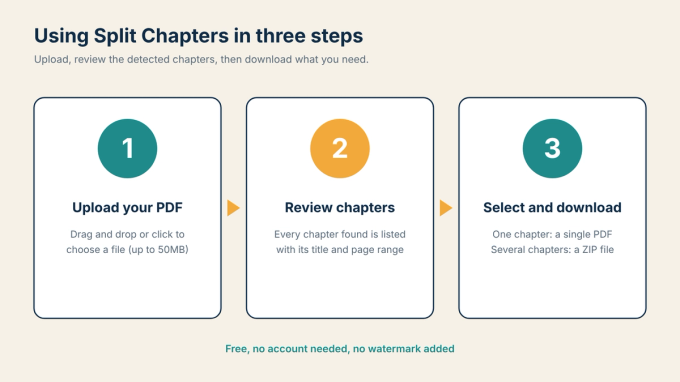
So the tool scans the file's bookmark outline, lists every chapter it found with its title and page range, and lets you select one, several, or all of them. Nothing is downloaded until you decide.
Choosing the Right Output Format
The download format follows the selection:
- One chapter selected: you get a single PDF, ready to open, print, or share.
- Several chapters selected: you get a ZIP file containing one PDF per chapter.
A single file for a single chapter avoids the extra step of unzipping when you only wanted one thing. A ZIP for multiple chapters keeps the download to one click instead of many, and keeps the chapter files together in one place.
What the Tool Deliberately Does Not Do
Being clear about limits is part of building a trustworthy tool, so here is what Split Chapters does not handle:
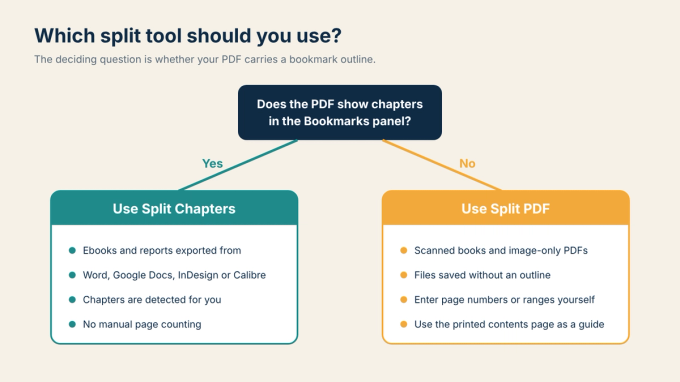
- Scanned books. A scanned book is essentially a set of page images. Unless an outline was added afterwards, there are no bookmarks for the tool to read.
- PDFs saved without an outline. Some exports and older files simply don't include bookmarks, even when the document visibly has chapters.
For both cases, the right choice is our regular Split PDF tool, where you enter page numbers or ranges yourself. The printed contents page of the book is a useful guide for finding those ranges.
We also prepared a second test file for this article: the same 20-page study guide, but saved as image-only pages with no bookmarks, to mimic a scanned book. It is exactly the kind of file that belongs with Split PDF rather than Split Chapters.
How to Check Whether Your PDF Has Bookmarks
You can check this in a few seconds before uploading:
- Open the PDF in your usual PDF reader or browser.
- Open the sidebar and look for a panel called Bookmarks or Outline.
- If you see a list of chapter titles that jump to the right pages when clicked, the file has an outline and Split Chapters can work with it.
- If the panel is empty or missing, use Split PDF instead.
If you create the document yourself, you can usually add an outline at export time. In Microsoft Word, for example, saving as PDF offers an option to create bookmarks from your headings. Using proper heading styles for chapter titles is what makes this work.
How We Handle Your Files
Many PDFs that get split into chapters are personal: study notes, research drafts, internal reports. File handling was therefore part of the design from the start, not an afterthought.
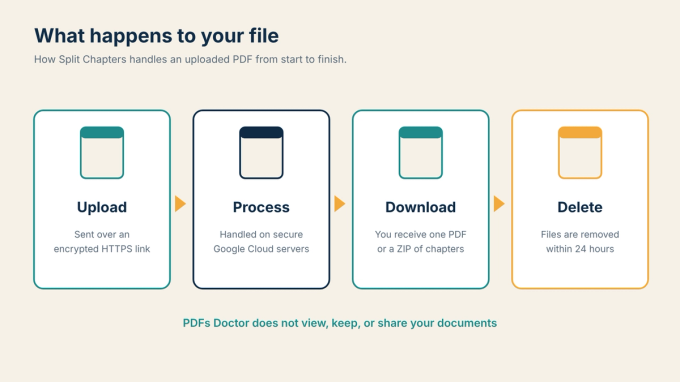
- Files are uploaded over an encrypted HTTPS connection.
- Files are processed on secure Google Cloud servers.
- Uploaded files are deleted within 24 hours.
- PDFs Doctor does not view, keep, or share your documents.
- There is no account to create and no watermark added to your chapter files.
How to Use Split Chapters
- Go to the Split Chapters tool on PDFs Doctor.
- Upload your PDF by clicking the upload button or dragging the file in. Files up to 50MB are supported.
- Review the list of detected chapters, each shown with its title and page range.
- Select one, several, or all chapters.
- Download your result: a single PDF for one chapter, or a ZIP with one PDF per chapter for several.
For the best results, use files exported from Word, Google Docs, InDesign, or Calibre, as these usually include the outline the tool needs.
What Building This Taught Us
Looking back, three lessons from this tool now shape how we think about every feature on PDFs Doctor:
- Use the structure that already exists. The bookmark outline was sitting inside most files all along. Reading it was more dependable than building something to guess chapter boundaries.
- Show before you act. The review step costs the user a few seconds and saves them from downloading the wrong pages.
- Point people to the right tool. Split Chapters is not meant to replace Split PDF. Each has a clear job, and being honest about which one fits a file is more helpful than pretending one tool does everything.
Frequently Asked Questions
1. Is Split Chapters free to use? Yes. It is free, requires no account, and does not add watermarks to your files.
2. What is the maximum file size? The Split Chapters tool supports files up to 50MB.
3. Why didn't the tool find any chapters in my PDF? The most likely reason is that your PDF has no bookmark outline. This is common with scanned books and some older or simply exported files. Use the Split PDF tool and enter the page ranges manually.
4. Does it read the printed table of contents page? No. It reads the bookmark outline embedded in the PDF, which points directly to the file's actual pages.
5. Can I download just one chapter? Yes. Select a single chapter and it downloads as one PDF. Selecting several gives you a ZIP file with one PDF per chapter.
6. How long are my files kept? Files are processed on secure Google Cloud servers and deleted within 24 hours.
References
- PDF Association, ISO 32000-2 (PDF 2.0) sponsored no-cost access — the official PDF specification, including the section defining the document outline (bookmarks).
- PDF Association, Announcing no-cost access to ISO 32000-2 (PDF 2.0).
- PDFs Doctor, Split PDF into Chapters tool.
- PDFs Doctor, Split PDF tool.