A certificate that arrives as a PDF looks official. It has a crest, a signature, a seal and a neat serial number. But a PDF is only a container, and anything inside it can be rebuilt by someone with a laptop and an afternoon. That is why careful organisations do not ask "does this look real?" They ask "can I prove where this came from, and that nobody changed it since?"
This guide explains how employers, universities, banks and government bodies answer that question in practice. It covers the checks they run, the order they run them in, what each check can and cannot prove, and the results of a small test we ran on a digitally signed PDF to see exactly what happens when a signed file is edited, re-saved or merged.
Key takeaways
- The strongest check is not on the PDF at all. It is confirming the record directly with the issuer or an official registry such as DigiLocker or the National Academic Depository (NAD) in India.
- A visible signature image proves nothing. A cryptographic digital signature, validated in a proper PDF reader, can prove who signed a file and whether it changed afterwards.
- A green tick is not the whole story. Reviewers should also confirm that the signature covers the entire document and that no changes were made after signing.
- Metadata, fonts and layout clues are useful warning signs, but on their own they are never proof of forgery.
- If you are a candidate, keep your original signed PDF untouched. Compressing, merging or re-saving it can break or remove the signature that makes it verifiable.
Why this matters more than ever
Credential fraud is not rare. Background screening provider HireRight reports that, across its global benchmark research, 21% of employers found education discrepancies during screening, and the figure reported by respondents in India was 53%, the highest of any region cited. An earlier HireRight survey covered by SHRM found that 85% of employers had caught a lie or misrepresentation on a résumé or application.
The supply side is real too. In February 2026, India's University Grants Commission (UGC) listed 32 institutions it considers fake universities, with 12 of them in Delhi. Degrees from these bodies may be printed on genuine paper and scanned into perfectly clean PDFs. No amount of visual inspection will reveal that the institution itself has no authority to award degrees.
Two kinds of fakes therefore need different defences:
- Fabricated documents: a certificate from a real institution that was never actually issued, or was issued with different details (a changed grade, name or date).
- Genuine-looking documents from illegitimate issuers: certificates from diploma mills or unrecognised institutions. The PDF may be untouched, yet the qualification is worthless.
The verification ladder: how organisations layer their checks
Most mature verification teams use a layered approach. Each rung adds confidence, and the top rungs carry far more weight than the bottom ones.
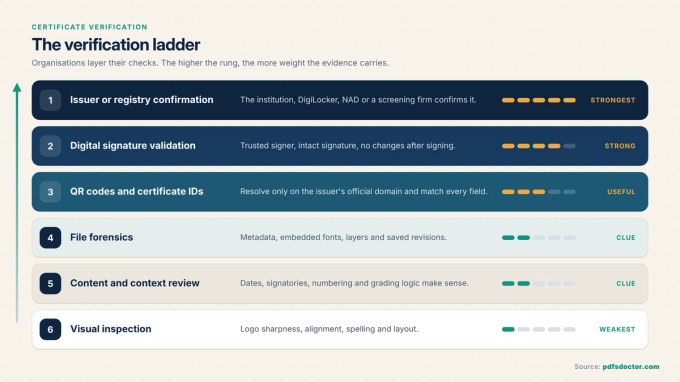
- Issuer or registry confirmation (strongest): the institution or an official database confirms the record exists and matches.
- Cryptographic signature validation: the PDF carries a digital signature that validates against a trusted certificate and shows no changes after signing.
- Embedded verification features: QR codes, certificate IDs and verification URLs that resolve to the issuer's official domain.
- File forensics: metadata, font, layer and revision checks that reveal how the PDF was produced.
- Content and context review: do the dates, grades, signatories and course details make sense?
- Visual inspection (weakest): alignment, logo quality, spelling and layout.
The rest of this guide walks through each rung, starting from the top, because that is where a good process starts too.
Step 1: Go to the source, not the document
The single most reliable way to verify a certificate is to ignore the file you were given and check the record with whoever issued it. A forger can copy any visual detail, but they cannot insert a record into a university's database.
Official digital registries in India
- DigiLocker: documents pushed into a person's DigiLocker account directly by the issuing body (for example, a school board or university) come from the issuer's own system rather than from an uploaded scan. Since a February 2017 amendment to the Digital Locker rules under India's IT Act, such issuer-provided documents are treated as on par with the original physical certificates.
- National Academic Depository (NAD): approved by the Union Cabinet in 2016 and run through DigiLocker with the UGC as the authorised body, NAD stores academic awards such as degrees, diplomas and mark sheets lodged by institutions themselves. Employers, banks and other verifiers can register on NAD and request access to a student's award, but only with the student's consent.
- Institution verification desks: many universities run their own verification portals or email-based verification for older records that were never digitised.
Registries and services elsewhere
- United States: the National Student Clearinghouse offers degree and enrolment verification for most US colleges, usually for a fee.
- Direct registrar requests: for institutions without a central service, verifiers contact the registrar's office directly. This can be slow, which is why many organisations use professional screening firms.
The rule that stops most fraud
Always find the issuer's contact details independently: from the official website, a government list of recognised institutions or a known directory. Never use the phone number, email address or website printed on the certificate itself. A forged certificate can list a fake "verification office" that will happily confirm anything.
It is also worth checking that the institution is recognised at all. In India, the UGC publishes its list of fake universities, and a quick search of that list can stop a fraudulent degree before any further work is done.
Step 2: Validate the digital signature properly
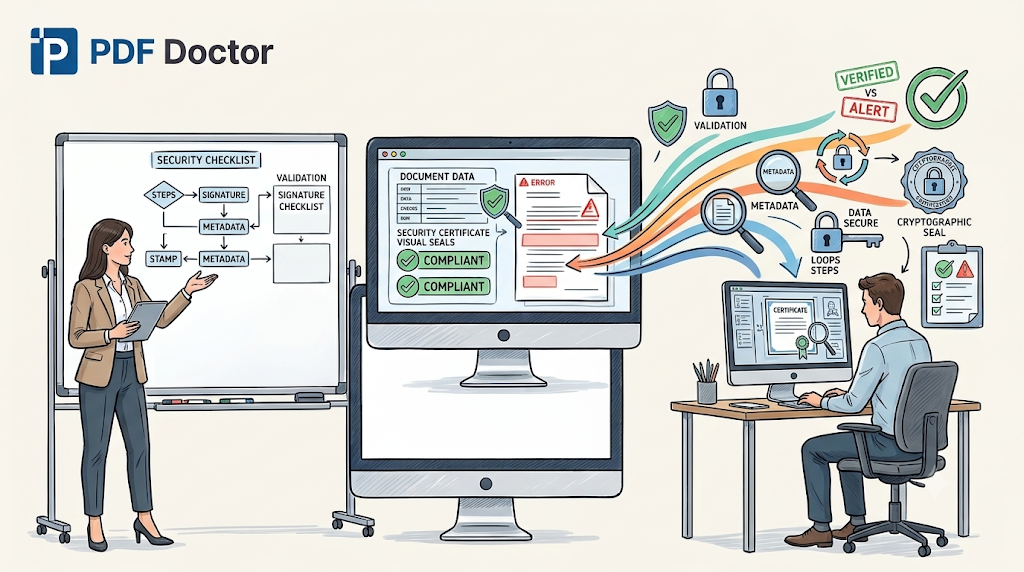
Many certificates issued today carry a digital signature: a cryptographic seal created with the issuer's private key. It is completely different from a scanned image of a signature or a stamp pasted onto the page.
In plain terms, the signing software takes a unique fingerprint (a hash) of the document's contents and locks it with the issuer's key. When you open the file, your PDF reader recalculates the fingerprint. If even one byte of the signed content has changed, the fingerprints no longer match and the signature fails.
How to check it
- Open the PDF in a full PDF reader such as Adobe Acrobat Reader. Browser-based previewers often ignore signatures entirely.
- Open the Signatures panel and look at the status of each signature.
- Check the signer's identity and whether their certificate is trusted. Acrobat and Reader automatically trust certificates that chain back to the Adobe Approved Trust List (AATL), a list of certificate authorities and governments whose roots Adobe has vetted.
- Look for any note saying the document has been changed since it was signed, and check whether the signature covers the whole document.
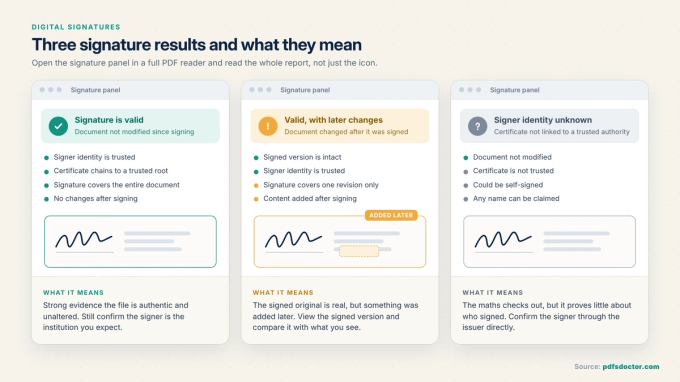
What the three common results mean
- Valid, document not modified: the signature is intact, the signer's certificate is trusted and nothing has changed since signing. This is strong evidence of authenticity, though you should still confirm the signer is actually the institution you expect.
- Valid, but the document was changed after signing: the signed version is genuine, but something was added later. Some later changes are legitimate (another person adding their own signature, for example), so the reviewer needs to view the signed version and compare it with what is shown on screen.
- Signer identity unknown or not trusted: the maths checks out, but the reader cannot link the certificate to a trusted authority. Anyone can create a self-signed certificate claiming any name, so this result alone proves very little.
Why "covers the whole document" matters
Researchers at Ruhr University Bochum showed why reviewers should not stop at the green tick. In work presented at the NDSS security symposium in 2021, they demonstrated "shadow attacks", in which hidden content in a signed PDF is revealed later through changes the viewer considers acceptable. Of the 29 PDF viewers they tested, 16 were vulnerable, including well-known desktop readers. Vendors have since released fixes, but the lesson stands: always read the full signature report, not just the summary icon.
What we found when we tested a signed PDF
To make this guide practical rather than theoretical, the PDFs Doctor team created a simple one-page sample certificate, digitally signed it with a test certificate, and then put it through the kinds of edits people make every day. We validated each result with pyHanko, an open-source PDF signature validation library, using the test certificate as the trusted root.
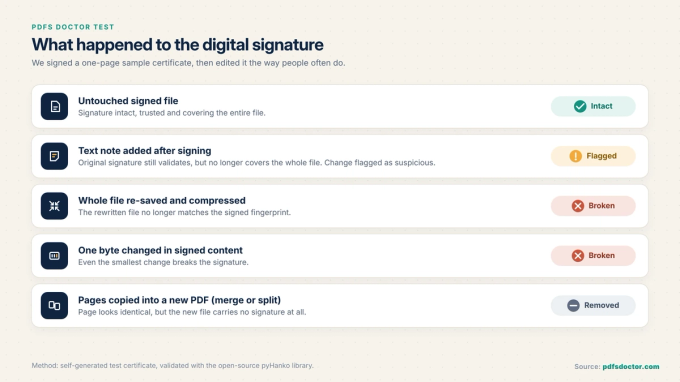
- Untouched signed file: the signature was intact, trusted and covered the entire file. This is the baseline every genuine signed certificate should meet.
- A text note added on top after signing (saved as an add-on revision): the original signature still validated, but it no longer covered the entire file, and the validator flagged the later change as suspicious and unexplained. On screen, the new text simply sat on the page like part of the certificate. This is exactly the case where a quick glance at a green tick could mislead a reviewer.
- Whole file re-saved and compressed by a general PDF tool: the signature broke. The rewritten file no longer matched the fingerprint locked into the signature.
- A single byte changed inside the signed content: the signature broke immediately. This confirms how sensitive a real digital signature is to tampering.
- Pages copied into a new PDF (as merge and split tools do): the signature disappeared completely. The page looked identical, but the new file carried no signature at all.
Two lessons stand out from this test. First, a forger cannot quietly change a properly signed PDF without leaving a trace, which is why signed certificates are so valuable. Second, honest people can accidentally destroy that proof by running their signed certificate through everyday editing, compression or merging steps.
Step 3: Check QR codes, certificate IDs and verification links
Many issuers now print a QR code or a unique certificate number that links to an online verification page. These are useful, but only if the reviewer checks where they actually lead.
- Read the full URL before trusting the page. A forged certificate can carry a QR code that opens a convincing lookalike site on a domain such as a misspelt university name or a free hosting address.
- Prefer typing the official address yourself. Go to the issuer's known website, find its verification page and enter the certificate ID manually.
- Compare every field. The online record should match the name, course, grade, date and ID on the PDF exactly. A real ID attached to a different person's name is a classic forgery pattern.
- Be wary of verification pages that only show an image. A trustworthy service usually displays the record as text from the issuer's database, or lets you download the original signed file.
Step 4: Look inside the file for forensic clues
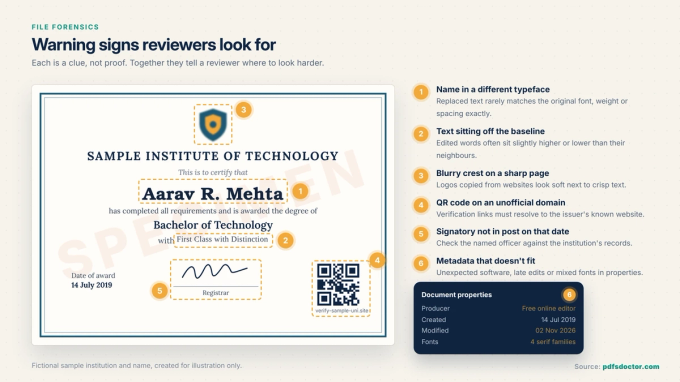
When a certificate cannot be verified at the source quickly, reviewers look at how the PDF was built. These checks rarely prove forgery on their own, but they tell a reviewer where to look harder.
Metadata
Open the document properties in your PDF reader and note:
- Creator and Producer: the software that created the file. A university certificate produced by a phone scanning app, a free online editor or a word processor, when the institution normally issues certificates from a records system, deserves a second look.
- Creation and modification dates: a certificate dated 2019 whose file was created last week is not automatically fake (it may be a fresh copy), but a modification date well after creation suggests the file was edited.
- Author and title fields: leftover names, template titles or unrelated document names can reveal that the file was built from someone else's document.
Metadata can be edited or wiped easily, so treat it as a clue, not evidence.
Fonts and text
- Embedded fonts: the document properties usually list every font in the file. A certificate that should use one consistent typeface but contains two or three slightly different fonts may have had words replaced.
- Text behaviour: try selecting the text. In a scanned certificate, nothing should be selectable unless the file was processed with OCR. If only the name or grade is selectable while the rest is a flat image, that text was likely typed on top.
- Spacing and baselines: zoom in to 300 to 400 percent. Edited characters often sit slightly higher or lower, or have different spacing from their neighbours.
Layers, annotations and revisions
- Annotations and form fields: comments, text boxes and form fields can sit on top of the original content. Many readers let you hide annotations to see what lies underneath.
- Layers: some PDFs contain optional content layers that can show or hide text depending on settings.
- Multiple saved versions: as our test showed, PDFs can store later changes as add-on revisions. Signature panels and specialist tools can reveal these.
Step 5: Review the content and the visual details
Experienced verifiers read the certificate like a story and check whether it holds together.
Content checks
- Dates: does the award date fall after the course could realistically have finished? Is the convocation date one the institution actually held?
- Signatories: was the named registrar or controller of examinations actually in post on that date? Many institutions list past office holders.
- Numbering: does the enrolment or certificate number follow the institution's normal format and length when compared with a known genuine example?
- Academic logic: do the grades, credits, course names and class awarded match the institution's grading scheme for that year?
- Recognition: was the institution recognised to award that qualification at the time?
Visual checks
- Logo and seal quality: a blurry or pixelated crest on an otherwise sharp document suggests it was copied from a website.
- Alignment: text that is slightly off-centre or tilted compared with the rest of the line often means it was pasted in.
- Colour and background: edited areas sometimes show faint boxes, patches of a different white or missing background patterns.
- Spelling and grammar: official certificates are proofread many times. Mistakes in the institution's own name are a strong warning sign.
Visual checks are the weakest rung on the ladder. AI image tools and modern editors can produce flawless layouts, so a clean appearance should never close an investigation on its own.
How a typical organisational workflow fits together
In practice, organisations scale their effort to the risk of the role or transaction. A bank onboarding a customer, a university admitting a postgraduate student and a company hiring a senior finance officer will not all use the same depth of checking, but most follow a similar flow.
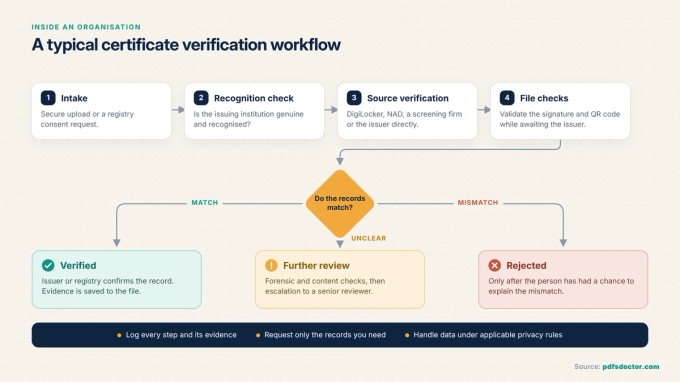
- Intake: the candidate submits the certificate, ideally through a secure upload or a registry consent request rather than email.
- Recognition check: confirm the issuing institution is legitimate and recognised.
- Source verification: request confirmation through DigiLocker, NAD, a screening provider or the issuer directly.
- Signature and link checks: where the PDF is digitally signed or carries a QR code, validate it while waiting for the issuer's response.
- Forensic and content review: used mainly when source verification is slow, unavailable or returns a mismatch.
- Decision: verified, escalated for further review, or rejected. Every step and its evidence is recorded so the decision can be explained later.
Two good practices make this process fairer. First, consent and privacy: verifiers should only request the records they need and should handle them under applicable data protection rules. Second, a chance to explain: a mismatch is sometimes innocent (a name spelt differently across records, for example), so good processes let the person respond before a final decision.
If you hold a certificate: make it easy to verify
Most people who submit certificates are honest, and a few simple habits help their documents pass verification smoothly.
- Keep the original signed PDF exactly as you received it. Store a backup copy and never overwrite it.
- Do not compress, merge, split or re-save the signed original. As our test showed, these steps can break or completely remove the digital signature. If a portal has a file size limit or needs a single combined file, make a separate working copy for that and keep the original available in case a verifier asks for it.
- Use official channels where they exist. If your institution issues through DigiLocker or NAD, share the record from there instead of sending a scan.
- Avoid "print to PDF" on signed documents. Printing creates a brand new file without the signature.
- Keep scans clear and complete. For older paper certificates, scan the full page in colour at a readable resolution, including any watermark or hologram area, and do not crop or edit it.
Free tools, including the ones on PDFs Doctor, are ideal for preparing working copies, such as combining supporting pages or reducing a file's size for an upload portal. The key is simply to apply them to a copy and keep the signed original intact.
Where certificate verification is heading
The long-term direction is to make the PDF less important and the issuer-backed record more important. Two developments point that way:
- Registry-first verification: systems such as NAD let verifiers pull a record straight from the issuer's lodged data with the holder's consent, so there is no editable copy in the middle.
- Verifiable digital credentials: in May 2025 the W3C published the Verifiable Credentials Data Model v2.0 as a formal Recommendation. It defines a standard way for issuers to create tamper-evident digital credentials that a holder can share and a verifier can check cryptographically, without phoning the issuer each time.
PDFs will remain common for years, especially for older records, so the checks in this guide will stay relevant. But expect more certificates to arrive with a link to a verifiable record rather than as a stand-alone file.
The limits of any single check
No single test catches everything, which is why organisations layer them.
- Source checks depend on the issuer responding and keeping accurate records.
- Digital signatures prove a file has not changed since signing, but not that the signer had the right to issue that qualification.
- Metadata and forensics can be faked or wiped, and genuine documents sometimes look odd because of how they were scanned or exported.
- Visual inspection is increasingly unreliable as editing and AI tools improve.
The most trustworthy result comes from combining an independent issuer confirmation with a technical check on the file, and recording the evidence for both.
Editorial note and sources
This article was researched from official documentation, published standards bodies, peer-reviewed security research and reputable industry reports. It is intended as general guidance and is not legal advice. Verification requirements vary by country, sector and institution, so organisations should follow the rules that apply to them.
- National Academic Depository, Ministry of Education, Government of India: About NAD (nad.gov.in)
- DigiLocker, Ministry of Electronics and Information Technology: background and legal status of issued documents
- University Grants Commission: list of fake universities, as reported by Careers360 on 21 February 2026
- HireRight: "Fantastical Degrees and Where to Find Them" (hireright.com)
- SHRM: "Verify Degrees to Protect Your Company from Résumé Fraud" (shrm.org)
- Adobe: Adobe Approved Trust List (helpx.adobe.com)
- Mainka, Mladenov, Rohlmann and Schwenk, Ruhr University Bochum: "Shadow Attacks: Hiding and Replacing Content in Signed PDFs", NDSS Symposium 2021
- W3C: Verifiable Credentials Data Model v2.0, W3C Recommendation, 15 May 2025