You can spend a whole weekend polishing your resume, and the first person who opens it may decide in a few seconds whether to keep reading. That sounds harsh, but it is also useful to know. If the first glance is that short, then what that glance lands on matters more than almost anything else in the file.
This guide explains what HR professionals and recruiters tend to notice first in a resume PDF, based on published eye-tracking research, and adds something most resume articles skip: what happens to the PDF file itself. I exported one sample resume in three different ways and checked what text software could actually read from each one. The results are below.
Key takeaways
- In the Ladders 2018 eye-tracking study, recruiters spent an average of 7.4 seconds on the initial screen of a resume.
- Recruiters in that study looked at job titles more than any other element, and read in an F-shaped or E-shaped pattern down the left side of the page.
- Cluttered layouts with multiple columns, long sentences and little white space performed worse.
- Before anyone reads a word, HR sees your file name, and often the PDF title in a browser tab.
- In our test, a scanned, image-only resume PDF gave zero readable characters, while a normal text-based PDF came through cleanly.
Why the first few seconds matter so much
Ladders, a US career site, ran an eye-tracking study on recruiters in 2012 and repeated it in 2018. The first study measured an initial screen of about 6 seconds. The 2018 update measured an average of 7.4 seconds. The report itself points out that the earlier study happened in a very different hiring market, so the exact number is less important than the pattern behind it.
It is worth being clear about what that number means. It measures the first pass, the quick keep-or-skip decision a recruiter makes while sorting a stack. It does not mean your whole resume is only read for 7 seconds. The same report notes that once a recruiter is interested, they spend about as much time on page two as on page one. The goal of the first glance is simply to earn that second, slower read.
There is also a step that often happens before a human looks at all. Jobscan, which audits the career sites of Fortune 500 companies every year, has detected an applicant tracking system (ATS) at roughly 97 to 99 percent of those companies in every report since 2018. Smaller companies vary a lot more, but if you apply through an online portal, it is safe to assume software will read your file before a person does.
So your resume PDF has two first impressions to make: one with software and one with a human. The rest of this article covers both.
1.Your name, headline and current job title
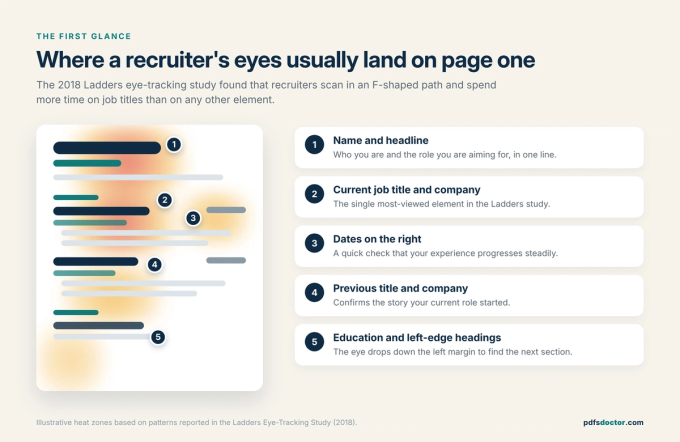
The Ladders report found that recruiters spent more time on job titles than on any other part of the resume. They typically looked at the current title and company, then the previous title and company, then moved right to check dates for a steady progression, before dropping down the left edge to education and other sections.
What this means for your PDF:
- Put your name at the very top, in the largest text on the page.
- Add a one-line headline under your name that matches the role you want, such as "Marketing Analyst" or "Food Quality Intern".
- Make every job title bold and place it on its own line.
- Keep company names directly under or beside the title, so the eye does not have to hunt.
- Line up all your dates in the same position, usually on the right, so progression is visible in one glance.
If your current job title is vague or internal (for example "Associate II, Team B"), consider adding a clearer description in brackets, as long as it is accurate.
2.Layout, white space and how easy the page is to scan
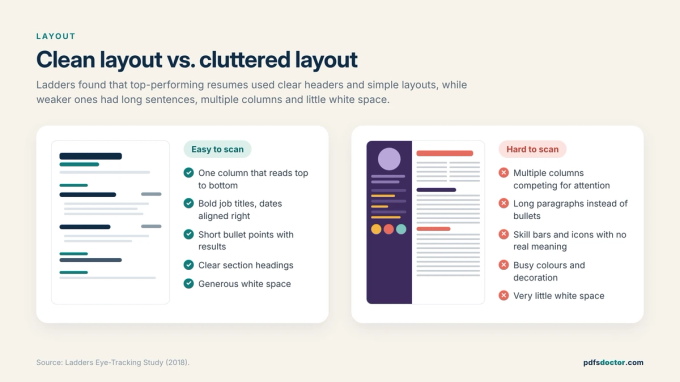
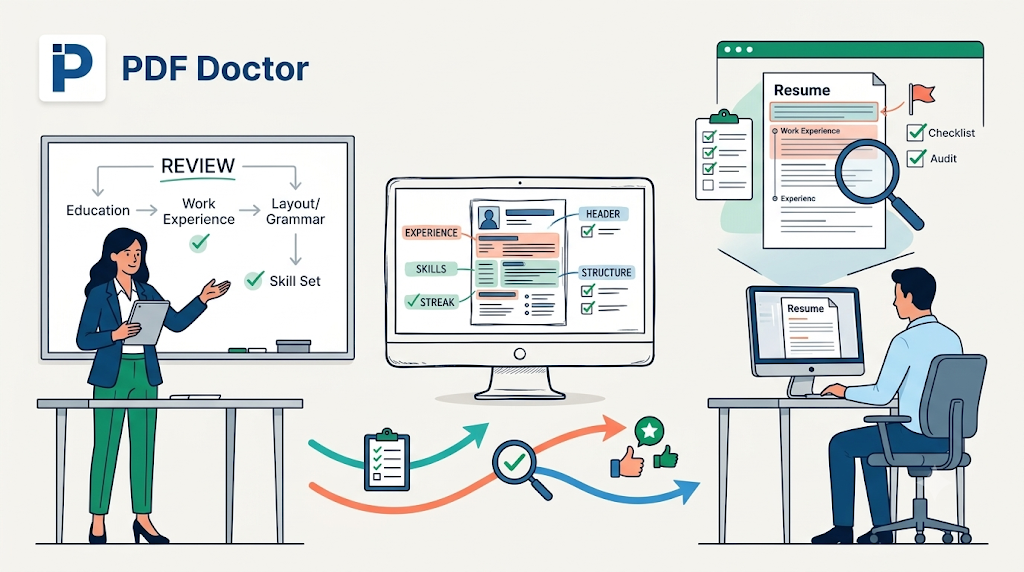
The second thing HR notices is not a detail at all. It is the overall shape of the page. The Ladders study described the weaker resumes as having a cluttered look, with long sentences, multiple columns and very little white space. The stronger ones had simple layouts, clearly marked section headings, bold job titles and bulleted accomplishments that suited the way people naturally scan.
A layout that is easy to scan usually has these features:
- One main column that reads from top to bottom.
- Clear section headings such as Profile, Experience, Education and Skills.
- Short bullet points that start with an action and end with a result.
- Consistent fonts and sizes, with no more than two typefaces.
- Enough margin and spacing that the page does not feel crowded.
A layout that slows HR down usually has:
- Two or three columns competing for attention.
- Paragraphs of five or more lines under each job.
- Skill bars, star ratings or percentage circles that do not say what you can actually do.
- Heavy background colours, icons and decorative shapes.
- Text pushed to the very edge of the page.
None of this means your resume has to look plain. Colour in headings, a clean typeface and good spacing can look modern and professional. The point is that design should guide the eye, not compete with the content.
3.Whether the PDF is real text or just a picture
This is the part most people never check, and it is where my own background with PDFs comes in. A PDF can look exactly the same on screen whether it contains real, selectable text or just a photograph of a page. To a human, both look fine. To software, they are completely different files.
How we tested it
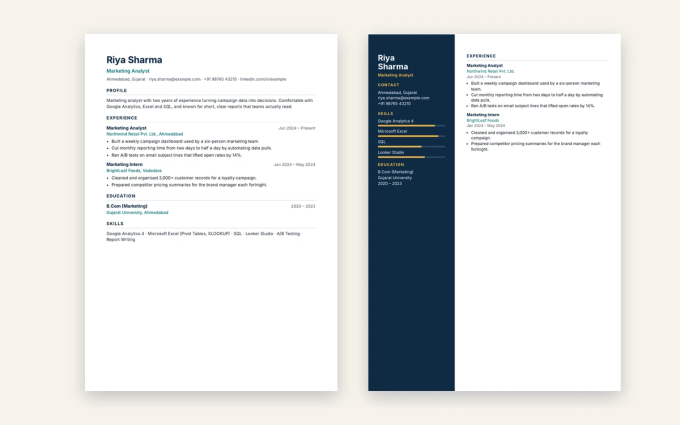
I created a resume for a fictional candidate, Riya Sharma, and exported the same content in three ways:
- A single-column, text-based PDF, exported directly from the document (97 KB).
- A two-column PDF with a dark sidebar for contact details, skill bars and education (70 KB).
- A scanned-style, image-only PDF, made by turning the first version into an image and saving that image as a PDF (123 KB).
I then ran each file through pdftotext, a free and widely used open-source tool that extracts text from PDFs. It is not an ATS, and real applicant tracking systems use their own parsers. But every parser has to read the text out of the file before it can do anything else, so this is a fair way to see what software has to work with.
What we found
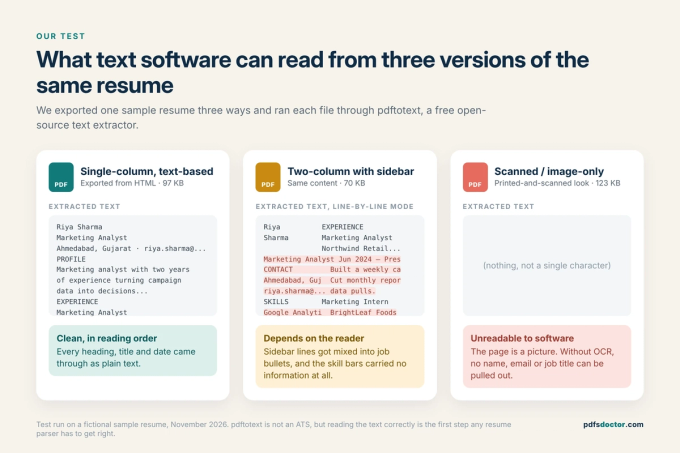
- Single-column, text-based PDF: every heading, job title, date and bullet point came out as plain text in the correct reading order. This is the best case.
- Two-column PDF: the result depended on how the text was read. In reading-order mode, the sidebar came first and the experience section followed, which was fine. In line-by-line layout mode, sidebar lines were mixed into the job bullets, so "Ahmedabad, Gujarat" sat on the same line as "Cut monthly reporting time". The skill bars produced no information at all, because a bar is only a shape. The name was also split across two lines.
- Scanned, image-only PDF: zero readable characters. No name, no email, no job titles. Without OCR (optical character recognition), software has nothing to work with.
The lesson is simple. A single-column, text-based PDF gives software the fewest chances to get your details wrong. If you love a two-column design, keep the important information (job titles, companies, dates and achievements) in the main column, and write your skills as words rather than bars.
A ten-second test you can do yourself
Open your resume PDF and try to highlight your name with your mouse or finger. If the text highlights, the file contains real text. If you can only draw a box around it, or nothing happens, your resume is an image. Also try copying a bullet point and pasting it into a notes app. If the pasted text comes out jumbled, a parser may struggle with it too.
If your resume started as a scan or a photo, the best fix is to rebuild it as a document and export it again. If it is already a Word file, you can create a clean, text-based version with the Word to PDF converter on PDFs Doctor.
4.The file name and the PDF title
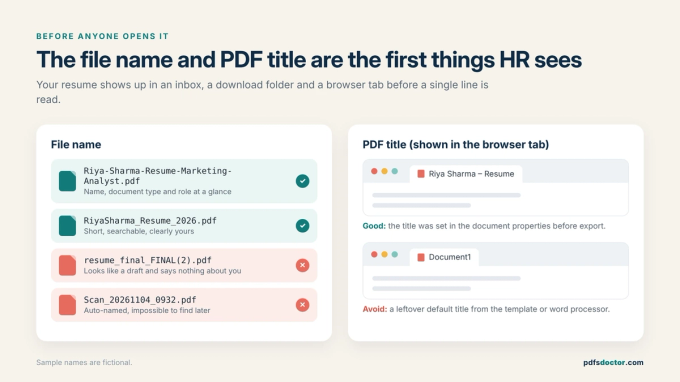
Before a recruiter reads a single line, they see your file. It sits in an inbox, a downloads folder or an ATS record, often next to dozens of others. A file called "resume_final_FINAL(2).pdf" or "Scan_20261104_0932.pdf" looks unfinished and is hard to find later.
Good file names are short, clear and include your name:
- Riya-Sharma-Resume.pdf
- Riya-Sharma-Resume-Marketing-Analyst.pdf
- RiyaSharma_Resume_2026.pdf
There is a second, hidden label most people forget: the PDF title saved in the document properties. When a PDF opens in a browser, this title often appears in the tab instead of the file name. In our test, the two-column file carried the default title "Document1", exactly the kind of leftover that looks careless in a browser tab. You can usually set the title in your word processor under File, then Properties or Info, before exporting to PDF.
5.Contact details and links that actually work
HR needs to reach you quickly, so they expect your phone number and email address at the top of page one. Two small problems come up often:
- Contact details placed inside a header image or text box. Some parsers skip headers, footers and images, so keep your phone and email in the main body as plain text.
- Broken or unclickable links. If you include a LinkedIn profile or portfolio, click it inside the finished PDF. Some export methods turn links into plain, unclickable text.
Use a professional email address, ideally some form of your name. Your full home address is usually unnecessary; city and state are enough for most roles.
6.Small details that quietly signal care
Once the big things are right, HR tends to notice smaller signals of how careful you are:
- Spelling and grammar, especially in job titles, company names and the first few lines.
- Consistency, such as the same date format everywhere ("Jun 2024", not a mix of "06/24" and "June 2024").
- Length, with early-career resumes usually fitting on one page and experienced candidates using two when the content earns it.
- Results over duties, for example "cut reporting time from two days to half a day" rather than "responsible for reports".
- Keywords in context. The Ladders report warns against keyword stuffing, because a human will eventually read the resume. Use the words from the job description naturally, inside real achievements.
7.Technical issues that create a bad first impression
Some PDF problems stop HR before they even reach the content:
- Password protection or edit restrictions. A locked file can stop an ATS from reading it and adds friction for the reviewer. If you protected a file by mistake and know its password, you can remove the restriction with the Unlock PDF tool.
- A file that will not open properly. A corrupted download or broken export creates an instant problem. Re-export from your original document, or try Repair PDF if the original is lost.
- A very large file size. Text-based resumes are usually small; all three of our test files were under 130 KB. If yours is several megabytes, a large photo or background image is often the cause.
- Unusual fonts that do not display. Exporting to PDF normally embeds your fonts, which is one of the main reasons to send a PDF in the first place. Still, open the final file on another device to confirm.
- The wrong format. If a job posting or portal specifically asks for a Word document, send a Word document. Following instructions is part of the first impression. If you only have a PDF, the PDF to Word converter can give you an editable starting point.
Should you send your resume as a PDF at all?
For most applications, yes. A PDF keeps your layout, fonts and spacing the same on every device, which a Word file cannot always promise. Most modern applicant tracking systems can read text-based PDFs without trouble.
The exceptions are simple. Send a different format when the employer asks for it, and never send a scanned or photographed resume as your main application file. A clean, text-based PDF is the version that works well for both the software and the person reading it.
Your resume PDF checklist
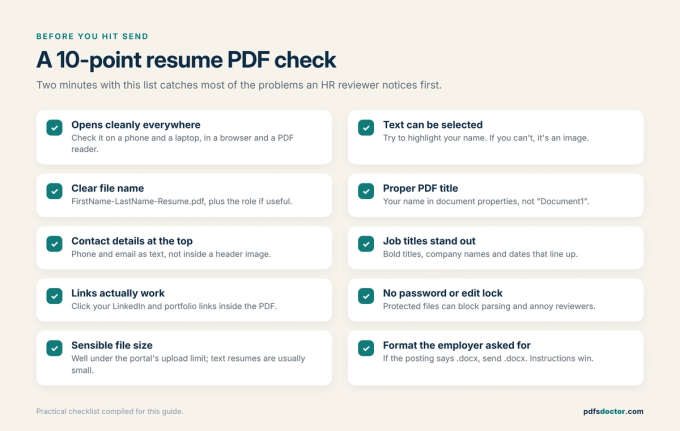
Before you send your resume, run through these ten checks:
- The file opens cleanly on a phone, a laptop, a browser and a PDF reader.
- You can highlight and copy your name and bullet points.
- The file name includes your name and the word "Resume".
- The PDF title in document properties shows your name, not "Document1".
- Your phone and email are at the top, as text, not inside an image.
- Job titles are bold, and dates line up in one consistent position.
- Every link inside the PDF is clickable and goes to the right page.
- There is no password or editing lock on the file.
- The file size is small and well under the portal's upload limit.
- The format matches what the employer asked for.
Final thoughts
What HR notices first is rarely the clever design touch you spent an hour on. It is the job title, the clean layout, the dates that line up and a file that simply works when it is opened. Get those right and your resume earns the slower, more careful read where your actual experience can do the talking.
If you only do one thing after reading this, open your resume PDF and try to highlight your name. That one test tells you whether software can read your resume at all.
Sources
- Ladders, Inc. Eye-Tracking Study (2018). Report PDF
- HR Dive. "Eye-tracking study shows recruiters look at resumes for 7 seconds." Article
- Jobscan. "ATS Usage Report: Fortune 500 companies and applicant tracking systems." Report
- Original text extraction test on three sample resume PDFs using pdftotext, run by the author in November 2026. The sample candidate and all details in the test resumes are fictional.