Many universities ask for the final electronic copy of a thesis in PDF/A rather than ordinary PDF. If the upload portal rejects your file, or the library emails you saying it "is not PDF/A compliant", it is usually not a problem with your writing. Something in the file breaks the archiving rules, and most of those problems are quick to fix once you know where to look.
This guide covers what PDF/A is and which version to choose. It then shows how to create it from Word, LibreOffice, LaTeX, Adobe Acrobat and the free Ghostscript tool, and how to prove the file is valid before you submit. It also shares what happened when we converted a sample thesis file several different ways, because some of the results were surprising.
Quick answer
- Find the exact PDF/A version your university asks for (for example PDF/A-1b or PDF/A-2b).
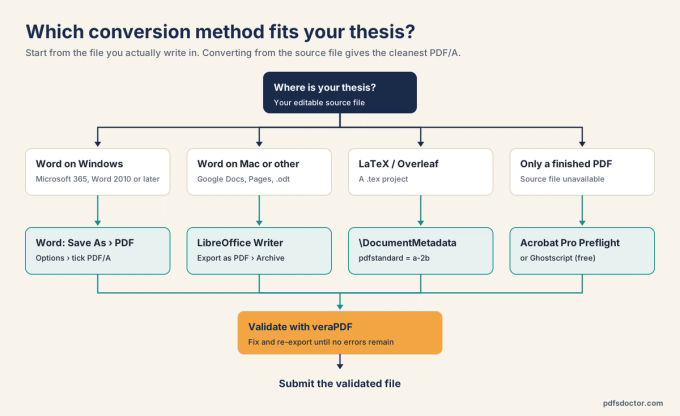
- Convert from your source file (the .docx, .odt or .tex), not from an existing PDF, whenever you can.
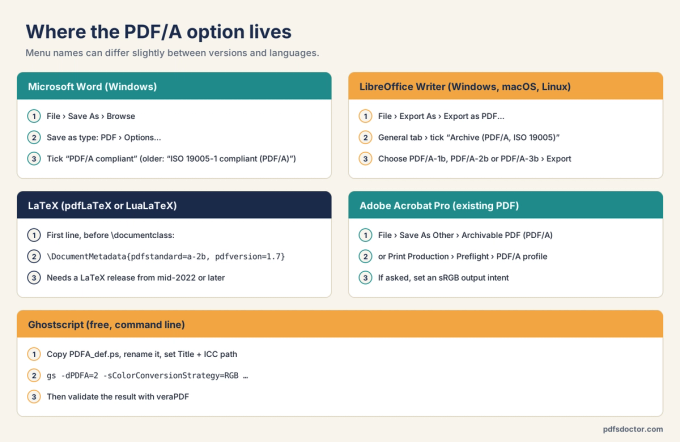
- In Word for Windows, go to File › Save As › PDF › Options and tick PDF/A compliant. In LibreOffice, go to File › Export As › Export as PDF, tick Archive (PDF/A, ISO 19005) and pick the version.
- Check the result with a validator such as veraPDF before uploading.
What PDF/A is and why universities ask for it
PDF/A is a version of PDF made for long-term archiving. It is defined by the international standard ISO 19005. The idea is simple: a PDF/A file must contain everything needed to display it exactly the same way decades from now, without depending on fonts installed on the reader's computer, on external links, or on software features that may disappear.
To make that possible, PDF/A requires:
- All fonts embedded in the file
- Colour defined in a device-independent way (an "output intent", usually sRGB)
- Standard metadata (XMP) describing the document
PDF/A forbids:
- Encryption and password protection
- JavaScript and executable actions
- Audio and video content
- Content that depends on external files
University libraries keep theses permanently in institutional repositories. A PDF/A file is much more likely to open correctly in 20 or 50 years than an ordinary PDF, which is why many graduate schools make it a submission rule.
Ordinary hyperlinks to websites are allowed in PDF/A. You do not need to remove the clickable links in your references.
Which PDF/A version should you choose?
PDF/A has four parts, each published as its own ISO standard:
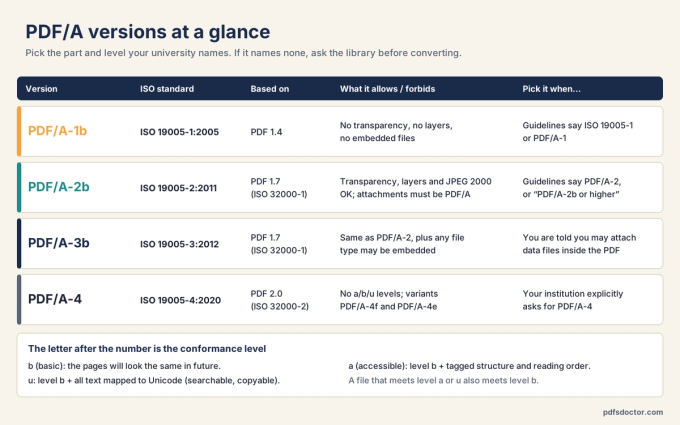
- PDF/A-1 (ISO 19005-1:2005) is based on PDF 1.4. It does not allow transparency, layers or embedded files.
- PDF/A-2 (ISO 19005-2:2011) is based on PDF 1.7. It adds support for transparency, layers and JPEG 2000 compression. Attachments are allowed only if they are PDF/A files too.
- PDF/A-3 (ISO 19005-3:2012) is the same as PDF/A-2, but any type of file can be embedded, such as a spreadsheet of your raw data.
- PDF/A-4 (ISO 19005-4:2020) is based on PDF 2.0. It drops the old conformance levels and has variants called PDF/A-4f and PDF/A-4e.
The letter after the number is the conformance level:
- b (basic) guarantees the pages will look the same in the future.
- u adds the requirement that all text maps to Unicode, so it can be searched and copied.
- a (accessible) adds tagged structure and reading order for screen readers.
A file that meets level a or u also meets level b.
How to decide: follow your university's wording exactly. If the guidelines say "ISO 19005-1" or "PDF/A-1", choose PDF/A-1b. If they say "PDF/A-2b or higher", PDF/A-2b is the natural choice. It allows transparency, which modern charts and figures often contain. If the guidelines only say "PDF/A" without a version, ask the library or graduate office which one they validate against before you convert. It takes one email and saves a rejected upload.
Before you convert: a five-minute preparation
Most PDF/A failures start in the source document. Do these checks first:
- Use fonts that are installed and embeddable. Fonts with licences that forbid embedding cannot be used in PDF/A. Standard fonts such as Times New Roman, Arial, Calibri, Cambria, Liberation and DejaVu are fine.
- Convert on the computer where you wrote the thesis. If a font used in the document is not installed on the machine doing the conversion, the software swaps in a lookalike, and your layout can shift.
- Remove any password or editing restriction. Encrypted files cannot be PDF/A.
- Remove embedded audio, video or interactive elements. Replace them with a still image and a link.
- Fill in the document properties. Set the title and author in File › Properties (Word) or File › Properties › Description (LibreOffice). Whatever is stored there is copied into the PDF's metadata, and repository staff will see it.
- Combine chapters first. If your thesis is split across several files, merge them into one document before converting, so the final PDF/A is produced in a single pass.
Method 1: Microsoft Word on Windows
Word for Windows can save directly to PDF/A:
- Open your thesis in Word and go to File › Save As › Browse.
- In Save as type, choose PDF (*.pdf).
- Click Options….
- Under PDF options, tick PDF/A compliant. In older versions such as Word 2010 and 2013 the box is labelled ISO 19005-1 compliant (PDF/A).
- Click OK, then Save.
The PDF/A part Word produces has changed between versions, so check the validator report (see "Validate the file before you submit" below) to confirm it matches what your university asked for.
Word on Mac: Word for macOS does not include a PDF/A option in its PDF export. Open your .docx in LibreOffice (Method 2) and export from there, or use Acrobat Pro on the finished PDF (Method 4).
Method 2: LibreOffice Writer (free, any operating system)
LibreOffice is free, runs on Windows, macOS and Linux, opens .docx files, and lets you choose the exact PDF/A version. That makes it the most practical option for Mac users and for anyone writing in Google Docs or Apple Pages. Their standard PDF downloads do not offer a PDF/A setting, so download your document as .docx or .odt first.
- Open the thesis in LibreOffice Writer.
- Go to File › Export As › Export as PDF….
- On the General tab, tick Archive (PDF/A, ISO 19005).
- Choose PDF/A-1b, PDF/A-2b or PDF/A-3b from the version list.
- Optional: tick Universal Accessibility (PDF/UA) if your university also asks for an accessible PDF.
- Click Export and save the file.
When the archive option is on, LibreOffice embeds every font used in the document and writes tagging information automatically. LibreOffice's own help recommends PDF/A-2b for most users, because it allows transparency and usually produces smaller files than PDF/A-1b.
After opening a .docx in LibreOffice, scroll through it before exporting. Complex Word layouts, such as text boxes, equations and multi-level lists, occasionally shift slightly in another program.
Method 3: LaTeX and Overleaf
Modern LaTeX can produce PDF/A directly through the \DocumentMetadata command. It must be the very first line of your main file, before \documentclass:
\DocumentMetadata{
pdfstandard = a-2b,
pdfversion = 1.7,
lang = en-US
}
\documentclass[12pt]{report}
This needs a LaTeX release from mid-2022 or later. If you get an "undefined control sequence" error on \DocumentMetadata, your installation is too old. Update TeX Live or MiKTeX, or on Overleaf select a recent TeX Live version in the project settings.
For older installations, the pdfx package is the traditional route:
\documentclass[12pt]{report}
\usepackage[a-2b,mathxmp]{pdfx}
pdfx reads the title, author and keywords from a separate file named after your main .tex file with the extension .xmpdata, for example thesis.xmpdata. Check the package documentation for the field names.
Whichever route you use, every figure you include must also be PDF/A-friendly. A PDF figure exported from another program can bring in unembedded fonts or transparency and break compliance. Exporting figures as PNG, or as PDFs with embedded fonts, avoids most surprises.
Method 4: You only have a finished PDF
Sometimes the source file is gone, or the PDF came from a tool with no PDF/A option. You can still convert the PDF itself.
Adobe Acrobat Pro
- Open the PDF in Acrobat Pro. The free Acrobat Reader cannot convert to PDF/A.
- Go to File › Save As Other › Archivable PDF (PDF/A).
- Alternatively, open Print Production › Preflight, search for "PDF/A", choose the profile for your target version, and run Analyze and fix.
If Acrobat stops with a message that an output intent is needed, edit the Preflight profile and choose an sRGB output intent. Then run the conversion again.
Ghostscript (free, command line)
Ghostscript is free, open-source software that can rewrite a PDF as PDF/A. It needs a small definition file that tells it which colour profile to embed. Two details matter, and both caught us out during testing.
Step 1. Find PDFA_def.ps in Ghostscript's lib folder and srgb.icc in its iccprofiles folder. On Windows these are under C:\Program Files\gs\gs<version>\. Copy both into the folder that contains your thesis.
Step 2. Rename your copy, for example to my_pdfa_def.ps. In our test, Ghostscript kept loading its own bundled PDFA_def.ps from its library folder and ignored our edited copy with the same name. Renaming fixed it.
Step 3. Open the renamed file in a text editor and change two lines:
[ /Title (Your Thesis Title Here)
/DOCINFO pdfmark
/ICCProfile (srgb.icc)
The bundled file sets the document title to the literal word "Title". If you skip this edit, that is what the repository will show as your thesis title.
Step 4. Run the conversion. On Windows, replace gs with gswin64c:
gs -dPDFA=2 -dBATCH -dNOPAUSE --permit-file-read=srgb.icc -sColorConversionStrategy=RGB -sDEVICE=pdfwrite -dPDFACompatibilityPolicy=1 -sOutputFile=thesis-pdfa.pdf my_pdfa_def.ps thesis.pdf
Use -dPDFA=1 instead if you need PDF/A-1b. Ghostscript removes the accessibility tags from the document, so do not use it if your university requires PDF/A-2a, PDF/A-3a or PDF/UA.
What we found when we tested these methods
To see what actually changes inside the file, we built a six-page sample thesis. It had a title page, an abstract, a chapter with a chart that uses a transparent background and a semi-transparent shaded area, a data table, symbols such as ±, °C and µm, and a reference list. We converted it with LibreOffice 24.2 and Ghostscript 10.02.1 and inspected every output.
- Plain PDF export (no PDF/A): 105 KB, no PDF/A claim, tags kept.
- LibreOffice, PDF/A-2b: 144 KB, declares PDF/A-2B, output intent present, tags kept.
- LibreOffice, PDF/A-1b: 102 KB, declares PDF/A-1B, output intent present, tags kept.
- Ghostscript, no definition file: 91 KB, declares PDF/A-2B, no output intent, tags lost.
- Ghostscript, renamed definition file: 94 KB, declares PDF/A-2B, output intent present, tags lost.
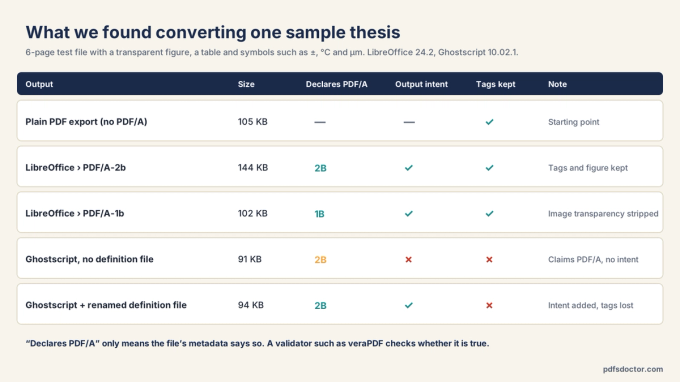
Four things stood out:
- A file can claim to be PDF/A without being PDF/A. Run without a definition file, Ghostscript still wrote "PDF/A-2B" into the metadata, but the file had no output intent, which PDF/A requires. A quick look at the document properties would have said "PDF/A". Only a validator would catch it.
- PDF/A-1b quietly changes transparent figures. The PDF/A-1b export removed the transparency channel from the chart image. On a white page the difference was limited to the edges of lines, but the figure was altered. PDF/A-2b kept it untouched.
- Missing fonts get substituted silently. The headings used Calibri, which was not installed on our test machine, so LibreOffice used a lookalike font called Carlito. The PDF/A was technically valid, but it no longer used the font the author chose. This is why you should convert on the computer where you wrote the thesis.
- The PDF/A-2b file was about 37% larger than the plain PDF. That is expected, because PDF/A embeds fonts, the colour profile and metadata. If your university has an upload size limit, compress the images in your source document before converting rather than compressing the PDF/A afterwards. Many PDF compressors rewrite the file and can break compliance.
Validate the file before you submit
Saving with a PDF/A option is not proof that the file is compliant, as our Ghostscript test showed. Always check it with a validator.
- veraPDF is a free, open-source validator that covers every PDF/A part and conformance level. Download it from verapdf.org, open your file, choose the profile for your target version (or let it auto-detect), and run the check. Fix whatever it lists, re-export, and validate again until no errors remain.
- Adobe Acrobat Pro Preflight can also verify compliance. Use the "Verify compliance with PDF/A-…" profile that matches your target version.
Keep the validation report until your thesis is accepted, in case the library asks.
Common errors and how to fix them
Validator wording varies by tool, so the messages below are paraphrased.
- Font is not embedded. A font could not be included in the file. Fix: Change to a standard font in the source document and re-export.
- Transparency is not allowed. Your target is PDF/A-1, and a figure or shape uses transparency. Fix: Use PDF/A-2b if your university accepts it; otherwise flatten the figure (save it as a non-transparent PNG).
- Output intent missing. No colour profile was embedded. Fix: Re-export from Word or LibreOffice, add an sRGB output intent in Acrobat Preflight, or use the Ghostscript definition file.
- Document is encrypted. The PDF has a password or permissions. Fix: Remove the protection in the source document and export again.
- Embedded file not allowed. Something is attached inside the PDF. Fix: Remove the attachment, or use PDF/A-3 only if your university allows attachments.
- Metadata mismatch. The title or author in the document information does not match the XMP metadata. Fix: Set the properties in the source file and re-export rather than editing the PDF.
Thesis PDF/A checklist
Use this before every upload:
- I know the exact PDF/A version my university requires.
- The thesis uses standard, embeddable fonts that are installed on this computer.
- Title and author are filled in under document properties.
- The document has no password, embedded audio or video, or attachments (unless PDF/A-3 is allowed).
- All chapters are combined into one source document.
- I exported from the source file with the PDF/A option on.
- I scrolled through the PDF to check the layout, figures, equations and page numbers.
- veraPDF (or Acrobat Preflight) reports no errors for the required version.
- The file size is within the portal's limit.
- I kept the validation report.
Sources
- PDF Association, ISO 19005 (PDF/A) resources: https://pdfa.org/resource/iso-19005-pdfa/
- PDF Association, ISO 19005-4 (PDF/A-4): https://pdfa.org/resource/iso-19005-4-pdf-a-4/
- Library of Congress, Sustainability of Digital Formats: PDF/A-4: https://www.loc.gov/preservation/digital/formats/fdd/fdd000532.shtml
- LibreOffice Help, PDF export – General options: https://help.libreoffice.org/latest/en-US/text/shared/01/ref_pdf_export_general.html
- Microsoft, Microsoft Support for PDF (Office Interoperability blog): https://learn.microsoft.com/en-us/archive/blogs/officeinteroperability/microsoft-support-for-pdf
- ISTA Library, PDF/A Guidelines (2025): https://www.ista.ac.at/wp-content/uploads/2025/02/PDFA_Guidelines_20250220.pdf
- CTAN, mitthesis documentation (PDF/A with \DocumentMetadata): https://ctan.csail.mit.edu/macros/latex2e/contrib/mitthesis/mitthesis-doc/mitthesis-doc.pdf
- Tampere University, Creating PDF/A files with LaTeX: https://webpages.tuni.fi/latex/pdfa-guide.pdf
- Central University of Jharkhand Library, Shodhganga Thesis Submission Guidelines: https://library.cuj.ac.in/shodhganga-thesis-submission-guidelines/
- veraPDF, open-source PDF/A validator: https://verapdf.org
How this guide was prepared
The steps in this guide were checked against official documentation from the PDF Association, LibreOffice, Microsoft and LaTeX package authors, plus published university library guidelines (listed under Sources). The test results come from converting a purpose-built sample thesis with LibreOffice 24.2 and Ghostscript 10.02.1 and inspecting each output file's fonts, metadata, output intent and tagging. Menu names can vary slightly between software versions and languages. If something on your screen looks different, the option is usually in the same dialog under a similar name.