It happens all the time. A teacher shares last year's lecture slides as a PDF. A teammate leaves and the only copy of the project deck is the PDF they emailed. You need to update one chart before Monday, and the original PowerPoint file is nowhere to be found.
A PDF is designed to look the same everywhere, which is exactly why it is hard to edit. The good news is that you can get your slides back into an editable form. The less obvious news is that a conversion that looks perfect can still be awkward to edit underneath.
To show what that means in practice, I built a small sample deck, exported it to PDF the normal way, converted it back to PowerPoint and inspected every slide. The results, the files and the exact steps are all below.
Quick answer: First, try to get the original slide file. If you can't, convert the PDF to PowerPoint (PPTX) and then rebuild tables and charts as native objects. If the slides are scanned or flattened images, run OCR before converting. For a one-word typo, edit the PDF directly and leave it as a PDF.
Why a PDF presentation is hard to edit
A PowerPoint, Keynote or Google Slides file knows what everything is. It knows that a block of text is a bullet list, that a grid is a table and that the bars are a chart linked to a small data sheet.
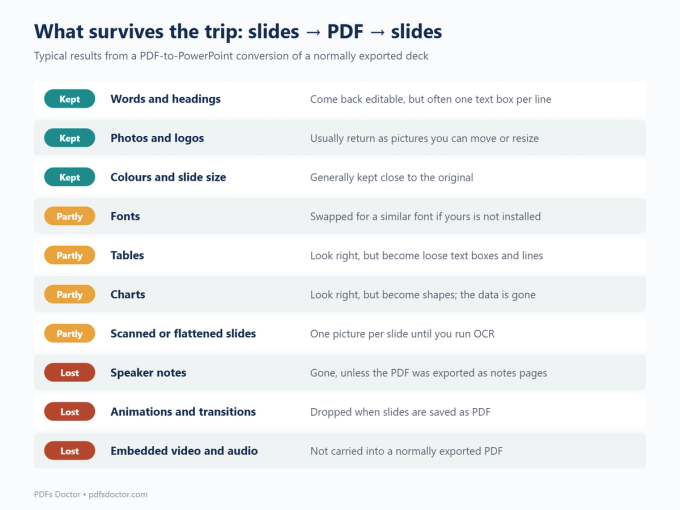
When you save that deck as a PDF, most of that meaning is thrown away. The PDF keeps instructions for drawing each slide: place these characters here, draw this line there, fill this rectangle with teal. That is perfect for printing and sharing, because the slides look identical on every device. But when a converter later tries to turn the PDF back into slides, it has to guess what the drawing instructions used to be. It can see letters, lines and rectangles. It cannot see "table" or "chart".
That single fact explains almost every frustration people have with PDF-to-slides conversion.
Step 1: Check what kind of PDF you have
Before choosing a tool, spend thirty seconds on this test. Open the PDF in any viewer (a browser is fine) and try to highlight a word on each slide.
- You can highlight the text: the PDF has a real text layer. It was almost certainly exported straight from presentation software. Conversion will give you editable text.
- You can't highlight anything, or the whole slide selects like a photo: that slide is an image. It may have been scanned, photographed, "printed" to PDF as an image, or flattened by a compression tool. A converter will give you a picture, not text, unless you run OCR (optical character recognition) first.
Many decks are mixed. In my sample file, slides 1 to 4 had a text layer and slide 5 was deliberately flattened into an image, so you can practise both cases.
Also check whether the PDF asks for a password when you open it, or blocks copying and editing. If it does, you will need the password from the person who created it before any tool can convert it.
Choose your method
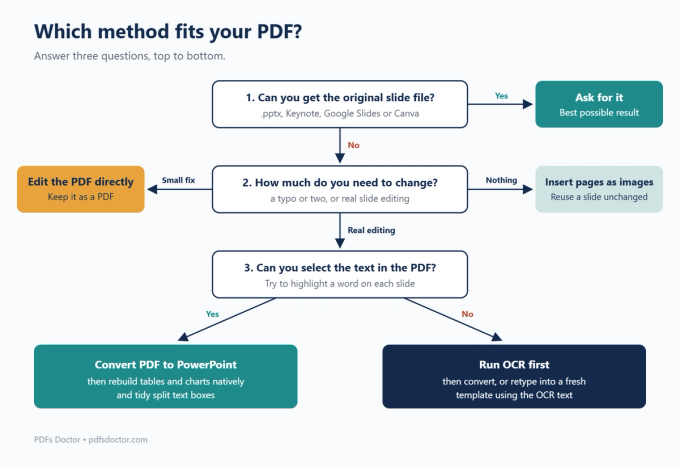
It sounds obvious, but asking for the original file really is the best fix. A two-line message to a classmate or colleague can save you an hour of cleanup.
The results
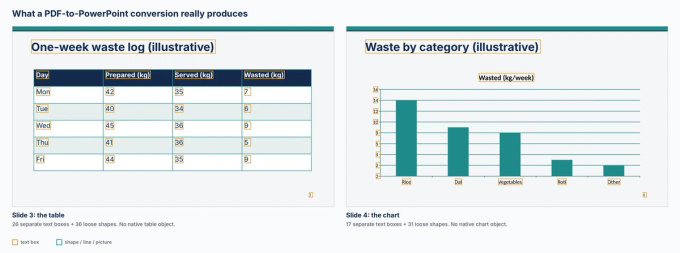
Here is what that looks like when you outline every separate object on the table and chart slides:
The surprising part
When I rendered the converted slides side by side with the originals, they looked practically identical at normal viewing size. Nothing seemed wrong.
The problems only appear when you start editing. Try to add a row to the "table" and there is no table to add it to, just 26 boxes that happen to line up. Try to change a bar value in the "chart" and you find coloured rectangles, not data. Try to retype a bullet and the second line stays behind as its own box.
So the honest summary is: conversion gives you a good-looking starting point, not a finished editable deck. Plan time for the cleanup steps later in this guide, especially for tables and charts.
Method A: Convert the PDF to PowerPoint (best for real editing)
This is the right choice when the text is selectable and you need to change more than a few words.
- Convert the PDF to a .pptx file. Upload it to the free PDF to PPT tool on PDF Doctor, which turns every page into a slide in a PowerPoint file. Each slide arrives as a full-page image that looks exactly like the original, so for any text you want to rewrite, copy it from the PDF and paste it into new text boxes or the slide's own placeholders.
- Convert the whole file, then open the PPTX in PowerPoint or Google Slides.
- Using Google Slides? Slides cannot open a PDF directly, but it can import a PowerPoint file. Create a blank presentation, go to File → Import slides → Upload, and choose the PPTX you just made.
- Check every slide against the original PDF before you start editing. Look for wrong fonts, shifted text and missing images.
- Work through the cleanup checklist below.
A note on privacy: a web converter means uploading your file to a server. PDF Doctor's PDF to PPT tool deletes uploaded files within 24 hours. For confidential business decks, client data or anything personal, check that this fits your rules before you upload.
Method B: OCR for scanned or flattened slides
If you can't highlight the text, the slide is just a picture. Converting it without OCR gives you exactly what my test gave for slide 5: one image with nothing to edit.
OCR software looks at the image and recognises the letters in it. You have two practical routes:
- A converter with built-in OCR. Some desktop PDF converters can recognise text while they convert. Look for an OCR or "recognise text" option and switch it on.
- A dedicated OCR tool to add a text layer to the PDF first, then convert that PDF as in Method A.
In my test I ran a free OCR engine on slide 5 at 200 dpi. It recovered all four "next steps" lines word for word. The only thing it missed was the small slide number in the corner. That is a good result, and it is typical of a clean, high-contrast slide. Blurry phone photos, handwriting, unusual fonts and maths symbols produce many more errors, so always proofread OCR text against the original.
Often the quickest path for a scanned deck is not to convert at all. Use OCR to get the text, open a fresh presentation template, and paste the text into proper title and body placeholders. You end up with a cleaner, more editable file than any automatic layout reconstruction.
Method C: Edit the PDF directly (best for small fixes)
If all you need is to correct a date, a name or a spelling mistake, converting the whole deck is overkill. Use a PDF editor that can edit text in place.
Keep these limits in mind:
- Editors can only change text that exists as text. Flattened slides still need OCR.
- If the original font is not installed on your computer, the editor may substitute a similar one, so your corrected word can look slightly different from its neighbours. Zoom in and compare.
- Long edits don't reflow nicely. A replacement that is much longer than the original can overflow its line.
The result stays a PDF, which is often exactly what you want if you are only sending it on.
Method D: Insert PDF pages as images (best for reusing slides unchanged)
Sometimes you don't need to edit a slide at all. You just want it inside your own presentation, for example a diagram from a lecturer's deck that you are citing.
Export the page you need as an image with the free PDF to JPG tool on PDF Doctor, then in PowerPoint go to Insert → Pictures, or in Google Slides use Insert → Image. Size it to fill the slide.
The slide will look exactly like the original, but nothing on it can be edited. Add a short source line underneath so your audience knows where it came from.
If you want every page of the PDF as a slide in one go, the free PDF to PPT tool on PDF Doctor does exactly that. It turns each PDF page into a full-slide image inside a .pptx file, so the slides look identical to the original. You can then add new text boxes, shapes or extra slides on top in PowerPoint or Google Slides.
Cleanup checklist after converting
This is where most of the real work happens. Work through the deck once, in this order.
1. Merge split text boxes. Where a heading or bullet came back as one box per line, delete the extra boxes and retype or paste the full text into one box. Better still, paste it into the slide layout's own title and content placeholders. That way the text reflows properly, appears in the outline view, and is read correctly by screen readers.
2. Rebuild tables as real tables. Insert a new table with the right number of rows and columns, copy the values across, then delete the loose text boxes and lines. It feels slow, but it is quicker than trying to align 26 boxes every time you change one number.
3. Rebuild charts as real charts. A converted chart is only a drawing. Insert a new chart of the same type and type the values into its data sheet. If the slide didn't print the values, read them off the axis as carefully as you can, or ask the original author for the numbers.
4. Fix fonts across the whole deck. If the converter substituted fonts, the Windows desktop version of PowerPoint has Home → Replace → Replace Fonts, which swaps one font for another on every slide at once.
5. Reapply a slide master or theme. Converted slides often have every element placed by hand rather than coming from a layout. Applying a clean theme and layouts makes future edits much easier.
6. Add back what PDFs can't carry. Speaker notes, animations, transitions and embedded video are not kept when slides are saved as a normal PDF, so no converter can recover them. If the PDF was exported as "notes pages", copy the notes text from below each slide into the notes pane.
7. Check reading order and alt text. Converted decks can have a jumbled reading order for screen readers. Use your editor's accessibility checker, and add alt text to images and rebuilt charts.
8. Save as a native file. Keep the cleaned-up deck as .pptx (or as Google Slides). Export a fresh PDF only when you share it, so you never have to do this again.
A quick word on permission
Being able to edit a PDF doesn't automatically mean you are allowed to reuse its content. If the slides belong to a lecturer, another student, an employer or a publisher, ask before reusing or redistributing them, and credit the original author when you present their material. This is general guidance, not legal advice.
Frequently asked questions
Can I edit a PDF presentation without converting it?
Yes, for small changes. A PDF editor can change existing text in place (Method C). For larger edits such as rewriting slides, adding new ones or changing charts, converting to PowerPoint is far more practical.
Why does my converted PowerPoint have a separate text box for every line?
The PDF stores text as positioned lines of characters, not as paragraphs. Many converters rebuild each positioned line as its own box. In my test, a single bullet that wrapped onto two lines came back as two boxes. Merging them into one box or placeholder fixes it.
Why can't I edit the chart after converting?
A PDF keeps only the drawing of a chart: bars, lines and labels. The data behind it is lost when the slides are exported, so the converter can only give you shapes. Insert a new chart and enter the values again.
Can I open a PDF directly in Google Slides?
No. Google Slides imports PowerPoint files, not PDFs. Convert the PDF to PPTX first, then use File → Import slides.
Can I edit a PDF presentation in Microsoft Word?
Word (2013 and later) can open a PDF and convert it into an editable document, a feature Microsoft calls PDF Reflow. It is designed for text documents, though, so slides turn into a long document rather than a deck. It is useful for copying text out, not for editing slides.
Will I get my speaker notes and animations back?
Not from a normal PDF. Animations, transitions and embedded media are dropped when slides are saved as PDF. Speaker notes only survive if the deck was exported as notes pages, and even then you will need to copy them back by hand.
Is it safe to use an online PDF to PowerPoint converter?
For non-sensitive files it is usually fine, but you are uploading your document to a third party. For confidential material, use desktop software, or read the service's file-retention policy before uploading.
The bottom line
A PDF presentation is a picture of a deck, not the deck itself. Getting the original file is always the best fix. When that isn't possible, convert to PowerPoint for text you can select, use OCR for slides you can't, and set aside time to rebuild tables and charts properly. Your converted file may look finished on the first open, but a quick cleanup pass is what makes it genuinely editable.