You open a PDF form, click on the "Name" line, start typing, and nothing happens. No cursor, no text, no error message. It is one of the most common PDF problems, and it usually shows up right before a deadline.
As a student, I fill out PDF forms all the time: admission documents, scholarship applications, internship paperwork and college declarations. At PDFs Doctor, I also see the same question come up again and again from people using our tools. The good news is that a form that "won't let you type" is almost never broken. There is a specific reason behind it, and once you know that reason, the fix takes a few minutes.
This guide explains the six causes, shows you how to identify yours in under a minute, and walks you through the correct fix for each one, on Windows, Mac, Android, iPhone or directly in your browser.
Quick Answer
If you only have a minute, here is the short version:
- If the form has no clickable boxes, it is a flat form. Use a "Fill & Sign" or "Add text" tool to type on top of the page.
- If the page says "Please wait…", it is an XFA form. Download it and open it in Adobe Acrobat Reader on a computer.
- If you opened it in a browser, email preview or phone gallery, open it in a proper PDF reader instead.
- If the document properties say form filling is "Not Allowed", the creator has restricted it. Ask them for an open copy, or print it and fill it by hand.
The rest of this article explains each case properly, so you fix the right problem the first time.
Why a PDF Form Won't Let You Type: The 6 Real Causes
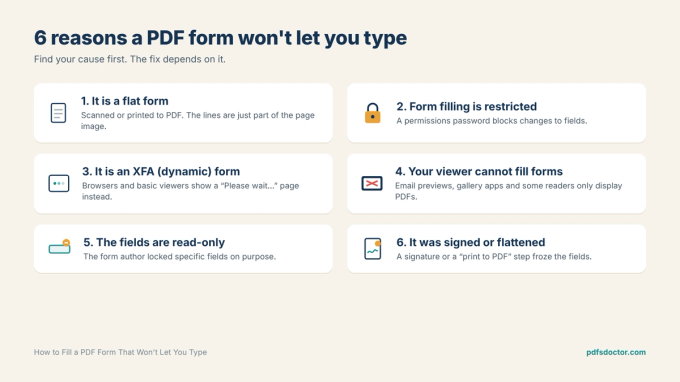
1.It is a flat (non-fillable) form
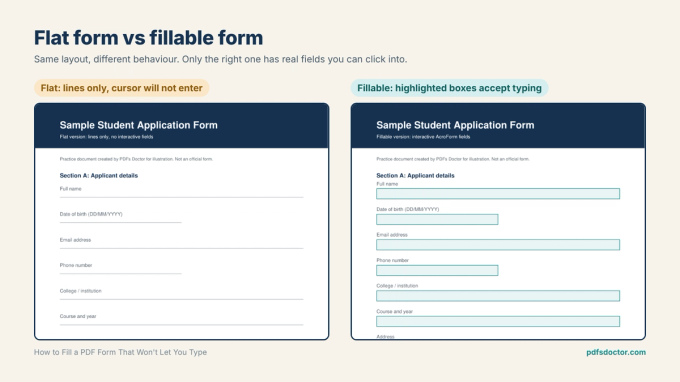
This is the most common cause by far. A flat form looks like a form, with labels, lines and boxes, but those lines are simply drawn on the page. There are no interactive fields underneath them. This happens when:
- A paper form was scanned into a PDF.
- A Word or Excel file was converted to PDF without anyone adding form fields.
- Someone used "Print to PDF" on a form, which turns everything into fixed page content.
Clicking on a printed line in a flat form is like clicking on a line in a photograph. There is nothing there to type into.
2.Form filling has been restricted with a permissions password
PDF creators can set a permissions password (also called an owner password). This password does not stop you from opening the file, but it can block specific actions such as printing, copying, editing or filling in form fields. If form filling is blocked, the fields may be visible but refuse every click.
3.It is an XFA form
XFA (XML Forms Architecture) is an older, dynamic form technology that some government departments, banks and universities still use. Most PDF viewers cannot display XFA forms at all. Instead, you see a page that says something like: "Please wait… If this message is not eventually replaced by the proper contents of the document, your PDF viewer may not be able to display this type of document."
XFA was deprecated in PDF 2.0, which is why modern viewers rarely support it. Adobe Acrobat and Acrobat Reader on desktop still open these forms.
4.Your app can show PDFs but not fill them
Many apps are built only to display PDFs. Email preview panes, file manager previews, photo gallery apps on phones and some lightweight readers fall into this group. The form may be perfectly fillable, but the app you used does not support form fields.
5.The fields are set to read-only
Form authors can mark individual fields as read-only. You will usually see this on fields meant for office use, auto-calculated totals, or details that the issuing organisation fills in itself. If only one or two fields refuse to accept text while others work fine, this is very likely the reason.
6.The form was signed or flattened before it reached you
When someone applies a certificate-based digital signature, the signing software can lock the document so that fields cannot be changed afterwards. Similarly, if the form was "flattened" or printed to PDF by a previous person in the chain, the fields were converted into plain page content and no longer exist.
How to Tell Which Problem You Have (in Under a Minute)
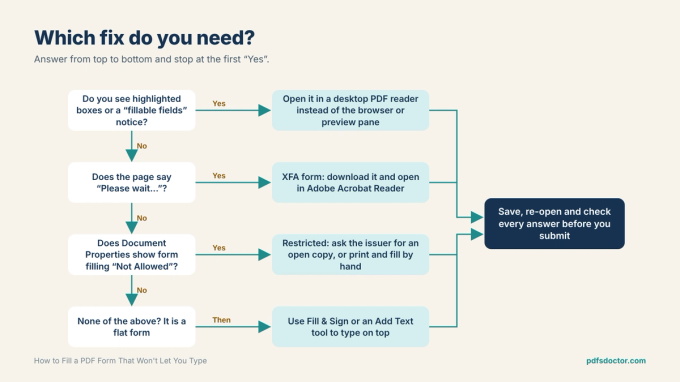
Before trying any fix, run through these checks in order. Stop at the first one that matches.
- Look for highlighted fields. Open the PDF in Adobe Acrobat Reader or another full PDF reader. Fillable forms usually show coloured or outlined boxes, and Acrobat Reader may show a notice bar offering to highlight the fields. If you see boxes, the form is fillable and the problem is likely your app (cause 4) or read-only fields (cause 5).
- Look for the "Please wait…" message. If the whole page is replaced by that message, you have an XFA form (cause 3).
- Check the security settings. In Adobe Acrobat Reader, go to File > Properties and open the Security tab. In the "Document Restrictions Summary", look at the line for Filling of form fields. If it says "Not Allowed", the form is restricted (cause 2). If you see a digital signature panel, the form may have been signed and locked (cause 6).
- Try selecting a word of text. If you cannot even highlight the printed text on the page, the PDF is probably a scanned image, which also means it is a flat form (cause 1).
- None of the above? Treat it as a flat form and use the method in the next section.
Fix 1: Type on a Flat Form Using a Fill & Sign or Add Text Tool
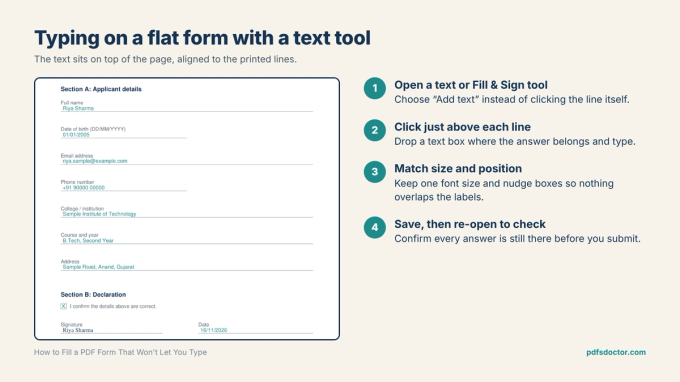
Since a flat form has no fields, you do not need to "unlock" anything. You simply place text boxes on top of the page, line by line. Every major PDF tool supports this.
Using PDFs Doctor (any device, in the browser)
- Open the Fill and Sign PDF tool on PDFs Doctor.
- Upload your PDF (files up to 25 MB are supported).
- Click where an answer belongs and add a text box. You can add text, dates and checkmarks anywhere on the page, even on forms that are not fillable.
- Type your answer and drag the box so it sits just above the printed line.
- Add your signature by drawing it, typing it in a handwriting-style font, or uploading an image of it.
- Download the completed PDF.
The tool is free, does not require an account, and does not add a watermark. Files are processed on our servers and deleted automatically after processing, so avoid uploading anything you are not comfortable sending to an online service. For highly sensitive documents, an offline desktop app is always the safer option.
Using Adobe Acrobat Reader (Windows and Mac, free)
- Download the form to your computer first. Do not fill it inside the browser tab.
- Open it in Adobe Acrobat Reader.
- Choose Fill & Sign from the tools menu (in newer versions, it is listed under All tools).
- Click anywhere on the page to place a text box and type your answer.
- Use the Fill & Sign toolbar to add a checkmark, cross or your signature where required.
- Use File > Save As to save a new copy, so the original stays untouched.
Using Preview on a Mac (built in)
- Open the PDF in Preview.
- Go to Tools > Annotate > Text. A text box appears on the page.
- Drag the box onto the right line, click inside it and type.
- Use the Text Style button (Aa) in the Markup toolbar to change the font or size if needed.
- Save the file when finished.
Using Microsoft Edge (Windows, built in)
- Open the PDF in Microsoft Edge.
- Select Add text in the PDF toolbar at the top.
- Click on the page where you want your answer and start typing.
- Save the file using the save icon in the toolbar.
Tips for a neat, professional result
- Use one font and one size (10 to 12 points works well) across the whole form.
- Place text just above the line, not on it, so the line stays visible under your answer.
- For checkboxes, use the checkmark or cross symbol from the Fill & Sign tools instead of typing the letter "X".
- Zoom in to 150 percent or more while aligning text boxes. It makes small adjustments much easier.
- Re-open the saved file in a different app to confirm every answer is still visible.
Fix 2: Open XFA ("Please wait…") Forms Correctly
XFA forms need the right software. Changing a setting will not help.
- Download the file. Right-click the link and choose "Save link as", or use the download button in the browser's PDF viewer. Do not just open it in a new tab.
- Open it in Adobe Acrobat Reader on a computer. Right-click the downloaded file, choose Open with, and select Adobe Acrobat Reader. Acrobat Reader is free and still supports XFA forms.
- Fill it in normally. The fields should now appear and accept typing.
- Save with "Save As" and submit as instructed. Many XFA forms also include their own Submit button.
A few extra points worth knowing:
- Chrome, Edge, Safari and macOS Preview cannot fill XFA forms.
- Firefox's built-in PDF viewer added support for many XFA forms in version 93 (2021), so it may work as a backup, but complex forms can still behave differently from Acrobat.
- Phone apps generally cannot handle XFA forms. Use a laptop or desktop if at all possible.
- Do not try to convert an XFA form to another format and back. The dynamic fields are lost, and the issuing organisation may reject the result.
Fix 3: Switch to a Real PDF Reader
If the form shows highlighted fields in one app but not in another, the issue is the app, not the file.
- On a computer: Save the attachment instead of previewing it in your email, then open it in Adobe Acrobat Reader, Preview (Mac) or Microsoft Edge (Windows).
- On Android: Open the file in a PDF app that supports forms, such as Adobe Acrobat Reader, rather than a gallery or file manager preview.
- On iPhone or iPad: Save the file to the Files app first, then open it from there. Files supports basic form filling and markup, and Adobe Acrobat Reader is available as an alternative.
- In the browser: Chrome and Edge can fill standard (AcroForm) fillable forms. If typing does not work, download the file and use a desktop reader instead.
Fix 4: Restricted or Locked Forms
If Filling of form fields shows "Not Allowed", the creator has intentionally limited what you can do. Your options depend on whose document it is.
- Ask the sender for an open copy. This is the best route for official forms from colleges, employers, banks or government offices. Explain that form filling is disabled. Offices often have a fillable version available and can share it.
- Print it and fill it by hand. For many forms, this is fully acceptable. Write clearly in black or blue ink, then scan it. If you take photos of the pages, you can combine them into a single PDF with the JPG to PDF tool.
- If it is your own document, for example a form you created earlier and protected, you can remove the permissions password using the Unlock PDF tool. The tool is meant for document owners. Do not remove protection from someone else's document without their permission, because the restriction is often there for a legal or official reason.
Read-only fields and signed forms
- Read-only fields are usually intentional. Fields marked "For office use" or pre-filled totals are not meant for you. Leave them as they are.
- If a field you need is read-only by mistake, contact the form issuer. Typing over it with a text tool may cause the form to be rejected.
- If the form was signed and locked, any change will invalidate the signature. Ask the person who signed it to send an unsigned copy, fill it, and then have it signed again.
Mistakes That Make the Problem Worse
- Filling the form inside the browser preview and not saving. Some browser viewers do not keep your entries unless you download or save the file. Always save, then re-open it.
- "Printing to PDF" to save a filled form. This flattens the form. That is fine for a final copy, but you will not be able to edit it again, so keep the editable version as well.
- Using random converter sites for official forms. Converting a form to Word and back often breaks the layout and removes fields. It can also expose your personal details to services you know nothing about.
- Editing the original file directly. Use "Save As" to keep a clean copy in case you need to start again.
- Ignoring the file size limit on submission portals. Scanned, hand-filled forms can become large. Check the portal's limit before you upload.
Before You Submit: A Quick Checklist
- Re-open the final PDF in a different app and confirm every answer is visible.
- Check that names, dates and ID details match your official documents exactly.
- Confirm your signature appears where it should.
- Make sure the file name is clear, for example "Surname_Firstname_Application.pdf".
- Keep a copy of the completed form for your records.
Frequently Asked Questions
Why can I click on the form but not type anything?
Most likely it is a flat form with no real fields, so there is nothing to type into. Less often, the fields are read-only or form filling is restricted. Use the checks in "How to Tell Which Problem You Have" to confirm.
Why does my PDF form just say "Please wait…"?
It is an XFA form, and your current viewer does not support that format. Download it and open it in Adobe Acrobat Reader on a computer.
Can I fill a scanned PDF form?
Yes. A scanned form is a flat form, so use a Fill & Sign or Add Text tool to place your answers on top of the page.
Can I fill PDF forms on my phone?
Standard fillable forms and flat forms can be filled on a phone using a PDF app that supports forms, or using an online Fill & Sign tool in your mobile browser. XFA forms usually need a computer.
Is it safe to fill a PDF form online?
It depends on the service. Check where files are processed and how long they are stored before you upload. PDFs Doctor deletes files automatically after processing, but for very sensitive documents, an offline desktop reader is the most private option.
Will typing on top of a flat form be accepted?
In most cases, yes. The final PDF looks the same as a typed form. If the issuing organisation gives specific instructions, such as "fill by hand only", follow those instructions.
Why did my answers disappear after I saved?
Your viewer probably did not save form data, or you opened the original file again instead of the saved copy. Fill the form in a desktop reader, use "Save As", and re-open the new file to check.
Final Thoughts
A PDF form that refuses typing is rarely a dead end. In most cases it is either a flat form that only needs a text tool, an XFA form that needs Adobe Acrobat Reader, or an app that was never designed to fill forms. Spend one minute identifying which of the six causes you are dealing with, and you will avoid most of the frustration that comes with last-minute form filling.
If you need to fill a flat form quickly without installing anything, the Fill and Sign PDF tool on PDFs Doctor handles text, dates, checkmarks and signatures in one place.
Sources and Further Reading
- Adobe Help Center: Fill in forms (Acrobat Reader)
- Adobe Help Center: Fill in PDF forms (Acrobat)
- Adobe: How to fill out a PDF form
- Mozilla: Firefox 93.0 release notes (XFA form support in the PDF viewer)
Editorial note: This guide was written and reviewed by the PDFs Doctor team. The sample forms shown in the images were created by PDFs Doctor for illustration only, and all names and details in them are fictional. PDFs Doctor tools mentioned in this article are our own products; third-party tools are included because they are widely used and free.