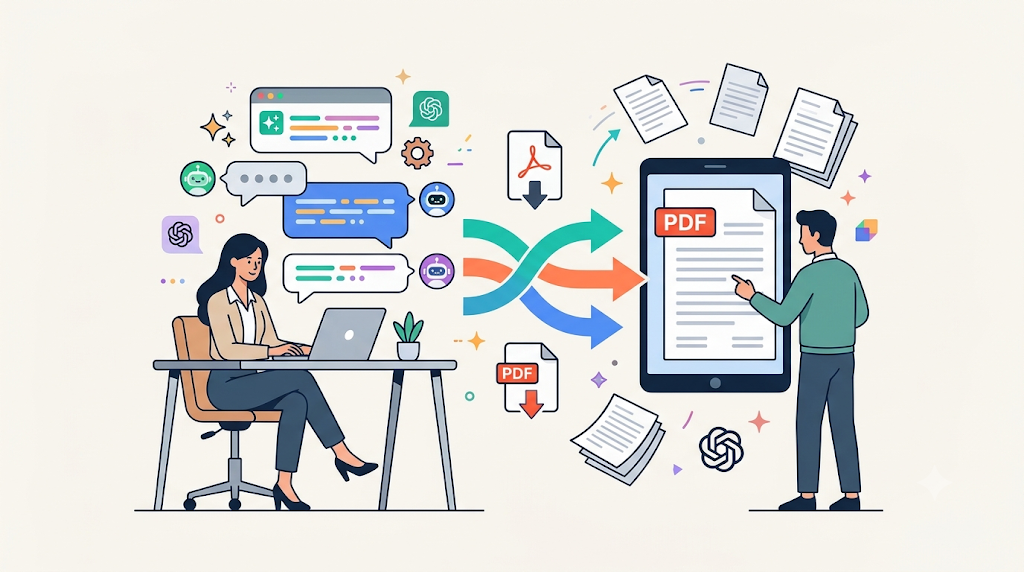
AI chats have quietly become one of the most useful study and work tools we have. A single conversation can hold a clear explanation of a hard concept, a draft email, a project outline or a step-by-step plan. The problem is that chats are easy to lose. They get buried under newer conversations, deleted during a clean-up, or stuck inside one app when you need them somewhere else.
Saving the conversation as a PDF solves that. A PDF looks the same on every device, opens without an account, prints neatly and can be attached to an email or uploaded to a college portal.
As an engineering student, I use AI assistants to break down topics from my coursework and to plan work for PDFs Doctor. The explanations I want to revise later are the ones I save as PDFs, so they sit in my study folders next to my lecture notes instead of inside a chat history I have to scroll through. This guide covers the methods that work, when to use each one, and what to check before you share the file.
Quick answer
➤ For most people: open the chat in your browser, press Ctrl + P (Windows) or Cmd + P (Mac), choose Save as PDF, and save.
➤ For clean, edited notes: copy the parts you need into Google Docs or Word, then download or save as PDF.
➤ For a full backup of every chat: use the official data export in your AI app's settings.
The rest of this guide explains each method step by step.
Why save AI chats as PDFs at all?
✅ Permanence. Your PDF stays on your device even if you delete the chat, lose access to the account or switch tools.
✅ Offline access. You can read it on a train, in a lab or anywhere without internet.
✅ Easy sharing. Teachers, teammates and clients can open a PDF without signing up for anything.
✅ Better organisation. You can file PDFs by subject or project, merge related chats into one document, and search them later.
✅ A record of the work. If you used AI while drafting something, keeping the conversation shows exactly what was asked and answered.
Choose the right method first
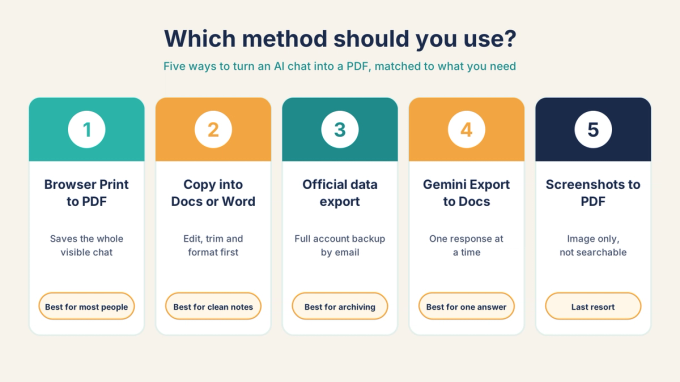
Each method suits a different goal:
- Browser Print to PDF: fastest way to save one full conversation as it appears on screen.
- Copy into Google Docs or Word: best when you want to trim, edit and format before saving.
- Official data export: best for backing up your whole chat history, not for a quick readable PDF.
- Gemini Export to Docs: a built-in route for saving one Gemini response at a time.
- Screenshots to PDF: a last resort when nothing else works, because the text is not searchable.
Method 1: Save the chat with your browser's Print to PDF
This works with almost any AI chat that runs in a web browser, including ChatGPT, Claude, Gemini, Microsoft Copilot and Perplexity, because it uses a feature built into the browser itself.
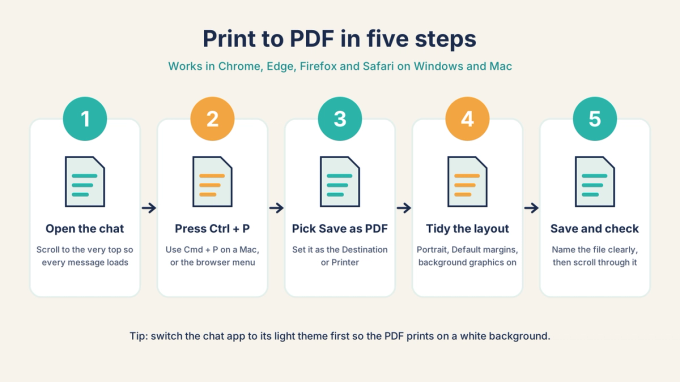
Step-by-step:
- Switch to the light theme. Dark mode can produce dark pages that waste ink and are harder to read on paper. Change the theme in the app's settings before printing.
- Open the conversation and scroll to the top. Long chats often load older messages only as you scroll up. Scrolling to the very first message makes sure everything is on the page.
- Expand anything that is collapsed. Open long code blocks, "show more" sections or hidden reasoning panels you want included.
- Open the print dialog. Press Ctrl + P on Windows or Cmd + P on Mac, or use the browser menu and select Print.
- Choose the PDF option. ◆ In Chrome and Edge, set Destination to Save as PDF. ◆ In Firefox, choose Save to PDF as the printer. ◆ In Safari, use the PDF option in the print dialog and select Save as PDF, or use File › Export as PDF.
- Adjust the layout. Portrait orientation and default margins work for most chats. Under More settings, turn on Background graphics if you want coloured message bubbles to show. If text looks too small, increase the Scale slightly.
- Save and check. Give the file a clear name and scroll through it once to confirm no answer is cut off.
What to expect: the PDF keeps headings, bullet points and most formatting from the chat. You may also see sidebar items or buttons from the page. If that bothers you, Method 2 gives a cleaner result.
On a phone
➤ iPhone and iPad: open the chat in Safari, tap the Share button, choose Print, then use the share option in the print preview to save it to Files as a PDF.
➤ Android: open the chat in Chrome, tap the three-dot menu, choose Share and then Print, and select Save as PDF as the printer.
Menu labels can differ slightly by phone model and system version, but the Print and Save as PDF options are standard on both platforms.
Method 2: Copy into Google Docs or Word, then save as PDF
This is my preferred method for study notes. It takes a few minutes longer, but the result is a clean document with only the parts you need.
- Copy the answer. Most AI chats show a copy button under each response. Using it usually keeps headings and lists intact. You can also select text with your mouse.
- Paste into a document. Open Google Docs or Microsoft Word and paste.
- Add your question above each answer. A response makes much more sense later when you can see what you asked. I write my question in bold and paste the answer underneath.
- Clean it up. Delete repeated sections, fix headings and add a title and date at the top.
- Save as PDF. ◆ Google Docs: File › Download › PDF Document (.pdf). ◆ Microsoft Word: File › Save As, then choose PDF as the file type.
Why this method is worth the extra time: you control exactly what goes into the final file, the formatting is consistent, and the PDF contains real, searchable text.
Method 3: Use the official export in ChatGPT, Claude or Gemini
The major AI apps offer their own export options. These are designed for backing up your data, so they are excellent for archives, but the files they produce are not always a ready-to-read PDF.
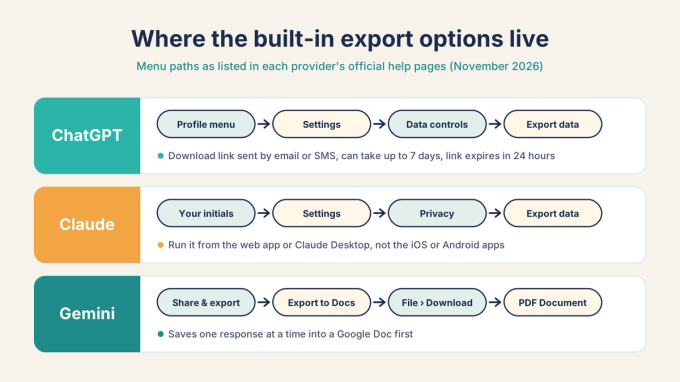
ChatGPT
According to OpenAI's help centre, the web steps are:
- Sign in and open your profile menu.
- Select Settings, then Data controls.
- Under Export data, select Export, then Confirm export.
The iOS and Android apps have the same option under Data controls. OpenAI sends an email or SMS when the export is ready. It can take up to 7 days, and the download link expires 24 hours after you receive it. The ZIP file includes an export viewer (index.html) that you open in your browser to read and search your conversations; older exports contain a chat.html file instead. Self-service export is not available for ChatGPT Business, Enterprise or ChatGPT for Healthcare workspaces, so members of those should ask their workspace owner.
To turn it into a PDF: open the conversation you need in the export viewer or in ChatGPT itself and use Method 1.
Claude
Anthropic's help centre lists these steps for individual users:
- Click your initials in the lower-left corner.
- Select Settings.
- Open the Privacy section.
- Click Export data.
The export has to be run from the web app or Claude Desktop, not from the iOS or Android apps. You receive a download link that expires after 24 hours. The export is a data archive meant for backup, so for a readable PDF of one conversation, open it in your browser and use Method 1 or Method 2.
Gemini
Google's Gemini help page describes a built-in export for individual responses:
- Below the response, click Share & export.
- Choose Export to Docs. Gemini saves a new document in your Google Drive.
- Open the document and select File › Download › PDF Document (.pdf).
This saves one response at a time, so for a full conversation, Method 1 is quicker. If you are signed in with a work or school Google account, your export options may vary depending on your organisation's settings.
Method 4: Screenshots to PDF (only when nothing else works)
Some apps or embedded chat windows block printing or copying. In that case:
- Take screenshots of the conversation from top to bottom.
- Convert the images into a single PDF using an image-to-PDF converter.
- Check that the pages are in the right order.
The trade-off: a screenshot PDF is an image, so you cannot search or copy the text, and the file is usually larger. Use this only when the other methods are not available.
Tips for a cleaner, more useful PDF
✅ Name files so you can find them later. Include the tool, the topic and the date. For example: ChatGPT-food-labelling-notes-2026-11-13.pdf.
✅ Save one topic per file. A focused PDF is easier to revise from than one huge document covering everything.
✅ Merge related chats. If you had three separate conversations about one project, merge the PDFs into a single file in the right order.
✅ Keep the date visible. AI answers can change over time and with different model versions. A date on the document shows when the information was generated.
✅ Fact-check before you rely on it. AI chats can contain mistakes. For anything you will submit, publish or act on, verify key facts against a textbook, official source or expert.
Privacy and security: check before you share
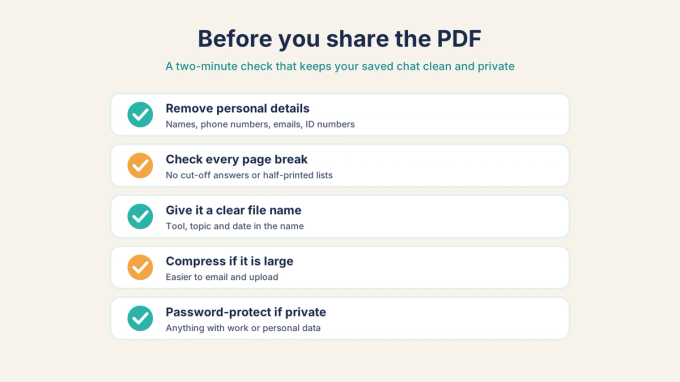
People often paste personal or work information into AI chats without thinking about it later. Once that chat becomes a PDF, it can travel much further than the chat ever would. Before you send or upload it:
- Read through the whole file. Look for names, phone numbers, email addresses, addresses, ID numbers, passwords or internal company details.
- Remove what should not be there. The easiest way is Method 2: delete the sensitive parts in Docs or Word, then save a fresh PDF.
- Password-protect private files. If the PDF contains work or personal information, add a password before emailing it.
- Compress large files. Long chats with images can create big PDFs. Compressing makes them easier to email and upload.
- Be careful with share links. Many AI apps also let you create a link to a conversation. A link can be opened by whoever receives it, so a PDF you have reviewed is often the safer way to share.
You can merge, compress and password-protect your saved chats for free with the tools on PDFs Doctor.
Frequently asked questions
Can I save an entire AI conversation as one PDF?
Yes. The browser Print to PDF method saves the whole conversation that is loaded on the page. Scroll to the first message before printing so that older messages are included.
Why is my AI chat PDF cut off or missing messages?
Long chats often load older messages only when you scroll up. Scroll to the top, wait for everything to load, then print again. Also expand any collapsed sections before printing.
Why does my PDF have a black background?
The chat was probably in dark mode. Switch the app to its light theme and print again.
Is the text in the PDF searchable?
Yes, if you used the browser print method or saved from Docs or Word. Screenshot-based PDFs are images, so their text is not searchable.
Does the official data export give me a PDF?
Not directly. The exports from ChatGPT and Claude are data archives designed for backup. Open the conversation and use the browser method or the copy-to-document method to create a readable PDF.
Can I save AI chats as PDFs on my phone?
Yes. On iPhone and Android, use the browser's Share and Print options and choose to save as PDF.
Is it safe to share a PDF of my AI chat?
It is safe once you have reviewed it. Remove personal or confidential details first, and add a password if the file contains anything private.
Final thoughts
The simplest way to save an AI chat as a PDF is your browser's Print to PDF option: it works with nearly every AI tool and takes about a minute. When you want neat notes, copy the useful parts into Google Docs or Word first. For a complete backup of your history, use the official export in your AI app's settings.
Whichever method you choose, take a minute to review the file before you share it. A clean, well-named and private PDF is one you will actually find and use later.
Sources
The menu paths and export details in this guide follow each provider's official help documentation, checked on November 13, 2026. App menus can change after updates.
- OpenAI Help Center: How do I export my ChatGPT history and data?
- OpenAI Help Center: Data controls in ChatGPT
- Anthropic Claude Help Center: Export your Claude data
- Google Gemini Apps Help: Export responses from Gemini Apps