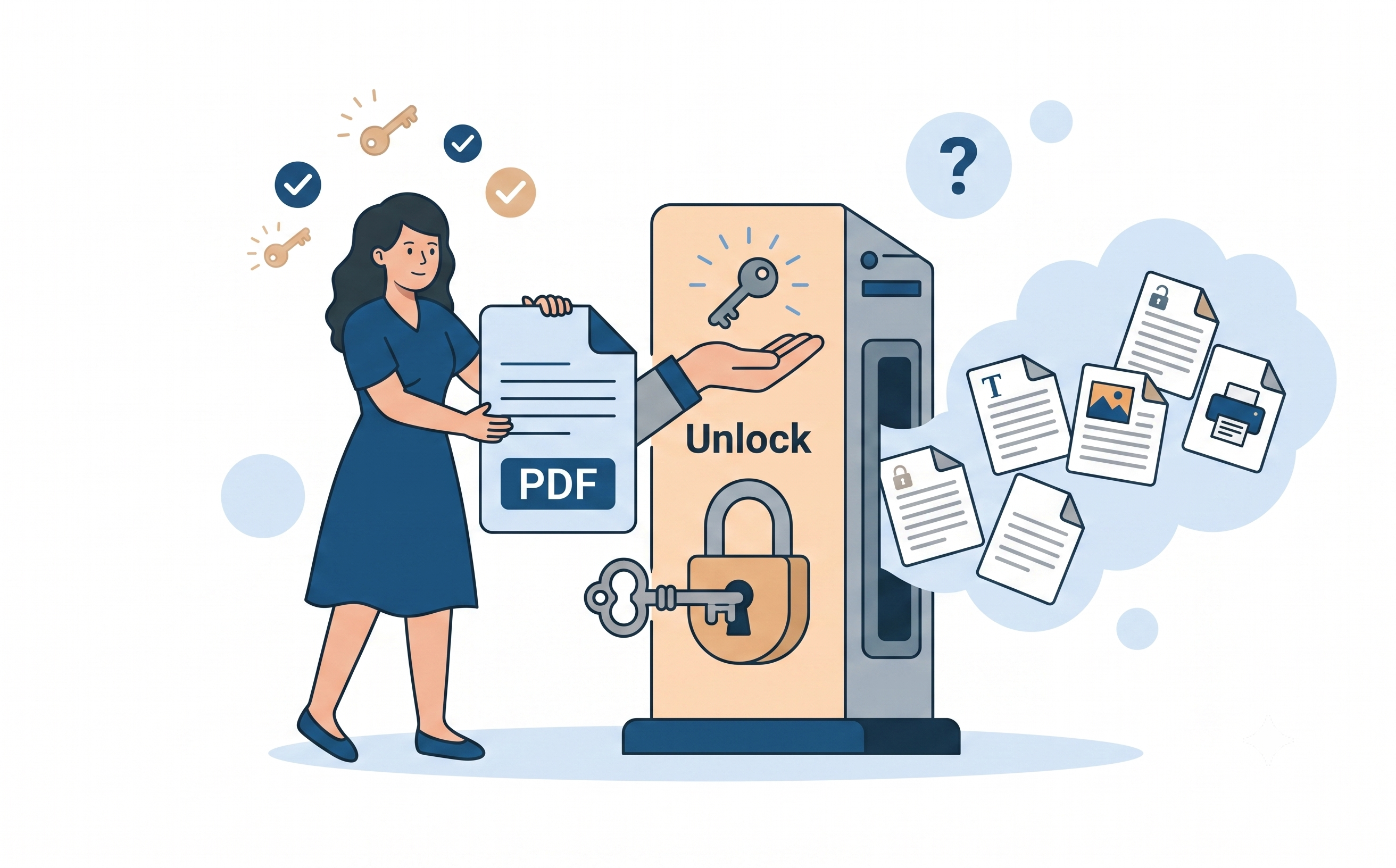
Every tax season I get the same PDF from my accountant. It's password-protected, as it should be. And every tax season I hit the same wall: I can open it, but when I try to copy a figure into my own spreadsheet, nothing happens. Copy is greyed out, and so is print. The file is readable but otherwise useless.
I work on the engine behind PDF Doctor's tools, so I wanted to answer that problem properly rather than repeat the usual "just upload it" advice. For this update, I built five locked test PDFs covering every common type of PDF encryption, unlocked each one, and checked what actually changed in the file. The results are below.
Why PDFs get locked in the first place
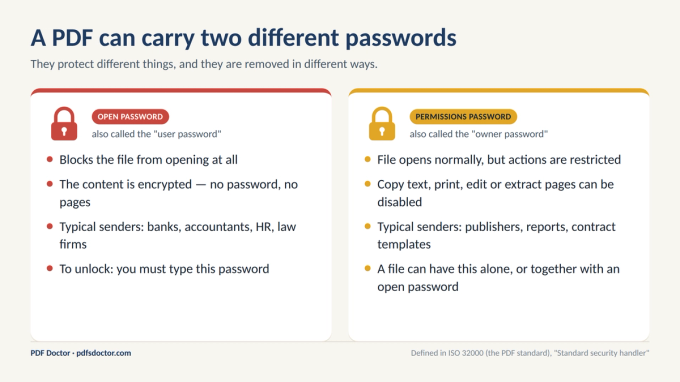
The PDF standard (ISO 32000) lets a file carry two different passwords, and knowing which one you are dealing with saves a lot of confusion.
The open password (also called the "user password") stops the file from opening at all. The content is encrypted, so without the password there is nothing to see. Banks, accountants, employers and law firms use it for documents that are sensitive in their own right.
The permissions password (also called the "owner password") lets anyone open and read the file but switches off specific actions: copying text, printing, editing, filling forms, or extracting pages. Publishers and companies use it for reports and templates they want people to read but not reuse.
A file can have either password or both. Your accountant's file probably has both: an open password they sent you, and a permissions password they kept to themselves.
First, check which lock your file has
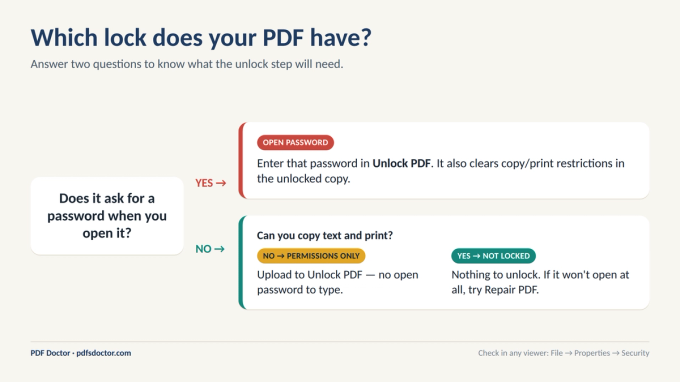
This takes about ten seconds:
- Does the file ask for a password when you open it? If yes, it has an open password. You'll need it to unlock the file.
- If it opens straight away, can you copy text and print? If not, it has permissions restrictions only. If you can, the file isn't locked. If it won't open at all and shows an error rather than a password prompt, the file is probably damaged, and Repair PDF is the right tool.
To see the exact restrictions, open the file in any PDF viewer and go to File → Properties → Security (or Document Properties → Security).
How to unlock a PDF with PDF Doctor
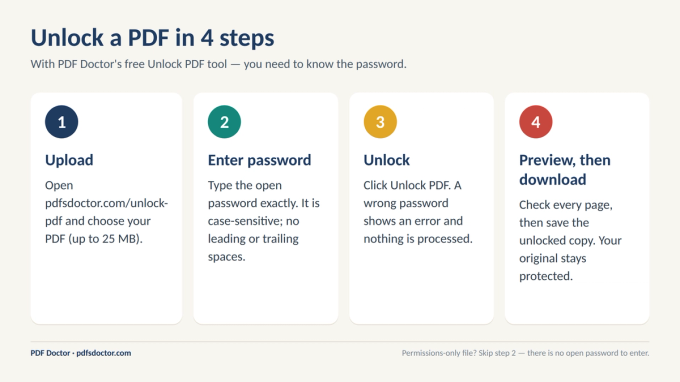
PDF Doctor's Unlock PDF tool runs in your browser, with no software to install and no account to create. It does not crack or guess passwords. For a file with an open password, it checks the password you type against the file and produces an unlocked copy only if the password is correct.
Step 1: Upload your locked PDF
Go to pdfsdoctor.com/unlock-pdf, click Upload PDF File and select your file. Files up to 25 MB are supported.
Step 2: Enter the PDF password
When the file has uploaded, type the password into the Enter PDF Password field. Passwords are case-sensitive, and a stray space counts as a character. In our tests, Demo@2026 (with a trailing space) and demo@2026 (lower-case d) were both rejected for a file whose password was Demo@2026.
If the file has only permissions restrictions, there is no open password to enter.
Step 3: Click "Unlock PDF"
If the password is correct, you'll see the message "PDF has been Unlocked!" along with Download PDF and Preview PDF buttons.
If it's wrong, you'll see "Oops! The password you entered is incorrect. Please try again." Nothing is processed.
Step 4: Preview, then download
Click Preview PDF first and scroll through every page. Then download. The new copy has no password and no restrictions, so you can copy, print, convert, merge or edit it. Your original locked file isn't changed.
What happened when we unlocked 5 locked PDFs
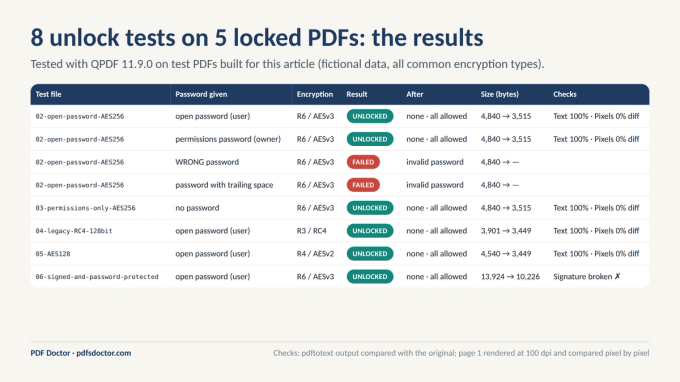
To check what unlocking really does, rather than assume, I created a two-page sample document (a fictional tax statement with a table and a hyperlink) and saved it with five kinds of protection: AES-256 with an open password, AES-256 with permissions restrictions only, legacy RC4 128-bit, AES-128, and an AES-256 file that also carried a digital signature. I then unlocked each one with QPDF 11.9.0, the open-source PDF engine, and checked the output three ways: by extracting the text and comparing it with the original, by rendering page 1 and comparing it pixel by pixel, and by reading the encryption settings before and after.
Here is what the tests showed.
- Every file unlocked when given the right password, whatever the encryption type. RC4, AES-128 and AES-256 all behaved the same way. Unlocking took around 5 to 12 milliseconds per file on these small samples.
- The open password alone was enough to remove the copy and print restrictions. You don't need the permissions password as well. This is how PDF encryption is designed: the open password unlocks the file's encryption key, and the permissions are recorded inside the file rather than being a separate layer of encryption.
- The permissions-only file unlocked with no password at all. This surprises people, and it's worth being clear about. Permissions restrictions are instructions that PDF software is expected to respect. They aren't a barrier that stops someone reading the file, and most PDF tools, including ours, can remove them. That doesn't make it right to remove restrictions from a file you aren't entitled to reuse.
- Wrong passwords were rejected, including near-misses. A trailing space and a wrong capital letter both failed, which is why most "wrong password" errors turn out to be typing errors.
- The content was untouched. In every successful test, the extracted text was 100% identical to the original, page 1 rendered with 0% pixel difference, and both pages and the hyperlink were still there.
- The file size changed. The unlocked copies were 11% to 27% smaller than the locked ones, because the file is rewritten without its encryption data. Expect some change in size on your own files. It doesn't indicate lost content.
- The digital signature broke. The signed test file unlocked normally, but the signature, which was intact beforehand, was no longer valid afterwards.
What unlocking changes, and what it doesn't
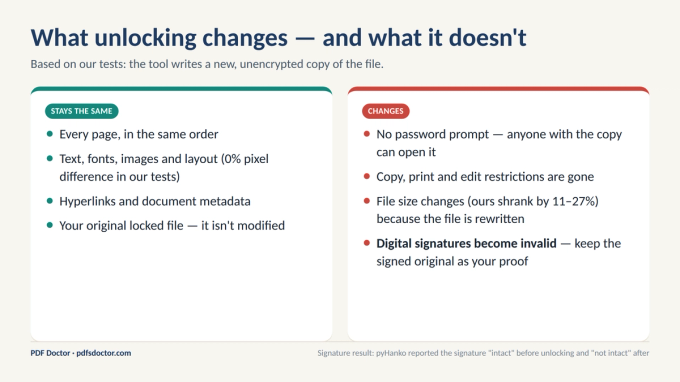
Unlocking creates a new, unencrypted copy of your file. Your original stays exactly as it was.
What stays the same: every page in the same order, the text, fonts, images and layout, the hyperlinks and document information, and your original locked file.
What changes:
- There is no password prompt, so anyone who gets the copy can open it.
- Copy, print and edit restrictions are gone.
- The file size will usually be slightly different.
- Digital signatures become invalid. If the file is a signed contract, a signed certificate, or anything else whose signature you might need to prove later, keep the signed original. Use the unlocked copy only as a working copy.
Because the unlocked copy has no protection, treat it with care. Don't leave an unlocked bank statement in your Downloads folder or forward it casually. The password was there for a reason.
Password not working? Check these first
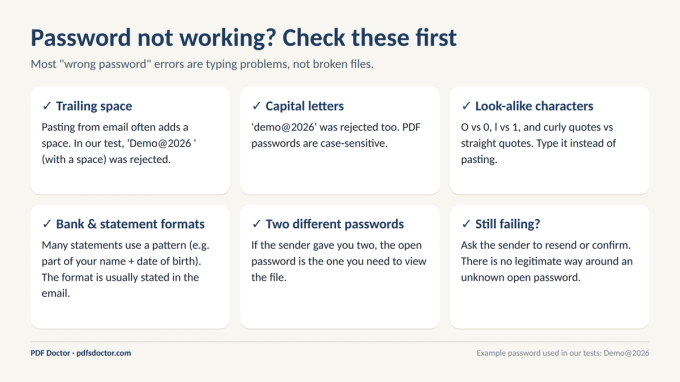
- Trailing or leading spaces. Copying a password from an email or chat often picks up a space. Type the password in yourself if pasting fails.
- Capital letters. PDF passwords are case-sensitive.
- Look-alike characters. Check O and 0, l and 1, and curly and straight quotes.
- Statement password formats. Many banks and financial services build the password from a pattern, such as part of your name plus your date of birth. The format is usually explained in the email the statement came with.
- Two passwords. If the sender gave you two, the open password is the one you need.
- Still failing? Ask the sender to confirm or resend the password. There is no legitimate way around an open password you don't know, because the content is encrypted with it.
Other ways to unlock a PDF you have the password for
A browser tool isn't right for every situation. Here are the alternatives, with their trade-offs.
Adobe Acrobat Pro (paid). Open the file and go to All tools → Protect a PDF → Remove security. If the file has a permissions password, Acrobat asks for it, and the open password alone isn't enough there. (Adobe's instructions.)
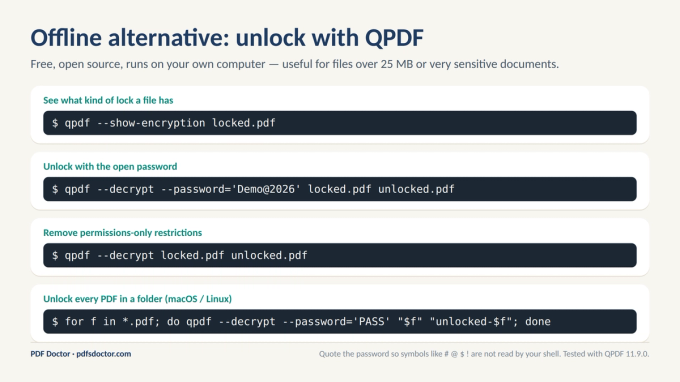
QPDF (free, open source, runs offline). This is the best option for files over 25 MB, for batches of files, or for documents you'd rather not upload anywhere.
"Print to PDF" in your browser (free, but a compromise). Open the file in Chrome or Edge, enter the password, then choose Print → Save as PDF. This works only when the file allows printing. The result is a re-drawn copy, so bookmarks, form fields, and digital signatures are usually lost, and it's a poor choice for anything you'll need to edit later.
Which encryption does your PDF use, and does it matter?
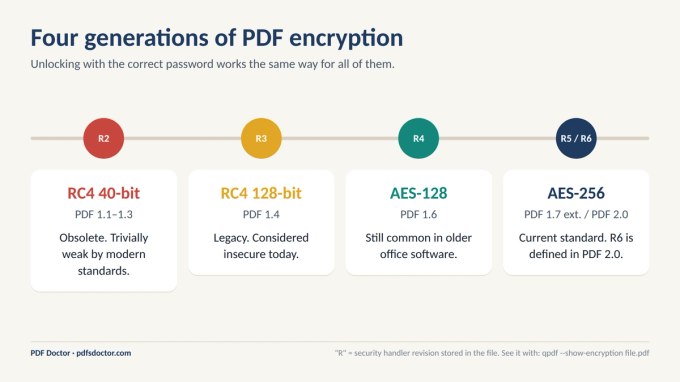
PDFs have used four generations of encryption. Older files from the 2000s often use RC4, while current software uses AES-256. If you know the password, it makes no difference: in our tests, all four types unlocked the same way. It matters more when you protect a file yourself. Choose AES-256, because RC4 is considered insecure today. To see what a file uses, run qpdf --show-encryption file.pdf and look at the R = value.
When you might need to unlock a PDF
- Extracting data from a locked report. Unlock the file, then use PDF to Excel, PDF to Word or PDF to PPT. This is exactly my accountant problem.
- Printing a document you're entitled to print, for a meeting, a wet signature, or your own records.
- Merging. Password-protected files can't be combined with others until they're unlocked. Unlock first, then use Merge PDF.
- Archiving. When you move years of statements into long-term storage, removing the passwords (and keeping the folder itself secure) saves hunting for a 2019 password in 2031.
Is it safe to upload a locked PDF?
PDF Doctor transfers files over encrypted HTTPS connections and deletes them from its servers automatically after processing. <!-- VERIFY: state the exact retention window here, e.g. "within 1 hour", and make sure it matches the Privacy Policy word for word. --> You can read the details in our Privacy Policy and in our guide Is It Safe to Upload Sensitive PDFs Online?.
For highly sensitive files, such as legal discovery, medical records, or anything under a confidentiality agreement, we recommend unlocking them on your own computer with QPDF or Acrobat instead, so the file never leaves your device.
A note on ethics and legality
A password tells you who is meant to open and reuse a document. Unlocking a file you are entitled to use is entirely reasonable: one you created, one you own, or one you were given the password for.
Permissions restrictions are the grey area, because, as our tests showed, most tools can remove them without the password. The technical ability doesn't grant the right. If a publisher or employer restricted copying or printing on purpose, removing those restrictions may breach their terms or copyright. If someone sends you a locked file without the password, ask them for it rather than looking for a workaround.
FAQs
Does unlocking a PDF reduce its quality? No. In our tests, the extracted text was identical and the rendered pages matched the original pixel for pixel. The file size can change slightly because the file is rewritten without its encryption data.
Do I need both passwords to unlock a PDF? No. With PDF Doctor or QPDF, the open password is enough to produce a fully unrestricted copy. Adobe Acrobat is the exception: it asks for the permissions password before it removes security.
Can I unlock a PDF if I don't know the password? If the file has an open password, no. The content is encrypted with it, and PDF Doctor doesn't crack or guess passwords. Ask the sender for it. If the file has permissions restrictions only, it can be unlocked without a password, but only do that if you're entitled to use the content.
Will unlocking remove a digital signature? It won't delete the signature, but it will invalidate it. Keep the signed original as your record.
Can I re-lock the PDF afterwards? PDF Doctor doesn't currently have a Protect PDF tool. You can add a password again with Adobe Acrobat, Foxit PDF Editor, or QPDF (qpdf --encrypt --user-password=NEW --owner-password=NEW2 --bits=256 -- in.pdf out.pdf). If you need the file unlocked only briefly, delete the unlocked copy when you're done and keep the protected original.
What's the difference between Unlock PDF and Repair PDF? Unlock PDF removes password protection from a working file. Repair PDF fixes corrupted files that won't open at all. If the file asks for a password, use Unlock. If it shows an error, use Repair.
Sources and further reading
- ISO 32000-2:2020 (PDF 2.0), section 7.6, "Encryption." The standard is available free through the PDF Association's sponsored standards programme.
- QPDF documentation: the --decrypt, --show-encryption and --encrypt options.
- Adobe Help Center: Remove passwords from PDFs.