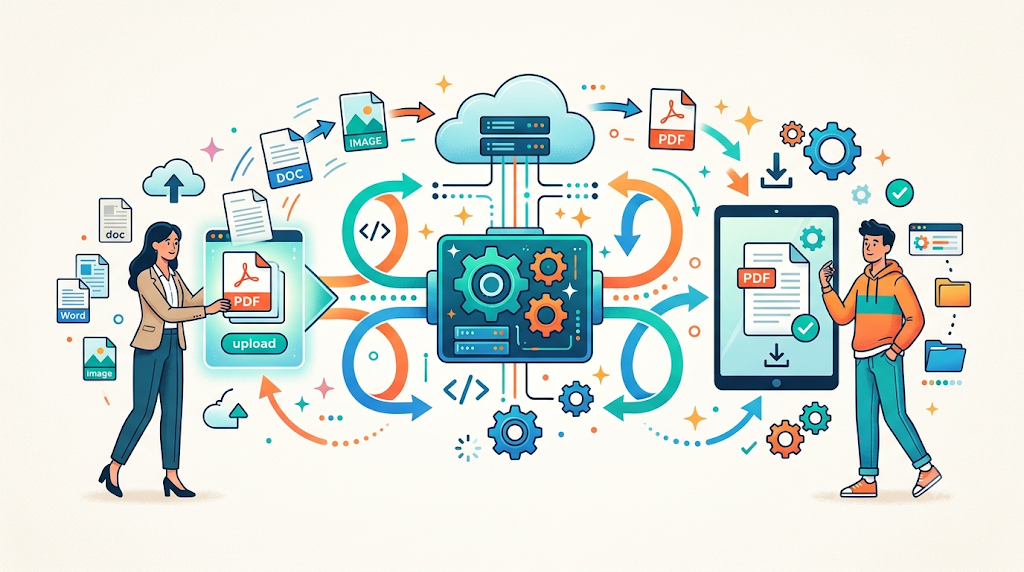
You drag a file into a browser window, click "Convert," and a few seconds later a new file is ready to download. It feels almost like magic. But between that upload and that download, a surprising amount of work happens: your file is read, taken apart, translated into a different format, rebuilt, and (on a well-run service) deleted.
I handle design and management work at PDF Doctor, a free online PDF tool suite, so I spend a lot of time thinking about what users experience on each side of that "Convert" button. In this guide I'll walk you through what actually happens behind the scenes, in plain language. Once you understand the process, you'll also understand why some conversions come out perfect while others need a little cleanup, and how to choose tools that treat your files safely.
Key Takeaways
- A PDF is a fixed-layout format. It stores exactly where every character, line and image sits on a page, not how paragraphs flow.
- Every online converter follows the same basic pipeline: upload, check, parse, convert, write the output, and deliver it to you.
- Converting into PDF is usually easy and accurate. Converting out of PDF (for example, PDF to Word) is harder because the tool has to guess the original structure.
- Scanned documents need OCR (optical character recognition) before their text can be searched, copied or edited.
- Some tools process files on a remote server, while others work entirely inside your browser. Both can be safe, but they protect your privacy in different ways.
First, What Is a PDF, Really?
The Portable Document Format was introduced by Adobe in 1993 with one main goal: a document should look the same on every screen and every printer, no matter which software or operating system opens it. In 2008 it became an open international standard, ISO 32000-1, and the newer PDF 2.0 was published as ISO 32000-2. Because it is an open standard, anyone can build software that reads and writes PDFs, which is exactly why so many free online converters exist today.
The key idea to remember is that a PDF is a fixed-layout format. A Word document says, in effect, "here is a paragraph; wrap it to fit the page." A PDF says, "draw this word at this exact position, in this font, at this size." That single difference explains most of what follows in this article.
Here is a small experiment you can try yourself. Open any PDF in a plain text editor such as Notepad. Most of it will look like gibberish (that is compressed data), but the very first line will usually read something like %PDF-1.7. That line is the file's header, and it's the first thing every converter checks.
What's Inside a PDF File
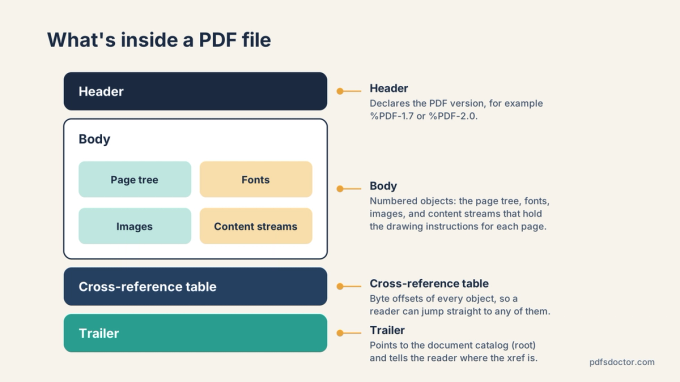
A PDF is built from four parts. Converters read these parts first to understand what the document contains.
Under the hood, a standard PDF has four main sections:
- Header: Declares which version of the PDF specification the file follows.
- Body: Holds numbered "objects." These include the page tree (which pages exist and in what order), fonts, images, and content streams. A content stream is a list of drawing instructions, such as "move to this point, use this font, draw these characters."
- Cross-reference table: A lookup list of byte positions that tells a reader exactly where each object sits inside the file, so it can jump straight to page 50 without reading pages 1 to 49.
- Trailer: Points to the document's root object (called the catalog) and tells the reader where to find the cross-reference table.
A few other details matter a lot for conversion:
- Fonts are often embedded and subset. To keep files small, a PDF frequently includes only the characters that are actually used, not the entire font.
- Images are stored with compression filters. Photos are commonly stored as JPEG data, while other graphics use lossless compression.
- Text may not "know" what it says. A PDF stores glyphs (the shapes of characters). To let you copy text correctly, it should also include a mapping from those shapes back to real letters. When that mapping is missing or broken, copied text comes out as random symbols, and converters struggle too.
- Measurements use points. PDF pages are measured in points, where 72 points equal one inch. A standard A4 page is roughly 595 by 842 points.
The Journey of Your File, Step by Step
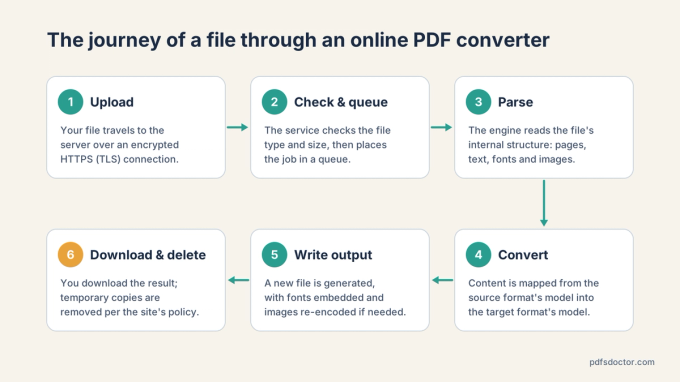
Whatever the conversion type, almost every online tool follows this same six-step pipeline.
Different tools use different software, but the overall journey looks very similar everywhere:
- Upload. Your browser sends the file to the service. On any trustworthy website this happens over HTTPS, which encrypts the data with TLS while it travels, so people on the same network can't read it.
- Check and queue. The service confirms the file is what it claims to be (a real PDF, DOCX or JPG, for example), checks the size limit, and places the job in a queue. Queuing lets a website handle many users at once without crashing.
- Parse. A software engine reads the file's internal structure: the pages, text, fonts, images and layout information described above.
- Convert. The content is translated from the source format's way of describing a document into the target format's way. This is the hardest and most interesting step, and it's different for every conversion type.
- Write the output. A brand-new file is generated in the target format. Fonts are embedded where needed, and images may be re-compressed.
- Download and delete. You download the result. A responsible service then removes the uploaded file and the output from its servers according to its published retention policy.
Most of the heavy lifting is done by mature, specialised document engines. Many tools in the industry build on well-known open-source projects such as LibreOffice (for Office documents), Ghostscript (for PDF and PostScript processing) and Tesseract (for OCR), while others use commercial libraries. The website you see is often a friendly interface sitting on top of these engines.
What Happens During Different Types of Conversions
The "Convert" step changes completely depending on what you're converting. Here are the most common cases.
1.Word to PDF
A modern Word file (DOCX) is actually a ZIP archive full of XML files, following the Office Open XML standard (ECMA-376, also published as ISO/IEC 29500). When you convert it to PDF:
- The converter unzips the DOCX and reads the XML describing your text, styles, images and page settings.
- A layout engine works out exactly where each line should break and where each page should end, just as Word does on your screen.
- Every character gets a fixed position, and the fonts are embedded into the new PDF.
This direction is usually very accurate, because the converter is moving from more information (structure) to less (fixed positions). The most common problem is font substitution: if your document uses a font that the server doesn't have, a similar font is used instead. Line breaks can then shift slightly, sometimes pushing content onto a new page.
2.PDF to Word
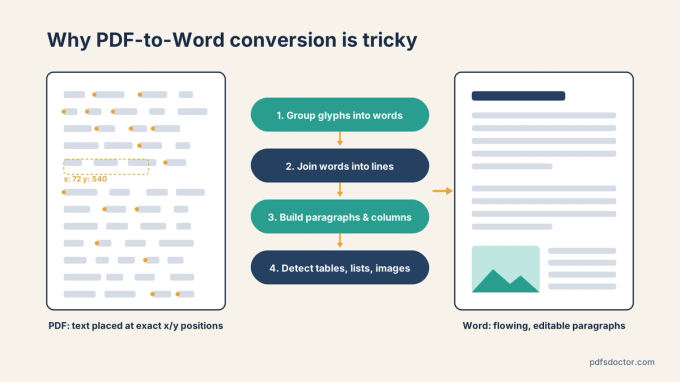
Going from PDF to Word means rebuilding structure that the PDF never stored.
This is the reverse journey, and it's much harder. Remember, a PDF only knows that certain characters are drawn at certain positions. It usually doesn't store "this is a paragraph," "this is a heading" or "this is a table." So the converter has to reconstruct that structure using clues:
- Group characters into words based on the spacing between them.
- Join words into lines that share the same baseline.
- Build paragraphs and columns by looking at line spacing, indentation and alignment.
- Detect tables, lists and images from ruling lines, repeated alignment, bullet characters and image objects.
When a PDF has a simple single-column layout, the result can look almost identical to the original. Multi-column magazine layouts, complex tables, text over images, or decorative fonts make the guessing much harder, which is why the output sometimes needs manual touch-ups. Some PDFs also contain "tagged" structure information (originally added for accessibility), which gives converters a big head start when it exists.
3.Image to PDF (JPG or PNG to PDF)
This is one of the simplest conversions. The converter creates a page, often sized to the image or to a standard page size like A4, and places the image on it. A clever detail: JPEG data can be placed inside a PDF as it is, without decoding and re-compressing it. That means a well-built JPG to PDF tool doesn't reduce your photo's quality at all. PNG images are stored using lossless compression, so they stay sharp too.
4.PDF to Image (PDF to JPG or PNG)
Here the converter does what a PDF viewer does on your screen: it renders (or rasterises) each page, drawing every font, line and image into a grid of pixels. The key setting is resolution, measured in DPI (dots per inch). Since a PDF page is measured in points (72 per inch), a 300 DPI export makes each inch of the page 300 pixels wide. Around 150 DPI is generally fine for viewing on screens, while 300 DPI is the common choice for printing.
5.Compressing a PDF
Compression tools shrink a file using several techniques, usually in combination:
- Downsampling images to a lower resolution, which often saves the most space.
- Re-compressing images at a lower JPEG quality.
- Subsetting fonts so only the characters actually used are kept.
- Removing duplicates and leftovers, such as repeated images, unused objects, and old data left behind by earlier edits.
- Compressing the file structure itself by packing objects into compressed streams.
The first two methods are "lossy," meaning some image detail is permanently reduced. The rest are "lossless." This is why most compression tools offer a choice between stronger compression and better quality.
6.Merging and Splitting PDFs
Merging and splitting usually don't convert anything at all. The tool rearranges pages in the document's page tree and renumbers the internal objects so they don't clash. Because the page contents aren't re-drawn or re-compressed, the quality of your pages stays exactly the same.
7.Protecting and Unlocking PDFs
PDFs support two kinds of passwords. A user (open) password is required to open the file at all, and the content is encrypted with it. An owner (permissions) password controls actions such as printing or copying. Modern PDFs use AES encryption, and PDF 2.0 uses AES-256. A legitimate "unlock" tool can remove restrictions only when you provide the correct password, so it's meant for files you own or are authorised to access.
How OCR Turns a Scan Into a Searchable PDF
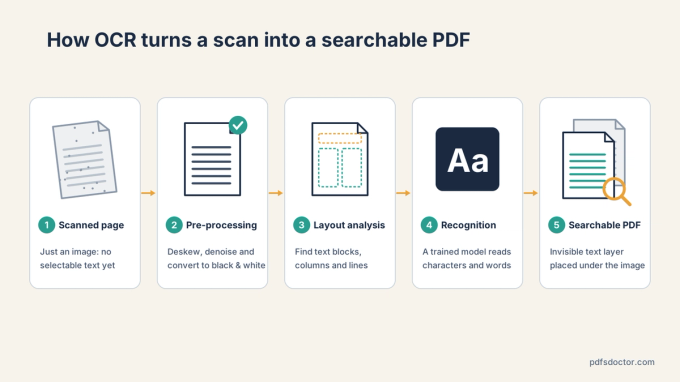
OCR adds an invisible layer of real text underneath the scanned image.
When you scan a paper document or take a photo of it, the resulting PDF contains only a picture of text. You can't search it, select it, or convert it to an editable Word file in a meaningful way. That's where OCR (optical character recognition) comes in:
- Pre-processing: The image is straightened (deskewed), cleaned of specks, and converted to high-contrast black and white so characters stand out.
- Layout analysis: The software finds blocks of text, columns and individual lines, and separates them from pictures.
- Recognition: A trained model reads each line and predicts the characters and words. Tesseract, one of the most widely used open-source OCR engines, was originally developed at Hewlett-Packard, open-sourced in 2005, and from version 4 onwards uses a neural-network (LSTM) recognition engine.
- Building a searchable PDF: The recognised text is placed as an invisible layer underneath the original image, in exactly the right positions. The page still looks like your scan, but you can now search, select and copy its text.
OCR accuracy depends heavily on the input. Clean scans at around 300 DPI, straight pages, good lighting and clear fonts produce the best results. Handwriting, low-resolution photos and unusual fonts produce more errors, so it's always worth proofreading important OCR output.
Server-Side vs In-Browser Processing
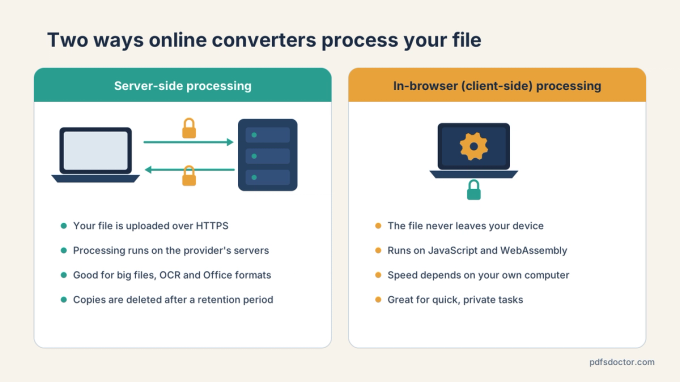
Two different approaches, each with its own strengths.
Not every online converter sends your file to a server. There are two main approaches.
Server-side processing
- Your file is uploaded over HTTPS and processed on the provider's computers.
- It handles heavy jobs well, such as large files, OCR and Office-format conversions that need full layout engines.
- Your privacy depends on how the provider stores and deletes files, so its retention policy really matters.
In-browser (client-side) processing
- The work happens inside your own browser, using JavaScript and WebAssembly. WebAssembly lets software written in languages like C and C++ run in the browser at close to native speed.
- The file never leaves your device, which is excellent for privacy.
- Speed depends on your own computer or phone, so very large or complex jobs can be slow.
A familiar example of in-browser PDF technology is PDF.js, the open-source library from Mozilla that powers the built-in PDF viewer in Firefox. Many tools combine both approaches: lightweight tasks run in the browser, while heavier tasks like OCR or Word conversion run on a server.
Is Your File Safe? What Responsible Converters Do
Understanding the pipeline makes it much easier to judge whether a tool deserves your trust. Here's what to look for before uploading anything:
- HTTPS everywhere. Check for the padlock in the address bar. Without it, your file could be read in transit.
- A clear, specific privacy policy. It should say how long files are kept, whether they are deleted automatically, and whether they are ever used for anything other than your conversion.
- Automatic deletion. Good services remove uploaded and converted files after a short, stated period.
- No unnecessary sign-ups or permissions. A simple conversion shouldn't require access to your contacts, email or cloud drive.
- Extra care with sensitive documents. For identity documents, medical records or contracts, prefer tools that process files in your browser, or use trusted offline software.
Why Converted Files Sometimes Look Wrong
Now that you know what's happening behind the scenes, common problems make a lot more sense:
- Fonts look different: The original font wasn't embedded or wasn't available, so a substitute was used.
- Text comes out as strange symbols: The PDF is missing the information that maps glyph shapes back to real characters. Running OCR on the file often fixes this.
- Nothing can be selected or edited: The PDF is a scan containing only images. Use OCR first.
- Layout is jumbled after PDF to Word: The original had columns, overlapping elements or complex tables that were hard to reconstruct.
- Images look blurry after compression: The tool downsampled or re-compressed images too strongly. Try a lighter compression level.
- The converter rejects the file: The PDF may be password-protected, damaged, or over the size limit.
Tips for Getting the Best Results
- Start with the best source you have. If you have the original Word file, convert that instead of a PDF that was printed and scanned.
- Embed fonts when you create PDFs. Most office programs offer this when exporting, and it prevents font substitution later.
- Scan at around 300 DPI if you plan to use OCR.
- Keep layouts simple when a document will need to be edited later.
- Choose the right compression level. Use stronger compression for email attachments and lighter compression for anything that will be printed.
- Always review the output before deleting your original, especially for important documents.
Frequently Asked Questions
1. Do online PDF converters keep a copy of my file? It depends on the service. Reputable converters delete files automatically after a short period and state this in their privacy policy. Tools that process files in your browser never receive a copy in the first place.
2. Why is converting PDF to Word less accurate than Word to PDF? Word to PDF moves from a structured document to fixed positions, which is straightforward. PDF to Word has to rebuild paragraphs, columns and tables from those fixed positions, which involves educated guessing.
3. Does converting JPG to PDF reduce image quality? Not necessarily. JPEG images can be placed inside a PDF without being re-compressed, so a well-built tool keeps your photo's original quality.
4. What does OCR actually add to my PDF? It adds an invisible text layer under the scanned image. The page looks the same, but the text becomes searchable, selectable and easier to convert to editable formats.
5. Can an online tool remove a PDF password without knowing it? A legitimate tool needs the correct password to remove an open password, because the content is encrypted with it. Unlock features are meant for files you own or are authorised to use.
Conclusion
An online PDF converter isn't magic. It's a pipeline of well-understood steps: a secure upload, a careful reading of the file's structure, a translation into a new format, and a clean hand-back to you. Converting into PDF is mostly about fixing everything in place, while converting out of PDF is about rebuilding structure that was never stored. OCR bridges the gap for scanned pages, and the choice between server-side and in-browser processing shapes how your privacy is protected.
The next time you click "Convert," you'll know exactly what's happening behind the scenes, and you'll be better equipped to pick the right tool, prepare your files well, and fix the occasional imperfect result. If you'd like to put this into practice, you can explore the free tools on PDF Doctor.
How This Article Was Researched
This guide is based on the official PDF specification, published file-format standards, and the public documentation of widely used open-source document projects listed below. It explains general techniques used across the industry and does not describe the internal systems of any single commercial product.
Sources and Further Reading
- ISO 32000-1:2008, Document management: Portable document format, Part 1: PDF 1.7, International Organization for Standardization
- PDF Association, the industry body that supports PDF standards and best practices
- ECMA-376: Office Open XML file formats, Ecma International
- Tesseract OCR, official open-source repository
- PDF.js, Mozilla's open-source PDF rendering library
- LibreOffice, open-source office suite and document conversion engine
- Ghostscript, interpreter for PDF and PostScript files