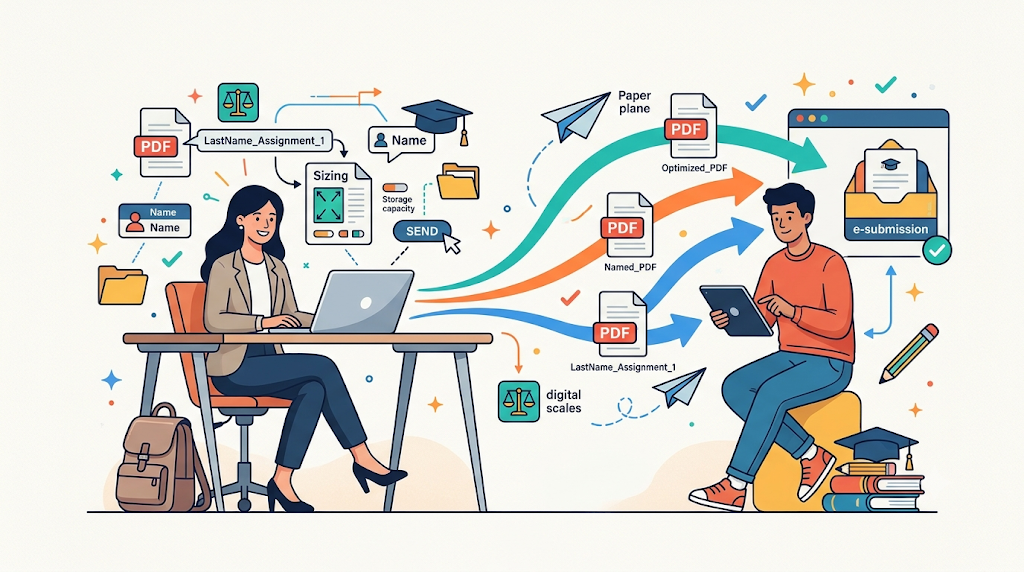
Most of us spend hours on the content of an assignment and about thirty seconds on the file we actually send. Then the PDF lands in a teacher's inbox as "Scan_0832.pdf", weighs 38 MB, opens sideways, and is attached to an email with no subject line.
None of that changes your marks directly. But it does change the first impression, and in some cases it decides whether your work is received at all. A file that bounces because it is too large, or gets lost among sixty others called "assignment.pdf", is a problem you created after the hard work was already done.
I am a second-year engineering student, and almost everything I submit, from lab records to project reports, goes in as a PDF. I also work on the design and content side of PDF Doctor, a free online PDF tool suite, so I spend a lot of time thinking about what makes a document easy or painful to deal with. This guide is the routine I use myself, written so you can follow it before your next deadline.
Quick summary
If you only have two minutes, here is the whole article in short:
- Follow the instructions you were given first. Your teacher's or portal's format always beats any general rule, including the ones below.
- Name the file so it explains itself: course code, task, your surname, roll number and version, joined with underscores.
- Keep the size reasonable: below the stated limit, and comfortably under 10 MB when no limit is given.
- Send it like a professional: clear subject line, short polite message, the file actually attached, and proof of submission saved.
The rest of this guide explains each step and the reasoning behind it.
Why PDF etiquette matters more than students think
Think about the person on the other side. A teacher with three divisions of sixty students may download well over a hundred files for a single assignment. They sort them, open them, maybe annotate them, and record marks against names and roll numbers.
When your file is clearly named, opens instantly and has your details on the first page, you have made their job easier. When it is not, your work is the one that needs extra effort to find, rotate, download again or match to a name.
There is also a practical reason. Email services and learning portals enforce file size limits, and a file over the limit is simply rejected. A blurry scan or a missing page can mean your submission is treated as incomplete. Good PDF habits remove these risks completely.
Finally, these are workplace skills. Internship applications, research submissions and job documents all follow the same unwritten rules. Practising them now on assignments means you will not have to learn them under pressure later.
Part 1: Naming your assignment PDF
The 5-part naming formula
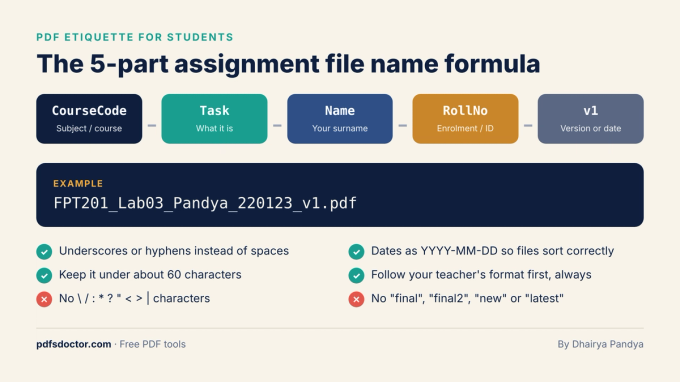
When no format is specified, I use this structure:
CourseCode_Task_Surname_RollNo_Version.pdf
For example: FPT201_Lab03_Pandya_220123_v1.pdf
Here is what each part does:
- Course code tells the teacher which subject it belongs to, which matters if they teach more than one course.
- Task identifies the specific piece of work, such as Lab03, Essay2 or HW05.
- Surname makes the file recognisable at a glance.
- Roll number or enrolment ID removes confusion when two students share a surname, and matches how marks are usually recorded.
- Version or date separates a corrected resubmission from the original.
If your teacher has asked for something different, for example "RollNo_Name", use exactly that. Consistency with their system matters more than any formula.
Naming rules that prevent problems
- Use underscores or hyphens instead of spaces. Some systems and links replace spaces with "%20", which makes names harder to read and occasionally breaks downloads.
- Avoid special characters. Windows does not allow the characters \ / : * ? " < > | in file names, and other symbols such as # or & can cause trouble when files are uploaded or shared as links. Letters, numbers, underscores and hyphens are always safe.
- Write dates as YYYY-MM-DD. This is the ISO 8601 date format. Because the year comes first, files sort in true date order in any folder, so 2026-09-14 always appears before 2026-10-02.
- Keep it short. Around 60 characters or fewer is a sensible target. Very long names get cut off in portals and email previews.
- Drop words like "final", "final2", "new" and "latest". They mean nothing to the reader and become confusing the moment you make another edit. Use v1, v2 and so on instead.
- Keep the .pdf extension. Renaming a file should never remove or change it.
Good and bad names, side by side
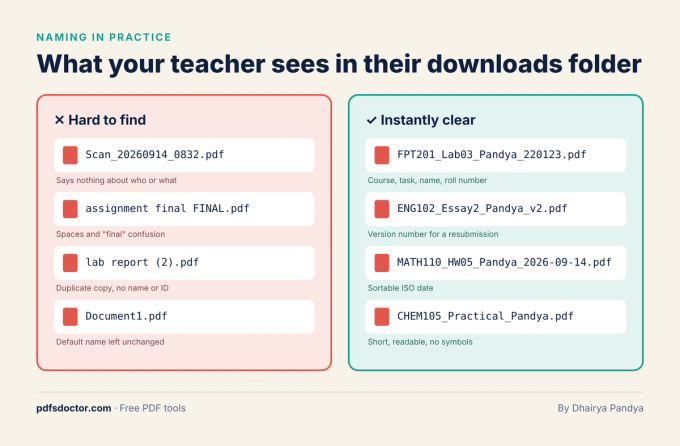
Names that cause trouble:
- Scan_20260914_0832.pdf, which says nothing about who sent it or what it is.
- assignment final FINAL.pdf, which has spaces and an unclear version.
- lab report (2).pdf, which is a duplicate download with no name or ID.
- Document1.pdf, which is a default name left unchanged.
Names that work:
- FPT201_Lab03_Pandya_220123.pdf, which shows course, task, name and roll number.
- ENG102_Essay2_Pandya_v2.pdf, which clearly marks a resubmission.
- MATH110_HW05_Pandya_2026-09-14.pdf, which uses a sortable date.
- CHEM105_Practical_Pandya.pdf, which is short, readable and free of symbols.
Do not forget the document title
A file name is only half of it. PDFs also carry a document title inside their properties, and many PDF viewers and browsers show that title in the tab instead of the file name. If you never set it, your teacher may see "Document1" or "Microsoft Word - Untitled" at the top of the screen.
In Microsoft Word, you can set it under File › Info › Properties › Title before you export. In most PDF editors, it is under File › Properties. It takes ten seconds and makes the file look finished.
Part 2: Preparing the PDF itself
Put your details on the first page
Even with a perfect file name, the first page should identify you. Files get renamed, printed or merged by teachers, and the file name is lost. A simple header or cover page should include:
- Your full name
- Roll number or enrolment ID
- Course name and code
- Assignment title and number
- Teacher's name
- Submission date
One assignment, one PDF
Unless you are told otherwise, submit a single file. If your work is spread across a typed section, a few photographed diagrams and a scanned graph sheet, combine them in the correct order. The free Merge PDF tool on PDF Doctor lets you upload the parts, arrange them and download one file. If your photos are still images, convert them first with JPG to PDF.
Check orientation and page order
Sideways pages are one of the most common problems with phone scans. Open the PDF and scroll through every page before sending. If a page is rotated, fix it with Rotate PDF rather than expecting your teacher to tilt their head or their screen. If you accidentally included extra pages, such as a blank back side or a duplicate, remove them with Split PDF by keeping only the pages you need.
Scan handwritten work properly
Handwritten assignments are still common, especially for numerical subjects and lab records. A few habits make scans far more readable:
- Use a scanning feature, not a plain photo. The Google Drive app on Android and the Notes or Files app on iPhone both include a document scanner that detects page edges and flattens the image.
- Use daylight or an even light source, and avoid your own shadow falling across the page.
- Place the page on a dark, flat surface so the edges are detected cleanly.
- Write with a dark pen. Light pencil often disappears in scans.
- Zoom in to check one page on your phone before you scan the rest. If you cannot read it easily, neither can your teacher.
Export from the original app when you can
If your assignment is typed, export it directly to PDF instead of printing and scanning it. In Word and Google Docs, use the built-in save or download as PDF option. If you only have the document file, the Word to PDF converter works in the browser. Exported PDFs keep text sharp and selectable, and they are usually much smaller than scans.
Then open the exported PDF on a second device, ideally your phone. This catches missing fonts, broken symbols in formulas, and images that shifted position.
Part 3: Sizing your PDF
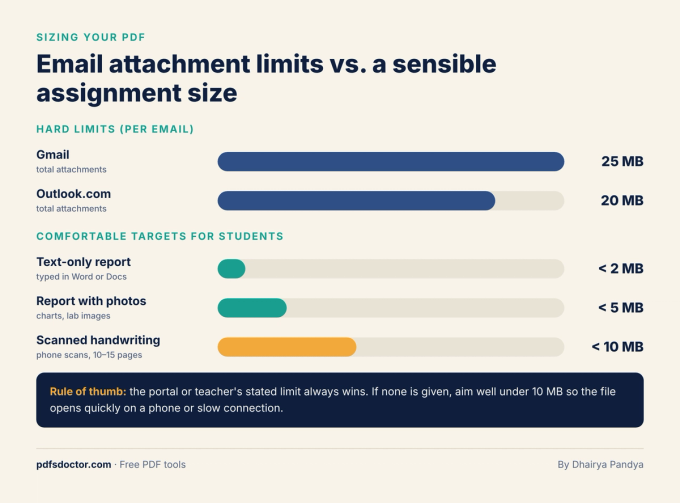
Know the hard limits
- Gmail allows up to 25 MB of attachments per email. If your files are larger, Gmail offers to send them as a Google Drive link instead.
- Outlook.com allows up to 20 MB of attachments per email, and suggests sharing larger files through OneDrive.
- College portals and learning management systems set their own limits, and these vary by institution and even by assignment. Always check the upload page or ask your teacher.
Remember that the limit applies to the whole email, not to each file. Three 9 MB files will not fit in a single Outlook.com message.
Aim well below the limit
Being under the limit is the minimum, not the target. A smaller file downloads faster on campus Wi-Fi, opens smoothly on a teacher's phone, and does not fill up their inbox. As a practical guide that I follow:
- Typed, text-only report: usually under 2 MB.
- Report with photos, charts or lab images: try to stay under 5 MB.
- Scanned handwritten work of about 10 to 15 pages: try to stay under 10 MB.
These are comfortable targets rather than official rules. If your teacher or portal states a limit, that number is the one that counts.
Simple ways to make a PDF smaller
- Resize photos before inserting them. A photo straight from a modern phone camera is often several megabytes on its own. Inserting ten of them into a report is the most common reason a student PDF becomes huge.
- Use the smaller export option. When saving a PDF from Microsoft Word on Windows, the Save As dialog offers "Minimum size (publishing online)" instead of "Standard". For screen reading, this is usually enough.
- Scan in grayscale or black and white for handwritten text pages, unless colour carries meaning, as in a diagram with coloured labels.
- Avoid scanning typed pages. Export them digitally and merge only the handwritten parts as scans.
- On a Mac, Preview's Export option includes a "Reduce File Size" Quartz filter. It can lower image quality noticeably, so check readability afterwards.
When the file is still too big
Some work, such as a design portfolio or a large project report, cannot reasonably be shrunk further. In that case:
- Upload it to your college-provided cloud storage, Google Drive or OneDrive.
- Set sharing so that anyone with the link can view it, or share it directly with your teacher's email address.
- Open the link in a private or incognito window to confirm it works without your login.
- Send the link in a polite email that explains why, using the shared-link template in the downloadable PDF below.
Part 4: Sending your assignment professionally
Use the official channel
If your teacher asked for submission on a portal, do not email it "just to be safe" unless they allow that. Duplicate submissions create more work, not less. If you are emailing, use the exact address given, and preferably your college email account rather than a personal one.
Write a clear subject line
A good subject line lets your teacher search for your submission later. Use this pattern:
Course Code – Assignment Name – Your Name, Roll No.
For example: FPT201 – Lab Report 3 – Dhairya Pandya, 220123
Never send an assignment with an empty subject line or just "Assignment".
Keep the message short and polite
You do not need a long letter. Three or four lines are enough: a greeting, what is attached, and your name with your roll number and division. For example:
Dear Prof. Mehta,
Please find attached my Lab Report 3 for FPT201, due on 14 November. The file is named FPT201_Lab03_Pandya_220123.pdf. Kindly let me know if you have any trouble opening it.
Thank you, Dhairya Pandya, Roll No. 220123, Division A, B.Tech FPT, Second Year
Habits that save you from embarrassing mistakes
- Attach the file before writing the message, so you do not forget it.
- Open the attached file once from the draft to confirm it is the right version, not an older copy.
- Do not password-protect the PDF unless you were asked to. A locked file can block a teacher's annotation tools and plagiarism checks. If you receive a protected file of your own and need to open it, PDF Doctor's Unlock PDF tool can help when you know the password.
- Submit early, not at 11:58 pm. Portals slow down near deadlines, and uploads can fail.
- Save your proof: the sent email, the portal's confirmation screen, or a screenshot with the date and time visible.
Resubmitting a corrected file
Mistakes happen. If you notice a missing page after sending, do not quietly send another file with the same name. Rename it with the next version number, for example v2, and send a short email that explains what changed and asks the teacher to consider the corrected version. A clear, honest correction is far better than leaving the teacher to work out which of two identical files is the right one.
Bonus: Long-term projects and PDF/A
For final-year projects, dissertations and anything your department archives, you may be asked for a PDF/A file. PDF/A is an ISO standard (ISO 19005) designed for long-term archiving. It requires the fonts to be embedded in the file and disallows features that depend on outside content, so the document should look the same years from now. If your institution requires it, you can create one with the PDF to PDF/A converter and then check the result before submitting.
If a project form needs your signature, the Fill and Sign PDF tool lets you add it without printing and scanning, as long as your institution accepts electronic signatures.
The pre-send checklist
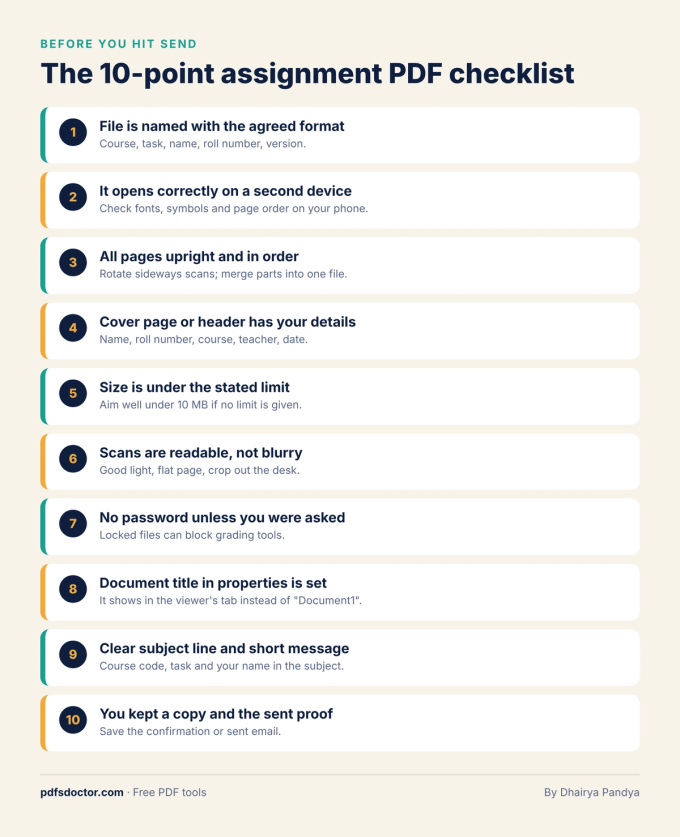
Run through these ten points before every submission:
- The file is named using the agreed format.
- It opens correctly on a second device.
- All pages are upright and in the right order.
- The first page shows your name, roll number, course, teacher and date.
- The size is under the stated limit.
- Scanned pages are sharp and readable.
- There is no password unless one was requested.
- The document title in the PDF properties is set.
- The email has a clear subject line and a short, polite message.
- You kept a copy of the file and proof of submission.
Frequently asked questions
What is the best way to name an assignment PDF?
Use the format your teacher asks for. If none is given, use CourseCode_Task_Surname_RollNo_Version.pdf, for example FPT201_Lab03_Pandya_220123_v1.pdf. Avoid spaces, special characters and words like "final".
What size should an assignment PDF be?
It must be below the limit set by your portal or email service. Gmail allows 25 MB and Outlook.com allows 20 MB of attachments per email. When no limit is stated, keeping the file comfortably under 10 MB is a sensible target.
Should I use spaces in file names?
It is better not to. Underscores or hyphens are read the same way by every system, while spaces can be converted to "%20" in links and occasionally cause upload or download issues.
Is it okay to submit photos instead of a PDF?
Only if your teacher allows it. A single PDF with pages in order is much easier to review than a set of separate images. You can convert photos with a JPG to PDF tool and then merge them into one file.
What should I do if I sent the wrong file?
Send the corrected file as soon as possible, named with the next version number, such as v2, and include a short, polite note explaining what changed. Do not send a second file with the same name and no explanation.
Should I password-protect my assignment?
Generally no. A password can stop your teacher from opening, annotating or checking the file. Use one only when your institution specifically asks for it, and share the password through the method they request.
Final thoughts
Good PDF etiquette is not about impressing anyone with technical skill. It is about respect for the person reviewing your work and protecting yourself from avoidable problems. A clear name, a reasonable size and a polite, complete email take less than five minutes together, and they make sure the effort you put into the assignment is what gets noticed.
Start with your next submission. Pick the naming format, run the checklist, and keep the email templates handy. After a couple of assignments, it becomes habit.
References
- Google Gmail Help: Send attachments with your Gmail message
- Microsoft Support: Attachment size exceeds the allowable limit error in Outlook
- Microsoft Learn: Naming Files, Paths, and Namespaces
- PDF Association: PDF/A in a Nutshell