PDFs are everywhere. Admission forms, bank statements, lab reports, e-tickets, invoices, research papers. Most of us open several every week, yet the moment a tool asks "Embed fonts?", "Flatten form fields?" or "Save as PDF/A?", it feels like reading a different language.
I run into this vocabulary constantly. I work on the design and management side of PDFs Doctor, a free online PDF tool suite, and these words show up in our tool labels, settings and help text every day. I am also a student, so I know what it feels like to search for a term and land on a page that explains it using three other terms you don't know.
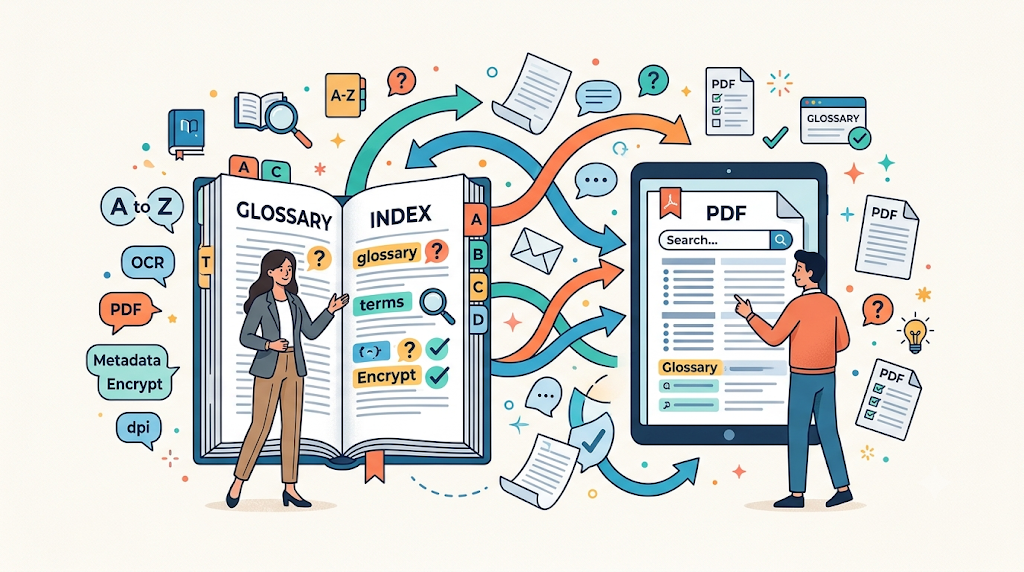
This glossary is my attempt to fix that. It covers 60 terms, grouped into eight themes, and each one is explained in everyday language first, with a short note on why it actually matters to you.
Part 1: The foundations
1.PDF (Portable Document Format)
A file format designed to make a document look the same on every device, no matter which software, fonts or operating system the reader has. Adobe introduced PDF in 1993, and it later became an open international standard.
➜ Why it matters: when you send a PDF, the layout you see is the layout the other person sees. That reliability is the reason PDFs are used for forms, contracts and anything that must not shift around.
2.ISO 32000
The international standard that defines the PDF format. ISO 32000-1, published in 2008, standardised PDF 1.7. ISO 32000-2 defines PDF 2.0, first published in 2017 and revised in 2020. Because PDF is an open standard, any company can build software that reads and writes PDFs without asking Adobe for permission.
➜ Why it matters: this is why you can open the same PDF in a web browser, a phone app, Adobe Acrobat or a free online tool and get the same result.
3.PDF version
Every PDF declares which version of the format it follows (for example 1.4, 1.7 or 2.0). The version is written in the very first line of the file. Newer versions add features such as better encryption, layers or richer accessibility support.
➜ Why it matters: very old software may not handle features from newer versions. If someone says your file "won't open properly", the version is one of the first things worth checking.
4.Object
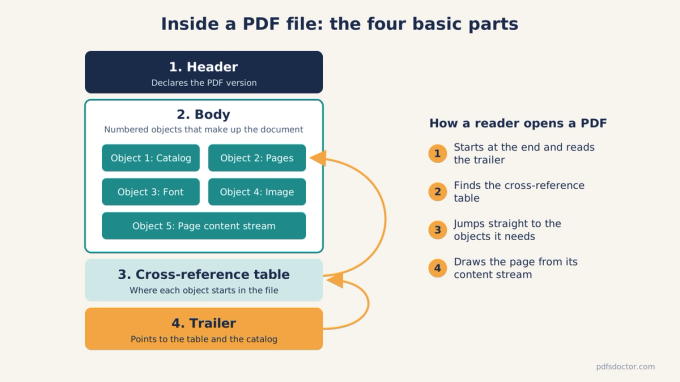
The basic building block inside a PDF. A PDF is not one big picture of a page. It is a collection of numbered objects: pieces of text, fonts, images, page descriptions and settings, all linked together. Object types include numbers, text strings, names, arrays, dictionaries and streams.
➜ Why it matters: because content is stored as separate objects, tools can replace one image, remove one page or edit one field without rebuilding the whole document.
5.Stream
A type of object that holds a long sequence of data, such as the instructions that draw a page or the pixels of an image. Streams are usually compressed using a "filter" to keep the file small.
➜ Why it matters: streams are where most of a PDF's file size lives. When a PDF is unexpectedly huge, the cause is almost always a large image or font stream inside it.
6.Cross-reference table (xref)
An index near the end of a PDF that lists where each object begins in the file, measured in bytes. It works like the index at the back of a textbook. Right after it comes the trailer, a short section that tells the reader where the index is and which object is the starting point of the document.
➜ Why it matters: the index lets a reader jump straight to page 250 without reading pages 1 to 249 first. A damaged cross-reference table is a common reason a PDF reports itself as "corrupted", and many repair tools work by rebuilding it.
7.Incremental update
A way of saving changes by adding new information to the end of the file instead of rewriting the whole thing. The original content stays in the file, and the new section tells the reader what has changed.
➜ Why it matters: this is how a digitally signed PDF can be signed by several people one after another without breaking earlier signatures. It also means that something you "deleted" in an earlier edit may still sit inside the file. If privacy matters, save a fresh copy or use a sanitising tool (see term 47).
8.Linearization (Fast Web View)
A special arrangement of the file so the first page can be displayed while the rest is still downloading. Adobe Acrobat calls this "Fast Web View".
➜ Why it matters: for large PDFs hosted on a website, linearization lets visitors start reading immediately instead of staring at a loading bar.
Part 2: Pages and layout
9.Page boxes
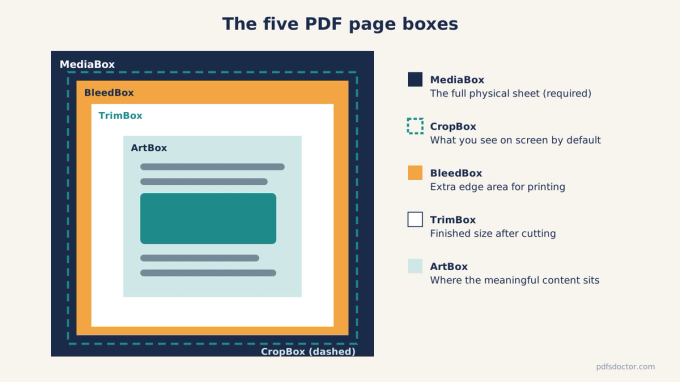
Each PDF page can define up to five rectangles, each with a different job:
● MediaBox: the full physical sheet. Every page must have one. ● CropBox: the area shown on screen and printed by default. If it is not set, it matches the MediaBox. ● BleedBox: a slightly larger area used in professional printing, so that colours running to the edge still look clean after the paper is cut. ● TrimBox: the finished size of the page after trimming, for example an A5 flyer. ● ArtBox: the area containing the meaningful content, often used when a page is placed inside another layout.
➜ Why it matters: if a printer says your file "has no bleed" or "the trim size is wrong", they are talking about these boxes. Cropping a PDF in a viewer usually changes only the CropBox, which is why cropped content can sometimes be recovered.
10.Page labels
The page numbers a PDF displays, which can differ from the physical page order. A book might label its first pages i, ii, iii and then restart at 1 for Chapter One.
➜ Why it matters: when "page 5" in your viewer does not match the "5" printed on the page, page labels are the reason. Typing the label instead of the position into the page box usually takes you to the right place.
11.Reflow
A viewing mode that rearranges text to fit a narrow screen, like a web page, instead of showing the fixed page layout. Reflow works best on tagged PDFs (see term 52), because the tags tell the reader which text belongs together.
➜ Why it matters: if reading a PDF on your phone means endless zooming and sideways scrolling, a reader with reflow support (and a well-tagged file) makes it far easier.
Part 3: Text and fonts
12.Font embedding
Including the font files a document uses inside the PDF itself. Without embedding, the reader's device has to substitute a font it already has, which can change spacing, break line endings or turn special characters into boxes.
➜ Why it matters: printers, publishers and archives often require all fonts to be embedded. If your text looks different on someone else's computer, a missing embedded font is the usual cause.
13.Font subsetting
Embedding only the characters actually used in the document instead of the entire font. If your document uses 40 different letters and symbols, only those 40 are stored.
➜ Why it matters: subsetting keeps files much smaller, especially with large fonts such as those covering Devanagari, Gujarati, Chinese or Japanese scripts. The trade-off is that someone editing the PDF later may not have every character available.
14.Standard 14 fonts
A set of 14 basic fonts that older PDF software was expected to provide without embedding: four styles each of Times, Helvetica and Courier, plus Symbol and ZapfDingbats.
➜ Why it matters: a file that relies on these fonts without embedding them may still look slightly different from device to device, because each reader supplies its own substitute. Modern best practice is to embed every font, and archival standards such as PDF/A require it.
15.ToUnicode map
A lookup table inside a font that tells the reader which real character each drawn shape represents. The PDF draws shapes (called glyphs); this map connects those shapes back to letters a computer understands.
➜ Why it matters: have you ever copied text from a PDF and pasted complete gibberish? That usually means the ToUnicode map is missing or wrong. The text looks fine but the computer cannot tell what the letters are, which also breaks search and screen readers.
16.Searchable PDF (text layer)
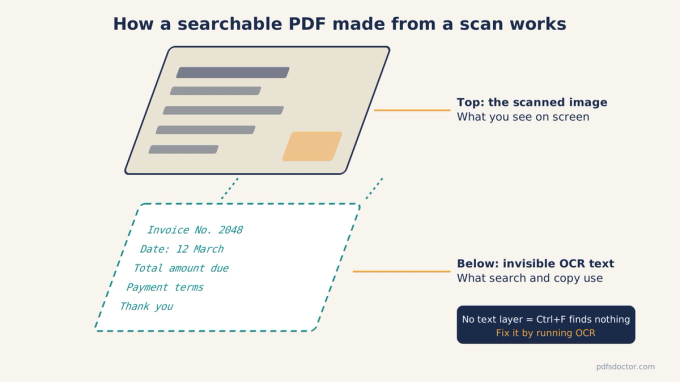
A PDF in which the text is stored as real characters, so you can search, select and copy it. A PDF made by scanning paper is usually just a picture of each page with no text inside. A searchable PDF made from a scan keeps the picture on top and places an invisible layer of recognised text underneath.
➜ Why it matters: if pressing Ctrl+F finds nothing in a document that clearly contains words, you are looking at an image-only PDF. Running OCR fixes this.
17.OCR (Optical Character Recognition)
Software that looks at an image of text and works out which characters it shows. OCR is how a scanned page becomes a searchable PDF.
➜ Why it matters: OCR is very good on clean, printed text but less reliable on handwriting, low-resolution scans, unusual fonts and some scripts. Always spot-check names, numbers and dates in OCR output before relying on them.
Part 4: Images, colour and compression
18.Vector graphics
Images described as shapes, lines and curves using mathematical instructions rather than pixels. Text, charts, logos and diagrams in most PDFs are vectors.
➜ Why it matters: vectors stay perfectly sharp at any zoom level and take up very little space. If a logo looks crisp at 400% zoom, it is a vector.
19.Raster image
An image made of a grid of coloured dots (pixels), such as a photo or a scanned page.
➜ Why it matters: raster images get blurry or blocky when enlarged, and they are usually the biggest contributors to file size. Scanned documents are entirely raster unless OCR has added a text layer.
20.Resolution (DPI and PPI)
The number of pixels or printed dots packed into one inch. DPI means dots per inch and PPI means pixels per inch; in everyday PDF tools the two are used almost interchangeably. Around 300 is a common target for print, while 150 is usually enough for comfortable reading on a screen.
➜ Why it matters: scanning at a very high resolution creates huge files with no visible benefit on screen. Scanning too low makes small text unreadable and hurts OCR accuracy.
21.Downsampling
Reducing the resolution of images inside a PDF, for example from 600 to 150 pixels per inch, to cut file size.
➜ Why it matters: downsampling is one of the main things a "compress PDF" tool does. It is ideal for email attachments and upload limits, but avoid it on files headed to a professional printer.
22.Compression
Encoding data so it takes up less space. PDFs support several compression methods, and different parts of the same file can use different ones.
➜ Why it matters: the right compression can shrink a 25 MB scan to a fraction of that size. The wrong one can make text fuzzy or photos blotchy. The next three terms explain the main types.
23.Lossy compression (JPEG)
Compression that permanently throws away some detail the eye is unlikely to notice. JPEG is the most common lossy method in PDFs and works best on photographs. A related, newer method called JPEG 2000 is also supported.
➜ Why it matters: lossy compression gives the biggest size savings, but every round of it removes a little more detail. Compressing an already-compressed file again can produce visible blocky patterns, especially around text.
24.Lossless compression (Flate)
Compression that shrinks data without losing anything. When the data is decompressed, it is identical to the original. Flate, the same method behind ZIP files, is the standard lossless method in PDFs and is used for text, page instructions and many images.
➜ Why it matters: lossless compression is always safe to apply. It gives smaller savings than lossy compression on photos, but it never changes how anything looks.
25.JBIG2
A compression method built for black-and-white scanned documents. It can work in a lossless mode or a lossy mode. In lossy mode it saves space by spotting characters that look alike and storing just one copy.
➜ Why it matters: in 2013, a researcher, David Kriesel, showed that some office scanners using lossy JBIG2 were silently swapping digits, for example turning a 6 into an 8 in scanned figures. For documents where numbers matter, such as invoices, lab results or plans, prefer lossless settings.
26.Colour space
The system a file uses to describe colour. RGB (red, green, blue) is used for screens. CMYK (cyan, magenta, yellow, black) is used for printing with ink. Grayscale uses shades of grey only.
➜ Why it matters: bright RGB colours can look dull when printed in CMYK. If you are preparing a poster or brochure, ask your printer which colour space they want. Converting a text-only document to grayscale can also reduce its size.
27.ICC profile
A small data file that describes exactly how a particular device or standard reproduces colour, so colours can be translated accurately between screens, printers and paper types.
➜ Why it matters: ICC profiles are why a print-ready PDF looks predictable on the press. Archival and print standards such as PDF/A and PDF/X require colour to be defined in a device-independent way, usually through an embedded ICC profile.
28.Transparency flattening
Converting see-through effects, such as shadows, semi-transparent shapes and blended images, into solid, non-transparent pieces that older print systems can handle.
➜ Why it matters: flattening can occasionally create thin white lines or turn sharp text into images. Modern print workflows (for example PDF/X-4) can keep transparency live, so flatten only when your printer specifically asks for it.
Part 5: Interactive features
29.Annotation
Anything added on top of a page without changing its main content: comments, sticky notes, highlights, underlines, stamps, shapes and links are all annotations.
➜ Why it matters: annotations can be hidden, moved or removed by others, and some printers or older viewers ignore them. If a comment must be permanently visible, flatten it first (see term 34).
30.Bookmarks (outlines)
A clickable table of contents shown in a viewer's side panel. The official name in the PDF standard is "outline".
➜ Why it matters: bookmarks make long documents such as theses, manuals or annual reports much easier to navigate. Many tools can create them automatically from headings when exporting from a word processor.
31.Hyperlink
A clickable area that opens a web address, jumps to another page in the same PDF, or opens another file. Technically, it is a type of annotation.
➜ Why it matters: links are easily lost during some conversions, especially when a document is printed to PDF instead of exported. If your links stop working, try the "Export as PDF" or "Save as PDF" option in your word processor.
32.AcroForm (interactive form fields)
The standard type of fillable PDF form, with text boxes, checkboxes, radio buttons, drop-down lists and signature fields. The name comes from Adobe Acrobat, where the feature was first introduced.
➜ Why it matters: an AcroForm can be filled in on almost any modern viewer, including most phone apps and browsers. If a form looks fillable but you cannot click into the boxes, it was probably saved as a flat image of a form instead.
33.XFA (XML Forms Architecture)
An older, alternative form technology from Adobe that builds forms from XML data. XFA was deprecated in PDF 2.0.
➜ Why it matters: many browsers and non-Adobe apps cannot display XFA forms and show only a message asking you to open the file in Adobe software. If a government or institutional form behaves like this, that is the reason, and opening it in a desktop version of Adobe Acrobat or Reader is usually the fix.
34.Flattening
Merging separate interactive or layered elements, such as form entries, comments, stamps or layers, permanently into the page content so they can no longer be edited or moved.
➜ Why it matters: flatten a filled form before sending it if you do not want the recipient to change your answers, or if the form must look the same in every viewer. Keep an unflattened copy in case you need to make corrections later.
35.Layers (Optional Content Groups)
Groups of content that can be shown or hidden, a feature added in PDF 1.5. Architects use layers for electrical or plumbing plans; map makers use them to toggle labels.
➜ Why it matters: hidden layers are still inside the file. If you share a PDF with layers turned off, the recipient can usually switch them back on.
36.PDF JavaScript
Small scripts that can run inside a PDF, mostly for form tasks such as adding up totals, checking a date format or showing a field only when a box is ticked.
➜ Why it matters: scripts make forms smarter, but they have also been used in malicious files. Many viewers limit or ask permission before running them, and archival PDF/A files do not allow JavaScript at all. Be cautious with scripted PDFs from unknown senders.
37.Embedded file (attachment)
A separate file stored inside a PDF, such as a spreadsheet, image or another PDF. A PDF Portfolio is a PDF designed mainly to hold and present a collection of attached files.
➜ Why it matters: attachments are easy to miss because they often only show up in a side panel. Check for them before sharing a PDF, since they may contain information you did not intend to send.
Part 6: Security and privacy
38.Encryption
Scrambling a PDF's contents so they can only be read with the right password or certificate. PDF 2.0 uses AES-256, a strong modern method, and deprecates older RC4-based encryption.
➜ Why it matters: encryption is what actually protects a PDF's contents. When you password-protect a sensitive file, choose AES-256 if your tool offers a choice.
39.User password (open password)
The password needed to open and view a PDF. Without it, the file's contents stay encrypted.
➜ Why it matters: this is the password that genuinely protects confidential documents. Bank statements are often protected this way, typically with a password built from personal details the bank already holds. Use a long, unique password for anything you create yourself.
40.Owner password (permissions password)
A second password that controls what someone can do after opening the file, such as printing, copying text or editing.
➜ Why it matters: this is much weaker than it sounds. If a PDF opens without a password, its contents can be read, and the restrictions depend on the software choosing to respect them. Treat an owner password as a polite request, not a lock.
41.Permissions
The individual restrictions set by an owner password: printing, high-quality printing, copying, editing, commenting, filling forms, extracting pages and accessibility access.
➜ Why it matters: if a PDF will not let you print or copy text, permissions are usually the cause. Removing restrictions from a file you own is routine, but bypassing them on someone else's document may break copyright law or an agreement, so check that you have the right to do it.
42.Digital signature
A cryptographic signature that proves who signed a document and shows whether it has been changed since signing. It relies on a digital certificate issued to the signer.
➜ Why it matters: when a viewer shows a green tick or a "signature valid" banner, a digital signature has been checked. If anyone edits the content after signing, the signature reports that the document was modified.
43.Electronic signature
A broad term for any electronic way of showing agreement: a typed name, a drawn or scanned image of your signature, or a tick-box with your name. Digital signatures are one secure type of electronic signature.
➜ Why it matters: an image of your signature pasted onto a PDF does not prove anything by itself, because anyone could copy it. Whether a particular kind of electronic signature is legally valid depends on your country and the type of document. In India, for example, the Information Technology Act, 2000 sets out the rules.
44.Certificate
A digital identity document, issued by a trusted organisation called a certificate authority, that links a person or organisation to the cryptographic keys used for digital signatures and certificate-based encryption.
➜ Why it matters: a signature is only as trustworthy as the certificate behind it. A "validity unknown" warning often means your viewer does not recognise or trust the certificate authority, not necessarily that the document is fake.
45.Redaction
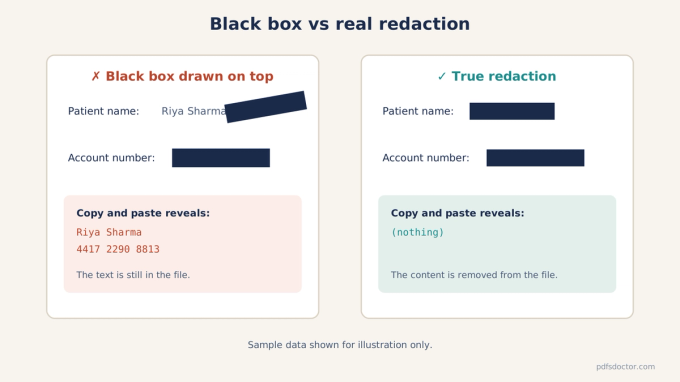
Permanently removing sensitive text or images from a PDF, so they are gone from the file, not just hidden.
➜ Why it matters: drawing a black box over text is not redaction. The original text usually still sits underneath and can be copied out. True redaction tools delete the underlying content and should also remove matching data from metadata and hidden layers.
46.Metadata
Information about the document stored inside it: title, author, subject, keywords, the software used, and creation and modification dates. PDFs can store this in the older Document Information dictionary and in XMP, a more flexible format that PDF 2.0 favours.
➜ Why it matters: metadata can reveal your name, your organisation or the original file name, even when the visible content is anonymous. Check document properties before submitting files for blind review, publishing them or sharing them publicly.
47.Sanitization
Removing hidden information from a PDF in one go: metadata, comments, attachments, hidden layers, scripts, earlier saved versions and other leftovers.
➜ Why it matters: sanitizing is the final privacy check before you share a document outside your organisation. It is especially useful after redaction, since it also clears traces that redaction alone may miss.
Part 7: Standards and accessibility
48.PDF/A (archiving)
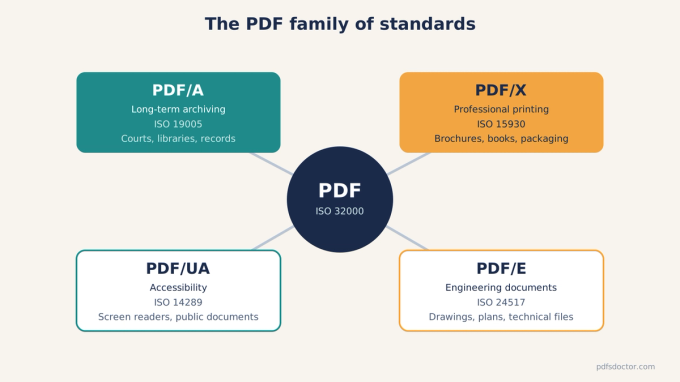
A version of PDF designed to remain readable for decades, defined by ISO 19005. It requires everything needed to display the file to be inside it, such as embedded fonts and defined colour, and it bans features that could break over time, including encryption, JavaScript and links to external content. Parts include PDF/A-1 (2005), PDF/A-2 (2011), PDF/A-3 (2012) and PDF/A-4 (2020). PDF/A-3 is notable for allowing files of any type to be attached, which is why it is used for some electronic invoice formats.
➜ Why it matters: courts, government offices, universities and libraries often ask for PDF/A when documents must be stored long term. If a portal rejects your upload for "not being PDF/A", you will need to convert the file.
49.PDF/X (print exchange)
A version of PDF for sending files to professional printers, defined by ISO 15930. It requires embedded fonts, defined colour and a clear finished page size, so the printer gets exactly what the designer intended. Common versions include PDF/X-1a and PDF/X-4.
➜ Why it matters: if you are designing a brochure, book cover or packaging, exporting as PDF/X removes most of the back-and-forth with the print shop.
50.PDF/UA (universal accessibility)
A version of PDF built for accessibility, defined by ISO 14289. It sets out how a PDF must be structured so people using screen readers and other assistive technology can read and navigate it.
➜ Why it matters: PDF/UA works alongside web accessibility guidelines (WCAG). Organisations publishing documents for the public, especially governments and universities, increasingly need to meet these requirements.
51.PDF/E (engineering)
A version of PDF designed for engineering and technical documents such as drawings and plans, defined by ISO 24517.
➜ Why it matters: engineering firms and construction projects use it to exchange drawings reliably, including large page sizes and layered content.
52.Tagged PDF
A PDF that contains a hidden structure, called tags, describing what each piece of content is: heading, paragraph, list, table, image and so on, and in what order it should be read. Tags are the foundation of accessible PDFs.
➜ Why it matters: without tags, a screen reader may read columns out of order or skip important content, and reflow on phones works poorly. Exporting from a word processor with the "tagged PDF" or accessibility option switched on is the easiest way to create one.
53.Alternative text (alt text)
A short written description attached to an image, chart or diagram, which a screen reader reads aloud in place of the image.
➜ Why it matters: alt text is essential for readers who are blind or have low vision. Describe what the image communicates, not just what it is: "Bar chart showing sales doubling from 2024 to 2025" is far more useful than "chart".
54.Reading order
The sequence in which assistive technology reads a page's content. It is defined by the tags, not by where things appear visually.
➜ Why it matters: a two-column page, a sidebar or a caption can easily be read in a confusing order. Checking the reading order is one of the most important steps when making a PDF accessible.
Part 8: Everyday PDF actions
55.Merge
Combining two or more PDFs into a single file, in the order you choose.
➜ Why it matters: many application portals accept only one upload. Merging your marksheets, ID proof and certificates into a single PDF is often the fastest way through. PDFs Doctor's Merge PDF tool, in the Organize category, does exactly this.
56.Split
Dividing one PDF into several smaller files, either page by page, by page ranges or by extracting selected pages.
➜ Why it matters: splitting lets you share only the pages someone needs, such as one chapter or one statement month, and helps you get under upload size limits.
57.Rotate
Turning pages by 90, 180 or 270 degrees. Rotation is stored as a page setting, so a properly rotated page does not lose any quality.
➜ Why it matters: scanned pages often come out sideways or upside down. Rotating and saving fixes them permanently, rather than only for your current viewing session.
58.Convert
Changing a PDF into another format, such as Word, Excel, JPG or text, or changing another format into PDF.
➜ Why it matters: converting into a PDF is usually very accurate. Converting out of a PDF is harder, because a PDF stores positioned characters and shapes, not paragraphs and tables. The converter has to guess the original structure, so expect to tidy up the result, especially for complex layouts.
59.Watermark
Text or an image, such as "DRAFT", "CONFIDENTIAL" or a logo, placed across the pages of a PDF, usually semi-transparent.
➜ Why it matters: a watermark signals status or ownership, but on its own it is easy to remove. For stronger protection, flatten the watermark into the page and combine it with permissions or encryption.
60.Bates numbering
A system of adding unique, sequential identifiers to every page across a set of documents, such as ABC000001, ABC000002 and so on. It is widely used in legal work.
➜ Why it matters: when hundreds of documents are exchanged in a legal case or audit, Bates numbers let everyone refer to the exact same page without confusion.
Key takeaways
★ A PDF is a collection of linked objects, not a single picture, which is why individual parts can be edited, compressed or removed.
★ Most PDF problems trace back to a handful of terms: missing font embedding (text looks wrong), a missing ToUnicode map (copied text is gibberish), image-only scans (search finds nothing) and oversized raster images (huge file size).
★ An owner password is not real security. Only encryption with a user password protects the contents.
★ A black box is not redaction, and visible content is not the only content. Check metadata, attachments and hidden layers before sharing.
★ If an organisation asks for PDF/A, PDF/X or PDF/UA, they want a stricter version of PDF built for archiving, printing or accessibility.
Frequently asked questions
Is PDF owned by Adobe? Adobe created PDF in 1993, but it is now an open international standard (ISO 32000) maintained through ISO with input from the wider industry. Anyone can create software that reads or writes PDFs.
What is the difference between a scanned PDF and a normal PDF? A normal (or "digital") PDF made from a word processor stores real text. A scanned PDF usually stores only a picture of each page. You can tell by trying to select or search for a word; if nothing happens, it is image-only and needs OCR.
Why is my PDF so large? The most common causes are high-resolution images, scans saved at a high DPI, and fully embedded fonts. Compressing the PDF, which typically downsamples images and applies more efficient compression, is usually the quickest fix.
Does a password-protected PDF mean the file is safe? Only if it needs a password to open (a user password) and uses strong encryption such as AES-256. A PDF that opens freely but blocks printing or copying is protected only by an owner password, which is easy to bypass.
Is a typed or drawn signature on a PDF legally valid? It depends on your country and the type of document. Many laws, including India's Information Technology Act, 2000, recognise electronic signatures, but some documents require specific types of signature or a physical one. When it matters, check with the organisation asking for the signature or with a legal professional.
What is the best PDF format for submitting documents to a university or government portal? Follow the portal's instructions first. If they ask for PDF/A, convert the file to PDF/A. Otherwise, a standard PDF with embedded fonts, a sensible file size and no password usually works best.
Sources and further reading
● ISO 32000-2:2020, Document management — Portable document format — Part 2: PDF 2.0. International Organization for Standardization. https://www.iso.org/standard/75839.html (the PDF Association also offers access to this standard at no cost)
● PDF Association, the industry association that develops and promotes PDF standards, including PDF/A and PDF/UA. https://pdfa.org/
● ISO 19005 (PDF/A), ISO 15930 (PDF/X), ISO 14289 (PDF/UA) and ISO 24517 (PDF/E). International Organization for Standardization. https://www.iso.org/
● Adobe, "What is a PDF?" and Adobe Acrobat documentation. https://www.adobe.com/acrobat/about-adobe-pdf.html
● W3C, Web Content Accessibility Guidelines (WCAG) 2.2. https://www.w3.org/TR/WCAG22/
● Library of Congress, Sustainability of Digital Formats: PDF family descriptions. https://www.loc.gov/preservation/digital/formats/
● David Kriesel, findings on character substitution in scanners using lossy JBIG2 compression (2013). https://www.dkriesel.com/
● Information Technology Act, 2000 (India), Ministry of Electronics and Information Technology. https://www.meity.gov.in/