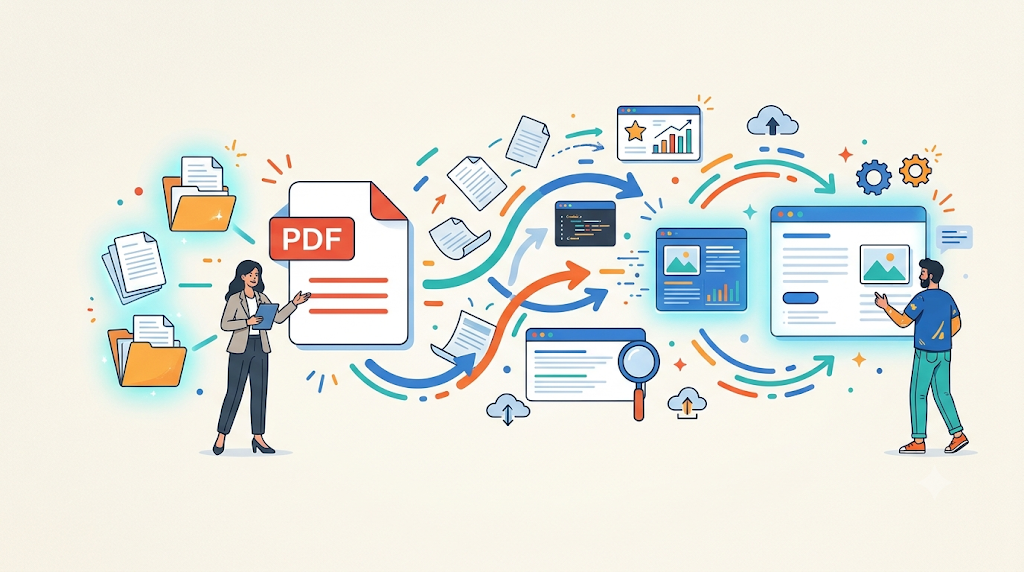
A lot of useful information lives inside PDFs: course notes, product manuals, research summaries, price lists, checklists. The problem is that a PDF was designed to look the same on paper, not to be read on a phone or understood by a search engine. If you simply upload the file and link to it, it may get indexed, but it rarely becomes the page people actually land on and stay on.
In this guide I will show you how to take a PDF and publish its content as a proper web page: one that Google can crawl and understand, that reads comfortably on a small screen, and that works with assistive technology. I will also cover what to do with the original PDF so it supports your page instead of competing with it.
To keep things practical, I use a real file throughout the guide: a one-page sample kitchen hygiene checklist (PDF, 49 KB) that I prepared as a typical "print-first" document. You can download it and follow along.
Quick answer: For content you want to rank, convert the PDF into a web page with real headings, lists, image descriptions, a page title, a meta description and structured data. Keep the PDF as an optional download, and tell search engines that the web page is the main version, either with a canonical signal or by keeping the PDF out of the index. Never block the PDF in robots.txt.
Can Google index PDFs at all?
Yes. Google lists PDF among the file types it can index, and PDFs regularly appear in search results with a small "PDF" label next to them. So the question is not whether a PDF can be found, but whether it is the best format for the person searching.
From my work on design and content for PDFs Doctor, the same weaknesses come up again and again when a PDF is the only version of some content:
- Reading on mobile is awkward. A fixed A4 or Letter page has to be pinched and zoomed on a phone.
- There is no place for web features. You cannot add a page title for search results, a meta description, structured data or site navigation inside a PDF the way you can on a web page.
- Visitors land in a dead end. A reader who opens a PDF from search usually sees no menu, no related articles and no obvious next step on your site.
- Scanned PDFs may contain no real text. If a PDF is a photo of paper, there may be nothing for search engines or screen readers to read unless OCR has been applied.
- Updating is slower. Changing one sentence means re-exporting and re-uploading the whole file, so PDFs tend to go out of date.
None of this means PDFs are bad. It means that for content you want people to discover, a web page is usually the better home, and the PDF works best as a companion download.
Step 1: Decide whether to convert the PDF or publish it as it is
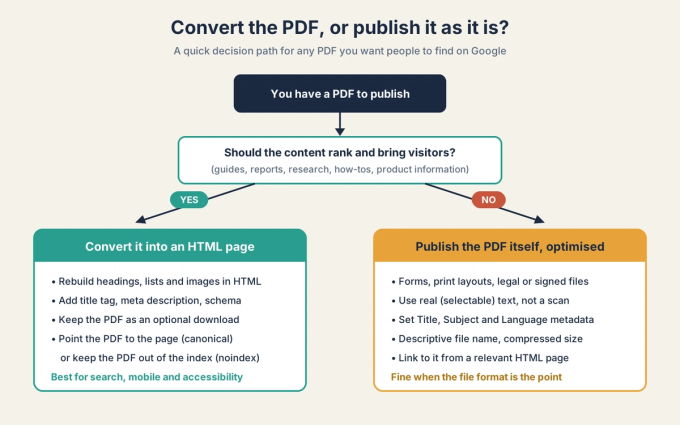
Before touching any tools, ask one question: should this content rank and bring visitors to the site?
Convert it into a web page when:
- The PDF is a guide, how-to, report summary, research write-up, FAQ or product information page.
- You expect people to search for the topic, not for the file.
- You want the content to be easy to update, link to and share.
Publish the PDF itself (and optimise it) when:
- The file format is the point, for example a fillable form, a print-ready poster, a signed agreement or an official notice that must be kept exactly as issued.
- People specifically need to download, print or archive the document.
- Changing the layout would change the meaning, such as a technical drawing.
In many cases you will do both: a web page that people find and read, plus the original PDF for anyone who wants to save or print it. The rest of this guide follows that approach, and Step 8 covers how to optimise a PDF that you decide to keep in search results.
Step 2: Check that the PDF contains real, selectable text
Open the PDF and try two things:
- Press Ctrl + F (or Cmd + F on a Mac) and search for a word you can see on the page.
- Try to select a sentence with your mouse and copy it.
If both work, the PDF has a text layer and you can extract the content. If search finds nothing and you can only select the whole page as one picture, the PDF is a scan. In that case, run OCR (optical character recognition) first, then proofread the result carefully, because OCR often confuses characters such as "l" and "1" or "rn" and "m".
Step 3: Extract the content without carrying over the mess
You have a few reliable options for getting the text out:
- Copy and paste section by section. Slow, but you see every line and catch problems immediately. For short documents like the sample checklist, this is what I recommend.
- Open the PDF in Microsoft Word. Word can open PDFs and convert them into an editable document, which you can then tidy up and paste into your website editor.
- Open it with Google Docs. In Google Drive, choose Open with → Google Docs. Formatting is often simplified, which is not a bad thing when you are going to rebuild the structure anyway.
- Export from Adobe Acrobat. Acrobat can export a PDF as a web page. The result is a useful starting point, but it usually carries a lot of leftover styling, so review it carefully before publishing.
Whichever method you use, clean up these common leftovers:
- Line breaks in the middle of sentences, which happen because PDF text is laid out line by line.
- Words split with hyphens at the end of a line, such as "sanit-iser".
- Repeated headers, footers and page numbers that now appear in the middle of your text.
- Odd characters such as joined letters ("fi" instead of "fi") and curly quotes that turned into question marks.
This is also the right moment to check that the content is still accurate. A PDF that has been sitting on a server for years often contains old prices, dead links or outdated advice. Publishing it as a fresh web page without reviewing it would undo much of the benefit.
Step 4: Rebuild the structure with proper headings and lists
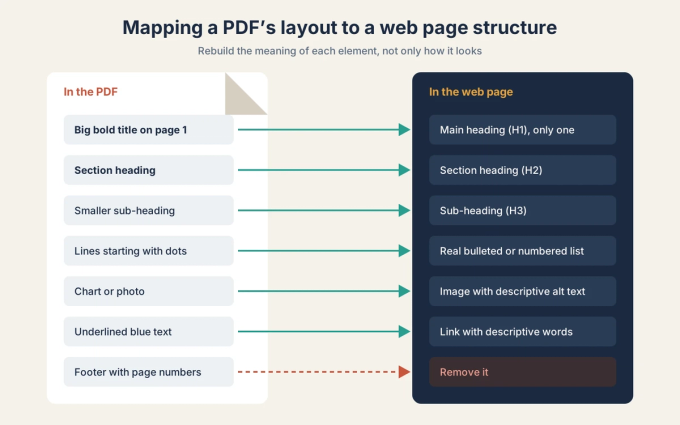
This is the most important step. In a PDF, a heading is usually just bigger, bolder text. On the web, a heading must be set as a heading in your editor, so that browsers, search engines and screen readers understand the outline of the page. Every website editor, including WordPress, Sanity, Webflow and Blogger, has a heading menu for this.
Follow these rules:
- One main heading (H1) that states the topic of the page. In the sample, that is "Kitchen Hygiene Checklist". Most editors use the post title as the H1 automatically.
- Section headings become H2, for example "Storing food safely" and "Preventing cross-contamination".
- Sub-sections become H3, placed under the correct H2. Do not skip levels just to get a smaller font; adjust the size in your theme settings instead.
- Lines that start with bullets or numbers become real lists using the list buttons in your editor, not typed dots or dashes.
- Grids of data that were laid out in rows and columns in the PDF should be rewritten in a mobile-friendly format, such as short lists grouped under subheadings, so they stay readable on narrow screens.
- Links must be real, clickable links with descriptive words, not "click here".
Here is how the sample PDF changes once it is rebuilt as a web page:
- The dark header bar and the "Page 1" footer are removed, because they only made sense on paper.
- "Kitchen Hygiene Checklist" becomes the page's main heading, followed by a short introduction explaining who the checklist is for.
- The five sections, from "Before you start cooking" to "After cooking", each become an H2 heading.
- Every tick-box line becomes an item in a normal bulleted list.
- The fixed page width disappears, so the text flows to fit any screen.
What remains is the meaning of the document, expressed in a way any device can display.
Step 5: Handle images, charts and diagrams properly
If your PDF contains photos, charts or diagrams, export them as separate image files instead of taking a screenshot of the whole page.
- Choose a modern format. WebP is widely supported and usually produces much smaller files than PNG or JPEG at similar quality.
- Resize before uploading. An image that will be shown 800 pixels wide does not need to be 4,000 pixels wide.
- Use descriptive file names, such as "fridge-shelf-storage-order.webp" rather than "image003.png".
- Write useful alt text that explains what the image shows and why it matters in context. Purely decorative images can have empty alt text, so screen readers skip them.
- Let your editor record the image size. Most website editors do this automatically when you upload, which stops the layout from jumping while the page loads.
- Do not put important text only inside an image. If a chart has a key takeaway, say it in the text as well.
For example, a good alt text for a fridge diagram would be: "Refrigerator shelves with ready-to-eat food on top and raw meat sealed on the bottom shelf."
Step 6: Add the on-page SEO elements a PDF cannot have
Now that the content is a real web page, give it everything a PDF was missing.
- A short, readable URL. For example "/kitchen-hygiene-checklist/" instead of "/uploads/2026/11/final_v3_KHC.pdf".
- A unique SEO title (the clickable headline shown in search results) that describes the page clearly. For the sample, something like "Kitchen Hygiene Checklist: Simple Steps for a Food-Safe Home".
- A meta description that summarises what the reader will get. Google does not always use it, but a good one improves the chance of a relevant snippet. For example: "A practical kitchen hygiene checklist covering handwashing, safe food storage, cross-contamination and cleaning. Free printable PDF included."
- An introduction that answers the main question early. Readers should know within the first few lines that they are in the right place.
- Internal links to related pages on your own site, and external links to the sources you relied on.
- A visible author name and a "last updated" date, so readers know who wrote the page and how current it is.
Most website editors and SEO plugins have dedicated fields for the SEO title, meta description and URL slug, so you can fill these in without touching any code.
Step 7: Add structured data
Structured data helps search engines understand what a page is and who created it. For most converted PDFs, the Article type from Schema.org is the right choice. It describes:
- the headline of the page,
- the main image,
- the date it was published and the date it was last changed,
- the author's name and profile page.
You rarely need to write this by hand. Popular SEO plugins and most modern content platforms can add Article structured data automatically once the author, dates and featured image are filled in. After publishing, test the page with Google's Rich Results Test to confirm the data is detected. Keep the dates in the structured data the same as the dates shown on the page, and only describe content that readers can actually see.
Step 8: Decide what happens to the original PDF
Keeping the PDF available is good for readers who want to print or save it. A clear download link works well, ideally showing the file type and size, for example "Download the printable checklist (PDF, 49 KB)".
The catch is that you now have the same content at two addresses, the web page and the PDF. You want search engines to treat the web page as the main version.
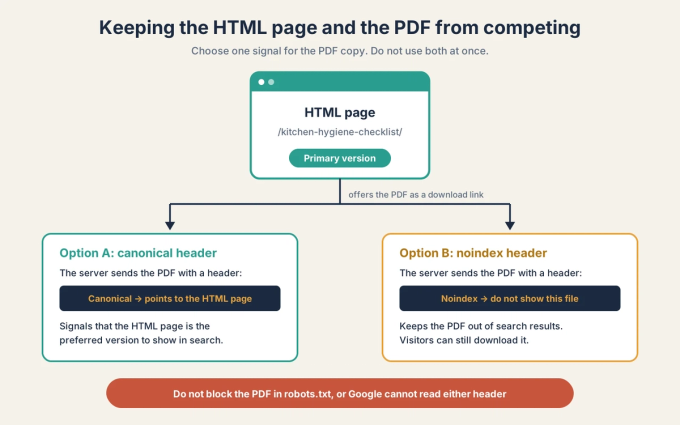
A PDF has no place for the hidden tags that a web page uses to talk to search engines. Instead, your web server attaches the instruction to the file when it is downloaded, as an HTTP header. Google documents two options, and you should choose one of them for each PDF.
Option A: a canonical header that points the PDF to the web page
This tells search engines that the web page is the preferred version to show in results. It is the better choice for a single important PDF with a matching web page.
Option B: a noindex header (X-Robots-Tag) that keeps the PDF out of search results
This is simpler when you have many PDFs and do not need any of them in search. Visitors can still download the file from your page.
How you add these depends on your hosting:
- Apache servers (common on shared hosting) use rules in the .htaccess file, which needs the "mod_headers" module switched on.
- Nginx servers use rules in the site's configuration file.
- Managed platforms, CDNs and headless CMSs often have a "custom response headers" setting for files.
If you are not comfortable editing server settings, ask your host or developer to "add a canonical Link header" or "add an X-Robots-Tag noindex header" to the PDF. Those are the exact terms they will recognise.
Three points that are easy to get wrong:
- Do not block the PDF in robots.txt. If crawlers are not allowed to fetch the file, they never see the header, so the noindex or canonical signal cannot work.
- Do not combine canonical and noindex on the same file. They send different messages. Google's guidance specifically advises against using noindex as a way to choose a canonical page.
- Check the header is actually sent. Hosting control panels and CDNs sometimes override server rules. Your browser's developer tools (the Network tab) show the headers that arrive with any file.
If you decide to keep a PDF in search results
Sometimes the PDF itself is the thing people search for, such as an official form. In that case, make the file as search- and reader-friendly as possible:
- Fill in the document properties: Title, Author, Subject and Language. The Title is what many PDF viewers show in the browser tab instead of the file name.
- Use a descriptive file name with words separated by hyphens.
- Make sure the text is selectable, not a scanned image.
- Create a tagged PDF from the original source file when possible, so the heading structure and reading order are available to screen readers.
- Keep the file size reasonable by compressing the images inside it.
- Link to the PDF from a relevant web page on your site, with descriptive link text, so it is not an orphan.
Both PDFs that accompany this article were exported with their Title, Author, Subject and Language fields filled in. Open their document properties to see an example.
Step 9: Make it accessible
Accessibility and SEO overlap more than most people expect. A well-structured page with real headings, meaningful alt text and descriptive links is easier for both screen reader users and search engines to understand.
Before publishing, run through these checks:
- Move through the whole page using only the Tab key. Every link and button should be reachable and visibly highlighted.
- Check colour contrast between text and background, especially for light grey text.
- Make sure the heading outline makes sense on its own. Free browser extensions that list a page's headings make this easy.
- Confirm the page language is set correctly in your site settings, so screen readers pronounce the text properly.
The Web Content Accessibility Guidelines (WCAG) are the reference standard if you want to go deeper.
Step 10: Publish, submit and maintain
- Preview on a real phone, not only in a resized desktop browser.
- Add the page to your XML sitemap. Most content platforms and SEO plugins do this automatically.
- Use the URL Inspection tool in Google Search Console to check how Google sees the page and to request indexing.
- Link to the new page from related articles and category pages on your site.
- Update the content when something changes, and change the "last updated" date only when you make a meaningful edit.
Indexing is never instant or guaranteed. Publishing a well-structured page simply gives search engines the clearest possible signals and gives readers a much better experience when they arrive.
Common mistakes to avoid
- Embedding the PDF in a viewer and calling it a web page. The surrounding page usually has little or no real text, so it adds very little for search engines or readers.
- Publishing the entire PDF as one image. There is no text to index, nothing to translate and nothing for a screen reader to read.
- Copying the text without checking it. Broken sentences, stray page numbers and outdated facts make the page look careless.
- Keeping both the PDF and the web page in search with no canonical signal. The two versions may end up competing for the same searches.
- Blocking PDFs in robots.txt "to be safe". This stops crawlers from reading your noindex or canonical header.
- Forgetting the author and date. Readers, and quality reviewers, look for who wrote a page and when.
Frequently asked questions
Is it bad for SEO to upload PDFs to my website? No. PDFs can be indexed and can rank. The issue is that a web page usually serves readers better, especially on mobile, and gives you more control over how the page appears in search. For content you want to rank, publish a web page version and offer the PDF as a download.
Will Google see the PDF and the web page as duplicate content? It may treat them as duplicates and choose one to show. A canonical header on the PDF that points to the web page tells Google which one you prefer. If you do not want the PDF in search at all, use a noindex header instead.
Can I just embed the PDF on a page with a PDF viewer? You can, and it is useful for previews. But if the embed is the only content, the page has very little text of its own for search engines. Put the actual content on the page and use the viewer or download link as an extra.
Do links inside a PDF help SEO? Search engines can discover links inside PDFs, but you have far more control over linking on a web page, where you can add related articles, navigation and descriptive link text.
Does the PDF's file name matter? Yes, it helps. A file name like "kitchen-hygiene-checklist.pdf" is clearer for users who see the address and for anyone who downloads the file than "scan_0045.pdf".
What if my PDF is a scanned document? Run OCR to create a text layer, then proofread the result before using it. OCR is rarely perfect, especially with handwriting, complex layouts or low-resolution scans.
Free resources for this guide
- PDF to SEO-Friendly Web Page: Checklist (PDF, 50 KB): a two-page printable version of every step in this article.
- Sample Kitchen Hygiene Checklist (PDF, 49 KB): the practice file used in the walkthrough above.
If you need to prepare the downloadable version of your PDF, for example by reducing its size or reorganising pages, you can do that with the free tools on PDF Doctor.
Sources and further reading
- Google Search Central: File types indexable by Google
- Google Search Central: How to specify a canonical URL with rel="canonical" and other methods
- Google Search Central: Robots meta tag, data-nosnippet, and X-Robots-Tag specifications
- Google Search Central: Block search indexing with noindex
- Google Search Central: Article structured data
- Google Search Central: Google image SEO best practices
- Google Search Central: Creating helpful, reliable, people-first content
- W3C: Web Content Accessibility Guidelines (WCAG) 2.2