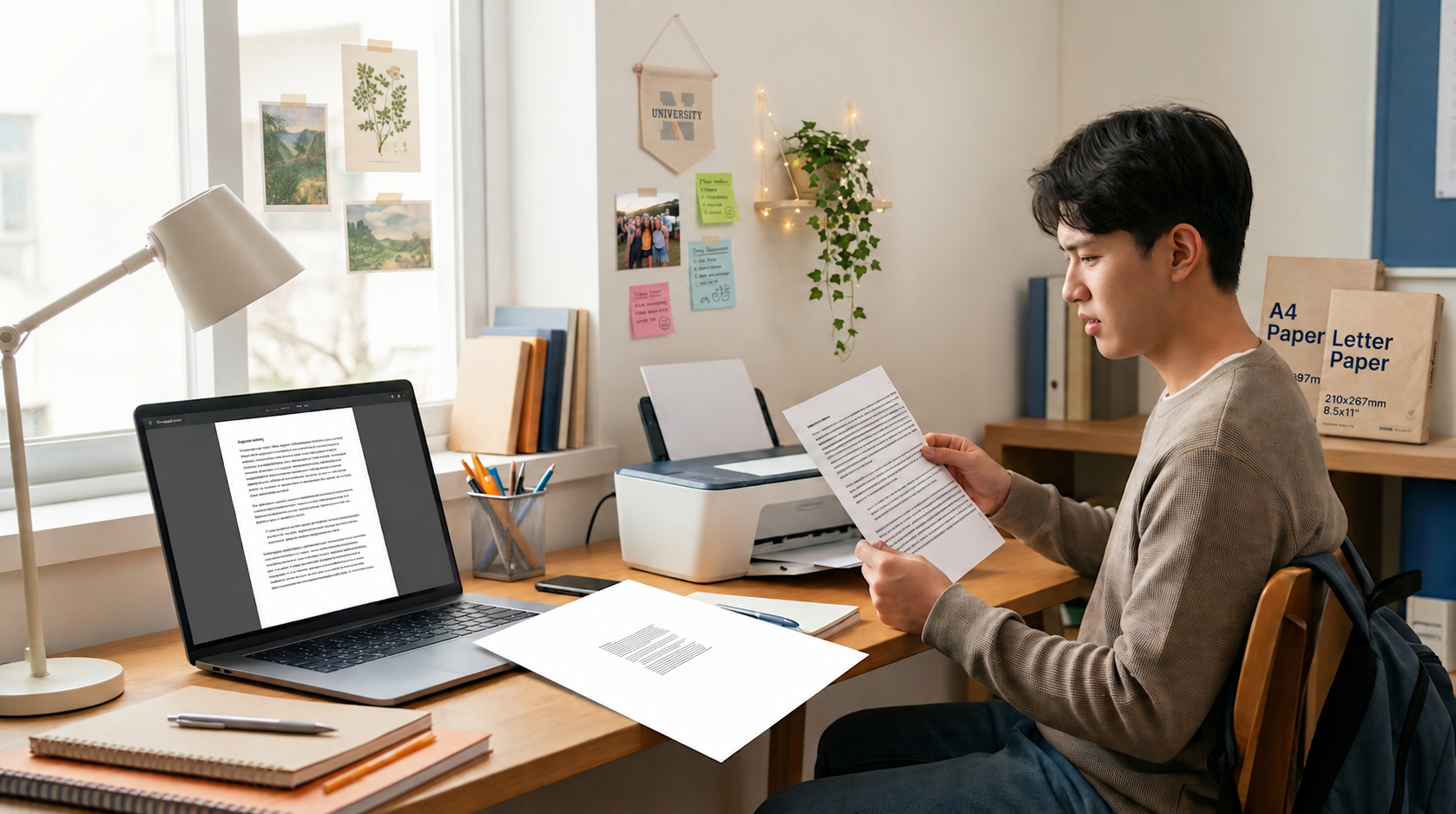
If your PDF prints with the last few lines missing, a border sliced off on one side, or text that looks noticeably smaller than it did on screen, the cause is almost always a mismatch between A4 and US Letter paper. The two sizes look nearly identical, but A4 is about 18 mm taller and 6 mm narrower than Letter. Your print dialog then has to decide what to do with that difference, and its default choice is often the wrong one for your document.
This guide explains exactly what happens to your page in each case, shows the real numbers behind the shrinking, and walks you through the settings that fix it in Adobe Acrobat Reader, Google Chrome and macOS Preview. There is also a free printable test sheet at the end so you can see what your own printer does.
Quick fix: Check the PDF's page size first (in Acrobat Reader: File > Document Properties > Description). Set the printer's paper size to the paper that is physically in the tray. If the two sizes differ, print with Fit so the whole page lands on the sheet. Use Actual size only when the PDF and the paper are the same size, or when exact measurements matter.
A4 vs Letter: the exact dimensions
A4 is taller and narrower; Letter is shorter and wider. That single fact explains almost every printing problem in this article.
A4 measures 210 × 297 mm, which is 8.27 × 11.69 inches. Inside a PDF file, where sizes are stored in points (1 point = 1/72 inch), an A4 page is 595 × 842 pt. Its total area is 62,370 mm², and its height is 1.414 times its width (the square root of 2). A4 is defined by the international standard ISO 216.
US Letter measures 8.5 × 11 inches, which is 215.9 × 279.4 mm. In a PDF, a Letter page is 612 × 792 pt. Its total area is 60,322 mm², and its height is 1.294 times its width. Letter is defined in the American standard ANSI/ASME Y14.1, where it is called "ANSI A".
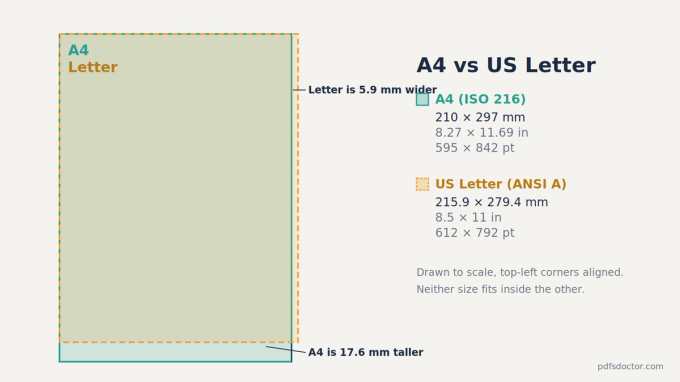
The difference works out to 17.6 mm in height (A4 is taller) and 5.9 mm in width (Letter is wider). A4 also has about 3.4% more total area.
Where each size is used. A4 is the standard in nearly every country, including India, the UK, the European Union, Australia and most of Asia and Africa. Letter is the standard in the United States and Canada and is also widely used in Mexico, the Philippines and several other countries in Latin America.
That is why the problem shows up so often with international documents: a university form made in the US, a résumé sent to a company abroad, or a PDF you downloaded from a website built for a different market.
Why A4 has that odd shape. ISO paper sizes use a 1:√2 ratio so that cutting a sheet in half gives the next size down with the same proportions. Two A4 sheets side by side make exactly one A3; one A4 folded in half makes A5. Letter sizes do not follow this rule, so scaling between the two systems always leaves either a gap or an overflow.
Why your PDF prints with cut-off edges
Edges get cut off when the page is printed at 100% on paper that cannot hold it, or when content sits closer to the edge than your printer can physically print. There are four common causes.
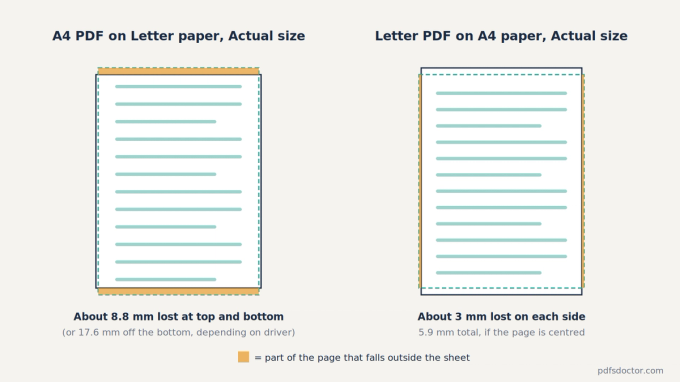
1. An A4 PDF printed at Actual size on Letter paper. The page is 17.6 mm taller than the sheet, and that extra height has nowhere to go. Depending on the printer driver, the missing strip comes off the bottom, or it is split between the top and bottom (about 8.8 mm each). This is the classic "my last line and page number disappeared" problem.
2. A Letter PDF printed at Actual size on A4 paper. Now the page is 5.9 mm too wide. If the driver centres it, roughly 3 mm is lost from each side, which is enough to clip a table border, a margin note or the edge of a full-width image.
3. Content inside your printer's non-printable margin. Most home and office printers cannot put ink or toner on the last few millimetres of the sheet, because the rollers need to grip the paper there. The exact margin varies by model and is listed in the printer's specifications. A PDF with a decorative border, a full-bleed background or a scanned page that runs to the edge will lose that strip even when the PDF and the paper are the same size, unless your printer supports borderless printing.
4. The printer thinks a different paper is loaded. If the tray is set to A4 but you loaded Letter (or the other way round), the printer positions the page for the wrong sheet. Some printers stop with a "paper size mismatch" message; others print anyway and clip the page.
A fifth, less common cause is orientation. A landscape page printed in portrait at Actual size will be cut on both sides. Keeping "Auto portrait/landscape" (or "Auto Rotate") switched on usually prevents it.
Why your PDF prints with tiny text
Text prints small when the print dialog shrinks the whole page to fit the sheet. Between A4 and Letter the shrink is small (3–6%), so if your text is dramatically smaller, the real cause is usually an oversized page or a multi-page layout.
When you choose Fit, the software scales the page by whichever side is the tighter squeeze, so the page keeps its proportions. Worked out from the standard dimensions, here is how much common combinations shrink.
A Letter page fitted to A4 paper prints at 97.3% of its size, so 10 pt text comes out at about 9.7 pt. An A4 page fitted to Letter paper prints at 94.1%, turning 10 pt text into about 9.4 pt. Both changes are small enough that many people never notice them.
Larger pages shrink much more. A US Legal page (8.5 × 14 inches) fitted to A4 prints at 83.5%, so 10 pt text becomes about 8.4 pt. Fitted to Letter, the same Legal page drops to 78.6%, or about 7.9 pt. An A3 page fitted to A4 prints at 70.7%, and so does each page when you print two A4 pages on one A4 sheet. In both cases, 10 pt text shrinks to about 7.1 pt.
These figures are before the printer's own margin is taken into account. Options such as "Fit to printable area" shrink the page a little further so nothing falls into the non-printable strip.
1. Fit scaling between A4 and Letter. An A4 page on Letter paper is limited by height: 279.4 ÷ 297 = 0.941. A Letter page on A4 is limited by width: 210 ÷ 215.9 = 0.973. You also get white space on two sides, because the proportions of the two sizes do not match.
2. The PDF page is larger than you think. A document exported at A3, US Legal or a custom size looks normal on screen because viewers zoom to fit the window. On paper it can shrink to around 70% or less. Presentation slides saved as PDF are a common example: a 16:9 slide is wide and short, so on a portrait sheet it shrinks to a strip across the top.
3. "Multiple" or "Pages per sheet" is switched on. Two pages per sheet puts each page at 70.7% of its size; four per sheet halves the width and height. The setting often stays on from a previous print job.
4. The content is small inside the page. Some PDFs, such as web pages saved as PDF or scans of small receipts, have wide empty margins with the content in the middle. No scaling setting fixes this, because the page itself is the right size. Crop the PDF's margins first, then print with Fit.
Step 1: Check your PDF's real page size
Before you change any print setting, find out what size the PDF actually is. It takes ten seconds and tells you which fix you need.
- Open the PDF in Adobe Acrobat Reader.
- Go to File > Document Properties (Ctrl+D on Windows, Cmd+D on Mac).
- On the Description tab, look at Page Size.
- Compare it with the sizes described above: 210 × 297 mm (or 8.27 × 11.69 in) is A4, and 8.5 × 11 in (or 215.9 × 279.4 mm) is Letter. Anything else is a custom or oversized page.
A single PDF can contain pages of different sizes, for example when several scanned documents are merged. Page Size shows the size of the page you are currently viewing, so check a few pages if the problem affects only some of them.
Then check the other half of the match: the paper. Look at what is physically in the tray, and confirm the paper size selected in your printer's settings (Printer Properties or Preferences on Windows, the Paper Size menu on Mac) says the same thing.
Step 2: Fix it in the print dialog
The right setting depends on one question: do the PDF and the paper match? If they match, print at Actual size. If they don't, print with Fit.
When the PDF and the paper are the same size, choose Actual size (100%). The page prints at its exact dimensions and nothing shrinks.
When you have an A4 PDF and Letter paper, choose Fit. The whole page prints at about 94% of its size. With a Letter PDF on A4 paper, Fit also works, and the page prints at about 97%.
If one PDF contains pages of different sizes, choose Shrink oversized pages. Pages larger than the paper are reduced to fit, while smaller pages stay at 100%.
For forms, templates or label sheets that must measure exactly, use Actual size and load paper that matches the PDF. This is the only way to keep the measurements correct.
Adobe Acrobat Reader (Windows and Mac)
- Press Ctrl+P (Windows) or Cmd+P (Mac).
- Choose your printer, then open Properties (Windows) or Page Setup and set the paper size to the paper in the tray.
- Under Page Sizing & Handling, select Size.
- Pick the option that matches your situation:
- Fit enlarges or reduces each page to the printable area of the selected paper.
- Actual size prints without scaling; anything that doesn't fit is cropped.
- Shrink oversized pages reduces only pages larger than the paper and never enlarges small ones.
- Custom Scale lets you enter an exact percentage.
- Leave Choose paper source by PDF page size unticked unless your printer has separate trays loaded with each size. When ticked, the printer picks a tray based on the PDF's size instead of your paper setting.
- Keep Auto portrait/landscape selected under Orientation.
- Check the preview on the right side of the dialog before you click Print. If the preview's outline cuts through your content, the print will too.
Google Chrome (built-in PDF viewer)
- Open the PDF in Chrome and press Ctrl+P (Windows) or Cmd+P (Mac).
- Click More settings.
- Set Paper size to the paper in your printer.
- Under Scale, choose Fit to printable area (or Fit to paper) instead of Default when the PDF and paper sizes differ.
- Make sure Pages per sheet is set to 1.
Chrome renames options between versions now and then, so the labels on your screen may differ slightly. The idea stays the same: match the paper size, then choose a fit option.
macOS Preview
- Open the PDF in Preview and choose File > Print.
- Click Show Details if the dialog is compact.
- Set Paper Size to the paper in the tray.
- Select Scale to Fit and choose Print Entire Image. Avoid Fill Entire Paper, which enlarges the page to cover the sheet and crops whatever spills over the edges.
- Keep Auto Rotate ticked, and check that Pages per Sheet under the Layout options is set to 1.
Step 3: Fix it at the source so it never happens again
The cleanest fix is a PDF made at the right size in the first place. If you create the document yourself, set the page size before you export it.
Microsoft Word. Go to Layout > Size and pick A4 or Letter, then export with File > Save As > PDF. Word also has a printing option under File > Options > Advanced > Print called "Scale content for A4 or 8.5 x 11" paper sizes", which adjusts the document when it is printed on the other size.
Google Docs. Go to File > Page setup, choose the Paper size, and click Set as default if you always use the same size. Then download it with File > Download > PDF Document.
An existing PDF you didn't create. You can save a resized copy by "printing" it to a PDF file instead of paper:
- On Windows, open the print dialog, choose Microsoft Print to PDF as the printer, set the paper size to your target size, select Fit, and save the new file.
- On a Mac, open the print dialog, set Paper Size to your target size with scale to fit, then use the PDF menu at the bottom of the dialog and choose Save as PDF.
Keep the original file. Printing to PDF can remove links, bookmarks and fillable form fields from the copy.
Designing for both sizes. If a document may be printed on either paper, such as a résumé or a form sent abroad, keep all important content inside the area the two sizes share: 210 mm wide and 279.4 mm tall. With top and bottom margins of at least 20 mm on an A4 page, nothing is lost even when someone prints it at Actual size on Letter paper, because only about 8.8 mm per edge falls off in a centred print.
Free printable test sheet: see what your printer does
The fastest way to diagnose a printing problem is to print a page with known measurements and check it with a ruler. We made a one-page test sheet in both sizes for exactly that.
- Download the A4 test sheet (PDF)
- Download the US Letter test sheet (PDF)
Print the sheet that matches your paper, at Actual size, then check three things:
- Scale. Measure the 100 mm bar. If it measures about 94 mm, an A4 page was being fitted to Letter; about 97 mm means a Letter page was fitted to A4. Any other value means another scaling setting is switched on.
- Margins. Each edge has a gauge of lines 1 mm apart. The first line you can see on each edge is your printer's non-printable margin for that edge. The coloured borders at 3, 5, 10 and 15 mm show which zones your printer loses.
- Proportions. The circle should measure 50 mm across in both directions. If it doesn't, the page was stretched rather than scaled evenly.
Once you know your printer's margins, keep important content at least that far from the edge in every document you design.
Frequently asked questions
Is A4 bigger than Letter?
A4 is taller (297 mm vs 279.4 mm) but narrower (210 mm vs 215.9 mm). Overall, A4 has about 3.4% more area, so neither size simply contains the other.
Why does my PDF look fine on screen but print wrong?
PDF viewers zoom the page to fit your window, so an oversized or mismatched page looks normal on screen. The problem only appears when the page meets a physical sheet of a fixed size.
Does printing with "Fit" reduce quality?
No. Text and vector graphics in a PDF are scaled mathematically, so they stay sharp. Only the physical size changes. Scanned pages and photos are already images, and they print at the same quality they had before.
Should I use Fit or Actual size?
Use Actual size when the PDF and paper sizes match, or when exact measurements matter, such as label sheets, cutting templates or scale drawings. Use Fit when the sizes differ and you want the whole page on the sheet.
Which paper size should I use in India?
A4 is the standard paper size in India, as in most countries outside North America. If you are sending a document to someone in the US or Canada, ask which size they need, or keep your content inside the shared area described in Step 3.
Can I convert an A4 PDF to Letter without printing?
Yes. Print the PDF to a PDF file (Microsoft Print to PDF on Windows, or Save as PDF on a Mac) with the paper size set to Letter and Fit selected. You get a new file at Letter size, while the original stays unchanged.
How this guide was prepared
All paper dimensions come from the ISO 216 and ANSI/ASME Y14.1 standards. Every scale percentage and millimetre figure in this article was calculated from those dimensions rather than estimated. The print-dialog option names for Adobe Acrobat were checked against Adobe's current help documentation. Menu names can shift slightly between software versions, so small wording differences on your screen are normal.
References
- ISO 216:2007, Writing paper and certain classes of printed matter: Trimmed sizes, A and B series. International Organization for Standardization.
- ANSI/ASME Y14.1, Decimal Inch Drawing Sheet Size and Format. American Society of Mechanical Engineers.
- Adobe, Adjust page size for printing, Acrobat help documentation.