You have finished your resume, project report or brochure, saved it as a PDF, and sent it out. Then someone tells you the website address in it is just plain text. They have to copy it, open a browser and paste it themselves, and most people will not bother.
A clickable link fixes that. One tap takes the reader to your portfolio, opens a new email to you, or jumps to the right page inside a long document.
In this guide I will walk you through three reliable ways to add links to a PDF, explain which one suits your situation, and show you how to check that every link works before you share the file.
Quick answer
- If you still have the original file (Word, Google Docs, LibreOffice), add the links there and export or download it as a PDF. This is the easiest and most reliable method.
- If you only have the PDF and have Adobe Acrobat (paid), use Edit > Link > Add or edit a link, drag a box over the text, and choose where the link should go.
- If you only have the PDF and want a free option, open it in LibreOffice Draw, add the links, and export a new PDF. This works best for simple, text-based PDFs.
Whichever method you use, open the finished PDF in a normal PDF viewer and click every link once before sharing it.
What is a clickable link in a PDF?
A link in a PDF works a little differently from a link on a web page. On a web page, the text itself is the link. In a PDF, the text is just printed on the page, and the link is usually an invisible clickable area (a rectangle) placed on top of it. When you click inside that area, the PDF viewer carries out the action stored in it.
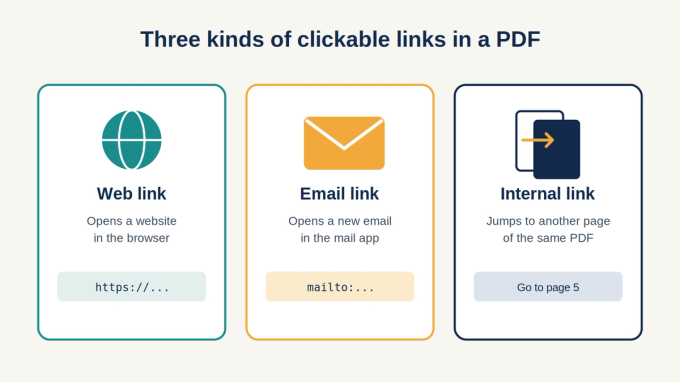
There are three kinds of links you will use most often.
Web links open a website in the reader's browser. They start with https:// and are the right choice for a portfolio, a product page, an online form or a reference source.
Email links open a new, pre-addressed email in the reader's mail app. They use mailto: followed by the address, for example mailto:name@example.com, and are handy for contact details on a resume, flyer or invoice.
Internal links jump to another page of the same PDF. They power clickable tables of contents, "see the Appendix" references and back-to-top buttons in long reports.
Knowing this "rectangle on top of text" idea makes everything else in this guide easier to understand. It also explains a common problem: if you move or edit the text later, the link area does not move with it.
Which method should you use?
The right method depends mainly on one question: do you still have the file the PDF was made from?
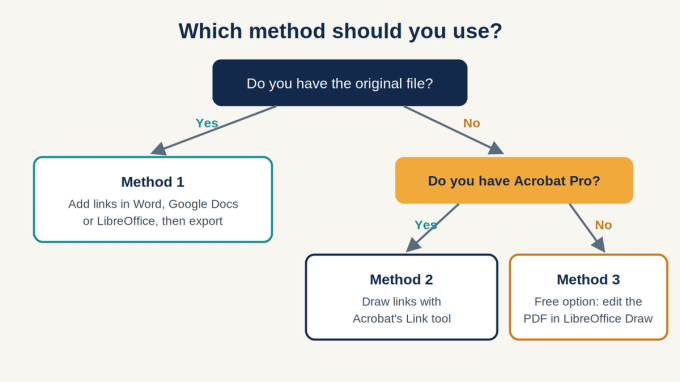
Method 1 (original file, then export) is free with Word, Google Docs or LibreOffice Writer and suits complete beginners. It needs the original document, but it gives the cleanest result, and because you edit the source, your links always stay attached to the right text when you change the wording later. It is the best choice for resumes, reports and assignments.
Method 2 (Adobe Acrobat) is just as beginner-friendly and does not need the original file, but it requires a paid Acrobat plan. It is the right tool for finished PDFs you cannot recreate, such as a file someone else sent you. Links added this way do not follow the text if the page is edited later.
Method 3 (LibreOffice Draw) is free and also works without the original file. The trade-off is that Draw has to rebuild the page to make it editable, so fonts and spacing can shift slightly. It is a good fallback for simple, text-based PDFs when Acrobat is not available.
Method 1: Add links in the original document, then export to PDF
This is the method I recommend whenever it is possible. You add the links in a program you already know, and the program creates a PDF with the links built in. If you later change the wording, you simply edit the document and export it again.
In Microsoft Word
- Select the text you want to turn into a link, for example "View my portfolio".
- Go to Insert > Link, or press Ctrl + K (Cmd + K on a Mac).
- Paste the full web address, including https://. For an email link, type mailto: followed by the address.
- Click OK. The text turns blue and underlined.
- Save the file as a PDF using File > Save As (or File > Export) and choose PDF as the file type. On a Mac, choose the Best for electronic distribution and accessibility option when Word offers it.
To link to another part of the same document, first apply a heading style to the destination (or add a bookmark there with Insert > Bookmark). Then open Insert > Link and choose Place in This Document on Windows, or the This Document tab on a Mac, and pick the heading or bookmark.
In Google Docs
- Select the text.
- Go to Insert > Link, or press Ctrl + K (Cmd + K on a Mac).
- Paste the web address and press Apply.
- Go to File > Download > PDF Document (.pdf).
In LibreOffice Writer
- Select the text and go to Insert > Hyperlink, or press Ctrl + K.
- Enter the web address (or choose the Mail option for an email link) and click OK.
- Go to File > Export As > Export as PDF and click Export.
The one mistake that removes your links
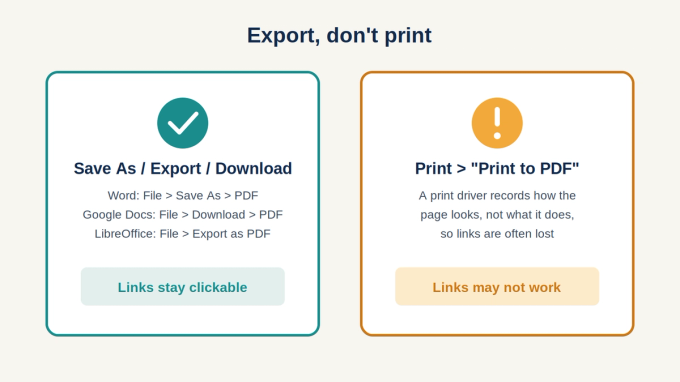
Many people create a PDF by going to Print and choosing Microsoft Print to PDF or a similar "print to PDF" option. A print driver records how the page looks, not what it does, so links are often lost along the way. The text still looks blue and underlined, but nothing happens when you click it.
Always use Save As, Export or Download as PDF instead of printing when your document has links.
Method 2: Add links directly to a PDF with Adobe Acrobat
If you only have the PDF, Adobe Acrobat lets you draw links straight onto the page. This needs a paid Acrobat plan. The free Acrobat Reader can open and click links, but it cannot create them.
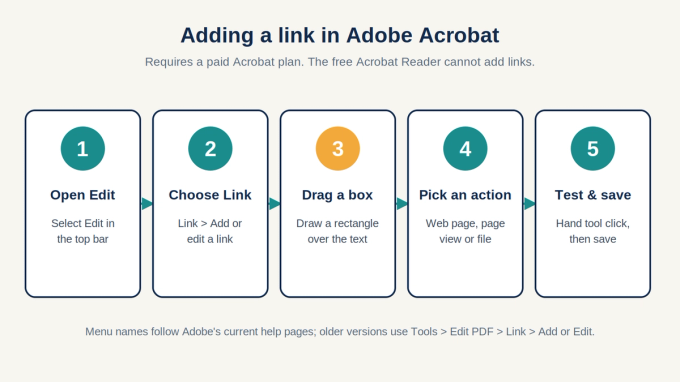
According to Adobe's current help documentation, the steps are:
- Open the PDF in Acrobat and select Edit from the top bar.
- Choose Link > Add or edit a link. (In the left panel this may sit under Add content > More.) Your pointer turns into a crosshair.
- Drag a rectangle over the text you want to make clickable.
- In the Create Link dialog box, choose how the link should look. Link Type can be a visible or invisible rectangle. Most people choose Invisible Rectangle so the original design stays unchanged.
- Choose the Link Action:
- Open a web page for websites and mailto: email links.
- Go to a page view to jump to another page in the same PDF. Acrobat lets you scroll to the destination page and then click Set Link.
- Open a file to open another file on the computer.
- Click Next or OK, then follow the prompts to finish.
- Switch to the Hand tool, click your new link to test it, and save the PDF.
Older versions of Acrobat use a slightly different menu path: Tools > Edit PDF > Link > Add or Edit. The dialog boxes are the same.
Time-saving tip: if your PDF already contains web addresses typed out in full (for example https://example.com), Acrobat can turn all of them into links at once with Edit > Link > Auto-create links from URLs.
To edit or delete a link later, choose Link > Add or edit a link again. All link rectangles become visible. Right-click one and choose Properties to change it, or select it and press Delete to remove it.
Method 3: Add links for free with LibreOffice Draw
LibreOffice is a free, open-source office suite for Windows, macOS and Linux. When you open a PDF with it, the file opens in LibreOffice Draw, where the text becomes editable and you can attach links to it.
- Open LibreOffice and go to File > Open, then choose your PDF. It opens in Draw.
- Double-click the text box that contains the words you want to link, then select those words.
- Go to Insert > Hyperlink, or press Ctrl + K (Cmd + K on a Mac).
- Choose Internet and paste the web address, or choose Mail and enter an email address. Click OK.
- Repeat for any other links.
- Go to File > Export as PDF and save it under a new name. Do not use File > Save, because that saves the file in LibreOffice's own drawing format instead of as a PDF.
Keep your original file and compare the two side by side before sharing. To make the PDF editable, Draw splits the text into separate boxes and may substitute fonts that are not installed on your computer, so some layouts shift. This method works well for simple documents such as a one-page flyer or a short notice. It is not suitable for scanned PDFs, where the text is part of an image and cannot be selected.
How to test your links before sharing
A link that looked fine while you were editing can still fail for the reader. Before sending the PDF, take two minutes to check it.
First, open the final PDF, not the source file, in an ordinary PDF viewer such as Acrobat Reader or your web browser. Then click every link once: web links should open the right page, email links should open a new message with the correct address, and internal links should land on the right page.
If your readers are likely to open the file on a phone, check it on a phone as well, because some mobile apps and in-app previews handle links less reliably than desktop viewers. Finally, expect a security prompt: Acrobat and some other viewers may ask for permission before opening a website from a PDF. This is normal and does not mean the link is broken.
Why links in a PDF stop working (and how to fix them)
Text is blue and underlined but not clickable. This almost always means the PDF was made with "Print to PDF", which keeps the look of a link but not the link itself. Go back to the original document and recreate the PDF with Save As, Export or Download as PDF.
The link opens nothing or shows an error. The web address is probably missing https:// or contains a typo. Open the page in your browser, copy the address from the address bar and paste it into the link again.
The link is in the wrong place after editing. In a PDF, the clickable area does not move with the text. If you changed the page after adding the link, move or redraw the link area with your link tool.
An internal link goes to the wrong page. Pages were probably added, removed or reordered after the link was created. Edit the link and set its destination again.
A link to another file breaks on someone else's computer. File links point to a location on your computer, and that file does not exist on theirs. Link to a web address instead, or attach the file to the PDF.
Links disappear after converting or compressing. Some tools rebuild or flatten pages and drop links in the process. The simple rule is to add links last: merge, reorder and compress your PDF first, then add or check the links afterwards.
Tips for links people will actually click
- Use descriptive link text. "Download the 2026 price list" tells the reader where they are going. "Click here" does not, and it is harder to use for people who rely on screen readers.
- Make links look like links. If you use invisible rectangles, keep the text blue or underlined so readers know it is clickable.
- Plan for printing. If the PDF might be printed, show a short web address in the text as well, since paper cannot be clicked.
- Use secure addresses. Link to https:// pages wherever possible.
- Only link to sources you trust. Your reader trusts that your link is safe, so check the destination yourself first.
- For accessibility-critical documents, such as official forms or public reports, prefer Method 1. Word can export a tagged PDF (on Windows, keep Document structure tags for accessibility switched on in the PDF options), which helps screen readers understand your links.
Final thoughts
Adding clickable links is one of the smallest changes you can make to a PDF, yet it makes a document far easier to use. If you have the original file, add the links there and export, never print, to PDF. If you only have the PDF, Acrobat's Link tool or the free LibreOffice Draw will do the job. Either way, finish by clicking every link once.
The next time you send a resume or report, take those extra two minutes. Every link in it will work, and your reader will notice.
How this guide was prepared
The Adobe Acrobat steps follow Adobe's official help documentation, checked in October 2026. Menu names in Acrobat, Word, Google Docs and LibreOffice can change slightly between versions, so if a menu looks different on your screen, look for the same option under a nearby menu. All illustrations in this article were created by PDFs Doctor for this guide.
Sources and further reading
- Adobe Help Center: Links and attachments in PDFs
- Adobe: How to add a hyperlink to a PDF