You open a signed PDF and instead of a reassuring green tick you see a red cross, a yellow warning, or a line saying the document "has been altered since it was signed." Nobody you know touched the content. So what happened?
To answer that properly, I didn't want to just repeat what other articles say. I generated a signing certificate, signed a sample agreement, and then deliberately changed the file in five different ways. I validated every version with pyHanko, an open-source PDF signature validator. This article explains what I found, why each result happened, and what it means for you when you send or receive signed PDFs.
Quick answer
A PDF digital signature becomes invalid when any byte it protects changes, or when the document is modified after signing in a way the signature doesn't permit. That includes editing text, re-saving the file with a tool that rebuilds it (compressors, optimizers, merge tools, "print to PDF"), adding or removing password protection, and flattening forms.
A signature shows "validity unknown" (not invalid) when the content is intact but your viewer can't confirm who signed it, usually because the certificate isn't from an authority your software trusts, or because revocation information can't be checked.
Those are two very different problems, and most confusion comes from mixing them up.
Digital signature vs. electronic signature
Before going further, one distinction matters a lot.
An electronic signature is any electronic sign of agreement: a typed name, a tick box, or an image of your handwritten signature pasted onto a page. Anyone can copy that image onto another document. It proves nothing about whether the file changed later.
A digital signature is a cryptographic seal. It is created with a private key that only the signer holds, it is tied to a certificate that identifies the signer, and it breaks if the document changes. In India, the Information Technology Act, 2000 recognises digital signatures, and Digital Signature Certificates (DSCs) are issued by Certifying Authorities licensed by the Controller of Certifying Authorities (CCA). If you've filed on the MCA portal, bid on e-tenders, or used a USB token to sign GST or income tax documents, you've used one.
This article is about the second kind, because that's the kind that can be "invalidated."
How a PDF digital signature works
PDF signatures are defined in the PDF standard itself, ISO 32000, and the European profile for long-term signatures is called PAdES (ETSI EN 319 142). The mechanics are the same everywhere.

When the file is signed:
- The software reserves an empty slot inside the PDF for the signature.
- It runs every other byte of the file through a hash function (SHA-256 in my test). A hash is a short, fixed-length fingerprint. Change one character of the input and the fingerprint changes completely.
- That hash is signed with the signer's private key, which ideally never leaves a USB token or hardware security module.
- The signature, the signer's certificate and (optionally) a trusted timestamp are packed into a CMS/PKCS #7 container and written into the reserved slot.
When someone opens the file, the viewer repeats the process in reverse. It re-hashes the same bytes as they exist now, uses the signer's public key from the certificate to check the stored signature, and compares. If the fingerprints match, the content hasn't changed. Then, separately, it checks whether the certificate is trustworthy.
The part almost nobody explains: /ByteRange
A signature can't include itself in its own hash, so it has to skip the slot it lives in. The PDF records exactly which bytes were hashed in an entry called /ByteRange. Here are the real values from my signed demo file:
/ByteRange [0 4638 9388 616]
Read it as two pairs: start at byte 0 and take 4,638 bytes; then start at byte 9,388 and take 616 bytes. The gap between them (bytes 4,638 to 9,387) is the hex-encoded signature. The file is 10,004 bytes in total, so every byte except the signature itself is protected.
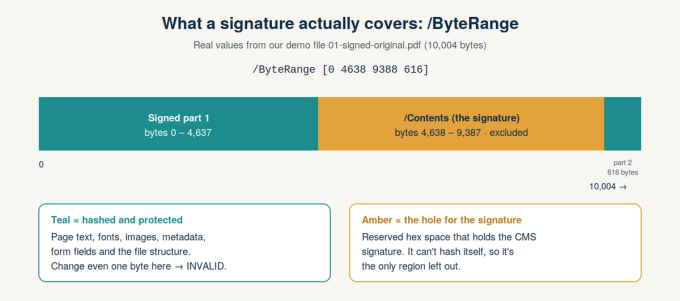
This one detail explains most real-world signature failures. The signature doesn't protect "the words on the page." It protects specific bytes at specific positions. Anything that shifts or rewrites those bytes, even without changing a single visible word, breaks the match.
My test: one signed PDF, five versions
How I tested
- Document: a one-page sample service agreement (not a real contract) generated with ReportLab. The key line reads "Total fee: INR 25,000."
- Certificate: a 2048-bit RSA demo certificate I created for this test, named "PDFs Doctor Demo Signer." It is self-signed, which matters later.
- Signature: an approval signature with SHA-256, applied with pyHanko 0.37.0.
- Validator: pyHanko 0.37.0 with pyhanko-certvalidator 0.32.1 and pyhanko-cli 0.5.0, run on 1 October 2026. I ran every file twice: once as any stranger would see it (certificate not trusted), and once with my demo certificate added as a trust anchor, which simulates a certificate issued by a recognised authority.
Then I created four altered copies of the signed file, giving five versions in total.
File 01 is the untouched signed original, kept as the reference point.
File 02 has one number changed. I replaced "25,000" with "95,000" directly in the file's bytes. Because the new number has the same length, nothing else in the file moved.
File 03 has a sticky-note comment added after signing, saved as an incremental update.
File 04 has new text, "Total fee: INR 95,000", drawn over the original fee line, also saved as an incremental update.
File 05 was simply opened and re-saved with a common PDF library (pypdf), which rebuilds the file from scratch. Nothing visible changed.
The results
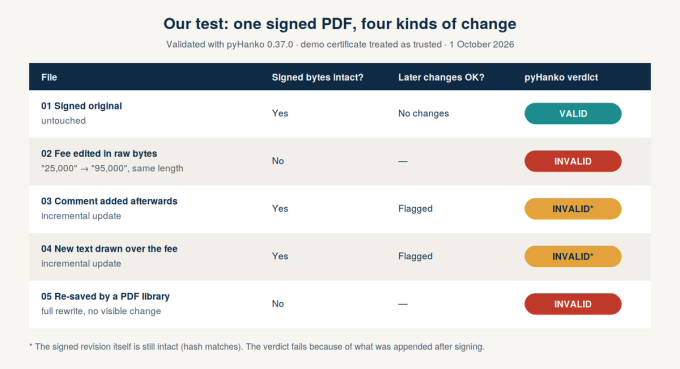
File 01 (original): With the certificate trusted, pyHanko judged it VALID. Without trust, the integrity check still passed, but the signer's identity couldn't be confirmed. pyHanko is strict and calls that INVALID overall; Adobe Acrobat and Reader instead report this situation as "validity unknown." Either way, the content was untouched.
File 02 (one number changed): The integrity check failed: pyHanko reported the signature as cryptographically unsound. Interesting detail: the signature itself was still mathematically correct for the hash stored inside it. What failed was the comparison, because the bytes no longer produce that hash. This is the textbook case of "the document has been altered."
File 03 (comment added): The originally signed revision was fully intact. The signature now covered "the entire revision" instead of "the entire file," because new data had been appended. pyHanko's modification policy flagged the change as not permitted and judged the signature INVALID. Other viewers can be more lenient about comments on approval signatures, which is exactly why you shouldn't annotate a signed PDF you plan to forward as evidence.
File 04 (text drawn over the fee): This is the scary one. Visually, the page now says INR 95,000:

Yet the signed revision underneath is untouched. When I extracted the page text, both "Total fee: INR 25,000" and "Total fee: INR 95,000" were present. pyHanko detected that the page content had changed after signing and judged the signature INVALID. A good validator catches this. A careless reader who only looks at the green-looking signature box, or an outdated viewer, might not.
File 05 (simple re-save): No visible difference whatsoever, but the library rebuilt the file, renumbered and reorganised objects, and shrank it from 10,004 to 8,908 bytes. The /ByteRange now pointed at the wrong data, so the integrity check failed and the signature was INVALID.
Incremental updates: why some edits don't destroy the original
Files 03 and 04 behaved differently from 02 and 05 because of how they were saved.
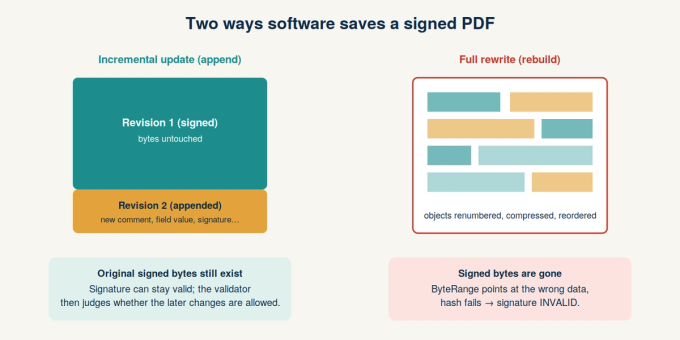
PDF allows incremental updates: new or changed objects are appended to the end of the file, and the original bytes stay exactly where they were. This is how a PDF can carry several signatures. The second signer's software appends a new revision rather than rewriting what the first person signed.
Because the old bytes survive, the first signature's hash still matches. The validator then asks a second question: are the changes made after signing allowed? Adding another signature or filling a permitted form field is normally fine. Changing page content is not. Adobe Acrobat even lets you open the exact signed version from the Signatures panel, so you can compare it with what you're seeing now.
A full rewrite is different. Many tools, including online compressors, optimizers, merge and split tools, converters, OCR tools and "Print to PDF" drivers, read the PDF into memory and write a brand-new file. The new file can look identical, but the signed bytes are gone.
That includes PDF tools like the ones on PDFs Doctor. Compressing, merging, editing or re-saving a signed PDF through any such tool will break its signatures. That's not a bug in a particular tool; it's how PDF signatures are designed to behave. Do any processing before signing.
Certification vs. approval signatures
There are two kinds of PDF signature, and they handle later changes differently.
An approval signature says "I agree to this document as it is." Most signatures are this kind.
A certification signature (sometimes called an author signature) is applied by the document's author and declares what may happen to the file afterwards. A PDF can have only one, and it must be the first signature. Its permission setting, called DocMDP, has three levels.
Level 1 allows no changes at all. Any change after certifying invalidates the certification.
Level 2 allows filling in form fields, instantiating page templates and adding signatures. This suits documents that others need to complete or countersign.
Level 3 allows everything in level 2, plus adding, editing and deleting comments (annotations).
So adding a comment to a level 3 certified document is acceptable, while the same comment on a level 1 document breaks the certification. My test used a plain approval signature with no certification, which is why pyHanko applied its own default policy to the comment in file 03.
What invalidates a digital signature: the complete list
These make a signature invalid because the protected content changed or a forbidden change was made:
- Editing anything in the signed bytes: text, images, page order, metadata, or even hidden structure.
- Re-saving through a tool that rebuilds the file: compressing, optimizing, linearizing ("fast web view"), repairing, merging, splitting, converting or running OCR.
- "Print to PDF" or "Save as PDF" from a viewer: this creates a new, unsigned file at best and a broken one at worst.
- Adding or removing password protection or encryption after signing, since encryption changes how every object is stored.
- Flattening form fields, comments or the signature itself.
- Post-signing changes that the document's permissions don't allow, such as page content edits on an approval-signed file or any change on a DocMDP level 1 certified file.
- Corruption in transit: a broken download, an email gateway that modifies attachments, or a file sync conflict.
- A certificate revoked before the signing time. If the signer's certificate had already been revoked when they signed, the signature should not be accepted.
These usually make a signature "unknown" or produce a warning, while the document itself may be perfectly intact:
- The certificate isn't trusted by your viewer. Self-signed certificates (like my demo one) or certificates from an authority not in your viewer's trust list fall here. Indian DSC users often see this when the issuing authority's root isn't trusted on their system.
- Revocation can't be checked. Viewers check revocation lists (CRL) or online responders (OCSP). If you're offline or the server is unreachable, the status can't be confirmed.
- The certificate has expired, with no trusted timestamp. If a signature was made while the certificate was valid, it can remain valid after expiry, but only if the signing time can be proven. A trusted timestamp (RFC 3161) proves it; the signer's computer clock does not.
- An outdated algorithm. Signatures using old hash functions such as SHA-1 are increasingly treated as unreliable by modern validators.
The long-term problem: will my signature still validate in 10 years?
Certificates typically expire within one to a few years, and revocation servers don't stay online forever. A signature that validates perfectly today can show "unknown" years later simply because the evidence is no longer available.
The fix is long-term validation (LTV). When creating the signature, the software embeds the revocation responses and certificate chain inside the PDF and adds a trusted timestamp. PAdES defines profiles for this, including document timestamps that can be renewed to protect against algorithms weakening over time. If you sign documents that must be verifiable for years, such as contracts, property papers or regulatory filings, ask whether your signing software creates LTV-enabled signatures.
Can a signature be faked without being detected?
Not by breaking the cryptography, but viewers have had bugs. Researchers at Ruhr University Bochum showed in 2019, and again in later work on so-called "shadow attacks," that several widely used PDF viewers could be tricked into showing a valid signature for manipulated content. Their findings are published at pdf-insecurity.org, and affected vendors released fixes.
The practical lessons are simple: keep your PDF viewer updated, and for anything important, open the signature details instead of trusting a green tick on the page. As file 04 in my test showed, what a page looks like and what was signed can differ.
How to keep signed PDFs valid
If you are signing:
- Finish all edits, compression, merging and OCR before signing. Signing should be the last step.
- Use a certificate from a recognised authority. In India, that means a DSC from a CCA-licensed Certifying Authority.
- Choose SHA-256 or stronger, and enable timestamping and LTV if your software supports it.
- If others need to fill fields or countersign, use a certification signature with level 2 permissions rather than locking the file completely.
If you are receiving or forwarding:
- Forward the original file. Don't re-save, compress, convert or print it to PDF first.
- Don't add comments or highlights to a signed copy you might need as evidence. Annotate a duplicate instead.
- Open the signature panel and read the details: who signed, when, whether the document was changed afterwards, and whether the certificate is trusted.
- If you see "unknown," check the certificate before panicking. It's a trust question, not proof of tampering.
- If you see "invalid," ask the sender for a fresh copy and compare it with the signed version.
Frequently asked questions
Does opening or reading a signed PDF invalidate the signature? No. Opening, scrolling, printing on paper or copying text doesn't change the file. Only saving changes does, and only if your viewer actually writes those changes back to the file.
Does renaming the file or sending it by email break the signature? Renaming doesn't, because the file name isn't part of the PDF's bytes. Normal email delivery doesn't either. A gateway that modifies attachments, or a corrupted download, can.
Why does my signature show "validity unknown" when nothing changed? Your viewer can't confirm the signer's identity. The certificate may not chain to an authority your software trusts, or revocation couldn't be checked. The content may be completely intact. Check the certificate details.
Is a signature invalid once the certificate expires? Not necessarily. A signature made while the certificate was valid can stay valid, provided the signing time is proven by a trusted timestamp and validation data was preserved. Without those, validators may show it as unknown.
Can I remove a signature and sign again? Yes, if you are the signer or the document allows it. The signer's software can clear their own signature field, and signing again creates a new signature over the current content. Removing someone else's signature doesn't make the document valid; it just means it's no longer signed by them.
Can I compress a signed PDF? Not without breaking the signature. Compress first, then sign. If the signed file is too large, ask the signer to re-sign a compressed version.
Is a scanned or pasted signature image a digital signature? No. It's an electronic signature at most. It doesn't detect changes and anyone can copy it.
Key takeaways
A PDF digital signature protects exact bytes, not ideas or visible text. Change a single protected byte, or rebuild the file, and the signature becomes invalid. Appended changes leave the original revision intact, so validators then judge whether those later changes were permitted. And "validity unknown" is about who signed, not what changed. Sign last, forward originals, and read the signature details rather than trusting how a page looks.Try our Sign the PDF tool for free to Sign your PDF without any login or subscription.
Sources and further reading
- ISO 32000-2, Document management — Portable document format — Part 2: PDF 2.0 (International Organization for Standardization), the standard that defines PDF signatures, ByteRange and DocMDP.
- ETSI EN 319 142, PAdES digital signatures (European Telecommunications Standards Institute), the profile for long-term PDF signatures.
- pyHanko documentation, pyhanko.readthedocs.io, the open-source validator used in this test.
- PDF Insecurity research by Ruhr University Bochum, pdf-insecurity.org, on signature spoofing and shadow attacks.
- Controller of Certifying Authorities, Government of India, cca.gov.in, on Digital Signature Certificates under the IT Act, 2000.
- RFC 3161, Time-Stamp Protocol (Internet Engineering Task Force), on trusted timestamps.
This article explains how PDF signature technology works. It is not legal advice. Whether a signature is legally valid for a specific purpose depends on the law that applies and the requirements of the organisation receiving the document.