You highlight a chapter, leave a few sticky notes for a teammate, and send the file. Then the message comes back: "I don't see any comments." Or you print your marked-up notes and the pages come out clean, as if you never touched them.
Nothing is broken. The highlights were never part of the page in the first place. Once you understand where a PDF keeps its annotations, almost every "my comments vanished" problem has a clear cause and a quick fix.
This guide explains what annotations are, how they are stored, the common reasons they disappear, and how to make sure your markup reaches the other person exactly as you intended. I also built a small test file for this article that you can download and try yourself.
Key takeaways
- An annotation (highlight, sticky note, drawing, stamp) is a separate object layered on top of the page, not part of the page's text or images.
- Annotations can be hidden, excluded from printing, unsupported by a viewer, or dropped by a conversion tool, even though the file looks fine on your screen.
- Flattening turns annotations into ordinary page content so they look the same everywhere, but they can no longer be edited, and sticky-note text is lost.
- Always keep an unflattened master copy and flatten only the version you send out.
What is a PDF annotation?
In the PDF standard (ISO 32000, maintained today as ISO 32000-2, also called PDF 2.0), an annotation is any object associated with a location on a page that a reader can interact with or that adds information on top of the content. Highlights and comments are the familiar ones, but links and form fields are technically annotations too.
The standard defines more than twenty annotation types. These are the ones you are most likely to meet in everyday reading, studying and reviewing:

The Highlight annotation is the digital version of a highlighter pen. It lays a transparent colour over selected text and is the go-to tool for marking important lines in study notes, textbooks and research papers.
Underline, StrikeOut and Squiggly work the same way but draw a line under, through or beneath the text in a wavy pattern. Reviewers use them to suggest edits, mark words for deletion or flag a possible spelling mistake.
The Text annotation is what most apps call a sticky note or comment. It appears as a small icon on the page, and its message opens in a pop-up window when you click it, so the note does not cover the content underneath.
A FreeText annotation, often called a text box or typewriter tool, places typed words directly on the page. It is handy for adding labels or filling in forms that have no interactive fields.
The Ink annotation records freehand drawing from a pen, stylus or mouse, which makes it the natural choice for handwritten notes on a tablet.
Square, Circle, Line and Polygon annotations draw shapes. They are useful for boxing a figure, circling a value in a table or pointing an arrow at something that needs attention.
A Stamp annotation places a predefined image such as "Approved" or "Draft" on the page, and many apps also use stamps to add an image of a signature.
The FileAttachment annotation pins a file to a specific spot on the page, so a reviewer can attach a spreadsheet or reference document exactly where it is relevant.
Finally, the Link annotation creates a clickable area that jumps to another page in the document or opens a website. Many people never think of links as annotations, but the PDF specification treats them as one.
Highlight, Underline, StrikeOut and Squiggly are grouped as text markup annotations. They record the exact areas of text they cover, which is why a highlight usually follows the line shape instead of being a plain rectangle.
Where annotations actually live inside a PDF
This is the single idea that explains almost everything else in this article.
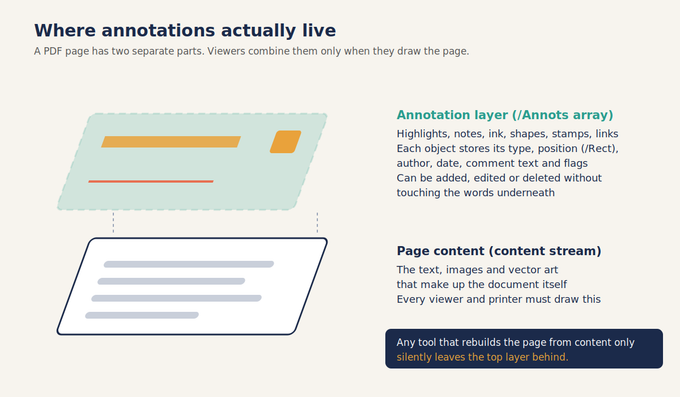
Every PDF page has two separate parts:
- The page content. The text, images and vector graphics, stored in what the specification calls a content stream. This is the document itself, and every viewer and printer must draw it.
- The annotation list. Stored in the page's /Annots array. Each entry is its own small object describing the annotation's type, position (/Rect), the comment text (/Contents), the author (/T), the modification date (/M), its colour, and a set of flags.
When you open the file, the viewer draws the page content first and then paints each annotation on top. Because the two are separate, you can add, edit and delete comments without changing a single word of the original document. That is the whole point of annotations, and it is also why they are fragile: anything that rebuilds or redraws the page from its content alone leaves the annotation layer behind.
Two more details matter for troubleshooting:
- Appearance streams. Most annotations carry a pre-drawn picture of themselves (the /AP entry). Well-behaved viewers simply paint that picture. If it is missing, the viewer has to draw the annotation from scratch, and different apps do that differently, or not at all.
- Annotation flags. The /F entry is a set of on/off switches. Three of them cause most "missing" reports: Hidden (do not show or print), NoView (do not show on screen, but may print), and Print (include when printing). If the Print flag is off, a correctly working printer driver is supposed to skip that annotation.
Why your highlights and comments disappear
Below are the most common causes, ordered from the easiest to check to the hardest.

1. Print settings left comments out
Many PDF apps print only the document by default. In Adobe Acrobat and Acrobat Reader, the Print dialog has a Comments & Forms menu: the Document option prints the content and form fields but not comments, while Document and Markups includes the comments. Adobe also notes that, to print sticky-note text in place, the pop-ups must be open, and pop-ups that sit outside the page border do not print.
Other apps use different wording, but most have an equivalent "print annotations" or "print comments" switch in their print options.
Fix: Turn on the comments option before printing, and check the print preview. If you need every note's full text on paper, use the app's comment summary option (Acrobat calls it Summarize Comments), which prints the comments as a list alongside the pages.
2. The annotation is set not to print
Even with the right print setting, an individual annotation with its Print flag switched off is skipped. Some apps let you change this in the annotations properties; others set it silently when a comment is created.
Fix: Open the annotation's properties and look for a "printable" or "print" option. If your app has no such control, flattening a copy (see below) bakes the visible markup into the page so it prints regardless.
3. A different viewer, a different result
A browser's built-in PDF viewer, a phone app, an e-reader and a full desktop editor do not all support the same annotation types. Common types such as highlights and sticky notes are widely supported, but less common ones (3D, sound, some stamps and shapes) and annotations without an appearance stream are where differences show up. Some viewers display markup but do not let you open the pop-up text.
Fix: If the recipient's app is unknown or the file is going to many people, send a flattened copy for viewing and keep the live version for editing.
4. A conversion or processing step dropped them
Converting a PDF to images or Word, re-saving through a "Print to PDF" printer, scanning a printout, or running the file through tools that rebuild pages can all produce a file without the /Annots layer. "Print to PDF" is really printing, so whether markup survives depends on the print settings in point 1. Whether a specific merge, split or compression tool keeps annotations depends entirely on how that tool is built.
Fix: Before running a marked-up file through another tool, either confirm that the tool preserves annotations or flatten the file first. Always keep the original.
5. The comments were never saved into the file
Annotating in a viewer does not always write to the file on disk. Closing the tab, downloading the original again, or editing a read-only copy (for example, an email attachment opened in preview mode) can leave you with a clean file.
Fix: Use Save or Download after annotating, then close and reopen the saved file to confirm your markup is there before you send it.
6. They are hidden, filtered or collapsed
If a comment appears in the comments panel but not on the page, it may have the Hidden flag set, or the viewer may be filtering comments by author, type or status. Many apps also have a "hide all comments" view setting, and collapsed sticky notes can be easy to miss as tiny icons.
Fix: Clear any comment filters, switch comments back on, and open the comments panel to see the full list.
7. The comments live outside the PDF
In some shared-review workflows, comments are stored on a review server or exported to a separate FDF or XFDF file (formats designed to carry annotation and form data separately from the PDF). Send someone the PDF alone and they receive none of the feedback.
Fix: Import the comment file into the PDF, or ask the reviewer to save their comments directly into the document.
8. They were flattened or deleted
If none of the above applies, the annotations may have been flattened by someone else (they still look present but no longer behave like comments) or deleted. Flattening cannot be reversed, so the only way back is an earlier copy of the file.
Flattening: the reliable way to make markup stick
Flattening takes the visible appearance of each annotation and draws it permanently into the page content, then removes the annotation objects.
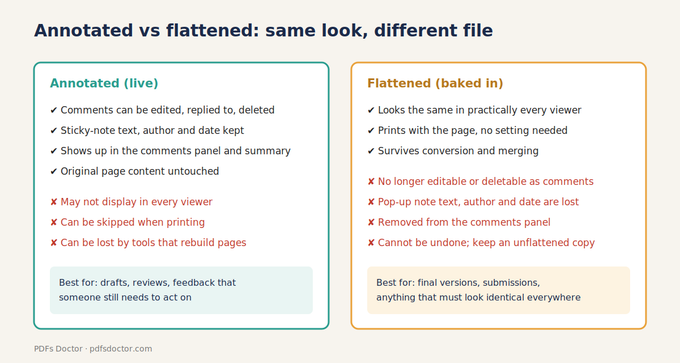
The biggest difference between the two is control. In a live, annotated PDF, every comment can still be edited, replied to or deleted, and each sticky note keeps its full pop-up text along with the author's name and the date it was written. All of these comments also appear in the viewer's comments panel, which makes a long review easy to work through. A flattened PDF gives up all of that. The marks can no longer be changed or removed as comments, they disappear from the comments panel, and sticky notes are reduced to a small icon with their written message lost.
What flattening offers in return is reliability. A live annotated file is not guaranteed to look the same in every viewer, and whether its markup prints depends on the print settings and on each annotation's flags. A flattened file looks practically identical wherever it is opened and prints exactly as it appears on screen, with no extra settings needed. The same goes for further processing: whether live annotations survive conversion or merging depends on the tool being used, while flattened markup is part of the page and travels with it.
Keep in mind that flattening is a one-way step. Once the annotations are merged into the page, there is no way to turn them back into editable comments.
When to flatten: final submissions, signed forms, documents going to many recipients, and anything that will be printed or converted.
When not to: drafts, peer reviews and any file where someone still needs to read, reply to or resolve the comments.
A good habit is to keep two files: report-review.pdf (live comments, for collaborators) and report-final-flattened.pdf (for everyone else).
What I found when I tested this
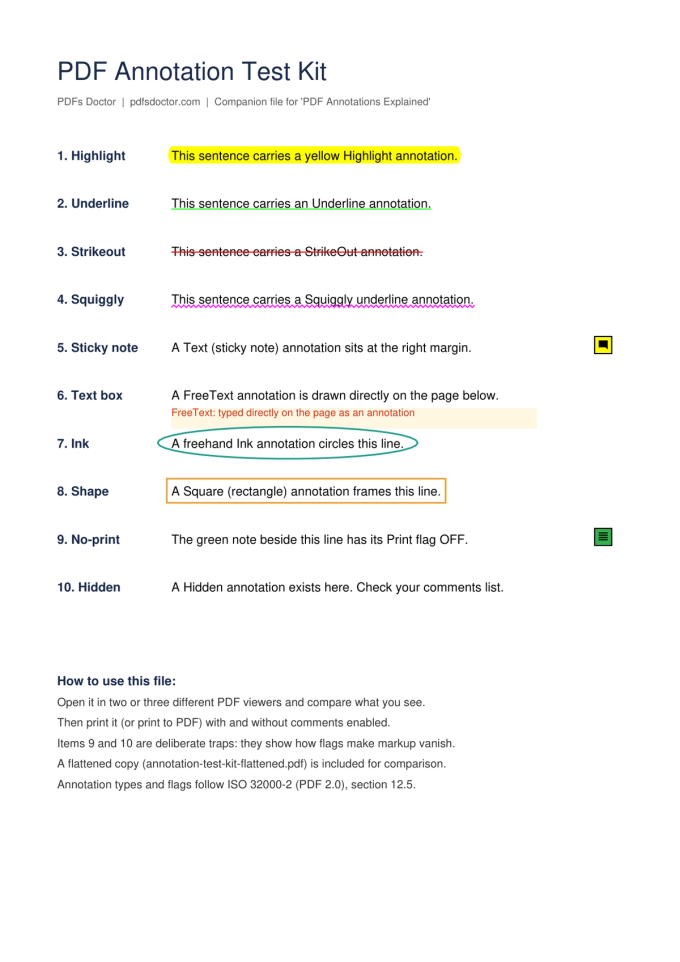
To make this guide concrete, I created a one-page test file containing ten annotations: one each of Highlight, Underline, StrikeOut, Squiggly, a sticky note, a text box, an ink drawing and a rectangle, plus two deliberate traps. Trap 9 is a sticky note with its Print flag switched off. Trap 10 is a highlight with the Hidden flag switched on. I built the file with the open-source PyMuPDF library and then flattened a copy with the same library.
Inspecting both files showed the following:
- In the original, all ten annotations are listed in the page's annotation array, including the hidden one, which is not drawn on screen even though it is still in the file.
- In the flattened copy, the annotation array is empty. Every visible mark became part of the page content.
- The hidden highlight was not baked in, so flattening permanently removed it.
- The two sticky notes became plain icons. Their pop-up text was gone, which is exactly why flattening is a poor choice for review comments.
- The no-print note was baked in as an icon, which means that after flattening it will print like the rest of the page. Flattening respects what is visible on screen, not the original print setting.
Here is the test file before and after flattening. They look almost identical, which is exactly the point: the difference is in what the file can still do, not in how it looks.

You can run a similar test yourself: add a highlight and a sticky note to any PDF, open it in two or three different viewers, then print it with comments switched on and off. It is a quick way to learn how your own tools handle markup before it matters.
Best practices for annotating PDFs you will share
- Save, close, reopen. Confirm your annotations are in the saved file before sending it.
- Keep a master copy. Never flatten your only copy.
- Flatten what you distribute. If the reader only needs to see the markup, flatten a copy.
- Send a comment summary for long reviews. A list of comments with page numbers is easier to act on than dozens of overlapping notes.
- Check the print preview. If the markup is not in the preview, it will not be on paper.
- Re-check after every tool. After merging, compressing or converting, open the result and look at a marked-up page.
- Use common annotation types. Highlights, sticky notes and text boxes are supported much more widely than unusual shapes or multimedia annotations.
- Watch shared-review setups. If comments are collected on a server or in FDF/XFDF files, make sure they end up inside the PDF you send.
Frequently asked questions
Why do my PDF highlights not show up when I print?
Most often because the print settings exclude comments. In Adobe Acrobat and Reader, choose Document and Markups under Comments & Forms. If one annotation still does not print, its Print flag may be off. Flattening a copy is the most reliable workaround.
Are highlights saved inside the PDF file?
They are saved inside the file if your app writes them to the PDF and you save it. They are stored as annotation objects attached to the page, separate from the text. Some review workflows store comments externally in FDF or XFDF files instead.
Why can someone else not see my comments?
Their viewer may not support that annotation type, comments may be hidden or filtered in their view, they may have received an unsaved or older copy, or the comments may be stored outside the PDF.
Does flattening a PDF remove comments?
Flattening converts visible annotations into page content and removes the annotation objects. The marks remain visible, but they can no longer be edited or deleted as comments, and the text inside sticky-note pop-ups is lost. Annotations that were hidden are not kept.
Can I recover annotations after flattening?
No. Flattening merges the marks into the page and discards the annotation data. The only way back is an earlier, unflattened copy of the file.
Do annotations change the original text of the PDF?
No. Annotations sit on top of the page content. Even a strikeout only suggests a deletion; the underlying text is unchanged until someone actually edits the document.
Is a PDF link an annotation?
Yes. In the PDF specification, a clickable link is a Link annotation, and interactive form fields are Widget annotations. That is why some tools that strip annotations also break links or forms.
Conclusion
PDF annotations are useful precisely because they live on a separate layer: you can mark up a document without changing it. That same separation is why they disappear when a print setting, a viewer, a flag or a conversion tool ignores that layer. Check your print options, save before sharing, keep an unflattened master, and flatten the copy that has to look the same everywhere. Do those four things and your highlights will arrive the way you left them.
Sources and further reading
- ISO 32000-2:2020, Document management — Portable document format — Part 2: PDF 2.0, section 12.5 (Annotations). Listing at the International Organization for Standardization: https://www.iso.org/standard/75839.html
- PDF Association, Sponsored ISO standards for PDF technology (no-cost access to ISO 32000-2, sponsored by Adobe, Apryse and Foxit): https://pdfa.org/sponsored-standards
- Adobe Help Center, Print comments (Acrobat print options for comments): https://helpx.adobe.com/acrobat/desktop/print-documents/use-secure-and-special-print-mode/print-comments.html
- Adobe Help Center, Print comments | Acrobat, Reader (printing pop-ups in place and comment summaries): https://helpx.adobe.com/acrobat/kb/print-comments-acrobat-reader.html
- PyMuPDF documentation (library used to build and flatten the test file): https://pymupdf.readthedocs.io/