You have almost certainly opened a PDF this week. A college notice, a bank statement, an e-ticket, a research paper, a government form. The format is so common that most of us never stop to ask what it actually is, or why a PDF made on one computer looks exactly the same on a phone on the other side of the world.
I work on the design and management side of PDFs Doctor, a free online PDF tool suite, so I spend a lot of time with PDF files that behave strangely: files that are far too large, text that will not select, pages that print differently from how they look on screen. Understanding what is going on inside the file is the fastest way to fix those problems. In this guide I explain the format in plain language, and I also open up a real PDF that I built for this article so you can see every part of it yourself.
Key takeaways
- PDF stands for Portable Document Format. It was created by Adobe and released in 1993, and it has been an open international standard (ISO 32000) since 2008.
- A PDF describes a fixed page, not flowing text. Every letter, line and image has an exact position, which is why the layout never shifts between devices.
- Inside, a PDF is a set of numbered objects plus an index of where each object sits in the file. You can see this structure with a plain text editor.
- Specialised versions exist for specific jobs: PDF/A for long-term archiving, PDF/UA for accessibility, PDF/X for professional printing.
- PDFs are excellent for sharing and preserving documents, but they are harder to edit and less comfortable to read on small screens than web pages.
What does PDF stand for?
PDF stands for Portable Document Format. "Portable" is the important word. The format was designed so that a document could move between computers, operating systems and printers without changing its appearance, and without the reader needing the program or fonts the author used.
Before PDF, sending a document was unreliable. If you wrote a report in one word processor and your colleague opened it in another, fonts would be substituted, lines would wrap differently and page breaks would move. Faxing or posting a paper copy was often the only way to guarantee that someone saw what you saw. PDF solved this by recording the finished appearance of each page rather than the editable content behind it.
A short history of the PDF
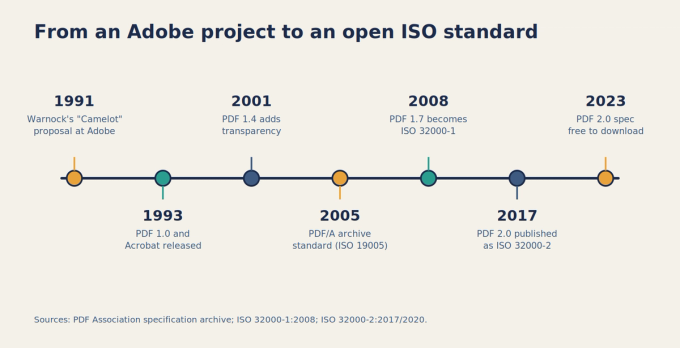
The idea started at Adobe in 1991, when co-founder John Warnock wrote an internal proposal known as the "Camelot" project. His goal was a way for any document to be viewed and printed on any machine. Adobe built that idea on top of PostScript, its existing page-description language for printers, and released PDF 1.0 together with Adobe Acrobat in 1993.
Adoption was slow at first, partly because the reader software was not free. Once Adobe made its Reader free to download, PDF spread quickly through businesses, governments and universities. Each new version added features: PDF 1.4 (2001), for example, introduced transparency, and later versions added stronger encryption, richer forms and better support for multimedia.
The biggest turning point came in 2008, when PDF 1.7 was published as the international standard ISO 32000-1. From that point PDF no longer belonged to a single company; any developer could build software that reads or writes PDFs according to the published rules. The next major version, PDF 2.0, was published as ISO 32000-2 in 2017 and updated in 2020. It was the first PDF standard developed entirely within a vendor-neutral process under ISO.
In April 2023 the PDF Association, with sponsorship from Adobe, Apryse and Foxit, made the ISO 32000-2 (PDF 2.0) specification available to download at no cost. Anyone curious about the exact rules can now read them.
How a PDF actually works
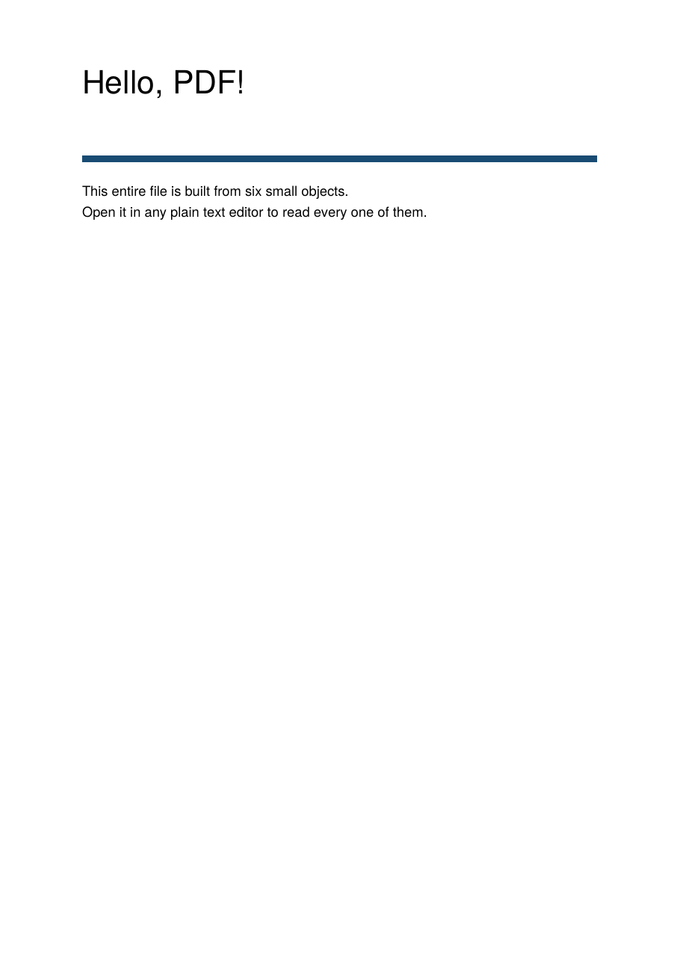
Most file formats are hard to look inside, but a PDF is surprisingly readable. To understand it properly, I built a small one-page PDF for this article by assembling each of its parts directly, without using any PDF software. The finished file is just 933 bytes, smaller than this paragraph would be as a Word document. This is how it looks in a normal PDF viewer:
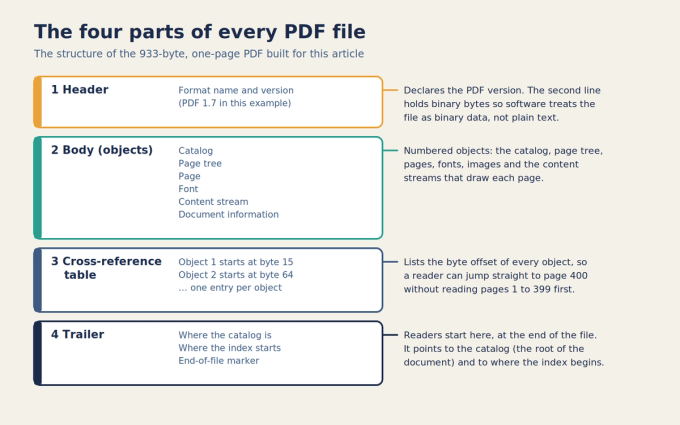
When the same file is opened as plain text instead, its internal structure becomes visible. Every PDF, from a one-page receipt to a 900-page textbook, is made of the same four parts.
1. The header
The very first line of the file names the format and the version of the specification it follows, which in my example is PDF 1.7. The line after it deliberately contains a few unusual characters. Their presence signals to email and file-transfer software that the file must be treated as binary data, so it is not accidentally altered on the way to its recipient.
2. The body: a collection of objects
The body holds the actual content, stored as separate numbered building blocks called objects. My example needs only six of them.
The first object is the catalog, the root of the whole document, which points to the list of pages. The second is the page tree, which keeps track of every page in the document and their order. The third is the page itself, which sets the page size and links to the fonts and drawing instructions that page needs. The fourth is a font object, which names the typeface used, in this case Helvetica. The fifth is the content stream, which holds the drawing instructions for the page. The sixth is an information object that stores metadata such as the document's title and author.
Objects point to each other by number, rather like cross-references in a textbook. A PDF reader follows these links one after another to work out what to draw.
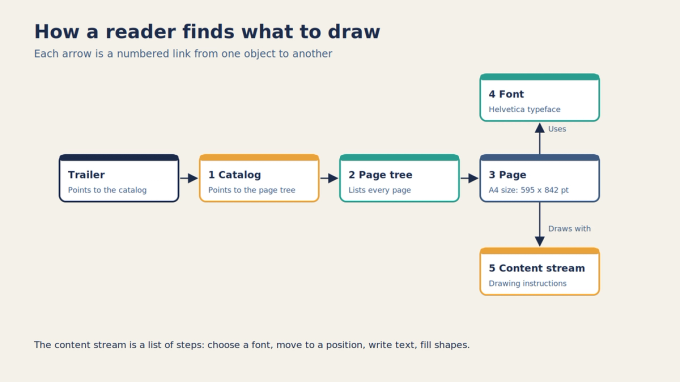
The most interesting object is the content stream. It is a short list of drawing commands, and for my page it says, in effect: choose Helvetica at 28 points, move to a spot one inch from the left edge and near the top of the page, write the words "Hello, PDF!", then fill a thin navy rectangle underneath, then write two lines of smaller text below that. A PDF reader simply carries out these instructions in order.
PDF measures pages in points, where 72 points equal one inch, counted from the bottom-left corner of the page. An A4 page is 595 by 842 points, and a US Letter page is 612 by 792 points. Because every letter, line and image is placed at exact coordinates like these, nothing can drift or reflow. That is the core reason a PDF looks identical everywhere.
3. The cross-reference table
After the objects comes the cross-reference table. It records the exact byte position of every object in the file. In my example, the catalog begins at byte 15 and the page tree at byte 64. This index means a reader does not have to scan the whole file to find something: to show page 400 of a long book, it can jump straight to the right objects. That is why large PDFs can open almost instantly.
4. The trailer
The trailer sits at the very end of the file and is, a little surprisingly, where a reader begins. It identifies which object is the catalog and states exactly where the cross-reference table starts. A final end-of-file marker closes the document.
I checked the finished file with qpdf, a widely used open-source PDF inspection tool, which reported no syntax or stream errors, and rendered it with Poppler, the PDF engine used by many Linux applications. Both treated it as a perfectly normal PDF.
What else can live inside a PDF?
Real-world PDFs contain far more than my six objects. The specification allows for:
- Embedded fonts. My example uses Helvetica, one of a small set of standard fonts that PDF readers are expected to supply. Most real PDFs embed their fonts, often only the characters actually used (called subsetting), so the text displays correctly even on a computer that has never had that font installed.
- Images, stored with compression methods such as JPEG for photographs, or lossless methods for scans and diagrams.
- Compressed content. Content streams are usually compressed with Flate, the same algorithm used in ZIP files. To see how much this matters, I generated a 10-page, text-only PDF twice. Without compression it was 87,388 bytes; with Flate compression it was 8,657 bytes, about 90% smaller. Packing the objects themselves into compressed "object streams" with qpdf brought it down to 5,086 bytes. My test text repeated heavily, so real documents usually shrink less than this, but the principle is the same.
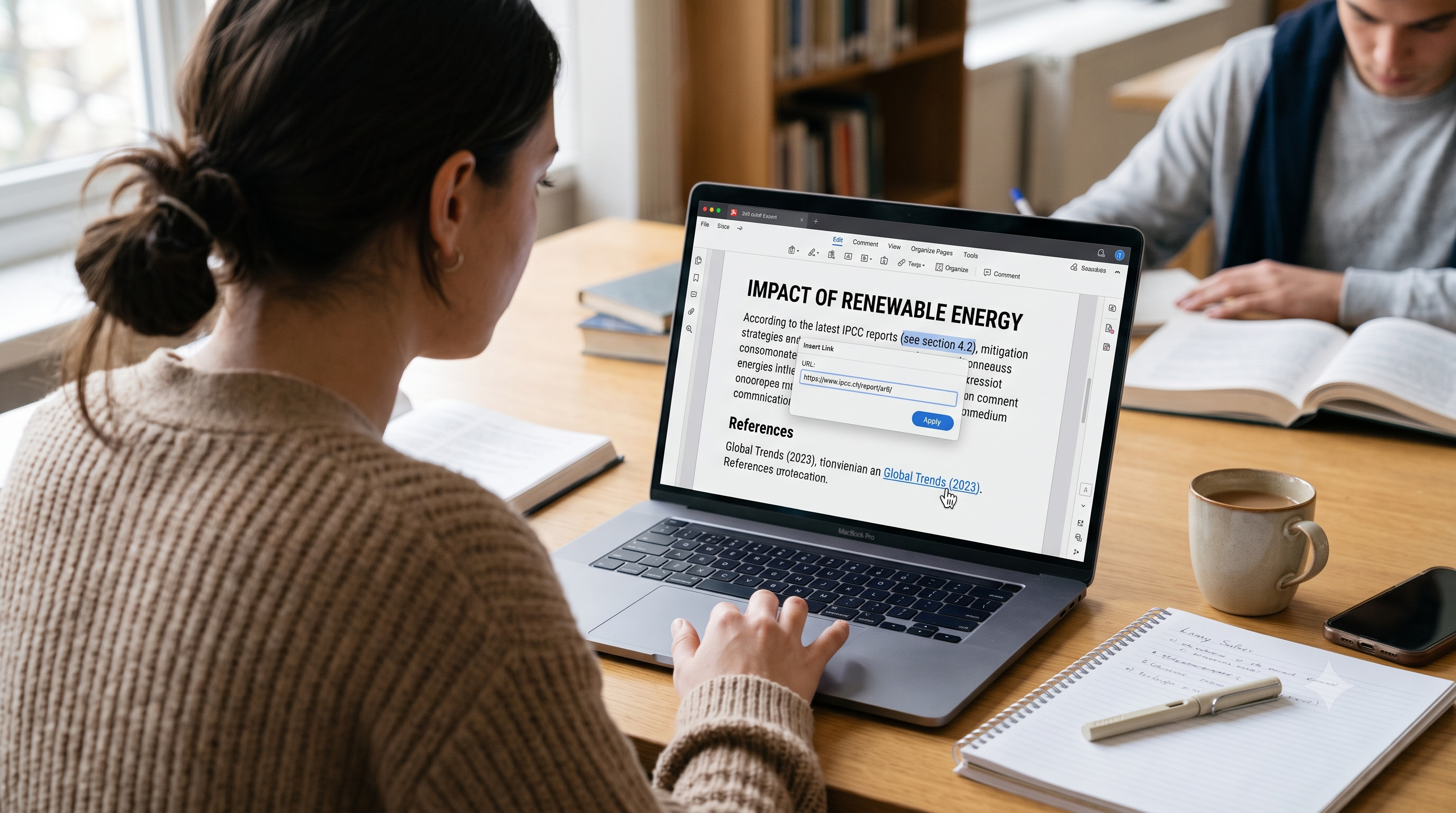
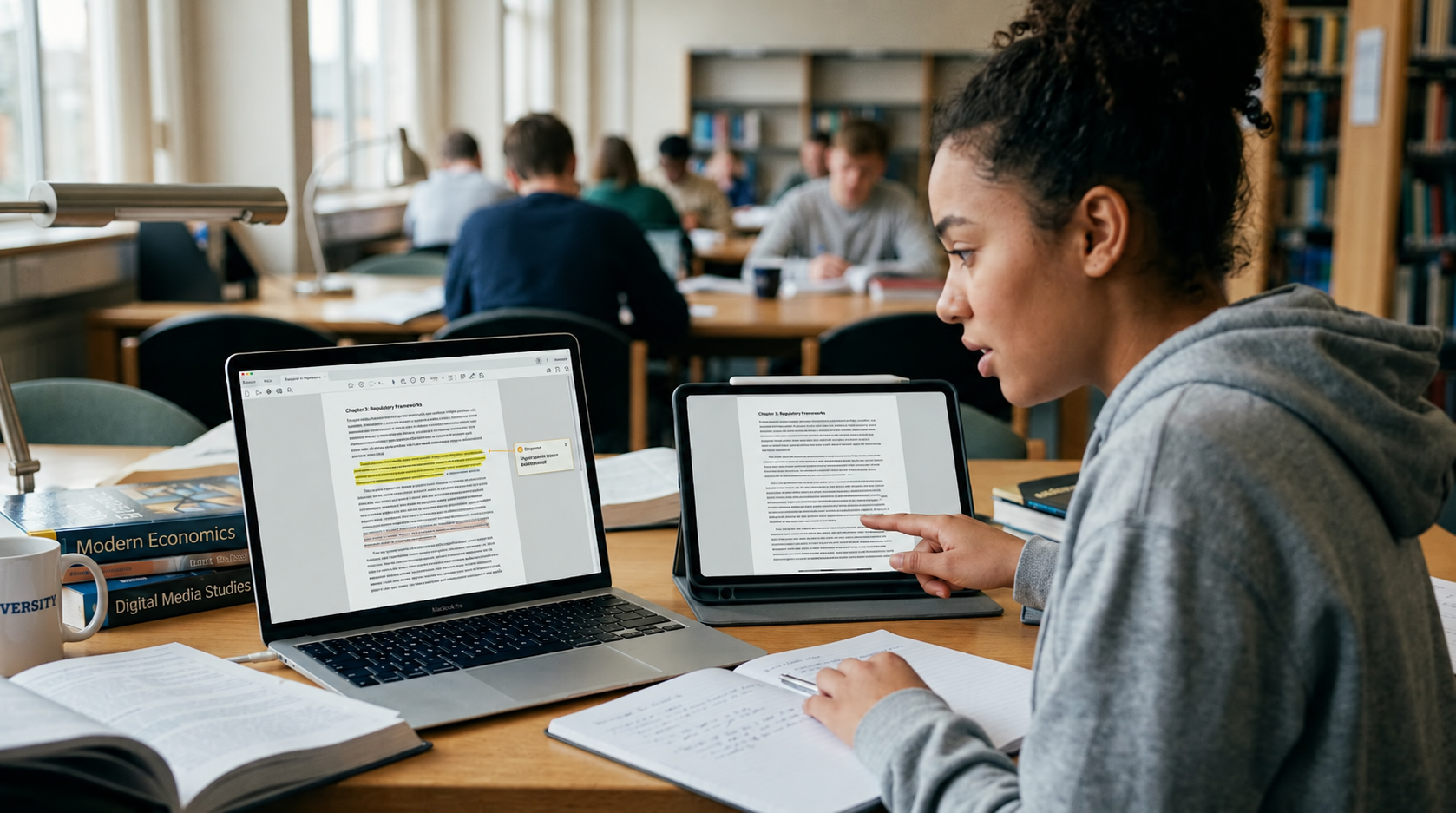
- Interactive features: hyperlinks, bookmarks, fillable form fields, comments and annotations, file attachments, and layers that can be shown or hidden.
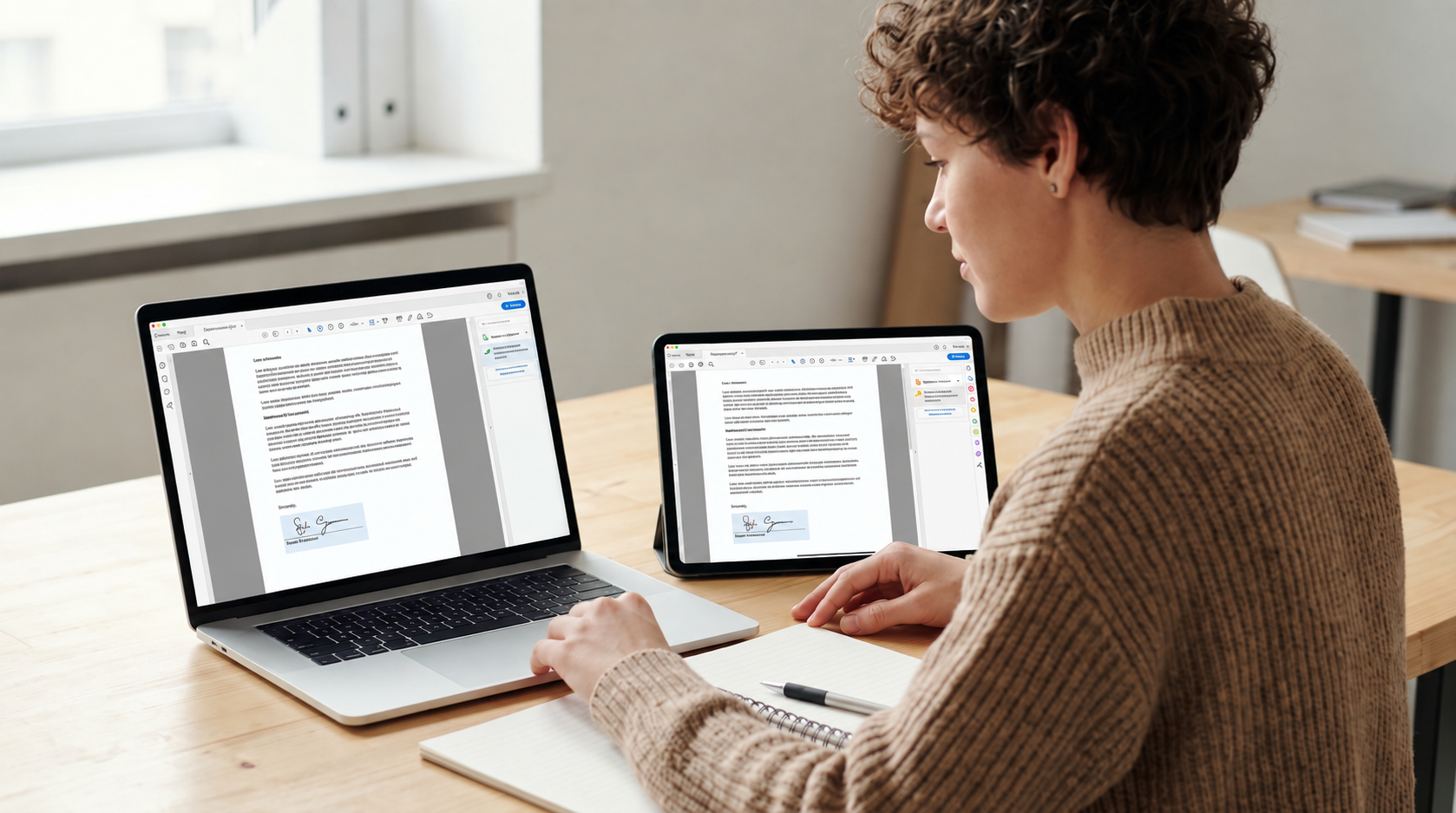
- Security features: password protection, permission settings (such as blocking printing or copying), encryption (PDF 2.0 uses AES-256) and digital signatures that prove who signed a file and whether it has changed since.
- Tags, a hidden structure that tells screen readers which text is a heading, a paragraph, a table or an image description.
One more detail is worth knowing. When a PDF is edited, many programs do not rewrite the file; they append the changes to the end as an "incremental update", with a new cross-reference section. This keeps digital signatures valid and makes saving fast, but it also means older versions of content can still be present inside the file. It is one reason why drawing a black box over text is not real redaction: the original text often remains underneath and can be copied out. Proper redaction tools remove the underlying content.
Types of PDF: PDF/A, PDF/UA, PDF/X and more
Because PDF is used for so many jobs, separate ISO standards define stricter "profiles" of the format. Each one is still a normal PDF, just with extra rules.
PDF/A (ISO 19005) is built for long-term archiving. Every font must be embedded in the file, and features that could stop the document opening correctly in the future, such as encryption, JavaScript and links to external content, are not allowed.
PDF/UA (ISO 14289) is the standard for accessibility. It requires a fully tagged structure, a logical reading order and text alternatives for images, so that people using screen readers can navigate the document properly.
PDF/X (ISO 15930) is designed for professional printing. It requires embedded fonts and precisely defined colour, so a printing press reproduces the document exactly as the designer intended.
PDF/E (ISO 24517) is intended for engineering documents, such as technical drawings that are shared between teams and organisations.
If a university, court or government office asks you for a "PDF/A" file, they want a document that will still open correctly decades from now, which is why anything that might depend on outside resources is forbidden.
Why PDFs are everywhere
PDF's dominance is not an accident. Several strengths reinforce each other:
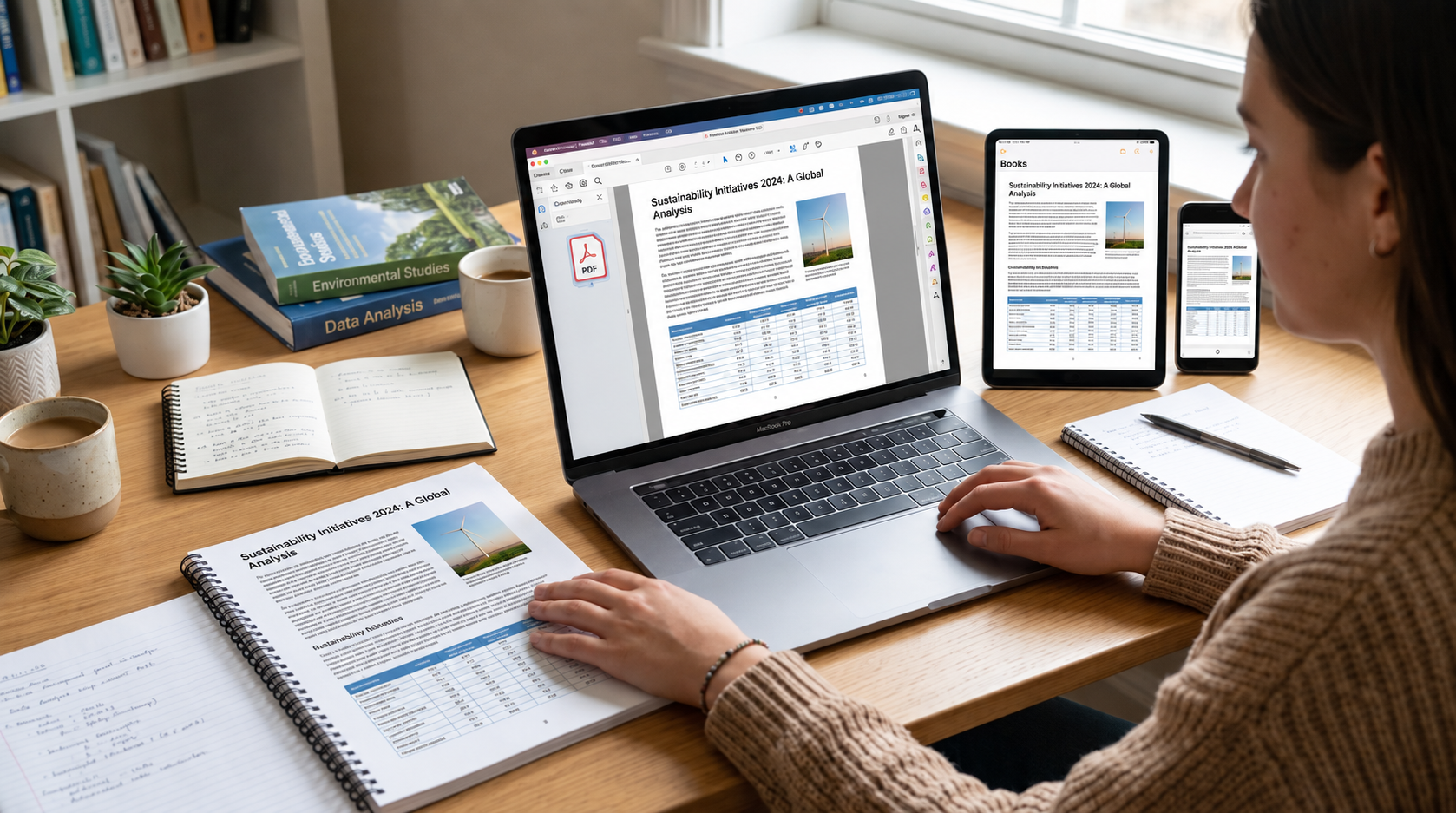
It preserves appearance exactly. A contract, a certificate or an exam paper must look the same to everyone who receives it. Fixed positioning guarantees that.
It works on every platform. Windows, macOS, Linux, Android and iOS all open PDFs, and modern web browsers include their own PDF viewers: Chrome uses Google's open-source PDFium engine, and Firefox uses Mozilla's PDF.js. Most people never need to install anything.
It is an open standard. Because ISO 32000 is public, hundreds of companies and open-source projects build compatible software. No single vendor can switch the format off or lock users in.
It is trusted for official use. Digital signatures, permission controls and the PDF/A archive standard make PDF suitable for legal, financial and government records.
It suits printing. PDF inherited its page model from PostScript, the language of professional printers, so what you see on screen is what comes out on paper.
It is self-contained. Fonts, images and attachments travel inside a single file, so nothing goes missing when the file is emailed or uploaded.
The limitations of PDF
PDF is not the right choice for everything, and being honest about its weaknesses helps you use it well.
- Editing is difficult. A PDF stores positioned text fragments, not paragraphs. Changing a sentence can mean manually repositioning everything after it, which is why editing is best done in the original document whenever possible.
- Small screens are awkward. A fixed A4 page does not reflow to fit a phone, so you end up zooming and scrolling sideways. For content meant mainly for mobile reading, a web page is usually better.
- Scanned PDFs have no real text. A scan is just a picture of a page. Until optical character recognition (OCR) is applied, you cannot search, select or copy its words, and screen readers cannot read it.
- Accessibility is not automatic. Many PDFs are created without tags, which leaves screen-reader users struggling. Creating accessible PDFs takes deliberate effort.
- Files can become large. High-resolution images and embedded fonts add up quickly, which is why compression tools exist.
- Security needs care. PDFs can contain scripts and links, so it is sensible to open files only from sources you trust and keep your PDF reader updated.
PDF vs Word vs image files
PDF keeps its layout fixed, opens in any web browser without special software, can hold many pages in one file, and keeps its text searchable and selectable unless the pages were scanned. Its weakness is editing. It is best for sharing final versions, forms, archiving and printing.
Word (DOCX) files are easy to edit and ideal for drafting and collaborating, and their text is fully searchable. However, the layout can shift when a file is opened in a different program or on a computer without the same fonts, and you need a compatible word processor to open it.
Image files (JPG or PNG) also keep their appearance fixed and open almost anywhere, but each file holds only a single page, the text inside cannot be searched or selected, and editing the words means editing pixels. They are best for photographs and single graphics.
A simple rule of thumb: write and edit in a word processor, then share and store as PDF.
How to create and open a PDF
Creating a PDF no longer requires special software. Most word processors offer "Save as PDF" or "Export to PDF", and Windows, macOS, Android and iOS all include a "Print to PDF" or "Save as PDF" option in their print menus. Scanning apps on phones can save directly to PDF. To open one, double-clicking usually launches your browser or the built-in viewer on your device.
For everyday jobs such as merging files, splitting pages, compressing a large PDF or converting between formats, free online tools like those on PDFs Doctor handle the work in a browser without installing anything. As with any online service, it is sensible to think about how sensitive a document is before uploading it anywhere.
Final thoughts
Under its familiar icon, a PDF is a remarkably simple idea carried out very carefully: a set of numbered objects describing fixed pages, an index that says where everything is, and a trailer that tells software where to begin. That design is why a file can be opened instantly, printed precisely and archived for decades. Once you understand that structure, many everyday PDF frustrations, such as text that will not select, oversized files or edits that break the layout, start to make sense, and become much easier to fix.
References
- PDF Association. ISO 32000-2 (PDF 2.0) sponsored no-cost access. https://pdfa.org/sponsored-standards/
- PDF Association. Announcing no-cost access to ISO 32000-2 (PDF 2.0), 5 April 2023. https://pdfa.org/announcing-no-cost-access-to-iso-32000-2-pdf-2-0/
- International Organization for Standardization. ISO 32000-2:2020, Document management — Portable document format — Part 2: PDF 2.0. https://www.iso.org/standard/75839.html
- qpdf, open-source PDF transformation and inspection tool. https://github.com/qpdf/qpdf
- Mozilla PDF.js, the PDF viewer built into Firefox. https://github.com/mozilla/pdf.js