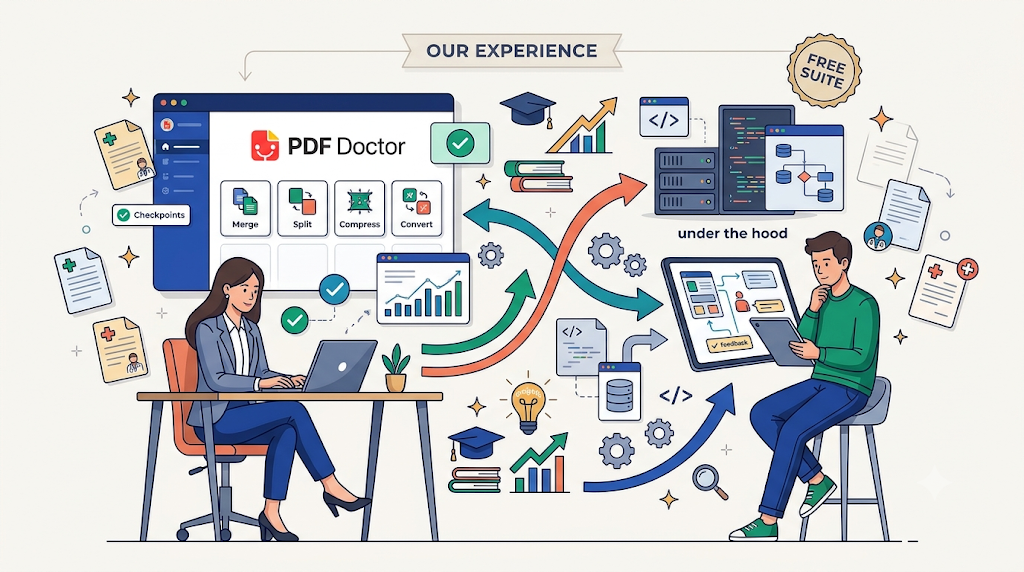
Two people at a desk with a laptop while document pieces assemble into a grid of four PDF tool tiles
Most people meet a PDF tool at the worst possible moment. A form is due in an hour, a scanned page is sideways, an attachment is too big, or a document that opened fine yesterday now refuses to open at all. Nobody visits a PDF website for fun. They come because something is in their way.
That one fact shaped almost everything we built at PDF Doctor. I am a student, I handle design and management work on the project, and this article is my attempt to write down what building a free PDF tool suite has taught us so far. Some of these lessons are technical, some are about trust, and a few are about being honest about what a small team can and cannot do.
Key takeaways
- A PDF describes how a page looks, not how a document is structured. That is why converting out of PDF is far harder than converting into it.
- Privacy is not a policy page. It is a set of design decisions about how a file travels, how long it stays, and who can see it.
- Clear limits, such as our 25 MB file cap, build more trust than vague promises.
- Tools should be grouped by what the user wants to do, not by how the software works inside.
- Removing steps (no sign-up, no installation, no watermark) is a feature in itself.
- Helpful articles matter as much as the tools, because many PDF problems are really misunderstandings about how the format works.
What PDF Doctor is today
Before the lessons, here is what we are describing, so you can judge everything below against the real product:
- 19 free online tools across four groups: Organize, Convert to PDF, Convert from PDF, and Edit & Secure.
- No account needed. You can use the tools without signing up or installing anything, and output files carry no watermark.
- Files up to 25 MB per upload on the free tools. Batch processing and larger files are not supported yet.
- Encrypted transfer. Files are uploaded over HTTPS and deleted from our servers shortly after processing. We do not view, store or share your documents.
- A growing help library on our blog, written by me and by Laay Trivedi, a data scientist who writes most of our technical explainers.
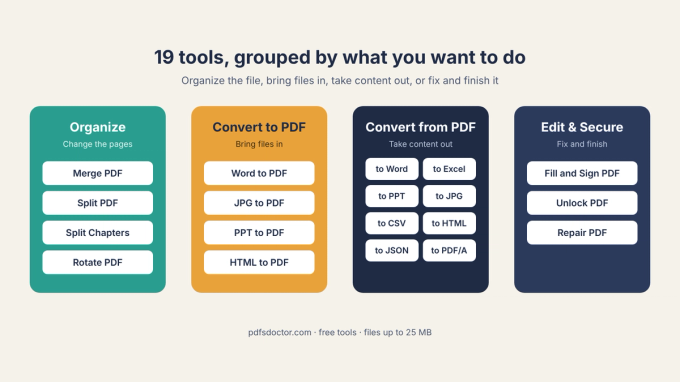
The 19 PDF Doctor tools grouped into Organize, Convert to PDF, Convert from PDF, and Edit and Secure
Lesson 1: People want to finish a task, not explore a product
When we started planning the site, it was tempting to think in terms of features. More tools, more options, more settings. But when you look at how people actually arrive at a PDF tool, almost every visit is a single job: merge these two files, turn this photo into a PDF, rotate this one page.
That changed our priorities in a few concrete ways:
- Every extra step is a reason to leave. A sign-up wall in front of a one-minute task feels like a trap, so we removed it entirely.
- A watermark on the output punishes the user for using a free tool. If the file is going into a job application or a university portal, a stamp across it makes the tool useless. So there is none.
One page, one job. Each tool has its own page that does one thing. A person who searches for "rotate PDF" should land on a page that rotates PDFs, not on a dashboard they have to figure out.
The lesson for anyone building a utility: measure your product by how quickly someone can leave it with the right result, not by how long they stay.
Lesson 2: A PDF is a picture of a page, not a document
This was the biggest technical surprise for us, and it explains why some of our tools are easy and others are genuinely hard.
PDF is an open standard (ISO 32000) designed to make a page look the same on every screen and printer. To do that, a PDF stores instructions like "draw these characters, in this font, at this exact position." What it usually does not store is meaning. There is often no built-in idea of a "paragraph," a "heading" or a "table." A table in a PDF may simply be text placed in neat columns with some lines drawn around it. Tagged PDFs can carry structure, but many files you meet in daily life are not tagged.
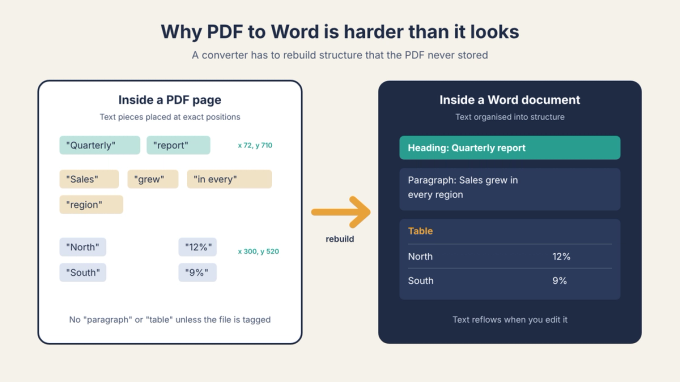
Comparison showing a PDF page as text pieces placed at exact positions and a Word document as a heading, paragraph and table
This is why the direction of conversion matters so much:
- Converting into PDF is the easier direction. When you turn a Word file, a slide deck or an image into a PDF, the source already knows its own layout. The job is to "print" that layout faithfully.
- Converting out of PDF means rebuilding structure. PDF to Word, PDF to Excel, PDF to CSV and PDF to PPT all have to look at positioned pieces of text and guess which ones belong together as a line, a paragraph, a table cell or a slide. Good guesses produce clean, editable files. Wrong guesses produce broken line breaks or merged cells.
- Scanned PDFs are a special case. A scanned page is an image of text, not text. If a file has no text layer, a tool that extracts text has nothing to extract until the image is run through optical character recognition (OCR).
Understanding this made us much better at explaining results. When someone says a converted document "looks weird," the cause is usually the original PDF's internal structure, not a random bug. Our explainer What Is a PDF? How the Format Works and Why It's Everywhere goes deeper into this if you want the full picture.
Lesson 3: Privacy is a design decision, not a paragraph
People upload contracts, ID scans, bank statements, mark sheets and medical forms to PDF tools. As students, we were very aware that we were asking strangers to trust us with files they would never hand to a stranger in person. So we stopped thinking about privacy as a page in the footer and started thinking about it as the path a file takes.
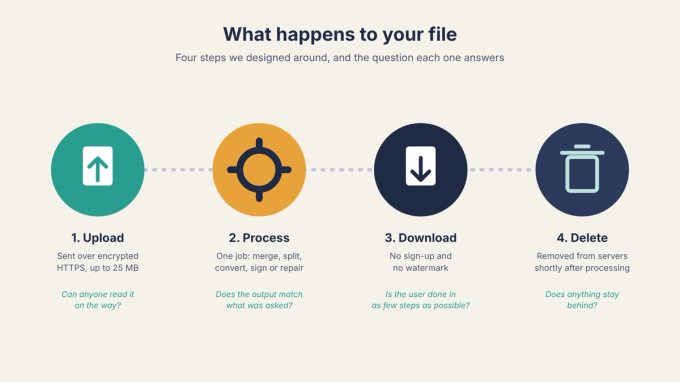
Four steps of a file's journey: upload over HTTPS, processing, download with no sign-up or watermark, and deletion after processing
For every tool, we ask the same four questions:
- Upload: can anyone read the file on the way? Every upload travels over HTTPS, which encrypts the connection between your browser and our server.
- Process: does the tool do only what was asked? A merge tool should merge. It should not read, index or keep the content.
- Download: is the user finished in as few steps as possible? The result is handed straight back, with no account and no watermark.
- Delete: does anything stay behind? Files are removed from our servers shortly after processing. We do not keep a library of user documents.
We also learned to be precise in how we describe this. HTTPS protects a file while it travels. Deletion after processing limits how long it exists on a server. These are different protections, and we think users deserve to know which is which rather than hearing a single vague promise that everything is "100% secure."
My honest advice as a user, not just as someone who builds these tools: before uploading a sensitive document anywhere, check the site's privacy policy, check that the address starts with "https," and ask yourself whether the task needs the whole file. Sometimes splitting out the one page you need is the safer move.
Lesson 4: Honest limits build more trust than big promises
Our free tools accept files up to 25 MB, and we do not support batch processing yet. We say this openly on the site instead of letting someone wait through a long upload only to see a failure at the end.
What we learned:
- A clear limit is a kind of help. If a person knows the cap before uploading, they can compress images, split the document or plan around it.
- Saying "not yet" is better than pretending. Larger files and batch work are in development. Until they are ready, we would rather say so than overpromise.
- Limits protect everyone. Very large uploads take longer to transfer and process. A sensible cap keeps the free tools fast for the many people who need a quick result.
If you build any free tool, publish your limits where people will see them before they commit time. It costs nothing and it prevents the most frustrating kind of failure.
Lesson 5: Group tools the way people think
Behind the scenes, many PDF tools share similar machinery. But users do not think in machinery. They think in goals: "I need to change the pages," "I need to make a PDF," "I need to get stuff out of this PDF," or "I need to fix or finish this file."
That is exactly how we grouped our 19 tools:
- Organize for changing the pages themselves: Merge PDF, Split PDF, Split Chapters and Rotate PDF.
- Convert to PDF for bringing other files in: Word to PDF, JPG to PDF, PPT to PDF and HTML to PDF.
- Convert from PDF for taking content out: PDF to Word, Excel, PPT, JPG, CSV, HTML, JSON and PDF/A.
- Edit & Secure for fixing and finishing a file: Fill and Sign PDF, Unlock PDF and Repair PDF.
Two tools in that list taught us something specific:
- PDF to PDF/A exists because "save as PDF" is not the same as "save for the long term." PDF/A (ISO 19005) is the archiving version of PDF. It requires things like embedded fonts and does not allow encryption, so the file can still be opened and displayed correctly many years from now. Offices, courts and universities often ask for it, and most people have never heard of it until a portal rejects their upload.
- Repair PDF exists because PDFs break more often than people expect. Interrupted downloads, failed email attachments and damaged storage can all leave a file that will not open. A repair tool tries to recover what it can from the damaged file.
On the Edit & Secure side, we also learned how much people misunderstand signatures. A drawn signature on a page and a cryptographic digital signature are very different things, and editing a digitally signed PDF can invalidate it. Laay explains this clearly in What Invalidates a Digital Signature? How PDF Signatures Really Work.
Lesson 6: Many "PDF problems" are really knowledge problems
Once we started writing help articles, a pattern became obvious. A large share of the problems that send people to PDF tools are not really about software. They are about not knowing how the format behaves.
A few examples that turned into full articles on our blog:
- Prints coming out with cut-off edges or tiny text, which is often a mismatch between A4 and US Letter page sizes. See A4 vs Letter: Why Your PDF Prints With Cut-Off Edges or Tiny Text.
- Highlights and comments that seem to disappear when a file is opened somewhere else. See PDF Annotations Explained: Highlights, Comments and Why Some Disappear.
- Links that are visible as text but cannot be clicked. See How to Add Clickable Links to a PDF (3 Methods That Actually Work).
- Wasting paper and ink by printing a whole document when only a few pages were needed. See How to Print Only Selected Pages of a PDF.
The lesson here is simple: a tool fixes one file, but a good explanation fixes the next ten. That is why we treat the blog as part of the product, not as marketing.
Lesson 7: You do not need a computer science degree to build something useful
I study Food Processing Technology, not computer science. At first that felt like a disadvantage. Over time I found that the way my course teaches me to think is surprisingly useful for a product like this.
Food processing is about taking an input, moving it through clear steps, checking quality at each point, and making sure nothing unsafe is left behind at the end. A PDF tool works in a similar way. A file comes in, it goes through a defined process, the output must match what was asked for, and nothing should remain afterwards. Thinking in terms of inputs, steps, checks and clean-up helped me design pages and flows that are easy to follow.
Working with Laay, whose background is in data science, also taught me that a small team works best when each person owns what they understand best. On our team that means design, structure and management on my side, and deep technical explanation on his.
What we would tell other students building a free tool
If you are a student thinking about building a free online tool, here is the advice we would give, based on what has actually mattered for us:
- Pick one painful, frequent task and make it effortless before you add a second feature.
- Remove every step that does not help the user finish. Sign-up walls and watermarks are the usual suspects.
- Learn the format or domain you are working with properly. Understanding why PDFs behave the way they do made our tools and our explanations better.
- Treat privacy as the path a user's data takes, and describe each protection precisely.
- Publish your limits before people hit them.
- Write for the people who use your tool. Useful articles answer the questions your tool alone cannot.
- Be honest about what is not ready yet. Trust is easier to keep than to win back.
Frequently asked questions
Is PDF Doctor really free?
Yes. The tools on pdfsdoctor.com are free to use, with no sign-up, no installation and no watermark on your output. Free tools accept files up to 25 MB each. Higher limits are planned as premium features that are still in development.
What happens to the files I upload?
Files are uploaded over encrypted HTTPS, processed for the task you chose, and deleted from our servers shortly after processing. We do not view, store or share your documents. You can read the full details in our Privacy Policy, linked in the site footer.
Why does a PDF converted to Word sometimes look different from the original?
Because most PDFs store text as pieces placed at exact positions on a page, not as paragraphs and tables. A converter has to rebuild that structure, and complex layouts, multiple columns or scanned pages make that harder.
Can I convert a scanned PDF to Excel or Word?
A scanned page is an image, so there is no real text for a converter to read unless the file has been processed with OCR first. Text-based PDFs give much better results when converting to Word, Excel or CSV.
Who writes the articles on the PDF Doctor blog?
Articles are written by me, Dhairya Pandya, and by Laay Trivedi, a data scientist on our team.
How this article was written
This article describes PDF Doctor as it exists on the date of publication, including its tool list, file limits and data-handling practices as stated on pdfsdoctor.com. Technical points about the PDF format refer to the published standards ISO 32000 (PDF) and ISO 19005 (PDF/A). We will update this page if any of the product details described here change.